How to Manage Multiple eSIM Profiles Easily

Over 60 percent of American international travelers have faced unexpected roaming fees while managing global connectivity. For frequent flyers and tech-savvy digital nomads, staying connected across borders can be complex without reliable eSIM management. This guide offers clear strategies to organize, activate, and switch between multiple eSIM profiles, giving you control and flexibility for worry-free travel—no matter where your journey takes you.
Table of Contents
- Step 1: Set Up Device for eSIM Profile Management
- Step 2: Add and Activate New eSIM Profiles
- Step 3: Organize and Label Each eSIM Profile
- Step 4: Switch Between eSIM Profiles Seamlessly
- Step 5: Verify Connectivity and Troubleshoot Issues
Quick Summary
| Key Insight | Clarification |
|---|---|
| 1. Prepare Device for eSIM | Make sure your smartphone is enabled for eSIM and updated for optimal management. |
| 2. Label Profiles Clearly | Use descriptive names for your eSIM profiles to quickly identify networks during travel. |
| 3. Test Connectivity After Switching | Always check your internet connection post-profile switch to ensure reliable service. |
| 4. Keep Activation Codes Secure | Maintain a backup of eSIM activation codes for easy reference in case of troubleshooting. |
| 5. Follow Manufacturer Instructions | Adhere to specific setup guides from your device manufacturer for efficient profile management. |
Step 1: Set Up Device for eSIM Profile Management
Managing multiple eSIM profiles requires understanding your device’s specific configuration process. Modern smartphones and tablets support advanced eSIM management, allowing you to switch between carrier profiles quickly and efficiently. The key is preparing your device to recognize and activate these digital cellular connections seamlessly.
To begin setting up your device, you’ll need to navigate to your cellular settings and explore the eSIM profile management options. Most devices have specific sections dedicated to managing digital SIM configurations. Ensure your device is compatible with eSIM technology and has the latest operating system update. Some devices require enrollment in a mobile device management platform like Microsoft Intune for advanced profile deployment, which enables more sophisticated cellular network switching.
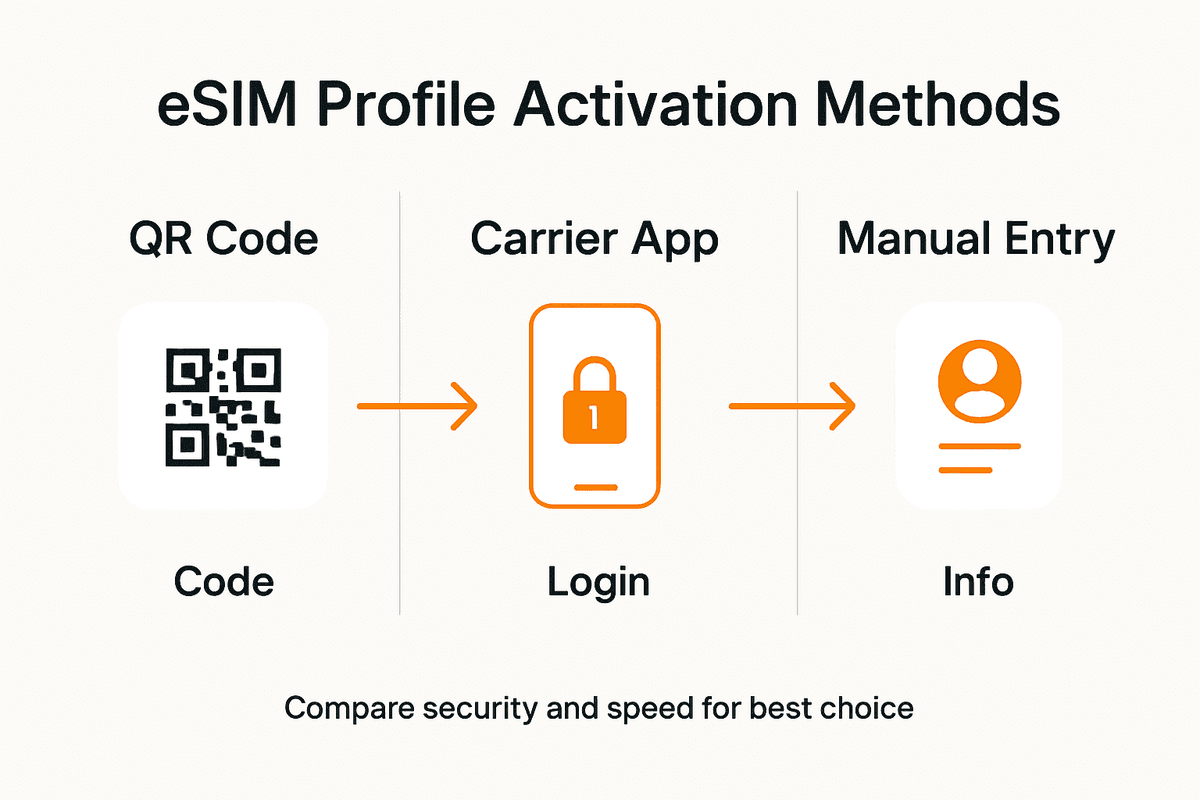
Once you access the eSIM settings, you can add new profiles through various methods: direct carrier connection, uploading activation codes, or using an orchestrator platform. Each method has specific requirements, so carefully review your device manufacturer’s guidelines. Some smartphones allow you to download eSIM profiles directly through QR codes, while others might require manual activation codes from your cellular provider.
Here’s a summary of popular eSIM profile activation methods and their key details:
| Activation Method | Required Information | Expected Speed | Security Consideration |
|---|---|---|---|
| QR Code Scan | Carrier QR code | Instant | Secure, direct input |
| Manual Activation Code | Activation string/code | Few minutes | Risk of mistyping |
| Orchestrator Platform | Managed credentials | Varies | Centralized control |
| Direct Carrier Connect | Carrier app access | Fast | Requires account auth |
Pro Tip: Always keep your device’s firmware updated and maintain a backup of your eSIM activation codes in a secure location to prevent potential connectivity disruptions.
Step 2: Add and Activate New eSIM Profiles
Adding and activating new eSIM profiles allows travelers to switch between cellular networks seamlessly. This process gives you the flexibility to manage multiple digital cellular connections without physically swapping SIM cards, making international connectivity more convenient than ever.
To begin adding a new eSIM profile, you’ll first need to obtain an activation code from your chosen carrier. Most modern smartphones support digital profile management through specialized cellular configuration methods. These methods typically involve accessing your device’s cellular settings and selecting the option to add a new eSIM profile. You can usually do this by scanning a QR code provided by your carrier or manually entering an activation code.
The activation process varies slightly between devices, but generally involves navigating to your cellular settings, selecting the add profile option, and following the specific prompts for your carrier. Some devices might require you to confirm the profile installation through a verification process. Pay close attention to the instructions provided by your specific device manufacturer and cellular provider to ensure smooth profile activation.
Pro Tip: Always verify your new eSIM profile works by testing data connectivity in a low stakes environment before relying on it during critical travel moments.
Step 3: Organize and Label Each eSIM Profile
Effective eSIM profile management starts with creating a clear and intuitive organizational system that helps you quickly identify and switch between different cellular networks. By implementing a strategic approach to labeling and categorizing your eSIM profiles, you can simplify your digital connectivity experience and avoid confusion during critical travel moments.

When organizing your eSIM profiles, consider using a consistent naming convention that captures essential information at a glance. Industry best practices recommend creating structured profile labels that quickly communicate the network, region, and purpose. For example, you might label profiles like “US Work Verizon” or “Europe Travel Vodafone” to distinguish between personal and professional networks, or highlight specific geographical contexts that make sense for your travel and communication needs.
Most modern smartphones allow you to rename and categorize eSIM profiles directly in your cellular settings. Take time to review each profile and assign meaningful names that will help you quickly identify the right network when you need it. Consider creating folders or groups if your device supports advanced profile management, which can help you further organize multiple international or regional eSIM profiles for even more streamlined access.
Below is a comparison of effective eSIM profile labeling strategies and their benefits:
| Labeling Strategy | Example Label | Benefit | Use Case |
|---|---|---|---|
| Region & Carrier | “Europe Vodafone” | Easy location reference | International travel |
| Role & Carrier | “Work AT&T” | Distinguish work vs. personal | Dual SIM business users |
| Purpose & Region | “Travel Asia” | Instant purpose clarity | Frequent travelers |
| Custom Grouping | “Family US Verizon” | Quick family identification | Shared devices in families |
Pro Tip: Create a digital backup of your eSIM profile details in a secure password manager or encrypted document to ensure you can quickly restore or reference your configurations if needed.
Step 4: Switch Between eSIM Profiles Seamlessly
Navigating between multiple eSIM profiles is a powerful feature that allows global travelers to maintain flexible connectivity across different networks and regions. Understanding how to efficiently switch between these digital cellular connections can save you time and prevent communication disruptions during international travel.
Device settings provide intuitive methods for managing and switching between multiple eSIM profiles, typically found within your smartphone’s cellular or mobile data configuration menu. Most modern devices allow you to set a default line for calls and messages while providing quick toggles to change active data networks. When switching profiles, you can typically choose between different carriers by simply selecting the desired eSIM from your available options and setting it as the primary or active profile for data usage.
To ensure a smooth transition between eSIM profiles, always verify your network connection after switching. Some devices require a brief moment to establish a connection with the new cellular network. Pay attention to any prompts or notifications that might appear during the profile switching process, and confirm that your preferred profile is actively providing data connectivity before relying on it for critical communications or travel needs.
Pro Tip: Create a screenshot or written record of your eSIM profile switching steps for each device you own to quickly reference the process during time sensitive moments.
Step 5: Verify Connectivity and Troubleshoot Issues
Ensuring reliable eSIM connectivity is crucial for maintaining uninterrupted communication during your travels. Understanding how to quickly diagnose and resolve network issues can save you from potential communication breakdowns in critical moments.
Enterprise mobile device management strategies offer systematic approaches to diagnosing and resolving eSIM connectivity problems. Start by checking your device settings and verifying the active eSIM profile. Look for specific indicators such as signal strength, network type, and connection status. If you encounter connection issues, try switching between available profiles, restart your device, or toggle airplane mode to reset cellular connections. Pay close attention to error messages that might provide insights into specific network registration or profile activation problems.
When troubleshooting persistent connectivity issues, review your eSIM profile details carefully. Confirm that your activation codes are current, the profile is properly configured, and your device meets the carrier’s technical requirements. Some network issues can be resolved by removing and reinstalling the eSIM profile, updating your device firmware, or contacting your cellular provider for specific network configuration assistance.
Pro Tip: Keep a digital or physical record of your eSIM profile activation codes and support contact information to quickly address connectivity challenges while traveling.
Simplify Managing Multiple eSIM Profiles with Lumo
Managing multiple eSIM profiles can feel overwhelming as you juggle activation codes, carrier switching, and device compatibility. This article highlights the challenges of organizing and switching between profiles seamlessly while avoiding costly roaming charges. If you want to eliminate the hassle of manual setup and confusing profile management, Lumo offers the perfect solution.
With Lumo, experience instant activation and effortless switching between local carriers in over 160 countries on a single platform. Whether you carry a smartphone, tablet, or laptop, Lumo helps you stay connected with flexible data plans and high-speed 5G and 4G coverage without the stress of manual QR code scans or profile labeling confusion. Don’t wait to make your global connectivity simple and affordable. Discover how to manage your eSIM profiles easily by visiting Lumo’s all-in-one eSIM solution today and unlock seamless international data access tailored for your digital lifestyle.
Frequently Asked Questions
How do I set up my device for managing multiple eSIM profiles?
To set up your device for managing multiple eSIM profiles, navigate to your cellular settings and find the eSIM profile management options. Make sure your device is compatible with eSIM technology and has the latest operating system update before adding new profiles.
What are the different methods to add a new eSIM profile?
You can add a new eSIM profile using several methods: scanning a QR code provided by your carrier, entering a manual activation code, or through a mobile device management platform. Choose the option that best fits your device and follow your carrier’s specific instructions for activation.
How can I effectively label and organize my eSIM profiles?
To effectively label and organize your eSIM profiles, use a consistent naming convention that includes essential information like network, region, and purpose. For example, labels like “US Work Verizon” or “Europe Travel Vodafone” can help you quickly identify the right network when needed.
What steps should I follow to switch between eSIM profiles?
Switching between eSIM profiles typically involves going to your device’s cellular settings, selecting the desired eSIM profile, and setting it as the active network for data usage. Confirm that you have a stable connection before relying on the new profile for communication.
How can I troubleshoot connectivity issues with my eSIM profiles?
To troubleshoot connectivity issues, first check that the correct eSIM profile is active and verify signal strength and connection status. If problems persist, consider restarting your device, removing and reinstalling the eSIM profile, or toggling airplane mode to reset connections.
What should I do if I need to verify that my new eSIM profile works?
To verify that your new eSIM profile is functioning properly, test data connectivity in a non-critical environment. For example, check if you can access the internet or make calls before relying on it during important travel moments.
Recommended
Related Topics
Stay Connected Anywhere
Prepaid eSIM data plans for 180+ countries and territories. No physical SIM required.