iPhone eSIM Settings: Set Up, Default Line and Data

The iPhone eSIM settings you need all live in one place: Settings > Cellular (called Mobile Data on some devices). That’s where you add a plan, label it, pick the default line for calls and messages, choose which line carries data, and decide what happens to your home number abroad. This guide walks through each setting in order, with the choices we recommend for travel.
TL;DR
- Add an eSIM at Settings > Cellular > Add eSIM (older iOS versions say Add Cellular Plan). QR code is the most common method for a travel plan.
- Label each line, then set a default line for calls and messages and a separate line for cellular data.
- On a trip, choose Travel eSIM Only to avoid roaming fees, or keep both lines on if you need to receive calls and texts on your main number.
- Turn on Allow Cellular Data Switching only if you want the iPhone to borrow the other line when coverage is weak.
- On Android, the data warning and limit setting is under Network & internet > SIMs on a Pixel.
Table of Contents
- What your iPhone needs before you start
- Add an eSIM: the settings path
- Label your lines
- Set the default line for calls and messages
- Choose which line carries cellular data
- Turn off the primary line, or keep it on?
- Switching between a physical SIM and an eSIM
- A sensible setup for a trip abroad
- Protect your accounts before you move numbers around
- If there is no data after you arrive
- Our view: settings first, plan second
- Set a data limit on Android
- Pick a plan that matches your settings
- FAQ
- Sources
What your iPhone needs before you start
Apple says iPhone XS, iPhone XS Max, iPhone XR and later support eSIM. Setup usually needs a supported carrier or worldwide provider plan, plus a Wi-Fi connection or a hotspot to download the profile. That last point catches many travelers out: install the eSIM at home or at the airport on Wi-Fi, before you land somewhere with no connection.
Two quick checks save trouble:
- The phone is carrier-unlocked. A phone locked to your carrier may refuse a plan from another provider. Check under Settings > General > About for the Network Provider Lock line.
- You have the plan details. For a prepaid travel plan that means a QR code, or the SM-DP+ address and activation code if you need to type them in.
A new eSIM does not replace your physical SIM or your main eSIM. An iPhone with eSIM runs Dual SIM, which is what makes all the settings below possible.
Add an eSIM: the settings path
Open Settings > Cellular (or Mobile Data) and tap Add eSIM. If your screen says Add Cellular Plan, it’s the same thing on an older iOS version. Apple lists several ways to add the plan: Quick Transfer from another iPhone, carrier activation, QR code, a carrier link, a carrier app, or Enter Details Manually.
For a travel plan you will almost always use the QR code:
- Open the QR code on another screen, or print it. You can’t scan a code that sits on the same phone’s screen, so use a laptop, a tablet or a second phone.
- Go to Settings > Cellular > Add eSIM > Use QR Code.
- Scan the code. Apple’s flow shows Cellular Plan Detected, then tap Continue, then Add Cellular Plan.
- Wait for activation to finish and name the line (more on that below).
If you can’t scan, choose Enter Details Manually and type the address and activation code from your provider’s email.
Buying a plan that is ready in minutes
With Lumo, checkout is as a guest, with no registration, and the QR code is delivered right after purchase. Our average setup time is 45 seconds once you scan. Plans are prepaid with no contract, so there’s nothing to cancel afterward. If you are choosing a plan for a trip, start with the region you’re visiting: Europe plans start from $1, Asia plans from $2, and United States plans from $2. Plan sizes and durations vary, so pick the data amount and number of days on the plan page.
Label your lines
Once you have two plans, the Cellular screen gets confusing fast, because both can read as a bare number. Give each one a label. Apple’s U.S. guide says to go to Settings > Cellular or Mobile Data, tap the line, then Cellular Plan Label. You can use Business or Personal, or type a custom label.
For travel, a custom label such as “Travel” or the country name is the best choice. Later, when you’re scanning a long list of settings at a border queue, you’ll know which line is which at a glance.
Set the default line for calls and messages
During Dual SIM setup, iPhone asks which number should be the default for calls and messages to people who aren’t in your Contacts. It also asks which plans to use for iMessage and FaceTime. The exact screens are in Apple’s Dual SIM guide.
A few details worth knowing:
- Default line is used for anyone who isn’t a saved contact. For most travelers that stays as the primary number, because it’s the one people already know.
- For saved contacts, the iPhone normally uses the line you last used with that person. To change it, open the contact and tap the current number to pick another.
- iMessage and FaceTime can be tied to either line. If you keep your home number for these, you can still receive them over the travel plan’s data connection.
If you searched for how to set the default line on iPhone, the short answer is that the default is set during setup, and you change it later under Settings > Cellular > Default Voice Line.
Choose which line carries cellular data
This is the setting that decides what you pay. Go to Settings > Cellular (or Mobile Data) > Cellular Data and select the line to use. Only one line carries data at a time.
When you travel, set Cellular Data to the travel eSIM. Your home plan can still ring for calls and texts, but every app, map and photo upload uses the local plan.
Allow Cellular Data Switching: on or off?
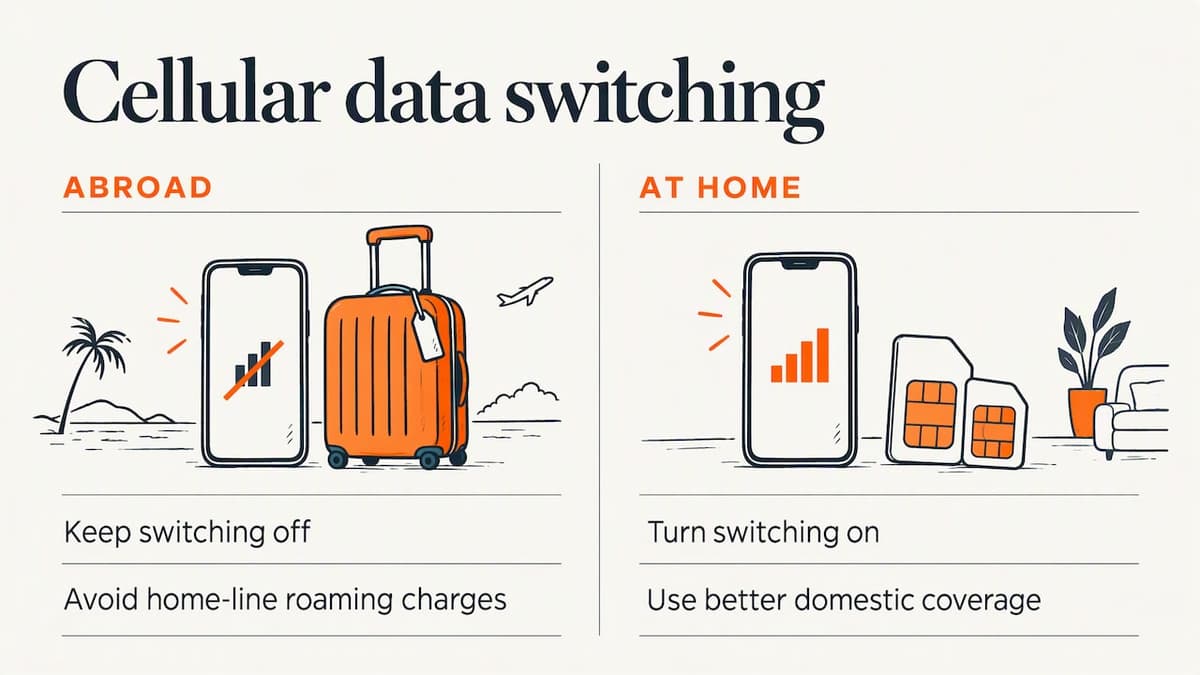
Under the same menu, Apple offers Allow Cellular Data Switching. When it’s on, the iPhone can use either plan depending on coverage and availability.
For a trip abroad, we suggest leaving it off. If the travel network drops for a minute, a silent switch to your home line could pull data at roaming rates. Turn it on at home if you have two domestic plans and want the best signal wherever you are.
Turn off the primary line, or keep it on?
This is the most common question travelers have, and the answer depends on what you need. In iOS 26, when you add a travel plan, the phone may present Turn On Travel eSIM. Apple’s travel guidance gives two options:
| Choice | What it does | Best for |
|---|---|---|
| Travel eSIM Only | Home line is off, travel eSIM handles everything | Avoiding roaming fees entirely, data-only trips |
| Travel eSIM and Current eSIM | Both lines on, travel eSIM supplies data | Staying reachable on your main number for calls and texts |
Apple notes that keeping the primary line on preserves its capabilities but may create roaming fees. After you pick, tap Continue, and iOS asks whether to enable Low Data Mode. With both lines active, the travel eSIM provides the data.
Our rule of thumb:
- Short trip, mostly apps and maps: Travel eSIM Only.
- Bank texts, two-factor codes or work calls on your home number: keep both lines on, set data to the travel eSIM, and switch Data Roaming off on the home line (Settings > Cellular > the home line > Data Roaming).
Before you fly, check your home carrier’s international terms, because voice and text rules differ by plan.
Switching between a physical SIM and an eSIM
If you want your main number to live on an eSIM instead of a plastic card, ask your carrier whether it supports conversion. If it does, Apple’s cellular setup guide says to go to Settings > Cellular > Set Up Cellular or Add eSIM, choose the number on your physical SIM, tap Convert to eSIM, and follow the prompts.
Once converted, the physical card is no longer needed. You can keep it in a drawer as a backup, or leave it in the tray if you want two numbers active.
A practical tip: do the conversion at home, on Wi-Fi, and not on the way to the airport. If anything goes wrong you need your carrier’s support line, and that’s easier to reach from home.
A sensible setup for a trip abroad
Here is the whole path, start to finish, for a typical week away:
- Two weeks before: confirm the phone is unlocked and updated.
- At home on Wi-Fi: buy the plan, scan the QR code and add the eSIM. Label it “Travel”.
- Still at home: when asked, keep the new line off or leave it ready. Many travel plans start their validity clock the first time they connect to a local network, but check the details on your plan page.
- On landing: switch the travel line on, set Cellular Data to Travel, and choose Travel eSIM Only or both lines.
- Home line: turn Data Roaming off for it.
- Optional: enable Low Data Mode if the plan is small.
If you’re heading somewhere that spans several countries, a regional or worldwide plan avoids buying more than once. See Global plans, which start from $7.
Protect your accounts before you move numbers around
When a phone number changes lines, it’s a good moment to check that your important accounts don’t rely on a text message alone. A hardware security key is one option for stronger sign-in on iPhone, and this walkthrough of YubiKey with NFC on iPhone explains how those keys work with iOS.
If there is no data after you arrive
Most “eSIM isn’t working” problems are settings, not faults. Work through this list:
- Is the line on? Settings > Cellular > the travel line > Turn On This Line.
- Is Cellular Data pointed at it? It must be the selected data line.
- Is Data Roaming on for the travel line? Many travel plans connect through a partner network, and the phone treats that as roaming. Turn Data Roaming on for the travel line only.
- Is Allow Cellular Data Switching off? If it’s on, your phone may be sitting on the wrong line.
- Restart the phone and wait a minute for the network to appear under the line’s name.
- Airplane Mode on, then off, forces a fresh network search.
Some providers ask for a specific APN. If yours does, it appears in the plan email. Enter it under Settings > Cellular > the line > Cellular Data Network. If your plan doesn’t mention an APN, leave the field alone, because most eSIM profiles configure it for you.
Our support team is available 24/7 if the steps above don’t fix it.
Our view: settings first, plan second
We’ve watched the same pattern for years. People spend an hour comparing plan sizes and thirty seconds on the settings, and then the plan is blamed for a problem that was a toggle. A well-configured iPhone with a modest plan beats a big plan on a phone that quietly switches to the home line.
Three habits make the difference. Label your lines the moment you add them. Set Cellular Data deliberately, never by default. And decide before you board whether your home number stays on, because that single choice decides whether your trip has any surprises on the bill. We built Lumo around that idea: buy as a guest, scan, set one toggle, and get on with the trip.
— Theo Wheeler
Set a data limit on Android
Android readers often search for how to limit mobile data, and the controls sit in a different place from the iPhone. On a Pixel, Google’s help page says to open Settings, tap Network & internet, then SIMs, then Data warning & limit. From there:
- Turn on Set data warning, tap Data warning, enter a number (switch between MB and GB with the arrow) and tap Set. You’ll get a notification when you reach it.
- To cut data off automatically, turn on Set data limit, read the message, tap OK, then tap Data limit and enter your cap.
When the limit is hit, mobile data turns off and you get a notification. To restore it, return to the same screen and turn off Set data limit. Menu names differ slightly on phones from other makers, so if you don’t see the same wording, search “data warning” in Settings.
On a travel eSIM, set the warning a little below your plan’s allowance, so you can top up before the data runs out. On an iPhone, there is no hard cap in Settings, but the Cellular screen shows usage per line and Low Data Mode reduces background activity.
Pick a plan that matches your settings
If you are ready to install, Lumo offers prepaid eSIM plans for 160+ destinations, delivered by QR code with no contract and no registration. Prices published on our site start from $1 for Europe and the United Kingdom, $2 for Asia and the United States, $7 for Global, and $8 for Africa and the Caribbean. Plans cover smartphones, tablets and laptops, so one purchase flow works for every device you carry. Exact amounts depend on the data and days you choose, so check the plan page before you buy. Everything starts at lumo.to.
FAQ
How do I switch between a SIM card and an eSIM on iPhone?
You don’t switch so much as choose which line is active. Go to Settings > Cellular and tap the line you want to turn on or off. If you want your main number moved from the card to an eSIM, ask your carrier about conversion, then use Convert to eSIM under Add eSIM.
What should my Cellular settings be when I have two lines?
Label both lines, set a default line for calls and messages, and choose one line under Cellular Data. Apple also offers Allow Cellular Data Switching, which lets the iPhone use either plan by coverage. Leave it off abroad unless you are happy for the home line to carry data.
Do I turn off my primary line when using a travel eSIM?
Not necessarily. Travel eSIM Only avoids roaming charges, while Travel eSIM and Current eSIM keeps your main number reachable. If you keep both on, set data to the travel eSIM and turn off Data Roaming on the home line.
What is the disadvantage of eSIM on iPhone?
The main drawbacks are practical. You need Wi-Fi to install, the phone must be unlocked for outside plans, and moving an eSIM to a new phone takes a few steps instead of swapping a card. For travel, those are small prices for installing a plan before you leave.
Sources
- Set up eSIM on iPhone, Apple Support
- Using Dual SIM with an eSIM, Apple Support
- Use eSIM while traveling internationally with your iPhone, Apple Support
- Set up cellular service on iPhone, Apple Support
- Reduce and manage mobile data usage, Pixel Phone Help
Recommended
Related Topics
Stay Connected Anywhere
Prepaid eSIM data plans for 180+ countries and territories. No physical SIM required.