Erase an eSIM Before Trading In Your iPhone: Steps
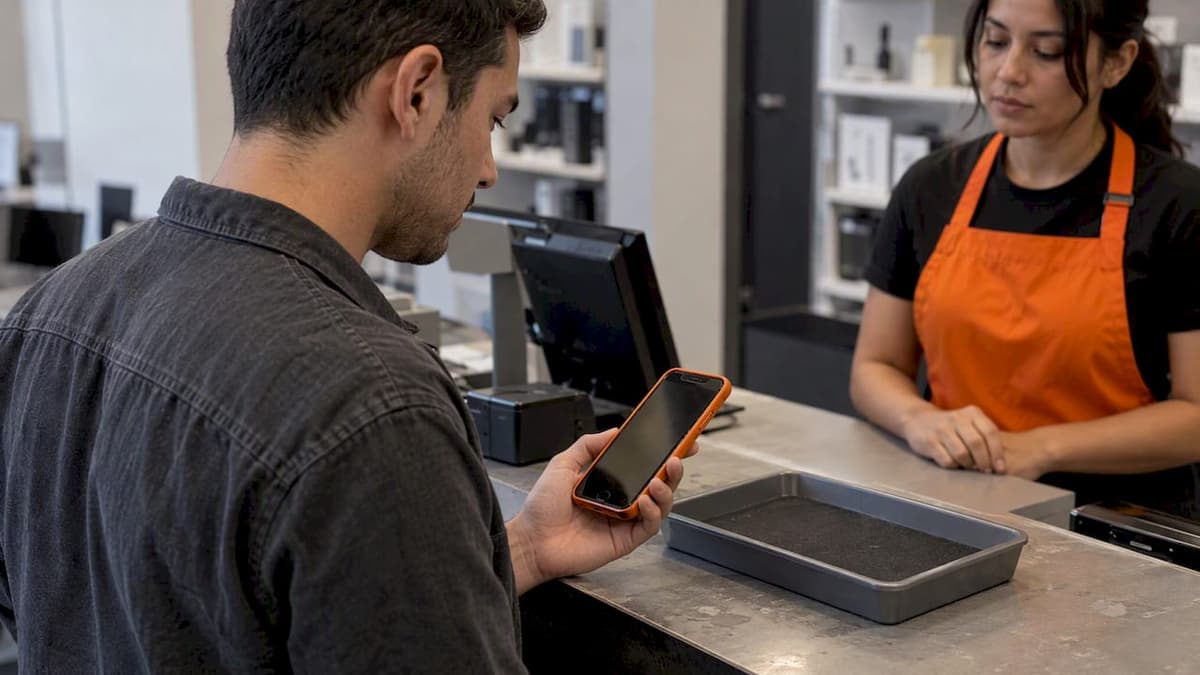
Yes, erase the eSIM when you trade in an iPhone. Apple’s guidance is to erase the eSIM if you sell, trade in, or give away your device. The simplest way is to run Erase All Content and Settings and choose the option that erases the eSIM along with everything else. But the order matters: your new phone should already be working on your number before you wipe the old one, and the carrier plan itself still needs a call or app request.
This guide walks through the full sequence, explains the confusing “Erase All Content and Settings” prompt, and covers the situations that trip people up: multiple lines, travel eSIMs, and trade-in kits that arrive before you have finished setting up.
TL;DR
- Trading in or selling: choose to erase the eSIM during Erase All Content and Settings. Keeping it is only for a phone you will continue to use.
- Deleting an eSIM removes the profile from the phone. It does not cancel the cellular plan, so contact your carrier too.
- Confirm your new phone makes calls and uses data before you erase anything, because a deleted eSIM may need a new carrier-issued one.
- Back up, sign out, then erase. A factory erase does not delete what is already stored in iCloud.
- Travel eSIMs count: delete any you installed for trips so they do not leave with the phone.
Table of Contents
- Should you delete the eSIM when you trade in an iPhone?
- Before you erase: a short checklist
- How to erase the eSIM during a full iPhone reset
- Delete the eSIM on its own, without a full reset
- Deleting the eSIM does not cancel your plan
- Multiple eSIMs: check every line
- The traveler’s version: timing and leftover plans
- Perspective: why we tell travelers to erase last, not first
- If something goes wrong
- After the erase: last checks
- Getting data on the new phone
- FAQ
- Sources
Should you delete the eSIM when you trade in an iPhone?
Yes, when the phone changes hands. Apple’s distinction comes down to who keeps the device:
- You are keeping the phone (a reset to fix a problem, a fresh start): keep the eSIM, so you do not need to contact your carrier to reactivate.
- The phone is leaving you (trade-in, sale, gift): erase the eSIM, so the next owner does not inherit a cellular profile tied to you.
Apple also warns against deleting an eSIM as a troubleshooting step unless your carrier tells you to, because you would then need to contact your carrier to get a new one. A trade-in is the exception, since you no longer need that profile on that phone.
If you are only moving to a new phone and keeping your number, the cleaner route is usually to transfer the line first. Our guide on transferring an eSIM to a new phone with iOS 26 or Android 16 covers that step.
Before you erase: a short checklist
Apple treats privacy as a sequence, not a single tap. Its pre-sale and trade-in guidance is to transfer your information to the new device and then remove personal information from the old one. In practice:
- Set up the new phone first. Make a test call and load a web page over cellular. If your carrier issued a new eSIM, confirm it is active.
- Back up the old iPhone. Use iCloud or a computer. Once you erase, local content is gone.
- Unpair accessories. If you have an Apple Watch paired to the old iPhone, unpair it before erasing.
- Sign out of your Apple Account if you are prompted, and let the erase turn off Find My and Activation Lock. Apple says the erase turns these off when it completes.
- Contact your carrier about suspending or canceling service on that line, or transferring it to the new device.
- Remove any physical SIM. Apple’s trade-in page says to remove a physical SIM card from a device you send in.
The backup step is not optional busywork. Apple notes that a factory erase removes content on the device, but information already synced to iCloud stays in your account. That is good for restoring your data, and it is also why you should remove the old device from your Apple Account’s device list afterward.
How to erase the eSIM during a full iPhone reset
This is the path most trade-in guides recommend, and the one that matches the search “erase eSIM trade in.” Following Apple’s factory reset instructions:
- Open Settings.
- Tap General.
- Tap Transfer or Reset iPhone.
- Tap Erase All Content and Settings.
- Enter your passcode or Apple Account password when asked.
- When iOS asks about your eSIM, choose the option that erases the device and the eSIM profile, not the one that keeps it.
- Confirm. The process ends at the Hello screen, which means the phone is ready for its next owner.
If you see a button labeled with “Erase All Content & Settings” and a second prompt about keeping or deleting eSIMs, read both carefully. The wording can vary slightly between iOS versions, but the logic is the same: one choice wipes data, the other decides what happens to the cellular profile.
What “Delete eSIMs and Erase Data” means
This is the option for a phone you are giving up. It wipes your apps, photos, contacts and settings and removes the eSIM profiles from the device. Apple says that if you erase the eSIM, you must contact the carrier to reactivate the cellular plan. For a trade-in, that is exactly what you want: the profile is gone from the old phone, and any plan you still need is attached to your new one.
What “Keep eSIMs and Erase Data” means
This wipes your data but leaves the cellular profile on the phone. Use it only when you are keeping the device, for example before handing it to a family member who will stay on your plan or when you are resetting to fix a software issue. It is the wrong choice for a trade-in.
Delete the eSIM on its own, without a full reset
Sometimes you want to remove a profile earlier, for instance because you have already moved the number to a new phone, or you want to clear a leftover travel plan. According to Apple’s eSIM erase instructions:
On iPhone
- Open Settings and tap Cellular.
- With a single plan, tap Delete eSIM.
- With several plans, tap the plan you want to remove, then tap Delete Plan.
On iPad
- Open Settings and tap Cellular Data.
- Use the same Delete eSIM or Delete Plan controls.
Then still run the full erase before you hand the device over. Deleting a profile is not a substitute for wiping the phone.
Deleting the eSIM does not cancel your plan
This is the most common misunderstanding. The eSIM is a profile on the device. The contract or prepaid account is a separate thing held by your carrier. Apple states that deleting the eSIM does not cancel the cellular plan, so you may keep being billed for a line that has no phone on it.
For a trade-in, work through it this way:
| Your situation | What to do with the carrier |
|---|---|
| Keeping your number on the new phone | Ask the carrier to move the line to the new device or issue a new eSIM, and confirm it works before erasing the old one |
| Leaving the carrier | Cancel or port out the number first, then erase |
| Family or business plan with several lines | Ask which line is on the old phone and remove only that one |
| Prepaid plan you will not renew | Let it expire or cancel it, and still delete the profile so it does not sit on a traded-in device |
Apple’s trade-in instructions also point eSIM users to contact their wireless provider to suspend service as part of preparing the device. Do that before you pack the kit.
Multiple eSIMs: check every line
Modern iPhones can hold more than one eSIM profile, and that is common for people with a work line, a personal line and a travel plan. Do not assume one deletion removes every line. Open Settings > Cellular, look at the full list, and note each plan on the phone. If you take the full-reset route and choose to erase eSIMs, the profiles go together, but it is still worth looking at the list first so you know which carriers to call.
How many profiles your model can store, and how many can run at once, varies. Our breakdown of eSIM storage and active-line limits by iPhone model explains the numbers.
The traveler’s version: timing and leftover plans
Frequent travelers collect profiles. A few trips later, the phone has a regional plan, a country plan and maybe a leftover global data plan you never deleted. Before a trade-in, three things matter.
Wait until the last trip is finished. The safest time to trade in is after your trip and after your replacement phone is confirmed working. If you erase too early, you could be abroad with a phone that has no usable plan and a carrier you cannot easily reach.
Delete old travel eSIMs deliberately. An expired data plan is harmless to the next owner, but a profile with data still remaining is not something you want leaving with the phone. Remove it from Settings > Cellular, or let the full erase handle it.
Plan the replacement. Buying a prepaid plan for the new phone is usually a separate purchase made on the new device, once it is set up and connected to Wi-Fi. If you ever need to re-install, our guide to activating an eSIM without a QR code through carrier apps and the full setup walkthrough help.
Perspective: why we tell travelers to erase last, not first
We sell prepaid eSIM plans to people who are constantly moving between phones, tablets and laptops, so we see the same trade-in mistake in different forms. People erase the old phone as the first thing they do with the new one, then discover the new phone has not been activated yet, or the number is still tied to the old device, or an eSIM they needed for an upcoming trip has been wiped with everything else.
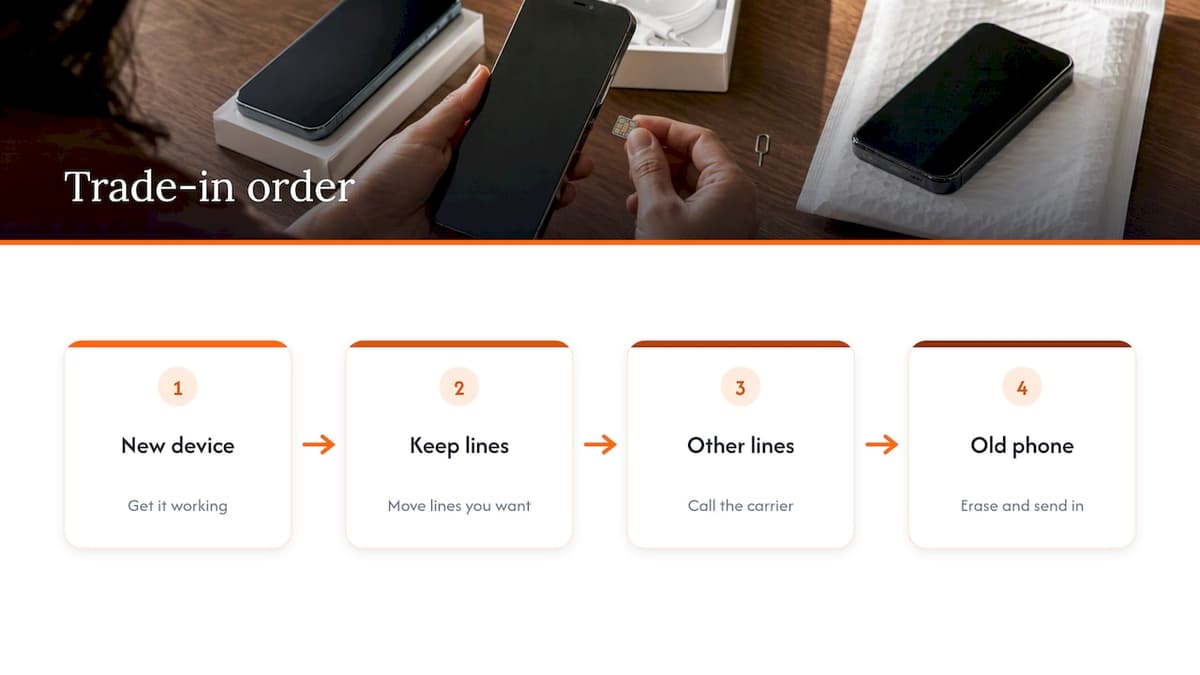
Our advice is the order Apple’s own guidance implies: get the new device working, move the lines you want to keep, call the carrier about the ones you do not, and only then erase and send in the old phone. A trade-in kit has a deadline. A broken connection abroad is a much bigger problem than a few extra days of waiting.
The other thing we would stress is that an eSIM is just a profile. Treat it like a key. When the phone leaves your hands, the key should be gone from the lock and, if you no longer need it, cancelled at the source.
— Theo Wheeler
If something goes wrong
The new phone will not activate after you erased the old one. Contact your carrier and ask for a new eSIM. Apple says that after erasing an eSIM you need the carrier to supply a new one. Our guides on eSIM activation problems on iPhone and Android and quick fixes for iPhone activation issues cover common failures.
No data after setup. Check cellular data settings and roaming. If the plan needs manual settings, see eSIM APN settings. For general diagnosis, there is also a connectivity troubleshooting guide.
You are not sure the new phone supports eSIM. Check our list of phones that support eSIM before you buy or trade.
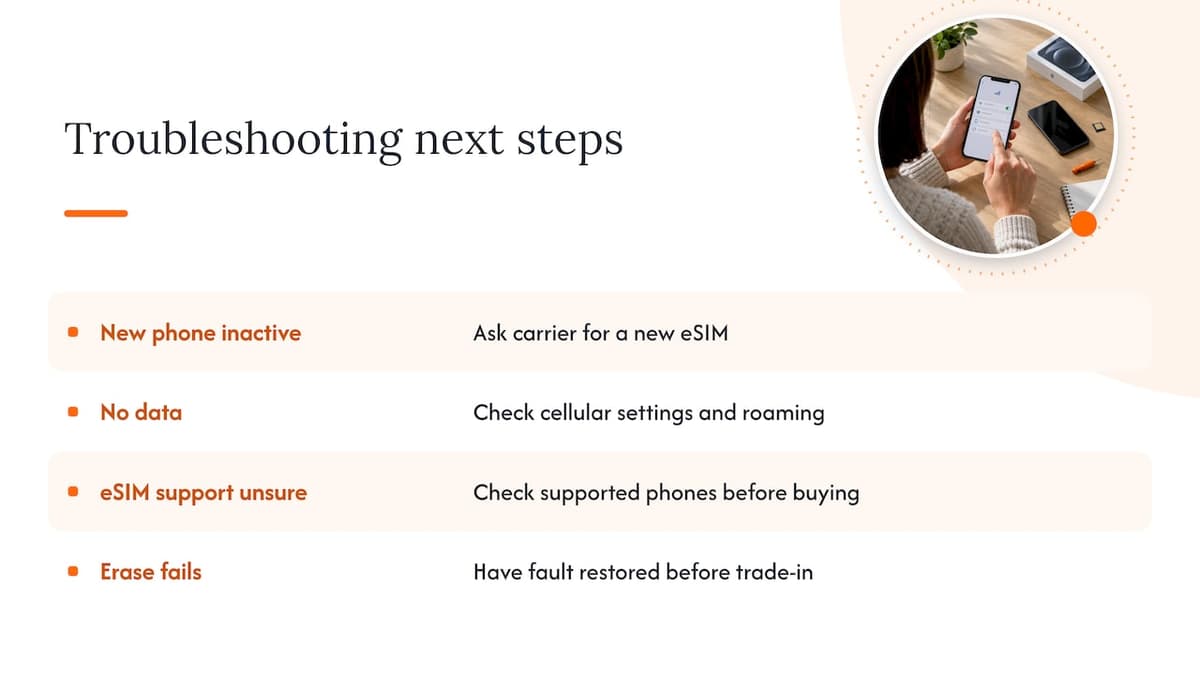
The erase will not finish or the phone acts strangely. If the phone has a hardware or software fault, a repair shop can help restore it before you send it in. One Latvian-language resource that walks through restoring an iPhone step by step may be useful if you read Latvian and the phone needs servicing. For a US trade-in, Apple also prompts you to check your device’s Parts and Service History, and that page is part of its pre-trade-in guidance.
After the erase: last checks
- The phone should be at the Hello screen, not asking for your passcode.
- Look at your Apple Account’s device list on another device and remove the old phone if it still appears.
- Confirm your carrier shows the right line status.
- Keep your trade-in receipt or tracking number until the credit posts.
For a Wi-Fi-only check on the old phone, do not sign in again after the erase. Signing back in would defeat the purpose.
Getting data on the new phone
Once your new iPhone is up and running, many travelers like to keep a prepaid eSIM for trips so their primary line is never touched. At Lumo, we sell prepaid eSIM data plans for phones, tablets and laptops, with QR code delivery, no contracts and no registration needed. Plans start from $1 for Europe, $2 for the United States, $2 for Asia and $7 for Global, each as a one-off payment. Browse every destination on lumo.to, and install the plan on the new phone, not the one you are sending away.
FAQ
Should I delete my eSIM before trading in my iPhone?
Yes. Apple says to erase the eSIM when you sell, trade in, or give away a device. The easiest approach is to choose the option that erases the eSIM during Erase All Content and Settings. Confirm your new phone works first, because you may need your carrier to issue a new eSIM.
How do I completely erase an eSIM?
Go to Settings > Cellular, tap the plan, and choose Delete eSIM or Delete Plan. To wipe the whole phone, go to Settings > General > Transfer or Reset iPhone > Erase All Content and Settings and choose to erase the eSIM too. Then contact your carrier to end or move the plan.
Does deleting an eSIM cancel my cellular plan?
No. Deleting removes the profile from the device, but the account stays with your carrier. Apple says to contact the carrier to cancel service. Otherwise you could still be billed for a line you are not using.
Can I keep my eSIM and still erase my iPhone?
Yes, the reset offers a choice to keep it. Use that only when you are keeping the phone. If it is going to Apple, a carrier or a buyer, erase the eSIM too.
What if I already sent the phone in without erasing the eSIM?
Contact your carrier right away and ask them to suspend or cancel the line and disable that eSIM. Then check your Apple Account’s device list and use Find My to see whether the phone can still be erased remotely. The sooner you act, the better.
Sources
- How to erase an eSIM on your iPhone or iPad, Apple Support
- What to do before you sell, give away, or trade in your iPhone or iPad, Apple Support
- How to factory reset your iPhone, iPad, or iPod touch, Apple Support
- Prepare your iPhone, Apple Watch, or Android device for trade in, Apple Support
Recommended
Related Topics
Stay Connected Anywhere
Prepaid eSIM data plans for 180+ countries and territories. No physical SIM required.