How to Set Up eSIM for Seamless Global Connectivity

Switching countries often means battling roaming fees or juggling physical SIM cards, making travel less seamless than it should be. For Canadian or American globe-trotters and European digital nomads, staying connected without breaking the bank is a real need. This guide walks you through the practical steps to set up your eSIM for international travel, from checking device compatibility to troubleshooting, giving you the freedom to manage your mobile data anywhere you go.
Table of Contents
- Step 1: Check Device Compatibility And Update Software
- Step 2: Purchase Your eSIM Plan From Lumo
- Step 3: Scan The QR Code To Install Your eSIM
- Step 4: Configure Network Settings For Active Use
- Step 5: Test Connectivity And Troubleshoot Issues
Quick Summary
| Key Message | Explanation |
|---|---|
| 1. Verify eSIM compatibility first | Ensure your device supports eSIM by checking settings; this is crucial for a successful setup. |
| 2. Purchase eSIM plan from Lumo | Choose a plan suited to your needs and receive a QR code or activation code for easy installation. |
| 3. Scan QR code for installation | Use your device’s settings to scan the provided QR code and install the eSIM profile seamlessly. |
| 4. Configure network settings | Adjust your network settings to enable mobile data and select your primary connection for optimal performance. |
| 5. Test connectivity and troubleshoot | Verify your internet connection and follow troubleshooting steps if issues occur, ensuring smooth operation while traveling. |
Step 1: Check device compatibility and update software
Before diving into eSIM setup, you need to confirm your device supports this technology. Not every smartphone or tablet can handle eSIM, so checking compatibility is your crucial first move. Your device must meet specific hardware and software requirements to make this work smoothly.
For iPhones, the process is straightforward. Navigate to Settings > General > About and look for “Digital SIM” or “Carrier Lock” information. Check if an eSIM compatibility option exists under your Cellular settings. Android users should go to Settings > Connections > SIM card manager to verify eSIM support and confirm whether you can add an eSIM or scan QR codes. Pro tip: Ensure your device is carrier unlocked and running the latest operating system version for maximum compatibility.
Insider Tip: Before purchasing an eSIM, screenshot your compatibility check to have proof if you need customer support later.
Step 2: Purchase your eSIM plan from Lumo
Now that you have confirmed your device supports eSIM technology, it is time to select and purchase the right mobile data plan for your global connectivity needs. Digital SIM technology allows you to activate and manage mobile network profiles remotely without dealing with physical SIM cards.
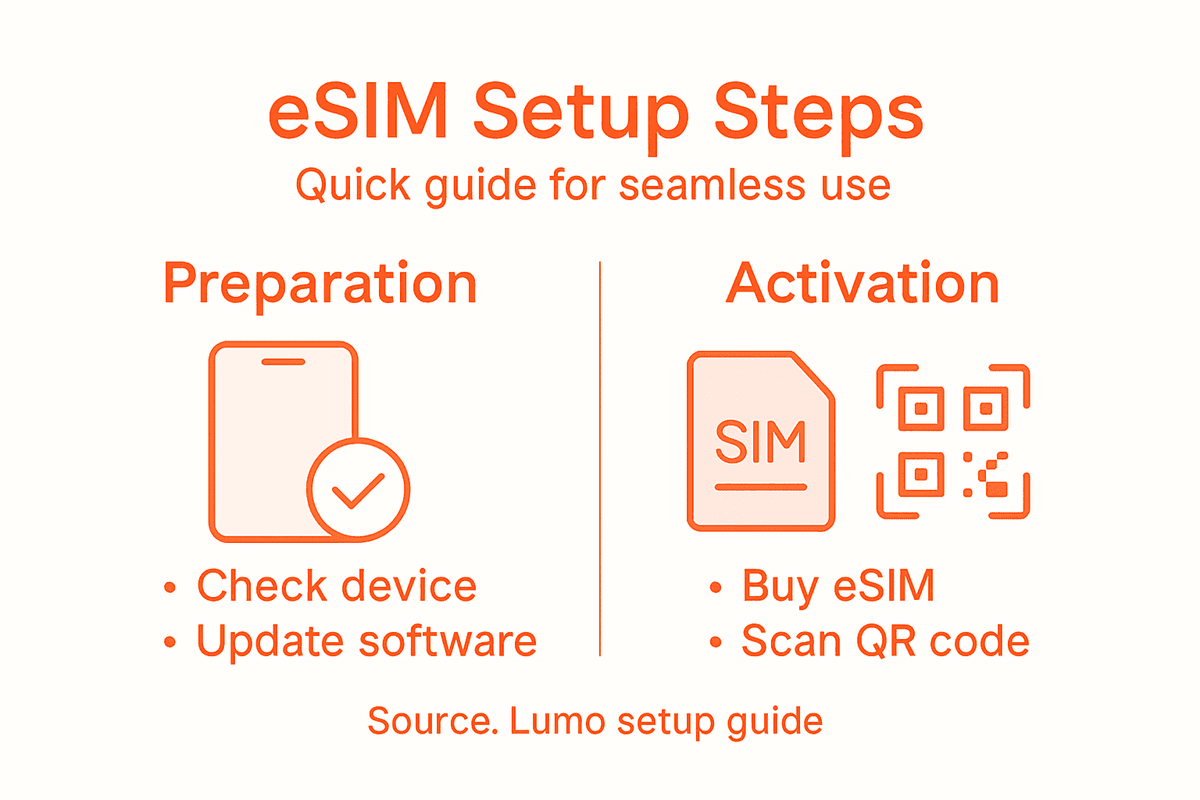
Lumo offers flexible eSIM plans tailored for travelers seeking seamless worldwide connectivity. Browse through their destination specific plans and select the package that matches your data requirements and travel duration. When purchasing, you will receive an activation code or QR code electronically, which eliminates the hassle of physical SIM card management. The process is straightforward you can switch between multiple data plans instantly, giving you unprecedented control over your mobile connectivity.
Here’s a quick overview of how eSIM technology compares to traditional SIM cards:
| Aspect | eSIM Technology | Physical SIM Card |
|---|---|---|
| Installation | Digital QR code activation | Insert physical card |
| Switching plans | Instantly via software | Swap cards physically |
| Loss risk | Very low, profile stored | Easy to lose or misplace |
| Global coverage | Remote profile setup | Region-specific SIM purchase |
| Space efficiency | No SIM tray required | Needs physical tray |
Insider Tip: Compare data packages across different destinations and consider purchasing a multi country plan to maximize your savings and connectivity options.
Step 3: Scan the QR code to install your eSIM
With your eSIM plan purchased, you are ready to complete the activation process by scanning the provided QR code. The QR code activation method represents a quick and seamless way to install your digital mobile profile without complex technical steps.
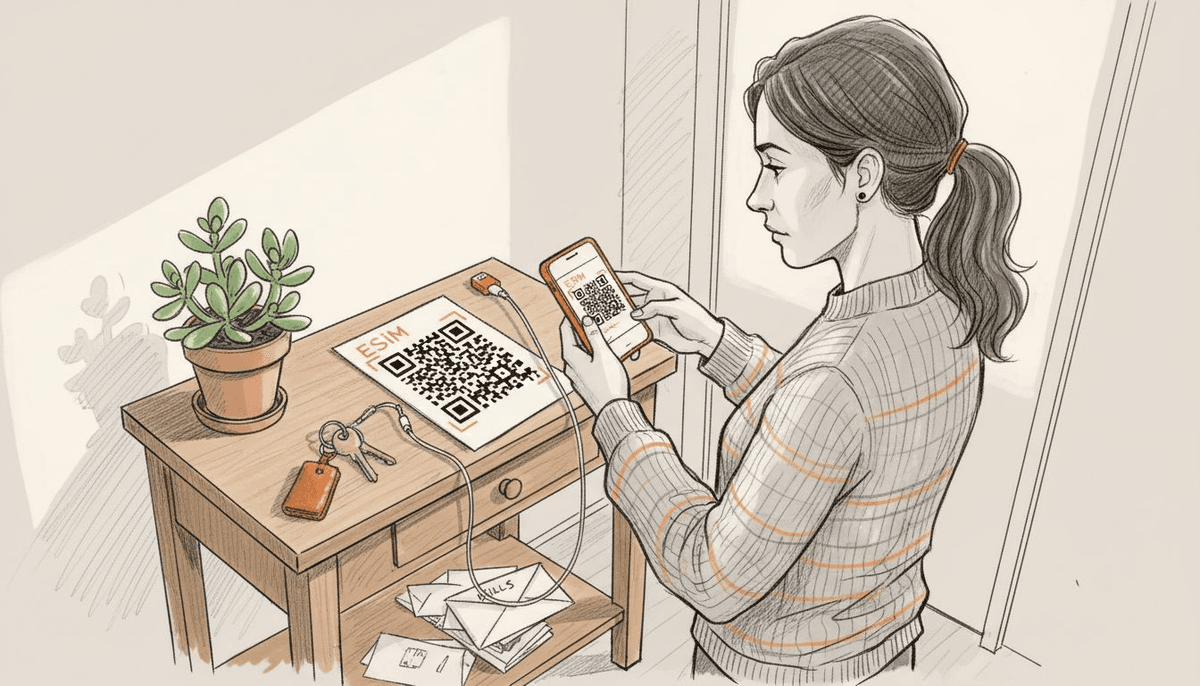
Open your smartphone’s cellular settings and locate the option to add a new cellular plan or eSIM. Most devices will have a dedicated QR code scanner within these settings. Carefully align your device’s camera with the QR code provided by Lumo ensuring good lighting and a clear view. Your phone will automatically detect the eSIM profile and begin the installation process. After successful scanning, you will be prompted to confirm the new cellular plan and choose whether you want to make it your primary or secondary data line.
Insider Tip: Keep the QR code screenshot or email handy in case you need to reinstall the eSIM or encounter any activation challenges.
Step 4: Configure network settings for active use
With your eSIM successfully installed, the next crucial step is configuring your network settings to ensure seamless connectivity. Network configuration settings are essential for activating your mobile data and ensuring optimal performance across different regions.
Navigate to your smartphone’s settings menu and locate the Network and Internet section. Within this area, you will find options to manage your cellular plans. Select your newly installed eSIM and toggle on the mobile data settings. Pay special attention to data roaming options if you are traveling internationally this will prevent unexpected connectivity interruptions. If you have multiple eSIM profiles, choose which one you want as your primary network for calls, messaging, and data transmission. Some devices allow you to set preferences for specific networks based on your current location or travel plans.
Insider Tip: Double check your network settings before traveling and consider downloading offline maps or communication apps as a backup connectivity strategy.
Step 5: Test connectivity and troubleshoot issues
Now that your eSIM is installed and configured, it is time to verify your network connection and ensure everything is working smoothly. Open a web browser or run a speed test to confirm your mobile data is functioning correctly and delivering the performance you expect.
Start by checking your signal strength and running a quick internet speed test. If you encounter connectivity problems, try basic troubleshooting steps such as toggling airplane mode on and off, restarting your device, or switching between available eSIM profiles. Some common issues include weak signal areas, incorrect network settings, or temporary carrier interruptions. Should problems persist, contact Lumo customer support with specific details about your connection challenges. Remember that different countries and regions may have varying network performance, so flexibility and patience are key when using international eSIM services.
For easy troubleshooting, here’s a summary of common eSIM connection issues and actions:
| Issue Encountered | Possible Cause | Action to Resolve |
|---|---|---|
| No service after install | Profile not activated | Restart device, check eSIM |
| Data not working | Incorrect network config | Update APN settings |
| Weak signal abroad | Poor local coverage | Switch eSIM profiles |
| Activation fails | QR code error | Rescan, request new code |
Insider Tip: Keep screenshots of speed test results and connection status to help technical support diagnose any persistent network issues more effectively.
Make Your Global Connectivity Effortless with Lumo
Struggling with complex eSIM setups and juggling multiple physical SIM cards can be frustrating when traveling or working remotely. This article highlights key challenges like device compatibility checks, scanning QR codes, and configuring network settings that are essential for seamless global eSIM activation. If managing multiple international data plans and avoiding roaming charges feels overwhelming, Lumo is here to simplify your experience.
Experience instant activation and flexible data plans across over 160 countries with Lumo’s all-in-one eSIM solution. Whether you need to switch between networks effortlessly or manage multiple eSIM profiles on smartphones, tablets, or laptops, Lumo’s platform offers convenient 5G/4G coverage and reliable 24/7 support to keep you connected without surprises. Take control of your mobile connectivity today by visiting Lumo and discover how easy global travel can be.
Frequently Asked Questions
How do I check if my device is compatible with eSIM?
To check if your device supports eSIM, go to your device settings. On iPhones, navigate to Settings > General > About, and look for “Digital SIM” or “Carrier Lock” options. For Android devices, go to Settings > Connections > SIM card manager to confirm eSIM support.
How can I purchase an eSIM plan for global connectivity?
You can purchase your eSIM plan by visiting a provider’s website that specializes in eSIM offerings. Browse their available data plans, choose one that fits your travel needs, and proceed with the payment to receive your activation code or QR code electronically.
What steps do I need to follow to install my eSIM after purchasing it?
To install your eSIM, open the cellular settings on your smartphone and look for the option to add a new cellular plan or eSIM. Use your device’s QR code scanner to scan the QR code you received and follow the prompts to confirm and activate your new eSIM profile.
How do I configure my network settings for an active eSIM?
After installing your eSIM, go to the Network and Internet settings on your smartphone. Select your new eSIM profile, turn on mobile data, and ensure data roaming is enabled, especially for international travel, to ensure you stay connected.
What should I do if I encounter connectivity issues with my eSIM?
If you have connectivity issues, first check your signal strength and perform a speed test to ensure your data is functioning. Try toggling airplane mode on and off, restarting your device, or switching between eSIM profiles to resolve the problem.
How can I prepare for troubleshooting eSIM connection problems?
To prepare for troubleshooting, keep a record of your connection status and speed test results. If problems persist, having these details ready can help expedite assistance from support if you need to reach out for help.
Recommended
Related Topics
Stay Connected Anywhere
Prepaid eSIM data plans for 180+ countries and territories. No physical SIM required.