How to Troubleshoot eSIM Connectivity Issues Fast

Losing mobile connectivity while moving between European and Asian countries can disrupt any digital nomad’s workflow. For every American traveler juggling calls and meetings on the go, an inactive eSIM can turn quick commutes into stressful tech headaches. With over 85 percent of modern smartphones now offering digital SIM capabilities, understanding how to troubleshoot eSIM setup is more crucial than ever for smooth and affordable roaming across continents.
Table of Contents
- Step 1: Check Device Compatibility And Esim Activation
- Step 2: Verify Network Settings And Carrier Profiles
- Step 3: Restart Device And Reset Esim Connections
- Step 4: Inspect Mobile Data And Coverage Status
- Step 5: Contact Support For Advanced Troubleshooting
Quick Summary
| Important Insight | Explanation |
|---|---|
| 1. Verify eSIM Compatibility | Check your device specifications to ensure it supports eSIM technology for global connectivity before traveling. |
| 2. Test eSIM Activation | Activate your eSIM with the carrier’s QR code and confirm functionality before international travel to avoid issues. |
| 3. Maintain Network Settings | Regularly verify that the correct carrier profile is active and mobile data and roaming options are enabled. |
| 4. Perform Device Restart | Restarting your device can resolve temporary connectivity problems and refresh network connections. |
| 5. Contact Carrier Support | If issues persist, gather information and contact your carrier for further assistance with your eSIM profile. |
Step 1: Check device compatibility and eSIM activation
Ensuring your device supports eSIM technology is crucial for seamless global connectivity. Most modern smartphones and tablets now offer digital SIM capabilities which enable flexible network switching without physical cards.
To verify your device is eSIM compatible, start by checking your smartphone or tablet specifications. Look for direct references to eSIM support in the device settings or manufacturer documentation. For iPhones, navigate to Settings > Cellular > Add Cellular Plan. Android users should check their device settings under Network or Cellular options. Some key indicators include a QR code scanner for eSIM activation and the ability to store multiple carrier profiles simultaneously.
When activating your eSIM, you will typically need a QR code provided by your carrier. Scan this code within your device settings, which will automatically download and install the carrier profile. Confirm activation by checking your cellular settings and ensuring the eSIM shows as an active connection.
Pro tip: Before international travel, test your eSIM activation at home to troubleshoot any potential connectivity issues in advance.
Step 2: Verify network settings and carrier profiles
Network settings verification is a critical step in maintaining reliable eSIM connectivity. Understanding how to manage multiple operator profiles ensures you can switch networks seamlessly during international travel.
Start by accessing your device settings and locating the cellular or mobile data section. Check that the correct carrier profile is selected and active. Look for indicators such as signal strength, network type (4G or 5G), and roaming status. Some devices allow you to view detailed information about installed carrier profiles, including network authentication credentials and subscription details.
If you encounter connectivity problems, try removing and reinstalling the carrier profile. This can often resolve minor configuration issues. Navigate to your eSIM management settings, select the problematic profile, and choose the option to delete or remove it. Then, redownload the profile using the original QR code or carrier activation method.
Pro tip: Always keep a screenshot or digital copy of your carrier profile QR code as a backup in case you need to reinstall your eSIM.
Step 3: Restart device and reset eSIM connections
Restarting your device is often the quickest way to resolve temporary eSIM connectivity problems. Troubleshooting eSIM connections can be as simple as performing a standard device reboot, which helps clear temporary network conflicts and refresh your cellular connections.

To properly restart your device, use the full shutdown process rather than just putting it to sleep. For most smartphones, press and hold the power button, then select the restart or power off option. Wait approximately 30 seconds after the device completely powers down before turning it back on. This allows all system processes to fully reset and provides an opportunity for your eSIM to re establish its network connections.
If a standard restart does not resolve your connectivity issues, you may need to take additional steps. Go into your device settings and locate the cellular or mobile data section. Look for options to reset network settings or remove and reinstall your eSIM profile. Some devices offer a network reset function that can help clear persistent connection problems without losing your existing data or configurations.
Pro tip: Always perform a device restart in an area with good cellular signal to ensure optimal reconnection.
Step 4: Inspect mobile data and coverage status
Identifying the root cause of your eSIM connectivity issues requires a systematic approach to troubleshooting mobile data problems. Carefully examining your device’s signal strength, network settings, and coverage status can reveal critical information about your connection.
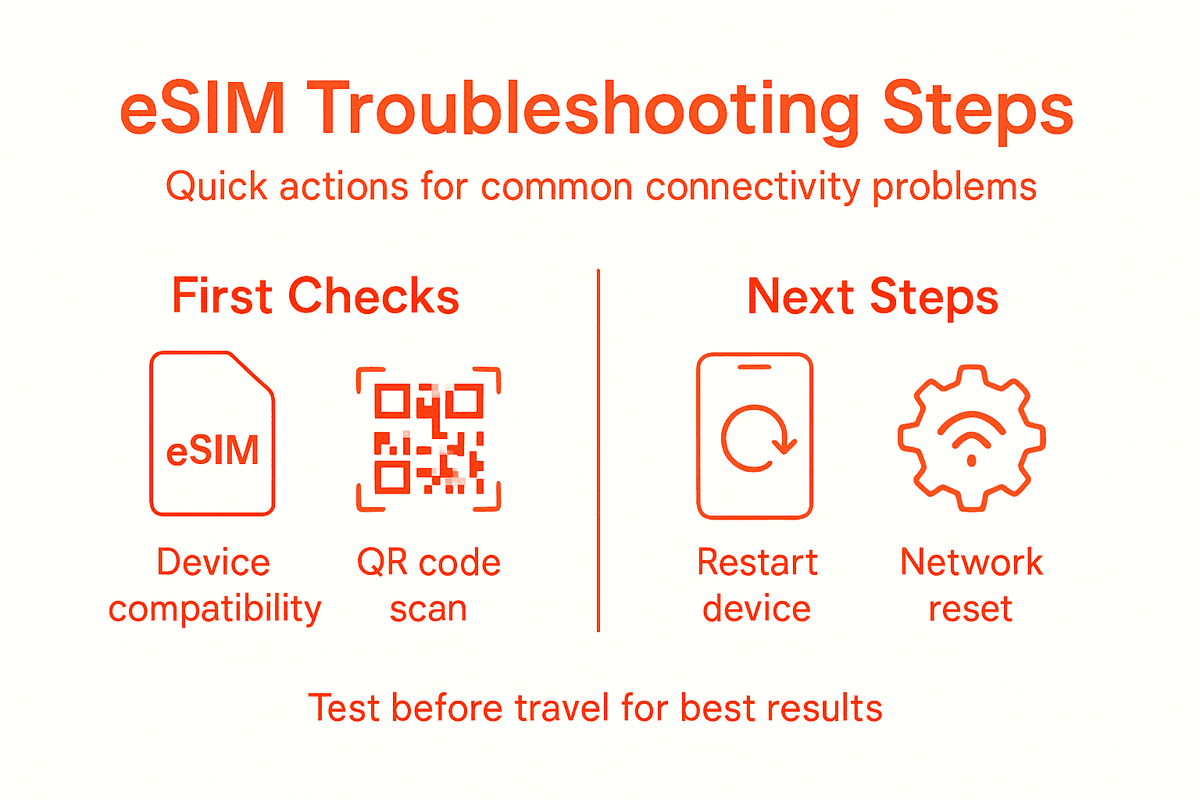
Begin by checking your device’s signal indicator. A weak or fluctuating signal suggests potential network coverage challenges. Navigate to your cellular settings and verify that mobile data is enabled and data roaming is turned on for international travel. Look for specific indicators such as network type (4G or 5G), signal bars, and the current carrier name. If you see ‘No Service’ or extremely low signal strength, you may need to move to a different location or switch to an alternative carrier profile.
For more detailed diagnostics, access your device’s network information screen. This typically provides additional details like signal quality, network frequency, and connection type. Some smartphones offer advanced network mode selections that can help optimize connectivity. If you continue to experience issues, consider checking your Access Point Name (APN) settings, as incorrect configurations can prevent successful data connections.
Pro tip: Download an offline network diagnostic app before traveling to help you quickly assess connectivity issues in areas with limited service.
Step 5: Contact support for advanced troubleshooting
When all previous troubleshooting steps fail, reaching out to professional support becomes crucial. eSIM connectivity support resources can provide specialized assistance to resolve complex network issues that standard troubleshooting cannot address.
Start by gathering all relevant information before contacting support. Compile a detailed log of the connectivity problems you have experienced, including specific error messages, timestamps, locations, and steps you have already taken to resolve the issue. Contact your carrier first, as they have direct access to your eSIM profile and can perform advanced diagnostics. Be prepared to provide your device model, IMEI number, and the specific eSIM profile experiencing problems.
If your carrier cannot resolve the issue, escalate to your device manufacturer support team. They can help diagnose potential hardware or firmware conflicts that might be preventing proper eSIM functionality. Some manufacturers offer remote diagnostic tools that can quickly identify and potentially resolve connectivity problems without requiring you to visit a physical service center.
Pro tip: Always keep your device serial number and activation details readily available to expedite the support process.
Refer to this summary for common eSIM connectivity issues and typical solutions:
| Issue | Possible Cause | Suggested Solution |
|---|---|---|
| No signal | Poor coverage area | Move to better signal area |
| Profile not detected | Incomplete activation | Reinstall eSIM profile |
| Data not working | Wrong APN settings | Update APN configuration |
| Roaming issues | Disabled roaming | Enable data roaming in settings |
Here’s a quick comparison of eSIM troubleshooting steps and typical outcomes:
| Step | Main Action | Expected Outcome |
|---|---|---|
| Check compatibility | Verify device supports eSIM | Ensures device readiness |
| Activate eSIM | Scan carrier QR code | eSIM profile added and active |
| Verify network settings | Select correct carrier profile | Stable network connection |
| Restart device | Full shutdown and reboot | Resolves temporary issues |
| Inspect mobile data | Review signal and coverage | Identifies network problems |
| Contact support | Provide device info & logs | Advanced troubleshooting begins |
Simplify Your eSIM Connectivity and Stay Connected Anywhere
Troubleshooting eSIM connectivity issues like activation errors or roaming challenges can be frustrating when you need seamless access most. This article highlights key pain points such as verifying your device’s eSIM compatibility, managing multiple carrier profiles, and resetting connections to avoid lost signal or data failures. If you are a global traveler, remote worker, or digital nomad who demands reliable and fast mobile data without the hassle of traditional SIM cards, Lumo understands your struggle.
Experience instant eSIM activation, flexible global data plans, and easy carrier switching with Lumo’s all-in-one eSIM solution. Enjoy coverage across over 160 Countries with zero roaming fees and multiple device support designed to keep you connected in today’s fast-moving world. Don’t get stuck troubleshooting when you can simplify your international connectivity now. Visit https://lumo.to and take control of your mobile data experience today.
Frequently Asked Questions
How can I check if my device supports eSIM technology?
To check if your device supports eSIM technology, navigate to the settings on your smartphone or tablet. Look for references to eSIM support, such as an option to add a cellular plan or a QR code scanner in the cellular section.
What should I do if my eSIM is not activating?
If your eSIM is not activating, ensure you have scanned the correct QR code provided by your carrier. Try removing and reinstalling the eSIM profile by deleting it from your device settings and redownloading it using the original activation method.
How can I troubleshoot weak signal issues with my eSIM?
To troubleshoot weak signal issues with your eSIM, first check the signal indicator on your device. If you see a low signal or ‘No Service,’ move to a different location with better coverage, or verify that your mobile data and roaming settings are correctly enabled.
What steps should I take if my eSIM data is not working?
If your eSIM data is not working, ensure mobile data is enabled and check your Access Point Name (APN) settings to make sure they are configured correctly. You may need to update the APN settings according to your carrier’s guidelines for proper connectivity.
When should I contact support for eSIM connectivity issues?
Contact support if you cannot resolve your eSIM connectivity problems after trying standard troubleshooting methods. Prepare a detailed log of your issues, including error messages and steps taken, to help support diagnose the problem more efficiently.
How often should I restart my device to maintain eSIM connectivity?
Restart your device whenever you experience connectivity problems, as it can help clear temporary issues. For best results, restart in an area with a strong cellular signal to help re-establish your eSIM connections effectively.
Recommended
- How to Set Up eSIM for Travel: Step-by-Step Success Guide | Lumo eSIM Store
- Instant eSIM Activation: Global Connectivity Simplified | Lumo eSIM Store
- How to Manage Multiple eSIM Profiles Easily | Lumo eSIM Store
- 7 Smart Examples of eSIM Devices for Travelers | Lumo eSIM Store
- The Future of Remote Work: How Reliable Internet Connectivity is Shaping Modern Workspaces - Cloudology
Related Topics
Stay Connected Anywhere
Prepaid eSIM data plans for 180+ countries and territories. No physical SIM required.