How to Troubleshoot eSIM Issues for Seamless Connectivity

Over thirty percent of American digital nomads report losing valuable work time due to eSIM setup hassles while abroad. For anyone who depends on dependable internet in places like Japan, Spain, or Thailand, reliable eSIM connectivity is more than convenience—it is a necessity. This guide lays out practical steps so you can overcome eSIM challenges, safeguard your data access, and stay ahead while you travel internationally.
Table of Contents
- Step 1: Gather Device and eSIM Details
- Step 2: Check Device Compatibility and Settings
- Step 3: Reset Network and eSIM Profiles
- Step 4: Test Connectivity and Data Access
- Step 5: Contact Support for Advanced Solutions
Quick Summary
| Key Point | Explanation |
|---|---|
| 1. Gather Essential Device Information | Collect your EID number, IMEI, and eSIM profile details for troubleshooting clarity and carrier verification. |
| 2. Verify Device Compatibility | Ensure your smartphone supports eSIM technology and that settings are configured correctly for activation. |
| 3. Reset Network and eSIM Profiles | Toggle your cellular settings and restart the device to clear configuration conflicts and restore connectivity. |
| 4. Conduct Connectivity Tests | Perform speed tests and check signal strength to evaluate eSIM performance and identify persistent issues. |
| 5. Prepare Before Contacting Support | Document troubleshooting steps and device details to facilitate efficient assistance from customer support. |
Step 1: Gather Device and eSIM Details
Preparing for eSIM troubleshooting begins with collecting critical device and connectivity information. This foundational step allows you to diagnose and resolve potential issues quickly and accurately.
Start by accessing your device settings to retrieve essential identifiers. On most smartphones, you can find your device details by navigating to Settings > General > About. Here, you will want to locate your device’s unique Electronic Identification (EID) number, International Mobile Equipment Identity (IMEI), and current eSIM profile configuration. These identifiers are crucial for technical support and carrier verification.
Next, compile your carrier account information. Gather your account password, PIN, and the specific phone number associated with your eSIM profile. Write down your carrier’s customer support contact information as a backup. Some carriers require precise details about your device and account to assist with connectivity problems.
Pro tip: Take a screenshot of your device details and save them in a secure, easily accessible location for quick reference during troubleshooting.
Here’s a quick summary of essential device and account details needed for effective eSIM troubleshooting:
| Detail Type | Where to Find | Why It’s Important |
|---|---|---|
| EID Number | Device settings | Required for carrier verification |
| IMEI Number | Device settings | Identifies your specific device |
| eSIM Profile Info | Cellular settings | Shows current configuration |
| Carrier Account PIN | Account portal | Needed for support authentication |
| Support Contacts | Carrier website | Ensures quick access to assistance |
Step 2: Check Device Compatibility and Settings
Ensuring your device supports eSIM technology is critical for successful setup and connectivity. This step helps you verify that your smartphone can actually utilize eSIM functionality and is configured correctly.
Start by checking your device model’s compatibility. Most modern smartphones from major manufacturers support eSIM, but specific requirements vary. Navigate to your device settings and look for cellular configuration options that indicate eSIM readiness. Pay close attention to your carrier settings and ensure your device firmware is current, as outdated software can prevent proper eSIM activation.

Carefully review your cellular settings to confirm eSIM is enabled. This typically involves accessing your phone’s network and cellular preferences, where you can add or manage digital cellular plans. Verify that your device can support multiple cellular profiles and that your current settings allow for eSIM installation. If you encounter any uncertainty, contact your mobile carrier directly to confirm compatibility and receive specific guidance for your device model.
Pro tip: Before investing time in troubleshooting, quickly confirm your device model supports eSIM by checking the manufacturer’s official website or contacting their customer support.
Step 3: Reset Network and eSIM Profiles
Resetting your network and eSIM profiles can resolve many connectivity issues by clearing potential configuration conflicts and refreshing your device’s cellular settings. This process helps restore smooth communication between your device and mobile carrier.
Begin by toggling your cellular settings carefully. Access your phone’s network preferences and temporarily disable the active eSIM line. Wait approximately 10 seconds, then re-enable the cellular profile. This simple reset can often resolve minor network connection problems. Additionally, restart your device completely to ensure a clean network configuration reset.
If the initial reset does not restore connectivity, you may need to download your eSIM profile again. Contact your mobile carrier to request a new profile download or verification. Some carriers can remotely reset your eSIM configuration or provide specific troubleshooting steps tailored to your account and device model. Always verify your account credentials and have your device identification information ready when seeking carrier assistance.
Pro tip: Backup your current cellular plan details before performing any network resets to ensure you can quickly restore your original configuration if needed.
The table below compares common eSIM troubleshooting steps and their main effects on connectivity issues:
| Step | Main Action | Typical Effect |
|---|---|---|
| Check Compatibility | Confirm device and carrier | Eliminates unsupported devices |
| Reset Network/eSIM Profile | Toggle settings, restart | Resolves minor configuration bugs |
| Test Connectivity | Speed tests, calls, browsing | Identifies persistent problems |
| Contact Support | Share diagnostics, get help | Receives advanced solutions |
Step 4: Test Connectivity and Data Access
Validating your eSIM connectivity involves systematically checking network performance and data transmission to ensure your digital cellular plan functions correctly. This critical step confirms whether previous troubleshooting efforts have successfully resolved your connection issues.
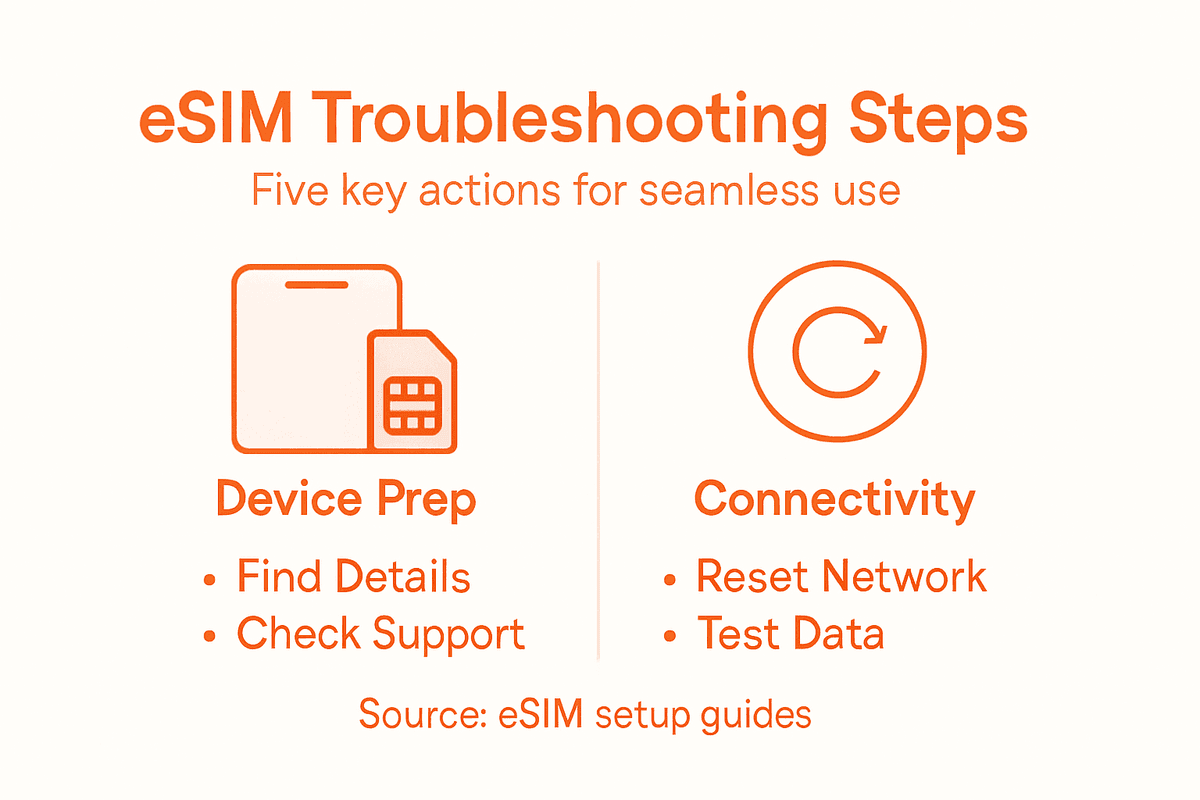
Perform a comprehensive connectivity test by first checking your signal strength and network type. Open a speed test application to measure download and upload speeds, verifying that your eSIM delivers expected performance. Run tests in multiple locations to rule out localized network problems. Additionally, attempt to load data-intensive websites, stream short video content, and make a voice or video call to comprehensively evaluate your network connection.
If connectivity tests reveal persistent issues, document the specific problems you encounter. Note signal strength indicators, speed test results, and any error messages. Troubleshoot multiple connection scenarios by comparing your findings with known network performance standards. Prepare this information for potential communication with your mobile carrier or technical support team, as detailed documentation can expedite problem resolution.
Pro tip: Run connectivity tests at different times of day and in various locations to get a comprehensive understanding of your eSIM performance.
Step 5: Contact Support for Advanced Solutions
When all previous troubleshooting steps fail, reaching out to professional support becomes crucial for resolving complex eSIM connectivity challenges. This final step ensures you have expert guidance to address persistent technical issues that cannot be resolved independently.
Prepare comprehensive documentation before contacting support. Gather critical device information including your device model, IMEI number, eSIM profile details, and a detailed log of troubleshooting steps already attempted. When communicating with your mobile carrier or device manufacturer, provide specific error messages, screenshots of connectivity problems, and a clear timeline of the issues you have encountered. This thorough approach helps technical support diagnose and resolve your problem more efficiently.
Choose the most appropriate support channel based on your specific situation. For carrier related issues, contact your mobile provider directly. For device specific problems, reach out to the manufacturer support team. Be prepared to verify your account credentials and potentially go through additional diagnostic steps. Some carriers might require you to visit a physical store or authorized service center for advanced troubleshooting that cannot be completed remotely.
Pro tip: Create a dedicated email folder or physical file to store all support communication and device documentation for future reference.
Simplify Your eSIM Troubleshooting with Lumo for Effortless Global Connectivity
Troubleshooting eSIM issues like compatibility checks, network resets, and connectivity tests can be frustrating and time-consuming. If you are facing challenges activating or maintaining seamless eSIM connections across different devices and locations, Lumo offers a smarter way to stay connected. With its instant activation and easy switching between multiple local carriers, Lumo eliminates the common hurdles involved in traditional eSIM troubleshooting and unreliable network setups.
Experience a reliable global data solution designed for travelers, remote workers, and digital nomads who demand fast and flexible connectivity. Visit Lumo’s official site to explore flexible data plans covering over 160 countries and benefit from 24/7 customer support that helps avoid typical carrier hassles. Get started today to enjoy high-speed 5G/4G connections without roaming fees or complicated network resets. Discover how Lumo transforms eSIM challenges into seamless connectivity by clicking here All-in-One eSIM Solution and learn more about why our platform stands out as the ultimate choice for your digital lifestyle.
Frequently Asked Questions
How do I gather essential device details for eSIM troubleshooting?
To gather essential device details, access your device settings and navigate to the ‘About’ section. Look for the EID number, IMEI, and current eSIM profile configuration. Write these details down for quick reference during troubleshooting.
What should I do if my device is not compatible with eSIM technology?
If your device is not compatible, check your device model against the manufacturer’s specifications. Consult the official website or customer support to confirm compatibility and consider upgrading to a compatible smartphone for eSIM functionality.
How can I reset my eSIM profiles and network settings?
You can reset your eSIM profiles and network settings by toggling off your cellular settings, waiting 10 seconds, and turning them back on. Additionally, restart your device completely to refresh your network configurations.
What steps should I take to validate my eSIM connectivity?
To validate your eSIM connectivity, check signal strength, run a speed test, and attempt to load data-intensive websites or make calls. Document any issues or error messages you encounter for reference during further troubleshooting.
When is it necessary to contact support for eSIM issues?
Contact support when you have exhausted all troubleshooting steps without resolution. Prepare thorough documentation, including device details and troubleshooting logs, to help the support team address your issues efficiently.
How can I effectively communicate with support about my eSIM problems?
Effectively communicate with support by providing comprehensive documentation, including your device model, IMEI number, and a log of steps already taken. Clearly describe any error messages and specific issues you are facing, which can help expedite the resolution process.
Recommended
Related Topics
Stay Connected Anywhere
Prepaid eSIM data plans for 180+ countries and territories. No physical SIM required.