Transfer an eSIM to a New Phone in Minutes with iOS 26 or Android 16
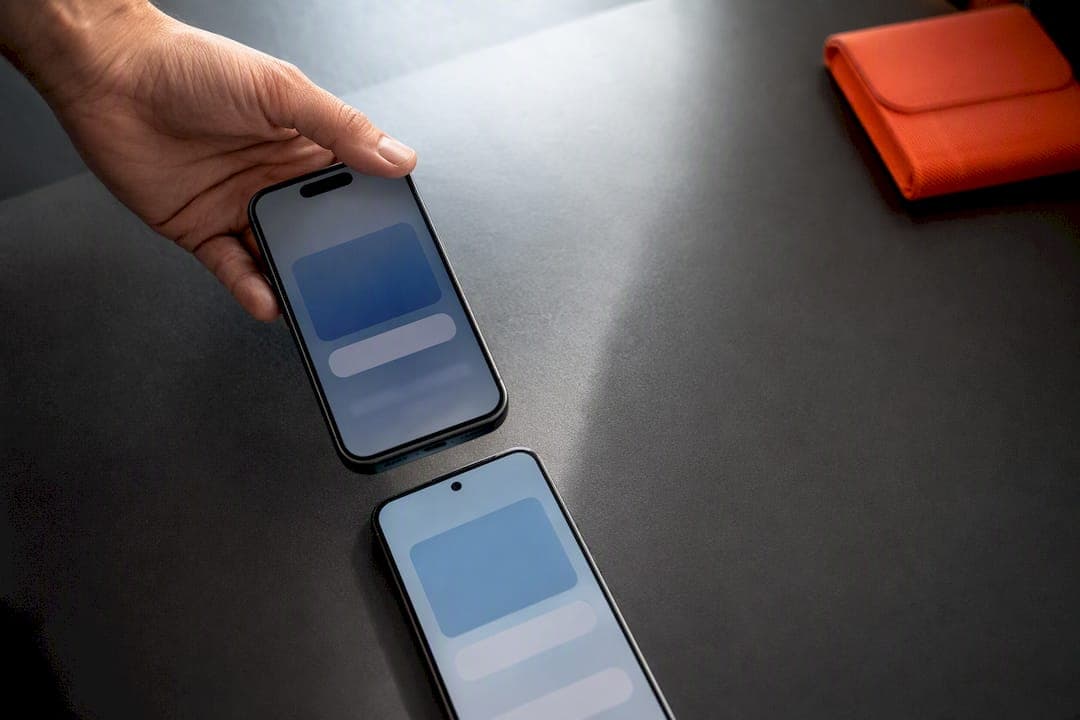
If your new phone and old phone are the same platform and reasonably current, native device-to-device transfer is the fastest route. Just check for it during setup or under cellular settings before you do anything else. If that option doesn’t appear, you’ll request a carrier re-issue instead, which usually arrives as a fresh QR code within a short time. Either way, you’ll need both devices nearby, Wi-Fi and Bluetooth on, and your old phone’s EID handy.
TL;DR:
- Transferring an eSIM between devices is fastest when using native device-to-device transfer features on the same platform, provided both devices are current and supported.
- For iPhones, the transfer can be automatic during setup or manual afterward via settings, requiring both phones to be nearby and on Wi-Fi and Bluetooth.
- Android-to-Android transfers typically involve a quick setup during initial device configuration or through specific menu options, depending on manufacturer and software version.
- Cross-platform transfer from iPhone to Android or vice versa depends on both devices running recent OS versions and carrier support, often requiring QR code scanning and manual approval.
- When native transfer isn’t possible, requesting a new eSIM profile reissued by your carrier is necessary, involving providing device details and possibly incurring a fee, with activation usually completing within minutes.
Table of Contents
- How Do You Transfer an eSIM From iPhone to iPhone?
- How Do You Transfer an eSIM From Android to Android?
- Can You Transfer an eSIM Between iPhone and Android?
- How Do You Get a Carrier to Reissue Your eSIM?
- What Should You Prepare Before Starting the Transfer?
- Why Is My eSIM Transfer Stuck on Activating?
- How Do You Confirm the eSIM Transfer Worked?
- Why Recent OS Updates Made This Whole Process Less Painful
- Need Data Instead of a Number Transfer? Here’s Another Option
- Where to Verify These Steps Directly
- Sources
- FAQ
How Do You Transfer an eSIM From iPhone to iPhone?
Apple built two ways to move an eSIM between iPhones, and which one you use depends on timing.
If you’re setting up the new iPhone for the first time, Quick Start handles it automatically. If you already finished setup, you’ll do it manually through Settings.
During setup (Quick Start / Quick Transfer):
- Place both iPhones near each other with Bluetooth on.
- Follow the Quick Start prompts on the new iPhone and sign in with your Apple ID.
- When asked about your cellular plan, choose to transfer your existing number.
- Confirm the transfer on your old iPhone when prompted.
After setup is complete:
- Go to Settings > Cellular (or Settings > Mobile Service) on the new iPhone.
- Tap Add eSIM, then Transfer from Nearby iPhone.
- Select your line on the old device and confirm.
Apple recommends both phones run a current iOS version, and Apple’s own eSIM setup guide walks through each screen if something looks different from what’s described here. Once it finishes, you’ll see a banner reading “Finish setting up your carrier’s cellular plan.” Tap it and follow through, or the line may sit inactive.
Pro Tip: Don’t erase or reset your old iPhone right after the transfer. Keep it powered on for an hour and make a test call from the new phone first. If something didn’t activate cleanly, you still have a working backup.
How Do You Transfer an eSIM From Android to Android?
Android’s process looks almost identical across brands, though the exact menu wording shifts slightly between Pixel, Samsung, and other manufacturers.
- During initial setup, choose the option to copy apps and data from your old device, then follow the SIM transfer prompt when it appears.
- Already set up? Go to Settings > Network & Internet > SIMs (or Connections > SIM Manager on Samsung).
- Tap Add SIM or the + icon, then choose Transfer SIM from another device.
- Approve the request on your old phone when the notification appears.
- Wait for the “eSIM activated” confirmation on the new device.
Google’s Pixel support page lists Android 12 or later, an active Google Play Services connection, and a secured screen lock as baseline requirements for transferring a SIM to a new phone. If the transfer option never shows up, your carrier likely hasn’t enabled device-to-device transfer for your plan, and you’ll need the QR fallback covered further down.
Can You Transfer an eSIM Between iPhone and Android?
Yes, but only under specific conditions. Cross-platform transfer needs both a current OS and a cooperating carrier, so it won’t work for everyone yet.
Apple’s guidance for moving a profile from Android to iPhone specifies that both the sending and receiving device need current software, generally referenced as iOS 26 and Android 16 in Apple’s own notes, plus explicit carrier support on both ends. Without that combination, the option simply won’t appear, and you’ll fall back to a carrier-issued QR code.
When it is supported, the flow looks like this:
- On the new phone, start the transfer process and generate a QR code or session ID.
- On the old phone, scan that code or enter the session ID manually.
- Choose which data and settings to bring over alongside the eSIM, since Apple’s cross-platform tool can migrate both together.
- Approve the transfer and wait for activation, which typically takes a few minutes.
Watch for a few pitfalls: both phones need active Wi-Fi, the QR codes generated for this process are single-use, and you’ll see a brief service gap on the old device once the transfer starts. If the transfer option is missing entirely, that’s usually the carrier, not your phone.
Pro Tip: Screenshot the QR code the instant it generates. Session IDs and codes tied to cross-platform transfers often expire in minutes, and regenerating one means starting the whole process over.
How Do You Get a Carrier to Reissue Your eSIM?
When device-to-device transfer isn’t available, your carrier can send a new profile directly targeted to your new phone. This is the same fallback whether you’re moving from Android to iPhone, switching brands, or just dealing with a carrier that hasn’t turned on native transfer.
Carriers reissue rather than move a profile because every eSIM is cryptographically bound to a device’s EID through the carrier’s provisioning system. A new device means a new binding, which is why the old QR code from your original phone won’t work on the new one.
To request a reissue, you’ll typically need to provide:
- Your account PIN or identity verification.
- The new device’s EID and IMEI (found under Settings > General > About on iPhone or Settings > About Phone on Android).
- Your current phone number and account details.
Carriers usually deliver the new profile by email, through their app, or via an activation push. Carrier support documentation often outlines a similar flow for BYOD devices. Once you have it, go to Settings > Add eSIM > Use QR Code or Activation Code and follow the prompts. Most carriers issue reactivation for free, though a small number charge a SIM swap or activation fee, so it’s worth checking your plan’s fine print. Turnaround is usually fast, often just minutes, though some carriers state it may take some time for the profile to fully register.
What Should You Prepare Before Starting the Transfer?
A few minutes of prep avoids most of the headaches people run into mid-transfer.
- Update both phones to their latest OS version and make sure they’re charged above 50%.
- Turn on Wi-Fi and Bluetooth on both devices, and keep them within a few feet of each other.
- Write down your carrier account PIN, and locate your EID and IMEI on the old phone before you begin.
- Confirm your new phone is unlocked and compatible with your carrier’s network bands.
Pro Tip: Never factory reset or erase the old phone until you’ve made a call, sent a text, and used data on the new one. That “just in case” window has saved more people than any troubleshooting guide.
Why Is My eSIM Transfer Stuck on Activating?
A stuck activation almost always traces back to one of a handful of causes, and most are fixable without calling anyone.
- Restart both phones and confirm both are on Wi-Fi, not just cellular data.
- Toggle airplane mode on and off on the new phone to force a network refresh.
- Double-check you’re signed into the correct Apple ID or Google account on both devices.
- If a status shows “verifying” for more than 10 minutes, cancel and retry the transfer from the start.
If none of that clears it, contact your carrier and specifically ask them to reissue the eSIM profile targeted to your new device’s EID, not just “resend the QR code.” That distinction matters to support agents, since a resend without updating the EID binding will fail the same way. Most carriers resolve this over chat or phone within the same call, though older or heavily customized devices occasionally need an in-store visit for manual verification. For a deeper walkthrough of specific error messages, Lumo’s guide to common eSIM activation problems covers fixes for both iPhone and Android.
How Do You Confirm the eSIM Transfer Worked?
Don’t consider the job done until you’ve actually tested it.
- Make a phone call and confirm you can hear the other person clearly.
- Send and receive a text message.
- Load a webpage or run a quick speed test using cellular data, with Wi-Fi turned off.
- Check Settings > Cellular (or Network & Internet) to confirm your carrier’s name shows as active.
If your old phone still shows a working signal after all this, don’t wipe it yet. Wait until your carrier confirms the old profile has been deactivated on their end.
Why Recent OS Updates Made This Whole Process Less Painful
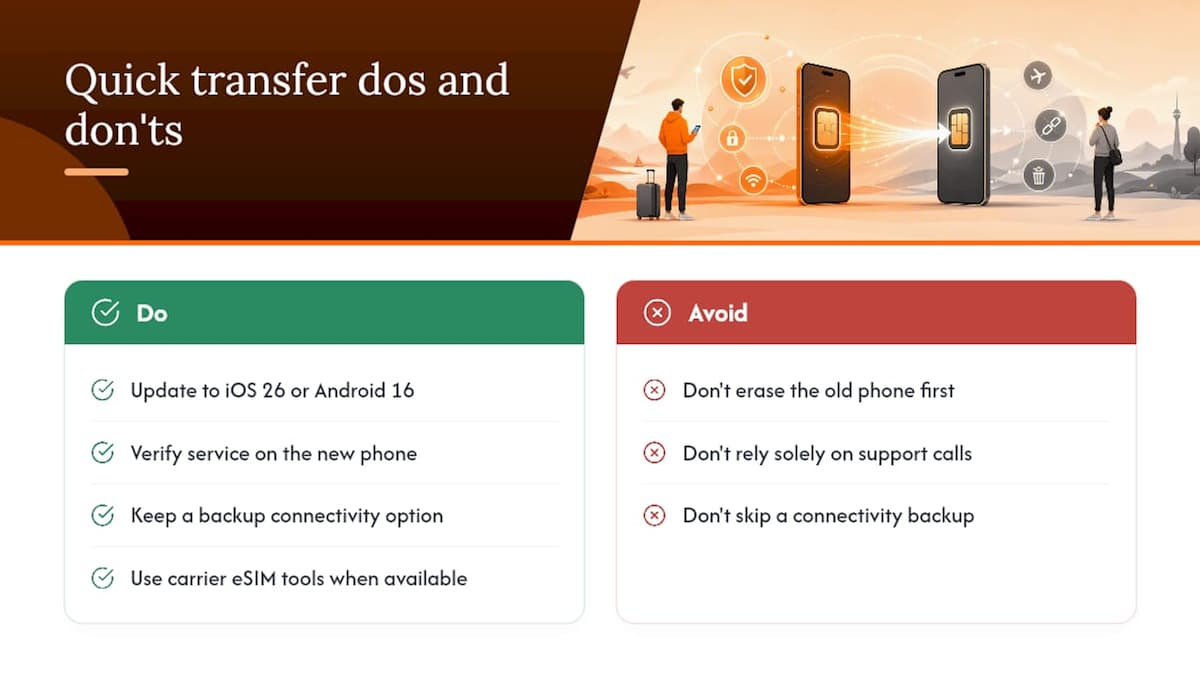
The eSIM transfer experience today is genuinely better than it was even two years ago. iOS and Android updates have chipped away at the carrier-only bottleneck that used to force everyone into a support call, and eSIM adoption itself roughly doubled in 2023, which explains why carriers finally had a reason to build better tools.
There’s a security upside too: eSIMs are bound to hardware, which cuts off the classic physical SIM-swap fraud entirely. Still, keep a backup connectivity option and verify service on the new phone before you erase anything on the old one.
— Theo Wheeler
Need Data Instead of a Number Transfer? Here’s Another Option
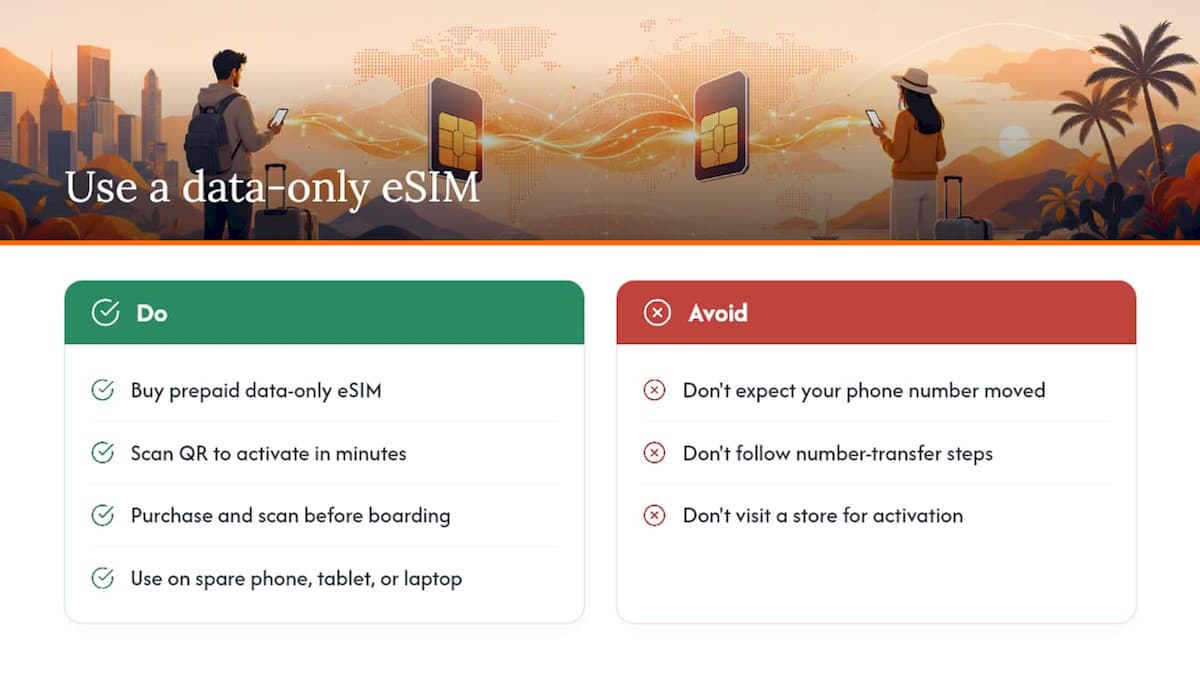
If you’re reading this because you’re heading abroad and just need mobile data on a new device, not a full carrier number transfer, you don’t need to touch any of the steps above. Some providers sell prepaid, data-only eSIMs that activate in minutes with a QR scan, covering many countries without a contract or store visit. It’s a different tool for a different job: Lumo won’t move your existing phone number, but it will get a new device online the moment you land, whether that’s a spare phone, a tablet, or a laptop.
Grab a plan and scan the code before you board, and if you want the walkthrough first, Lumo’s QR code activation guide covers setup and basic security steps. Check current plans at Lumo.
Where to Verify These Steps Directly
Menus shift with software updates, so confirm specifics with the source. Apple’s eSIM setup page, Google’s Pixel transfer guide, and your own carrier’s support page will have the most current steps and list which transfers your specific plan supports.
Sources
FAQ
Can I move an eSIM from one phone to another?
Yes, either through a direct device-to-device transfer on matching platforms or by having your carrier reissue the profile to your new device’s EID.
How do I transfer my eSIM to a new device?
Use Quick Transfer on iPhone-to-iPhone moves, the Settings transfer option on Android-to-Android moves, or request a carrier-issued QR code if neither native option is available.
How do I transfer an eSIM to a new phone across platforms?
Cross-platform transfer between iPhone and Android works only when both devices run current software (iOS 26 or Android 16, per Apple’s guidance) and your carrier supports it; otherwise you’ll need a carrier-issued profile.
What’s the fastest way to transfer an eSIM?
Native device-to-device transfer is fastest, typically finishing in a few minutes, while a carrier re-issue usually takes anywhere from a few minutes up to about 30 minutes.
Does transferring an eSIM change my phone number or plan?
No. A properly completed transfer or re-issue keeps your existing number and data plan intact. Only the device the profile is tied to changes.
Recommended
Related Topics
Stay Connected Anywhere
Prepaid eSIM data plans for 180+ countries and territories. No physical SIM required.