Step by Step eSIM Installation for Seamless Connectivity

Switching countries and juggling SIM cards can turn every layover into a headache. For frequent travelers and digital nomads, keeping devices ready for quick eSIM setup means faster access to reliable networks and avoiding pricey roaming fees. By preparing your smartphone and choosing the right digital plan, you unlock flexible global connectivity with minimal hassle. This guide breaks down every step so you spend less time troubleshooting and more time connected wherever your journey leads.
Table of Contents
- Step 1: Prepare Your Device For Esim Setup
- Step 2: Choose And Purchase Your Esim Plan
- Step 3: Scan Your Qr Code To Activate Esim
- Step 4: Configure Device Settings For Esim
- Step 5: Verify Esim Activation And Connectivity
Quick Summary
| Key Point | Explanation |
|---|---|
| 1. Confirm eSIM compatibility first | Verify your smartphone model and its capability to support eSIM technology before beginning the setup process. |
| 2. Choose the right eSIM plan | Assess factors like data volume, coverage, and duration of travel to select an eSIM plan that fits your needs. |
| 3. Follow QR code scanning steps carefully | Properly scan your QR code to activate the eSIM, ensuring good lighting and a stable internet connection during the process. |
| 4. Configure settings for optimal use | After activation, adjust your device settings for preferred use, ensuring you manage default lines and network preferences effectively. |
| 5. Verify successful activation thoroughly | Complete tests including signal strength and call functionality to confirm that your eSIM is activated and working properly. |
Step 1: Prepare your device for eSIM setup
Preparing your device for eSIM installation requires strategic planning and understanding of your smartphone’s compatibility. The goal is to ensure your mobile device is fully ready to support digital SIM technology.
Before beginning the eSIM setup process, you’ll want to confirm several key device specifications:
- Check your smartphone’s eSIM compatibility
- Verify your current operating system version
- Ensure international carrier support
- Confirm device unlocked status
Most modern smartphones from major manufacturers like Apple, Google, and Samsung support eSIM technology. However, you’ll need to verify specific compatibility with your exact model. Navigate to your device settings and look for eSIM or cellular plan management options to confirm readiness.
Tip: Not all devices support eSIM. Double-check your specific smartphone model’s capabilities before proceeding.
To prepare your device effectively, follow these crucial steps:
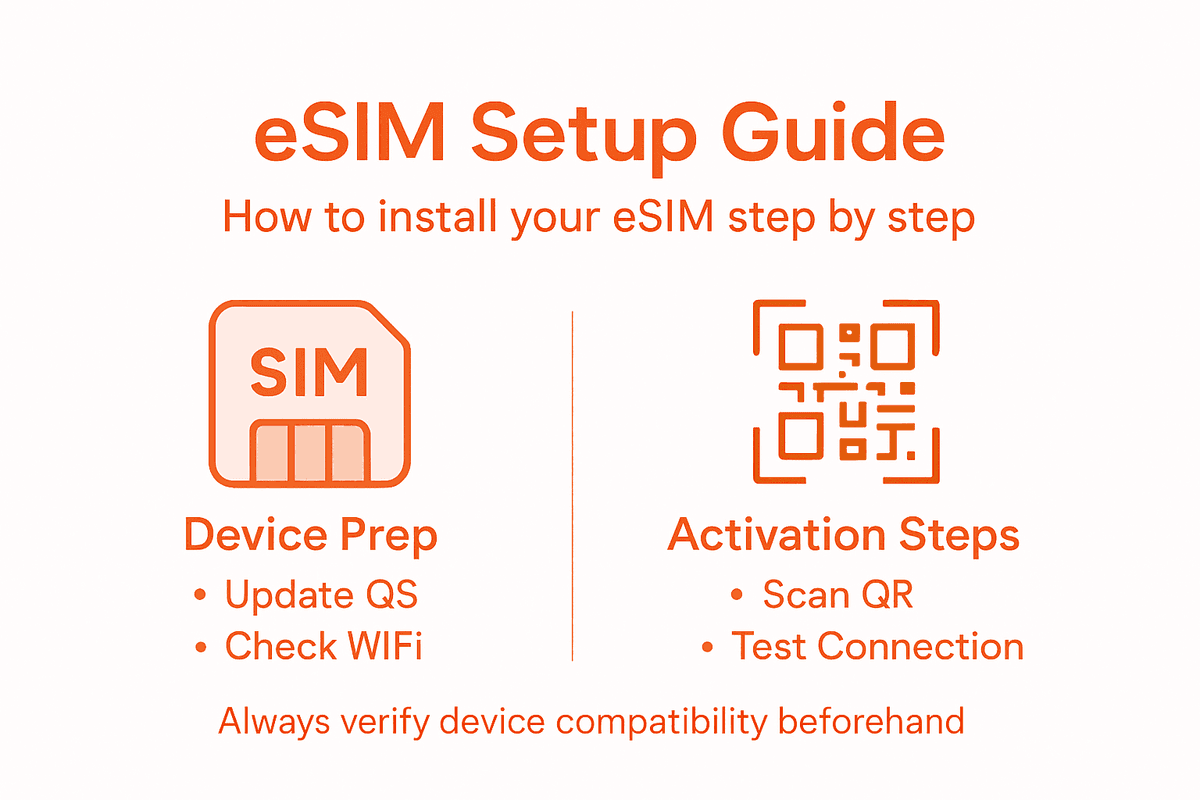
- Update your smartphone’s operating system to the latest version
- Connect to a stable WiFi network
- Backup all existing cellular data and settings
- Ensure your device has sufficient battery charge (minimum 50%)
Compatibility is key. Some carriers require specific firmware versions or have particular activation protocols for eSIM provisioning. Research your mobile carrier’s exact eSIM requirements to streamline the installation process.
Pro tip: Keep your device manufacturer’s support documentation handy in case you encounter any unexpected setup challenges during the eSIM installation process.
Step 2: Choose and purchase your eSIM plan
Choosing the right eSIM plan is crucial for ensuring seamless global connectivity. Your goal is to select a plan that matches your specific travel and data requirements while providing flexible digital connectivity options.
When evaluating eSIM plans, consider these critical factors:
- Data volume needed for your trip
- Coverage in your destination countries
- Duration of your planned international stay
- Cost per gigabyte of data
- Ability to switch or modify plans
Most digital carriers offer three primary types of eSIM plans:
Here’s a comparison of eSIM plan types and their typical coverage and best use cases:
| Plan Type | Coverage Scope | Ideal For |
|---|---|---|
| Regional | Multiple countries | Frequent travelers in one region |
| Country-specific | Single nation | Short-term local visits |
| Global roaming | Worldwide access | Multi-country, extended trips |
- Regional plans covering multiple countries
- Country-specific data packages
- Global roaming plans with worldwide access
Tip: Compare at least three different providers to ensure you get the most competitive rates and coverage.
Pricing strategies vary widely between providers. Some charge flat rates, while others offer tiered pricing based on data consumption. Look for plans that provide transparent billing and easy online management.

Device compatibility plays a significant role in plan selection. Verify that your chosen plan supports your specific smartphone model and international carrier networks.
Pro tip: Consider purchasing a plan with a small buffer of extra data to avoid unexpected connectivity interruptions during your travels.
Step 3: Scan your QR code to activate eSIM
The QR code activation process is your gateway to instant global connectivity. You’ll be using your smartphone’s camera to quickly download your cellular profile.
To successfully activate your eSIM, follow these precise steps:
- Open your smartphone’s cellular settings
- Select the option to add a new cellular plan
- Choose the QR code scanning method
- Position the QR code within your device’s camera frame
- Wait for automatic profile detection
Prepare for activation by ensuring these key conditions:
- Stable internet connection
- Well-lit environment for clear QR code scanning
- Updated device operating system
- Original QR code from your mobile carrier
Tip: Hold the QR code about 6-8 inches from your smartphone camera for optimal scanning.
Scanning requirements can vary slightly between device manufacturers. Apple and Android smartphones typically have slightly different activation interfaces, so carefully follow the on-screen instructions specific to your device.
After scanning, your device will download the cellular network profile automatically. This process usually takes less than 60 seconds and requires an active internet connection to complete.
Pro tip: If your first scan fails, clean the QR code, adjust lighting, and try again - most activation issues resolve with a simple rescan.
Step 4: Configure device settings for eSIM
Navigating your device settings is crucial for seamless eSIM activation and management. You’ll learn how to configure cellular profiles efficiently.
Device configuration involves several critical steps:
- Access cellular settings menu
- Select eSIM management options
- Review available network profiles
- Set preferred default lines
- Configure roaming preferences
Pay special attention to these essential configuration elements:
- Default data line selection
- Voice and messaging profile settings
- Network switching permissions
- Roaming activation controls
- Security and privacy settings
Tip: Always verify your settings before international travel to prevent unexpected charges.
Profile management requires careful navigation. Different smartphone brands offer slightly varied interfaces, so familiarize yourself with your specific device’s eSIM configuration screen.
Network preferences allow you to customize how your device handles multiple cellular profiles. You can typically switch between personal and professional lines or select preferred carriers with just a few taps.
Pro tip: Create a screenshot of your eSIM configuration settings as a backup in case you need to restore or troubleshoot your setup in the future.
Step 5: Verify eSIM activation and connectivity
Confirming your eSIM is successfully activated requires systematic testing and verification. You’ll learn how to validate network connectivity thoroughly.
To ensure complete eSIM functionality, perform these comprehensive checks:
- Check cellular signal strength
- Test voice calling capabilities
- Send and receive text messages
- Verify mobile data connection
- Confirm roaming status
Look for these critical indicators of successful activation:
- Strong signal bars on your device
- Carrier name displayed correctly
- Successful outgoing and incoming calls
- Consistent mobile data performance
- Accurate network type (4G/5G)
Tip: Signal strength and carrier information are your primary confirmation points.
Network verification involves more than just visual checks. Perform actual connectivity tests by making a quick phone call or loading a web page to confirm everything works smoothly.
Troubleshooting signals might include repositioning your device, checking carrier settings, or temporarily toggling airplane mode if you encounter any initial connectivity issues.
Review these common troubleshooting steps for eSIM activation and their effectiveness:
| Issue | Recommended Action | Likelihood to Resolve |
|---|---|---|
| Failed scan | Clean QR code, adjust lighting | High |
| No signal | Toggle airplane mode, reposition | Moderate |
| Data unavailable | Check carrier settings, restart | High |
Pro tip: Run your connectivity tests in multiple locations to ensure consistent performance across different network environments.
Simplify Your eSIM Setup with Lumo for Effortless Global Connectivity
Navigating the detailed steps of eSIM installation can be challenging Whether you are preparing your device, selecting an appropriate data plan, or confirming activation every phase requires precision and confidence. The article highlights critical pain points like verifying device compatibility managing multiple profiles and ensuring reliable connectivity without unexpected roaming charges. Lumo addresses these concerns by providing an all-in-one platform designed to make eSIM activation and management straightforward and stress-free.
Experience the freedom of instant QR code activation with Lumo and enjoy access to flexible eSIM plans covering over 160 countries. Say goodbye to complex setups and confusing carrier restrictions. With seamless switching between local carriers and support for multiple devices including smartphones and tablets, Lumo empowers you to stay connected effortlessly on your terms. Visit Lumo today to explore how you can streamline your international connectivity and avoid costly roaming fees with a few simple clicks.
Frequently Asked Questions
How do I check if my device supports eSIM technology?
To determine if your device is compatible with eSIM, navigate to the settings menu and look for options related to cellular plans or eSIM management. Most modern smartphones from major manufacturers support this technology, so ensure you verify your specific device model for compatibility.
What steps should I take to prepare my device for eSIM installation?
To prepare your device, update the operating system to the latest version, connect to a stable WiFi network, back up existing data, and ensure the battery is charged to at least 50%. Following these steps will help facilitate a smooth eSIM installation process.
How can I evaluate different eSIM plans before making a purchase?
Compare eSIM plans by assessing factors such as your data needs, coverage in destination areas, plan duration, and cost per gigabyte. To ensure the best value, look at at least three different providers before choosing a plan that fits your travel needs.
What should I do if my QR code fails to scan during eSIM activation?
If your QR code fails to scan, clean the code, adjust the lighting, and try rescanning within a distance of 6-8 inches from your smartphone camera. It often takes only a few attempts to successfully activate your eSIM with a clear connection.
How can I confirm that my eSIM is activated and working correctly?
To verify eSIM activation, check for signal strength, confirm the display of your carrier’s name, and test voice calls and mobile data connectivity. If your signal indicators are strong, and you can make calls and access the internet, your eSIM is functioning properly.
What troubleshooting steps should I follow if I experience connectivity issues after eSIM installation?
If you encounter connectivity issues, first toggle airplane mode on and off, and reposition your device to check for a stronger signal. If problems persist, check your carrier settings and restart your device to resolve the issue.
Recommended
- How to Set Up eSIM for Seamless Global Connectivity | Lumo eSIM Store
- Role of eSIM in Future Connectivity Explained | Lumo eSIM Store
- How to Set Up eSIM for Travel: Step-by-Step Success Guide | Lumo eSIM Store
- Role of eSIM in IoT – Unlocking Seamless Global Connectivity | Lumo eSIM Store
- OffTrace Dashboard
- Bridging Desktop and Mobile Experiences: Common Integration Challenges
Related Topics
Stay Connected Anywhere
Prepaid eSIM data plans for 180+ countries and territories. No physical SIM required.