Step-by-step eSIM activation guide for seamless global connectivity 2026

You land in Tokyo, ready to explore. Your phone shows no signal. Your eSIM activation failed, leaving you stranded without connectivity and facing sky-high roaming fees. This frustration is avoidable with the right activation process. This guide walks you through eSIM activation step by step, ensuring reliable global connectivity in under five minutes without expensive roaming charges.
Table of Contents
- Introduction To Esim Activation
- Prerequisites And Preparation For Esim Activation
- Step-By-Step Activation Process
- Common Mistakes And How To Troubleshoot Activation Issues
- Using Multiple Esim Profiles And Switching Between Carriers
- Expected Results And Successful Activation Benchmarks
- Brand-Specific Advantages Of Lumo’s Esim Platform
- Explore Lumo’s Instant Global Esim Plans
Key takeaways
| Point | Details |
|---|---|
| eSIM activation prevents roaming fees | Quick QR code scanning replaces physical SIM cards, enabling instant local carrier access globally. |
| Device compatibility is essential | Modern smartphones from Apple, Samsung, and Google support eSIM, but verify your model first. |
| Stable internet ensures success | Wi-Fi or mobile data connection is required during activation to download carrier profiles. |
| Multiple profiles enable flexibility | Devices support 5-8 eSIM profiles simultaneously for instant carrier switching. |
| Common mistakes are easily fixed | Wrong region settings or unstable internet are the main activation blockers. |
Introduction to eSIM activation
An eSIM is a digital SIM embedded directly into your device’s hardware, eliminating the need for physical SIM cards. Unlike traditional SIMs requiring manual insertion and removal, eSIMs activate through software, enabling instant carrier switching without hardware changes. This technology revolutionizes connectivity for travelers by allowing seamless transitions between local carriers worldwide.
For global travelers and digital nomads, eSIMs offer unmatched advantages. You avoid roaming fees by activating local data plans instantly upon arrival in any country. No more hunting for SIM card vendors at airports or dealing with compatibility issues. The activation process takes minutes, not hours, keeping you connected from the moment you land.
As of 2026, most flagship smartphones support eSIM technology:
- iPhone models from XS onwards
- Samsung Galaxy S20 and newer
- Google Pixel 3 and later models
- Recent Motorola, OnePlus, and Huawei flagships
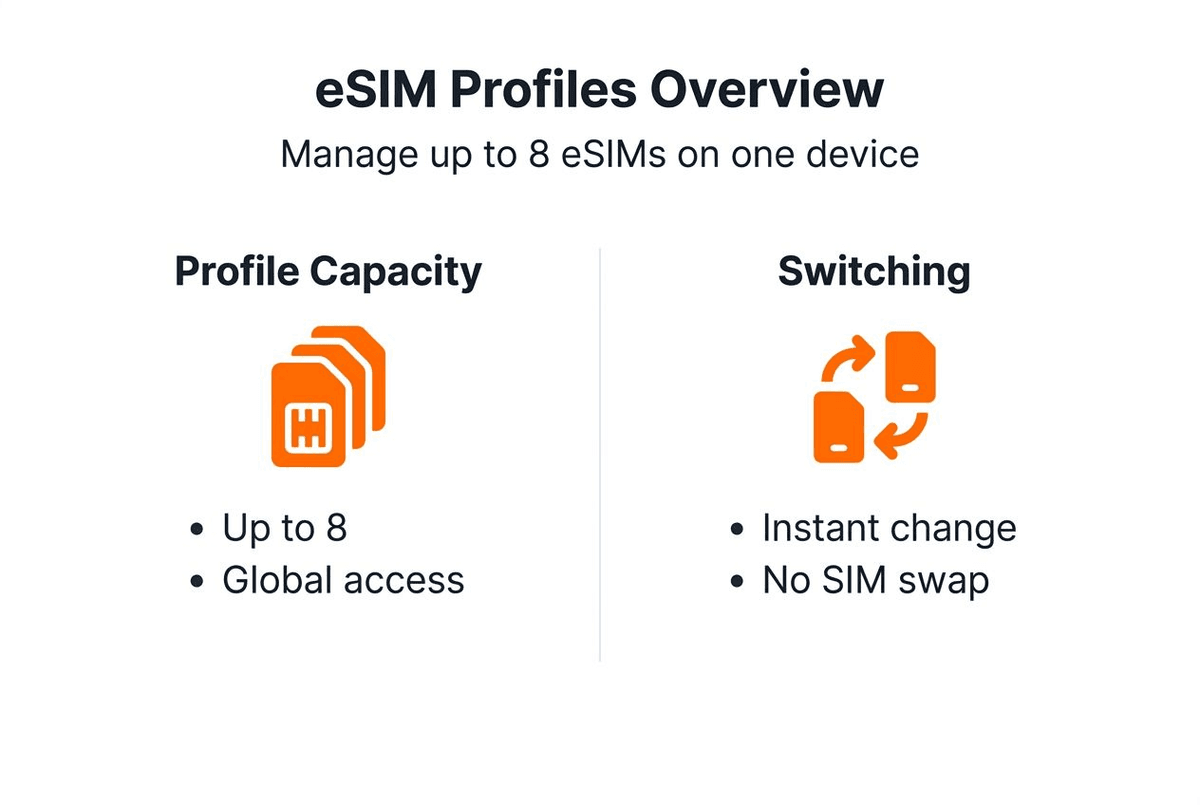
Modern devices support multiple eSIM profiles, typically 5-8 simultaneously. This capability means you can store profiles for different countries and switch between them instantly in your device settings without rescanning QR codes. For frequent travelers exploring global data plans, this flexibility is transformative, allowing you to maintain connectivity across borders without managing multiple physical SIMs.
Prerequisites and preparation for eSIM activation
Proper preparation prevents activation headaches. Before attempting eSIM activation, verify your device meets compatibility requirements. Check your device manufacturer’s website to confirm eSIM support for your specific model number. Some carrier-locked devices may have eSIM functionality disabled, so ensure your phone is unlocked if purchased through a carrier.
Update your device to the latest operating system version. Outdated software often causes activation failures or compatibility issues with newer carrier profiles. For iPhones, navigate to Settings > General > Software Update. Android users should check Settings > System > System Update. Install any pending updates before proceeding.
Secure a stable internet connection for the activation process. Wi-Fi is ideal, but a reliable mobile data connection works too. Unstable connections interrupt profile downloads, causing failed activations. If you’re activating before traveling, use your home Wi-Fi. If activating abroad, find a reliable public Wi-Fi network at your hotel or airport.
Obtain your eSIM activation details from your carrier or vendor. Most providers send a QR code via email immediately after purchase. Some offer manual activation codes as an alternative. Save the QR code image to your device or keep the email accessible. Verify the QR code corresponds to your intended destination and plan type before scanning.

Set your device region correctly for your destination country. Incorrect region settings can prevent carrier profile installation. For iPhones, check Settings > General > Language & Region. Android users should verify Settings > System > Languages & Input > Region. This step is crucial for avoiding roaming charges and ensuring your eSIM connects to the correct local network.
Pro Tip: Screenshot your QR code and save it in your photo gallery before traveling. This ensures you can activate even if you lose email access or face connectivity issues abroad.
Step-by-step activation process
Follow this chronological process for successful eSIM activation:
-
Verify device compatibility and software version. Confirm your device supports eSIM and runs the latest operating system. Outdated software is the leading cause of activation failures.
-
Obtain your QR code from your carrier or vendor. Access the QR code sent via email after purchasing your eSIM plan. Ensure the code matches your destination country and data allowance.
-
Connect to a stable Wi-Fi or mobile data network. Activation requires downloading carrier profiles, which need reliable internet. Avoid public networks with captive portals that may interrupt the process.
-
Scan the QR code within your device settings. For iPhones, go to Settings > Cellular > Add Cellular Plan, then scan the QR code. Android users should navigate to Settings > Network & Internet > Mobile Network > Add Carrier, then scan. The system automatically detects and begins downloading the carrier profile.
-
Wait for download completion and confirm activation status. Profile downloads typically complete within 2-5 minutes. You’ll see a confirmation message once installation succeeds. The new carrier profile appears in your cellular settings.
Common troubleshooting steps for activation issues:
- QR code won’t scan: Increase screen brightness, clean your camera lens, or manually enter activation codes if provided.
- Download stalls: Switch to a different Wi-Fi network or use mobile data if available. Restart the download process.
- Profile installation fails: Disable VPN connections, which can interfere with carrier authentication. Restart your device and try again.
Pro Tip: Enable airplane mode during profile installation to prevent interruptions from incoming calls or messages. Disable it immediately after successful activation to test connectivity.
| Activation Step | Average Time | Success Rate |
|---|---|---|
| QR code scanning | 10-20 seconds | 98% |
| Profile download | 1-3 minutes | 95% |
| Network connection | 30-60 seconds | 92% |
| Total activation | 2-5 minutes | 90%+ |
For detailed guidance on QR code activation methods, including alternative manual entry procedures, explore comprehensive eSIM setup tutorials covering device-specific instructions.
Common mistakes and how to troubleshoot activation issues
Understanding typical activation errors saves time and frustration. Many failures stem from simple oversights that are easily corrected once identified.
Airplane mode or no internet connection is the most frequent mistake. eSIM activation requires active internet to download carrier profiles. If airplane mode is enabled or you’re in an area without connectivity, activation cannot proceed. Solution: Disable airplane mode, connect to Wi-Fi, or move to an area with mobile data coverage before attempting activation.
Incorrect QR code scanning occurs when lighting is poor or the code is damaged. Blurry scans or partial captures prevent profile recognition. Solution: Ensure adequate lighting, hold your device steady, and position the QR code fully within the camera frame. If scanning repeatedly fails, request a new QR code from your provider or use manual activation codes.
Wrong device region settings block carrier profile installation for specific countries. Your device’s region must match or be compatible with the eSIM destination. Solution: Navigate to your device’s region settings and select the country where you’ll use the eSIM. Restart your device after changing regions, then retry activation.
Carrier profile conflicts happen when attempting to install an eSIM while another profile downloads or updates. Multiple simultaneous installations cause failures. Solution: Wait for any pending profile operations to complete. Check cellular settings for ongoing downloads, cancel them if necessary, then restart the eSIM activation.
Outdated carrier settings prevent newer eSIM profiles from installing correctly. Solution: Update carrier settings through your device’s cellular menu. For iPhones, this happens automatically when connected to Wi-Fi. Android users may need to check for updates manually.
Pro Tip: If activation fails three times consecutively, restart your device completely before the fourth attempt. This clears temporary system conflicts that may be blocking profile installation.
When troubleshooting doesn’t resolve issues, contact your eSIM provider’s support team. Provide your device model, operating system version, error messages, and steps you’ve already attempted. Quality providers offer 24/7 support to resolve activation problems quickly.
Using multiple eSIM profiles and switching between carriers
Modern devices support storing 5-8 eSIM profiles simultaneously, though only one or two can be active at any time depending on your device. This capability transforms international travel by eliminating the need to repeatedly scan QR codes when returning to familiar destinations.
Switching between installed eSIM profiles takes seconds. For iPhones, open Settings > Cellular, then tap the profile you want to activate and toggle it on. Deactivate the current profile if your device doesn’t support dual active eSIMs. Android users navigate to Settings > Network & Internet > Mobile Network, select the desired profile, and activate it. The switch happens instantly without downloads or restarts.
This instant switching helps you avoid roaming charges by always using local carriers. When you land in France, activate your French eSIM. Flying to Spain next week? Switch to your Spanish profile without rescanning anything. You maintain connectivity everywhere while paying local rates instead of expensive roaming fees.
Comparing eSIM switching to traditional SIM swapping reveals massive advantages:
| Feature | eSIM Switching | Physical SIM Swapping |
|---|---|---|
| Switch time | Instant (5-10 seconds) | 2-5 minutes |
| Physical handling | None required | Remove/insert cards |
| Lost SIM risk | Zero | High when traveling |
| Storage capacity | 5-8 profiles | Limited by pocket space |
| Activation method | Software toggle | Hardware replacement |
For travelers visiting multiple countries on one trip, pre-installing eSIM profiles before departure streamlines connectivity. Purchase and activate profiles for each destination while still at home with reliable Wi-Fi. Once traveling, simply switch profiles when crossing borders. This preparation ensures you’re never without connectivity, even in remote areas without Wi-Fi access.
Learn advanced techniques for managing multiple eSIM profiles efficiently across different devices and carriers, maximizing your flexibility while minimizing costs.
Expected results and successful activation benchmarks
Understanding what success looks like prevents unnecessary troubleshooting. Typical eSIM activation completes within 2-5 minutes with over 90% of users succeeding on their first attempt. If your activation exceeds 10 minutes, something is likely wrong.
Signs your eSIM activated successfully:
- Visible network profile: Your cellular settings display the new carrier name and profile details.
- Network signal bars: Signal strength indicators appear in your status bar showing connection to the local network.
- Internet connectivity: You can browse websites, send messages, and use apps without Wi-Fi.
- No roaming indicators: Your device shows a local network connection, not roaming status.
To confirm proper operation, perform these verification tests immediately after activation. Open your browser and visit a website you’ve never accessed before to ensure it’s not loading from cache. Send a text message to verify messaging services work. Make a quick internet speed test to confirm data flows correctly.
If indicators fail to appear within 10 minutes, restart your device. Power cycling often resolves lingering activation issues where profiles installed but network registration hasn’t completed. After restarting, wait 2-3 minutes for automatic network connection.
Check your data usage counter in cellular settings to verify it’s tracking correctly. This confirms your eSIM is actively transmitting data and billing is functioning properly. If the counter doesn’t increment after using data, contact your provider to verify account activation.
Monitor your first few hours of usage to ensure stability. Occasional brief disconnections during the first hour are normal as your device optimizes network settings. Persistent connection drops or inability to access certain services may indicate profile configuration issues requiring provider support.
Brand-specific advantages of Lumo’s eSIM platform
Lumo’s platform embodies best practices for eSIM activation and management. Instant activation through QR code scanning gets you connected within minutes of purchase, eliminating waiting periods or manual configuration. The streamlined process works identically across all supported devices, reducing complexity for users managing multiple gadgets.
24/7 customer support ensures help is available whenever activation issues arise, regardless of your time zone or location. Support teams understand the urgency of connectivity for travelers and prioritize rapid resolution. This reliability gives you confidence when activating eSIMs in unfamiliar destinations.
Wide global coverage spanning over 160 countries means you’ll find Lumo eSIM options wherever you travel. Flexible data plans accommodate varying usage needs, from light browsing to heavy streaming. You purchase exactly what you need without overpaying for unused capacity.
Trusted by tech-savvy travelers and digital nomads, Lumo’s platform delivers the seamless connectivity modern lifestyles demand. The combination of instant activation, comprehensive coverage, and responsive support makes it a reliable choice for anyone seeking hassle-free global connectivity. Explore Lumo’s eSIM plans to experience these advantages firsthand.
Explore Lumo’s instant global eSIM plans
Ready to experience seamless global connectivity? Lumo’s instant activation eSIM plans embody everything covered in this guide. Scan a QR code, wait 2-5 minutes, and you’re connected to local networks worldwide without roaming fees.
Our flexible data options suit every travel style, from weekend getaways to extended remote work abroad. Coverage across 160+ countries ensures you stay connected wherever your journey leads. Visit Lumo to browse plans tailored for tech-savvy travelers who demand reliable, affordable connectivity without complexity. Your next international adventure deserves better than expensive roaming charges.
FAQ
What devices support eSIM activation in 2026?
Most flagship smartphones released after 2018 support eSIM technology, including iPhone XS and newer, Samsung Galaxy S20 and later, Google Pixel 3 onwards, and recent models from Motorola, OnePlus, and Huawei. Always verify your specific model on the manufacturer’s website, as some carrier-locked versions may have eSIM disabled.
Can I activate an eSIM without stable internet?
No, eSIM activation requires a stable internet connection to download carrier profiles to your device. Without Wi-Fi or mobile data, the activation process cannot complete. Prepare by connecting to reliable Wi-Fi before attempting activation, especially when traveling to areas with limited connectivity.
How do I switch between multiple eSIM profiles?
Switching happens instantly through your device’s cellular settings. For iPhones, go to Settings > Cellular and toggle your desired profile on. Android users navigate to Settings > Network & Internet > Mobile Network and select the profile to activate. No QR scanning or downloads are needed for profiles already installed. Learn more about managing multiple eSIM profiles efficiently.
What should I do if my eSIM activation fails?
First, verify you have a stable internet connection and airplane mode is disabled. Check that your device region settings match your destination country. Re-scan the QR code ensuring good lighting and a steady hold. If problems persist after three attempts, restart your device completely and try again. Contact your provider’s 24/7 support if issues continue.
Recommended
- Step by Step eSIM Installation for Seamless Connectivity | Lumo eSIM Store
- How to Set Up eSIM for Seamless Global Connectivity | Lumo eSIM Store
- What is QR code activation: easy global eSIM setup 2026 | Lumo eSIM Store
- Essential Guide to Avoiding Roaming Fees with eSIM | Lumo eSIM Store
- Design Your Own Case for Phone: Step-by-Step Guide – Bettermockups
- Step by Step Mobile Device Analysis for Legal Evidence
Related Topics
Stay Connected Anywhere
Prepaid eSIM data plans for 180+ countries and territories. No physical SIM required.