Restore an eSIM After a Factory Reset: iPhone and Android

You can’t restore a deleted eSIM from a backup or from the phone itself. If the reset erased it, your carrier (or, for a travel plan, the company that sold it) has to issue a new activation, usually a fresh QR code or a reactivation in its app. Apple’s guidance says the same: if you erase the eSIM during the reset, contact your carrier to reactivate your mobile plan. If the eSIM survived the reset but won’t connect, the fix is usually a settings check, not a new plan.
This guide covers both situations, step by step, and then shows how to keep the eSIM the next time you wipe a phone.
TL;DR
- A factory reset only removes an eSIM if you choose to delete it (or if the erase was triggered in a way that can’t keep it, such as through Find My).
- A deleted eSIM cannot be brought back from an iCloud or Google backup. Your carrier has to issue a new QR code or reactivate the line.
- If the profile is still listed but has no service, work through Wi-Fi, Airplane Mode, a restart, a carrier settings update and an iOS update, in that order.
- Before your next reset, pick the keep-eSIM option, and save a screenshot of your plan details and activation QR code somewhere safe.
- Travel eSIMs bought online are prepaid: contact the seller’s support first, because a carrier you never signed up with can’t see them.
Table of Contents
- What a factory reset does to your eSIM
- First, check whether the eSIM is actually gone
- If the eSIM is still listed but has no service
- If the eSIM was deleted: how to get service back
- How to keep your eSIM when you reset your phone
- Trading in or selling the phone? Delete on purpose
- Perspective: treat the eSIM like a ticket, not a file
- Need data while you sort it out?
- Troubleshooting: common after-reset problems
- FAQ
- Sources
What a factory reset does to your eSIM
An eSIM isn’t ordinary data. It’s a carrier profile stored in a dedicated chip on the phone, which is why a backup of your photos and apps doesn’t contain it. When you erase the device, the phone asks what to do with that profile, and the answer decides everything that follows.
On an iPhone running iOS 17 or later, Apple says you can erase the phone while keeping the eSIM or erase it and delete the eSIM. After the restart you follow the setup instructions and restore your data from a backup if you have one. The eSIM isn’t part of that backup. If you chose to keep it, it is simply still there. If you deleted it, it is gone.
Android works on the same principle, but the wording differs by maker and software version. Samsung, Google and others each show their own reset screen, and some show a separate option or checkbox for downloaded SIMs. Read the confirmation screen before you tap the final button, because that is the only moment you get to choose.
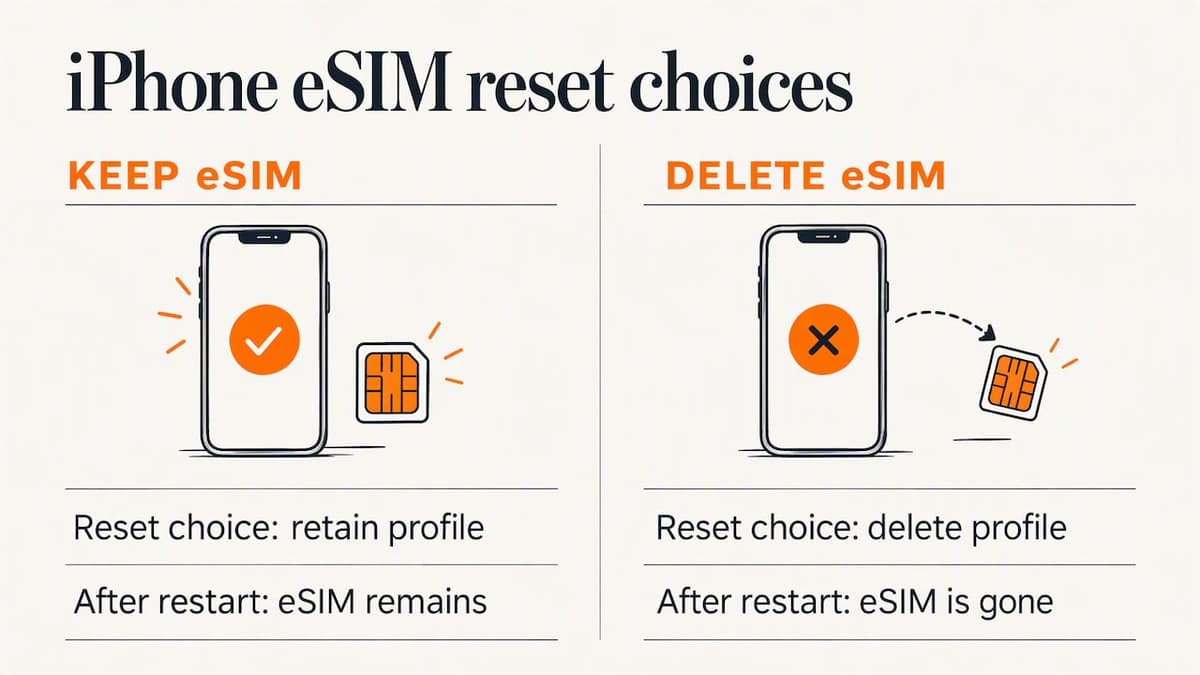
Why an eSIM can vanish even when you didn’t mean to delete it
Three situations catch people out:
- You tapped through the prompt. The choice between keeping and deleting the eSIM appears late in the process, and the default is easy to accept without reading.
- The reset came from Find My. Apple’s deployment documentation notes that an erase started through Find My does not preserve an eSIM, so that route can leave you needing carrier reactivation.
- You reset an older iPhone. On iOS 16 or earlier, Apple tells people to contact their carrier before a passcode-based reset and ask for a QR code to set up the eSIM again. Skip that step and you are locked out of the line.
If a repair shop or a store reset the phone for you, ask them what they did with the eSIM. Many people only find out when the phone shows no service.
First, check whether the eSIM is actually gone
Before you call anyone, confirm the profile is missing. A reset that kept the eSIM can still leave you with “No Service” for a few minutes while the phone re-registers.
On iPhone: open Settings > Cellular (some versions say Mobile Data). If your line is listed, the eSIM is still on the phone. If the list is empty or only shows “Add eSIM,” it was deleted.
On Android: open Settings > Network & internet > SIMs (Samsung: Settings > Connections > SIM manager). A listed eSIM with a toggle means the profile survived. An empty list means it didn’t.
Menu names shift between versions, so use the search box in Settings and type “SIM” if you can’t find the screen.
If the eSIM is still listed but has no service
Apple’s support page for eSIM setup problems gives a clear order of fixes. Here is the same sequence, based on Apple’s April 2026 guidance:
- Get online another way. Connect to Wi-Fi or a hotspot. A freshly reset phone often needs a data connection to finish activating.
- Update iOS. Install the latest compatible version.
- Toggle Airplane Mode. Turn it on, wait a few seconds, and turn it off.
- Toggle the line. In Settings > Cellular, check that your line is present, then turn it off and on again.
- Restart the iPhone.
- Check for a carrier settings update. Go to Settings > General > About. If an update is available, tap OK or Update.
That last step is easy to miss because the prompt only appears for a short time. If nothing shows after a minute on Wi-Fi, there is no update waiting.
On Android the logic is the same: connect to Wi-Fi, switch Airplane Mode on and off, toggle the SIM in the SIM settings, restart, and install pending system updates. If the phone supports it, also check that mobile data is selected for the right line, which is a common cause of “connected but no internet” after a reset. Our guide to iPhone eSIM settings, default line and data walks through where that choice lives on an iPhone.
When the phone itself is the problem
Sometimes the eSIM is fine and the phone refuses to activate after the wipe, particularly on refurbished or second-hand devices that carry a carrier lock or an activation hold. If you see an activation error instead of a missing line, this breakdown of iPhone activation problems on a refurbished phone explains the usual causes and fixes.
If the eSIM was deleted: how to get service back
There is no undelete. What you do next depends on who gave you the eSIM.
Carrier eSIM (your main number)
Contact your carrier and ask for the line to be reactivated on your device. Typical routes:
- The carrier’s app or website. Many US carriers let you sign in and generate a new eSIM QR code or transfer the line to your phone. You need Wi-Fi for this.
- A store. Bring photo ID. Staff can issue a new eSIM on the spot, and it is the fastest option if you have no working data.
- Phone support. Borrow another phone if you must. Expect to verify your identity with an account PIN or passcode.
Once the carrier gives you a QR code, scan it from Settings > Cellular > Add eSIM (iPhone) or the SIM settings on Android, and follow the prompts. Your number comes back, but any old QR code is usually single-use, so don’t try to reuse an earlier one.
Travel or data-only eSIM (bought online)
A prepaid travel eSIM has no carrier account behind it that you can call. The seller issued the profile, so the seller is who you contact. Look for your original order email: it normally holds the QR code or an install link. Many providers allow one installation only, so a deleted profile may not be reinstallable, and a support team has to tell you whether yours can be reissued.
If you bought a plan from us, our support team is available around the clock and can check what is possible for your order. If the plan hadn’t been used yet, tell them before you buy a replacement.
If you are traveling right now and have no data to reach support, our guide to activating an eSIM without Wi-Fi lists what still works when you are offline.
What about the physical SIM?
This is a question many people search after deleting an eSIM: why did my physical SIM stop working? The usual reason is not the deletion itself. When you convert a physical SIM line to an eSIM, the carrier typically moves the number to the new eSIM and turns the plastic SIM off. Deleting the eSIM doesn’t automatically turn the old SIM back on, so the number sits in limbo. Ask the carrier to reactivate the physical SIM or issue a new eSIM. Stores can do this in minutes, and you can test the card in a second phone to prove it is the activation, not the hardware.
How to keep your eSIM when you reset your phone
This is the part that saves the trouble. The choice takes a few seconds.
iPhone
- Back up the phone to iCloud or a computer.
- Open Settings > General > Transfer or Reset iPhone > Erase All Content and Settings.
- When the prompt asks, choose to keep the eSIM. Choosing delete means you will need to contact your carrier to reactivate the plan.
- After the restart, follow the setup instructions and restore from your backup.
Don’t start the erase from Find My if you want to keep the line, since that route doesn’t preserve it.
If you manage phones for a company, Apple’s deployment guide describes a Preserve Data Plan option and a restriction that blocks eSIM deletion for supervised devices. It is worth turning on for a fleet of traveling staff.
Android
The path varies. On a Samsung Galaxy it runs through Settings > General management > Reset > Factory data reset. Pixel phones use Settings > System > Reset options > Erase all data. Read the final screen for any choice about downloaded SIMs and leave them in place. If your phone doesn’t offer that choice, assume the eSIM will be removed and get your QR code or carrier confirmation before you wipe.
Before any reset, do these three things
- Screenshot your plan details. Capture the carrier name, number and any account PIN.
- Save your activation email. For travel eSIMs, this email is your only record of the install link.
- Confirm you can sign in to Apple or Google. You need those accounts after the wipe, and verification codes sometimes go to the very line you just erased.
Trading in or selling the phone? Delete on purpose
Keeping the eSIM is the right call when you keep the phone. If you are handing it over, the opposite applies: remove every profile deliberately so the next owner can’t see or use your line. Our walkthrough on how to erase an eSIM before trading in your iPhone covers the steps and what to ask your carrier first.
Perspective: treat the eSIM like a ticket, not a file
Most of the lost-eSIM stories we hear have the same root: people think of an eSIM as something stored in their account, like a photo. It is closer to a ticket issued for one device. Once you tear it up, only the issuer can print another.
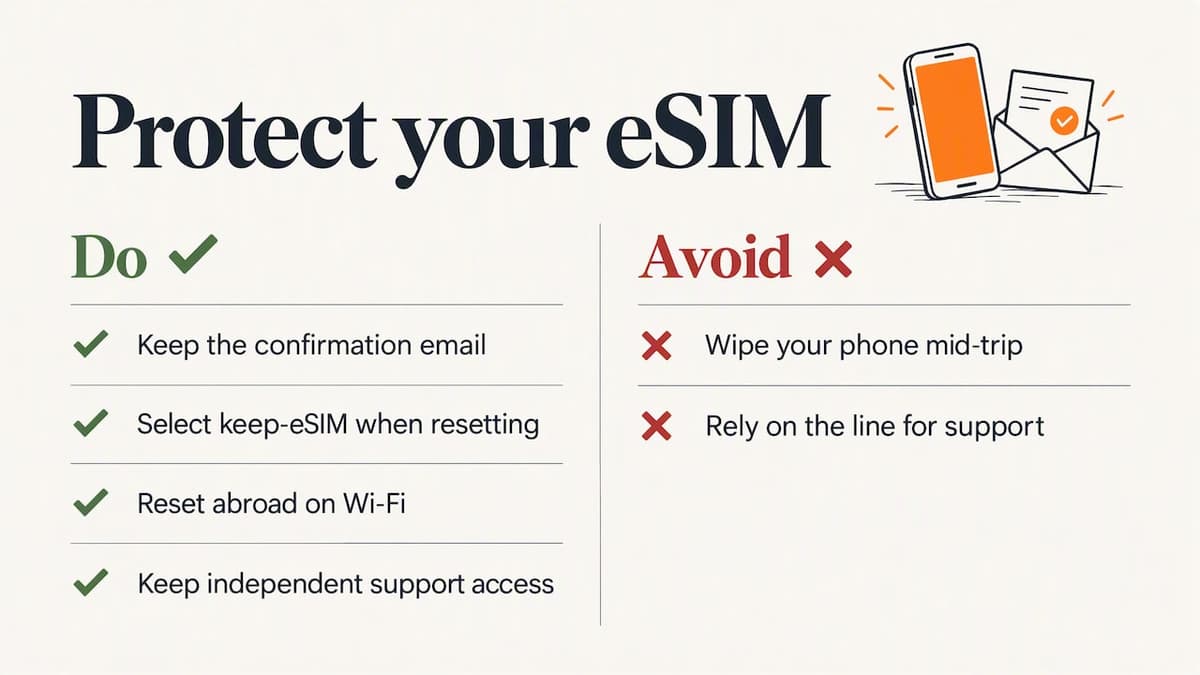
That is why we built Lumo around a simple habit. Every plan is delivered by QR code with no registration needed, and the setup takes about 45 seconds on average, so installing one is quick. But we also tell travelers to keep the confirmation email and to avoid wiping a phone mid-trip. If you must reset abroad, do it on Wi-Fi with the keep-eSIM option selected, and have a way to reach support that doesn’t depend on the line you are about to touch.
The cheapest mistake is the one you avoid with ten seconds of reading on the reset screen.
— Theo Wheeler
Need data while you sort it out?
If the reset left you without service and you are about to travel, or already abroad, a prepaid eSIM is a fast stopgap. With Lumo you pay at guest checkout, scan the QR code and get 4G or 5G data without signing up for an account or a contract. Plans start at $1 for the United Kingdom and for Europe, $2 for the United States and Asia, and $7 for Global coverage, all one-off payments. Browse the options at lumo.to and pick the duration and data amount that fit your trip.
A second eSIM also works as a backup: your home line stays untouched, and a data plan keeps you online while the carrier sorts out a replacement. For Low Data Mode tips that stretch a small plan, see our page on Low Data Mode on iPhone.
Troubleshooting: common after-reset problems
| Symptom | Likely cause | What to try |
|---|---|---|
| No eSIM listed in Cellular or SIM settings | The profile was deleted during the reset | Contact your carrier or the eSIM seller for a new QR code |
| eSIM listed, “No Service” | Registration still pending, line toggled off, or outdated carrier settings | Wi-Fi, Airplane Mode toggle, turn the line off and on, restart, check About for an update |
| QR code won’t scan or says it is invalid | The code was already used, or the plan was cancelled | Ask for a new code; don’t reuse an old one |
| Calls work, no mobile data | Wrong line selected for data | Choose the right line under Cellular Data or Mobile data settings |
| Physical SIM dead after deleting eSIM | Carrier turned the SIM off when the number moved to eSIM | Ask the carrier to reactivate the SIM or reissue an eSIM |
| Activation error on a used phone | Carrier lock or activation hold | Check lock status with the seller and see the refurbished-phone guide above |
FAQ
Can I restore a deleted eSIM from an iCloud or Google backup?
No. Backups restore apps, photos and settings, but the eSIM is a carrier-issued profile that isn’t included. You need a new QR code or reactivation from the carrier or seller that issued it.
Does a factory reset always delete the eSIM?
No. On iPhone with iOS 17 or later, you choose whether to keep or delete it during Erase All Content and Settings. Resets started through Find My don’t preserve it, and Android options vary by maker, so read the confirmation screen.
Will I keep my phone number if I have to get a new eSIM?
If it is your carrier’s eSIM, yes in most cases. The carrier moves the same number to the new profile after verifying who you are. A prepaid travel eSIM usually has a data allowance only, with no phone number to port.
What if I have no service and can’t reach my carrier online?
Use any Wi-Fi network, such as a cafe, hotel or friend’s hotspot, to open the carrier’s app or support chat. Or visit a store with photo ID. If you are abroad, a prepaid data eSIM installed over Wi-Fi can get you online while you wait.
Sources
- How to factory reset your iPhone, iPad or iPod touch (Apple Support)
- If you forgot your iPhone passcode (Apple Support)
- If you can’t set up an eSIM on your iPhone (Apple Support)
- Use a device management service to deploy devices with cellular plans (Apple Platform Deployment)
Recommended
- Erase an eSIM Before Trading In Your iPhone: Steps
- iPhone eSIM Settings: Set Up, Default Line and Data
- How to Activate an eSIM Without Wi-Fi: What Works
Related Topics
Stay Connected Anywhere
Prepaid eSIM data plans for 180+ countries and territories. No physical SIM required.