5 Preflight Checks to Make Wi‑Fi Calling Work With an eSIM Abroad
Yes, Wi-Fi calling can work with an eSIM, including data-only travel eSIMs that carry no voice plan at all. Success depends on two things: whether your home carrier allows Wi-Fi calling to run over a third-party internet connection, and whether your device settings are configured correctly. Get both right and your primary number stays reachable anywhere you have Wi-Fi.
TL;DR:
- Wi-Fi calling with an eSIM requires your carrier to support Wi-Fi calling and proper device configuration, including enabling Wi-Fi calling for your home number.
- The eSIM simply provides a stable internet connection; if Wi-Fi calling fails, the issue typically relates to carrier settings or network restrictions, not the eSIM itself.
- Using cellular data switching enabled on device settings allows your primary number to stay reachable during Wi-Fi calling on an eSIM.
- Public Wi-Fi networks with captive portals or restrictive NAT often block Wi-Fi calling, making it more reliable to use your eSIM’s data connection instead.
- Testing and setting up before travel, including confirming carrier support and activating correct settings, helps ensure uninterrupted connectivity abroad.
Table of Contents
- How Wi-Fi calling actually uses an eSIM or travel data connection
- What to check before relying on Wi-Fi calling with an eSIM
- Step-by-step: set up Wi-Fi calling with an eSIM on iPhone
- Step-by-step: set up Wi-Fi calling with an eSIM on Android, including Pixel
- Dual SIM edge cases and how to configure your phone to avoid missed calls
- Priority troubleshooting checklist when Wi-Fi calling fails with an eSIM
- Practical best practices for travelers: avoid bill shock, stay reachable, stay secure
- How our eSIM plans and support help you use Wi-Fi calling reliably
- When Wi-Fi calling with an eSIM is enough, and when it is not
- Get set up with Lumo before you fly
- FAQ
- Sources
How Wi-Fi calling actually uses an eSIM or travel data connection
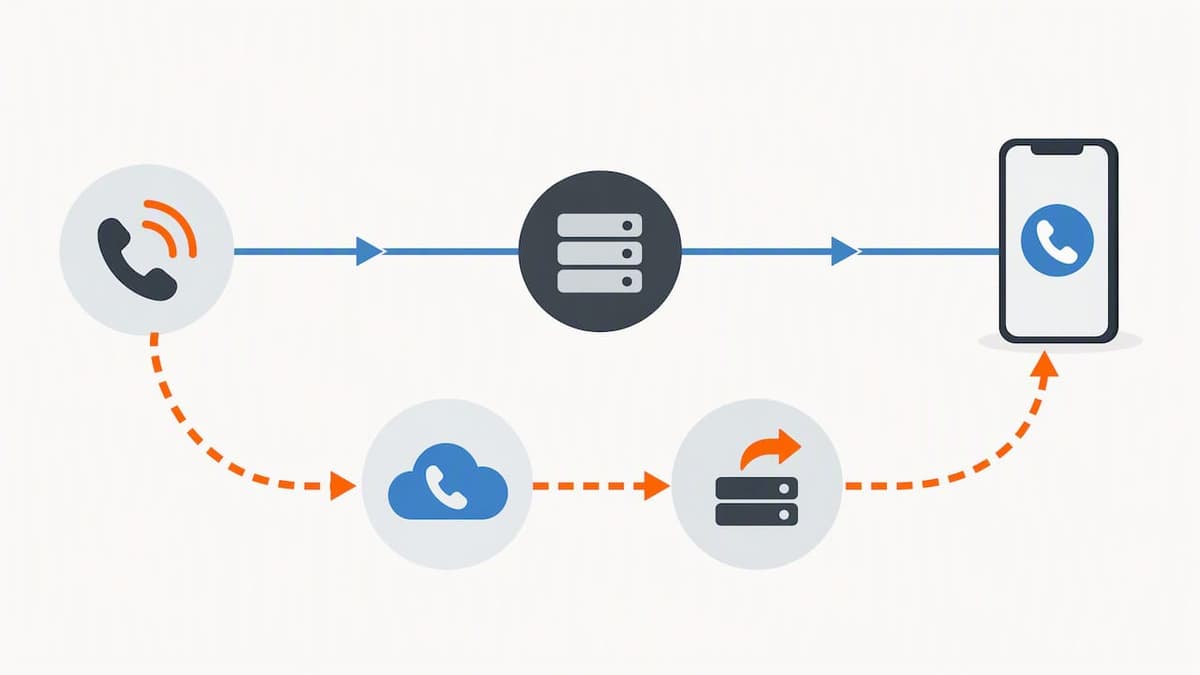
Wi-Fi calling does not care where your internet comes from. It routes voice traffic through your home carrier’s network gateway over an IP connection, and that connection can be your home Wi-Fi, a hotel network, or the data from a travel eSIM. The eSIM’s job is simply to get you online. Your home carrier’s servers handle the actual call setup, ringing, and caller ID, the same way they would if you were standing in your home coverage area.
This is different from app-based VoIP services like WhatsApp or Skype, which need the other person to have the same app installed. Native Wi-Fi calling uses your real phone number, works with your existing contacts and caller ID, and lets people reach you without knowing you are abroad. Native Wi-Fi calling is often the better choice for business travelers who need to stay reachable on their primary line rather than asking callers to switch apps.
The catch is that your home carrier has to register your device on its Wi-Fi calling gateway before any of this works. A few things determine whether that registration holds up while you travel:
- Your carrier must explicitly support Wi-Fi calling for your account and plan tier.
- Your device must have Wi-Fi calling turned on for your home number, not just connected to Wi-Fi.
- The data source, whether home broadband or a travel eSIM, only needs to provide a stable internet path. The carrier does the rest.
Because the eSIM provider is not part of this chain, an eSIM data plan cannot block or break Wi-Fi calling on its own. If it fails, the cause is almost always a carrier setting or a device configuration issue.
What to check before relying on Wi-Fi calling with an eSIM
Before you board a flight assuming Wi-Fi calling will cover you, run through a short checklist. Skipping it is the most common reason travelers find themselves unreachable mid-trip.
- Confirm your home carrier actually supports Wi-Fi calling and ask whether that support extends to international use. Policies vary enough that the FCC advises travelers to check directly with their provider before relying on it abroad.
- Verify your device supports eSIM and Dual SIM operation, and that it is running a current OS version, since older software versions sometimes lack the relevant toggles.
- Enable the correct data-switching setting: “Allow Cellular Data Switching” on iOS or “Automatic data switching” / “Data during calls” on Android, depending on your device.
- Turn on Wi-Fi calling specifically for your home number, not just for the device generally.
- Set up voicemail and call forwarding as a backup in case a call slips through before you land on Wi-Fi.
Carrier policy variation is real: Wi-Fi calling behavior and roaming rules differ by carrier and region, which is why the FCC’s international roaming guide specifically tells travelers to confirm support before departure rather than assume it.
Step-by-step: set up Wi-Fi calling with an eSIM on iPhone
Before you start, make sure your travel eSIM profile is installed, your home line is active, and iOS is updated to the latest version.
- Go to Settings > Cellular and confirm both your home line and travel eSIM appear as separate lines.
- Under Cellular, set your home line as the default voice line and your eSIM as the default data line.
- Scroll to Allow Cellular Data Switching and turn it on so your home line can briefly borrow data from the eSIM when needed.
- Tap your home line, then enable Wi-Fi Calling on This iPhone.
- Connect to Wi-Fi (or rely on eSIM data) and confirm your status bar shows “Wi-Fi Calling” next to your carrier name.
Apple’s Dual SIM documentation confirms that Allow Cellular Data Switching is the setting that lets a non-data line still function properly during calls, which matters whether you are using a physical second SIM or an eSIM for data.
To test it, ask someone to call your home number while you are on Wi-Fi with cellular data for the home line turned off. If it rings and the status bar shows Wi-Fi Calling, you are set.
Pro Tip: Switch on airplane mode first, then turn Wi-Fi back on manually. This stops your home SIM from trying to register on a foreign tower and racking up accidental roaming charges before Wi-Fi calling kicks in.
Step-by-step: set up Wi-Fi calling with an eSIM on Android, including Pixel
Before touching settings, confirm your eSIM data profile is active and that your home number is enabled for Wi-Fi calling on your carrier account.
- Open Settings > Network & internet > SIMs.
- Tap your home SIM and select Wi-Fi calling, then toggle it on.
- Confirm Mobile data is set to the eSIM for your data connection.
- Enable Automatic data switching (or Data during calls, depending on your Android version) so the home line can use the eSIM’s data briefly during setup.
- Connect to Wi-Fi and place a test call to confirm the connection routes correctly.
Google’s Pixel support documentation notes that enabling mobile data and automatic data switching is what allows both SIMs to work together effectively, and that carrier support is still required for Wi-Fi calling to function on either line. Other Android manufacturers place these toggles in slightly different menus, so expect some variation in wording even though the underlying settings are the same.
Test by disabling cellular data on your home SIM entirely, staying on Wi-Fi, and calling your number from another phone. A clean connection confirms your setup is correct.
Dual SIM edge cases and how to configure your phone to avoid missed calls
Dual SIM, Dual Standby (DSDS) lets both your home line and travel eSIM stay active at once, but only one can use the cellular data radio at a time unless data switching is enabled. That switching setting is what allows your secondary or data-only line to momentarily hand off data so your home line can complete a Wi-Fi call setup.
The failure mode travelers hit most often: if Wi-Fi calling is off for the home line and that line is not actively using data, an incoming call can go straight to voicemail instead of ringing through. Apple’s guidance on Dual SIM behavior specifically warns that calls to one line can land in voicemail when the other line is mid-call and Wi-Fi calling is not configured.
- Set your travel eSIM as the default data line and your home number as the default voice line.
- Keep cellular data off for your home SIM where possible to avoid accidental roaming registration.
- Turn on call forwarding to a second number as a fallback for the rare case when Wi-Fi calling does not register in time.
Pro Tip: If you are hopping between countries, check your steps for keeping your number reachable abroad before each new border crossing, since local network registration can occasionally reset your Wi-Fi calling toggle.
Priority troubleshooting checklist when Wi-Fi calling fails with an eSIM
Work through these in order rather than guessing randomly, since most failures trace back to one of a handful of causes.
- Confirm Wi-Fi calling is still enabled in your carrier account. Some carriers disable it automatically if they detect international roaming activity.
- Check your device settings again: Wi-Fi calling toggle, default data line, and data switching can reset after an OS update.
- Restart the device, and if the eSIM profile seems stuck, delete and reinstall it rather than troubleshooting indefinitely.
- Rule out the network itself. Hotel and airport Wi-Fi often use captive portals or restrictive NAT that block the UDP traffic Wi-Fi calling needs; switching to your eSIM’s own data connection instead of a shared hotspot often resolves this instantly.
- Remember that Wi-Fi calling has real limits on emergency calls: location accuracy depends on your registered address, so keep a local emergency number saved as a backup when traveling.
Practical best practices for travelers: avoid bill shock, stay reachable, stay secure
A little preparation before departure prevents most Wi-Fi calling problems entirely.
- Enable Wi-Fi calling and test it at home before you travel, so you know what a working connection looks like.
- Confirm your carrier’s international Wi-Fi calling policy and set up voicemail and call forwarding as safety nets.
- Once abroad, prefer airplane mode plus Wi-Fi over leaving cellular data on, and keep your home SIM’s cellular data switched off to avoid roaming charges entirely.
- Use your eSIM’s data connection as a reliable fallback whenever public Wi-Fi is unreliable or restricted.
- Stick to encrypted networks when privacy matters, since eSIM switching is generally faster and more secure than swapping a physical SIM when you need a trusted data source on short notice.
A quick fact worth remembering: the FCC recommends confirming Wi-Fi calling and roaming support directly with your carrier before travel, since behavior is set by carrier policy rather than by your device or your eSIM provider.
If you would rather skip the guesswork around hotel Wi-Fi reliability, a virtual phone number with call forwarding is worth knowing about as a backup path for staying reachable when Wi-Fi calling itself is uncertain.
How our eSIM plans and support help you use Wi-Fi calling reliably
A stable data connection is the one thing Wi-Fi calling actually needs from your eSIM, and that is where we focus. Plans activate instantly by QR code, which means you can get online and test Wi-Fi calling before you even leave the airport.
- It is possible to use multiple eSIM profiles on one device, so you can keep a travel data plan active alongside your home line without juggling physical SIM trays.
- Coverage spans many countries with 4G and 5G connectivity, which gives Wi-Fi calling the stable, low-latency link it needs to register and stay connected.
- A coverage checker lets you confirm which local networks are partnered with before you land, reducing uncertainty about signal quality in a specific destination.
- Support teams are available 24/7 if you run into activation issues or need help confirming your device is configured correctly.
This article was written by Theo Wheeler, drawing on official Apple, Google, and FCC documentation alongside practical travel setup guidance published on our site.
When Wi-Fi calling with an eSIM is enough, and when it is not
Wi-Fi calling paired with a travel eSIM works well for most short trips and for travelers who spend most of their time near reliable Wi-Fi: hotels, co-working spaces, airports. It keeps your real number reachable without the cost of roaming, and setup takes minutes once you know where the toggles live.
Where it gets shakier is remote areas with unreliable internet, or situations where emergency calling accuracy genuinely matters. In those cases, pairing Wi-Fi calling with a local voice option, rather than relying on it exclusively, is the safer call. Convenience and reachability are not the same as absolute reliability, and travelers who understand that distinction plan better trips.
— Theo Wheeler
Get set up with Lumo before you fly
Once your Wi-Fi calling settings are configured, the only remaining variable is having a dependable data connection to carry the call. That is the part we handle. Buying a plan takes less time than filling out an airport customs form: pick your destination, pay at checkout with no account registration required, and scan the QR code to activate.
- Browse Global eSIM Plans for multi-country trips, or check regional options like Europe eSIM Plans and Asia eSIM Plans if you are staying in one region.
- Use our coverage checker to confirm partner network quality at your destination before you buy.
- Reach our support team anytime, day or night, if you need help with activation or device compatibility questions.
Start at Lumo and have your data connection ready before you board.
FAQ
Does Wi-Fi calling work with an eSIM?
Yes, Wi-Fi calling works with an eSIM as long as your home carrier supports Wi-Fi calling and your device settings are configured correctly. The eSIM only needs to supply a stable internet connection; your carrier’s network handles the actual call routing.
Why isn’t my Wi-Fi calling working on my eSIM?
The most common causes are Wi-Fi calling being disabled for your home line, a missing data-switching setting like Allow Cellular Data Switching, or a restrictive network blocking the connection. Hotel and airport Wi-Fi networks with captive portals or strict NAT are frequent culprits, so switching to your eSIM’s own data connection often fixes it.
Can I use Wi-Fi calling on a data-only eSIM?
Yes, a data-only travel eSIM can supply the internet connection that native Wi-Fi calling needs, as long as your home number is separately enabled for Wi-Fi calling. The eSIM does not need its own voice plan since your home carrier’s gateway handles the call itself.
Why can’t I make calls with my eSIM?
If your eSIM is data-only, it was never intended for making calls directly, since voice calling depends on your home line and Wi-Fi calling settings, not the eSIM itself. Check that Wi-Fi calling is enabled for your home number and that cellular data switching is turned on so the two lines can work together.
Sources
- Using Dual SIM with an eSIM - Apple Support
- How to use dual SIMs on your Pixel phone - Pixel Phone Help
Recommended
- 5 Preflight Checks to Verify eSIM Coverage Maps
- Travelers: 3 Quick Checks to Verify eSIM 5G Support
- Keep Your Number Abroad in 15 Minutes for Travelers
- Your Global Connectivity Checklist for International Travel
Related Topics
Stay Connected Anywhere
Prepaid eSIM data plans for 180+ countries and territories. No physical SIM required.