Tethering vs. Laptop eSIM: Which Is Better for Travel?
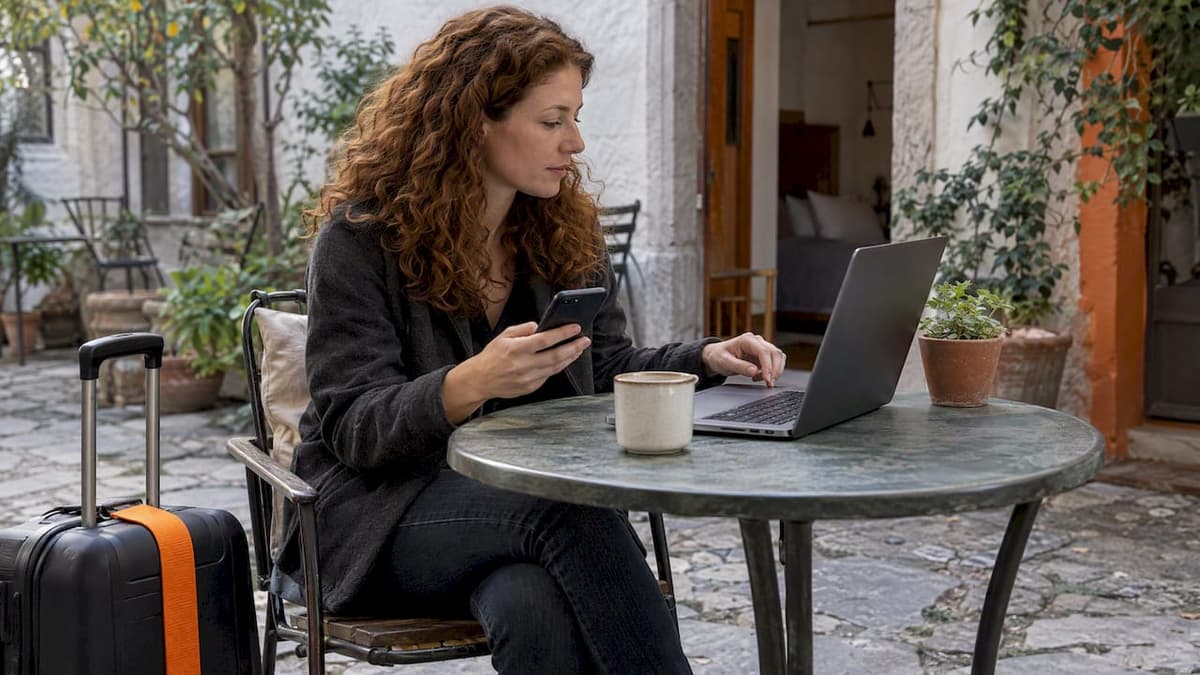
For most people, tethering a laptop to a phone that already has a travel eSIM is the better choice. It costs nothing extra, works with the laptop you own, and takes a minute to set up. A laptop with its own cellular eSIM is worth it only if the laptop has a built-in cellular modem and you work on the road often enough to justify a second plan, or if you can’t keep your phone’s battery and connection tied up all day.
Below, we compare the two on setup, speed, battery, security, data use and cost. We also cover how to check whether your laptop can take an eSIM at all, because many can’t.
TL;DR
- Tethering shares your phone’s mobile data with your laptop over Wi-Fi, USB or Bluetooth. It needs no special laptop hardware.
- A laptop eSIM only works if the laptop has a built-in cellular (WWAN) modem. Most consumer laptops don’t.
- Tethering drains your phone battery and can be blocked or capped by the plan. A laptop eSIM uses its own battery and its own data allowance.
- Occasional travelers and light workers should tether. Frequent road workers with a cellular-capable laptop get more from a dedicated laptop plan.
- Before you buy any plan, check whether its terms allow hotspot sharing.
Table of Contents
- What each option actually is
- Can your laptop take an eSIM?
- Tethering vs. laptop eSIM, side by side
- Setup: minutes either way, but different work
- Speed and reliability
- Battery: the cost people forget
- Security
- Does tethering use more data?
- Cost: the part most readers get wrong
- Choosing by situation
- Perspective: why we lean toward tethering first
- A plan for the phone, ready in minutes
- Troubleshooting a tethered laptop
- FAQ
- Sources
What each option actually is
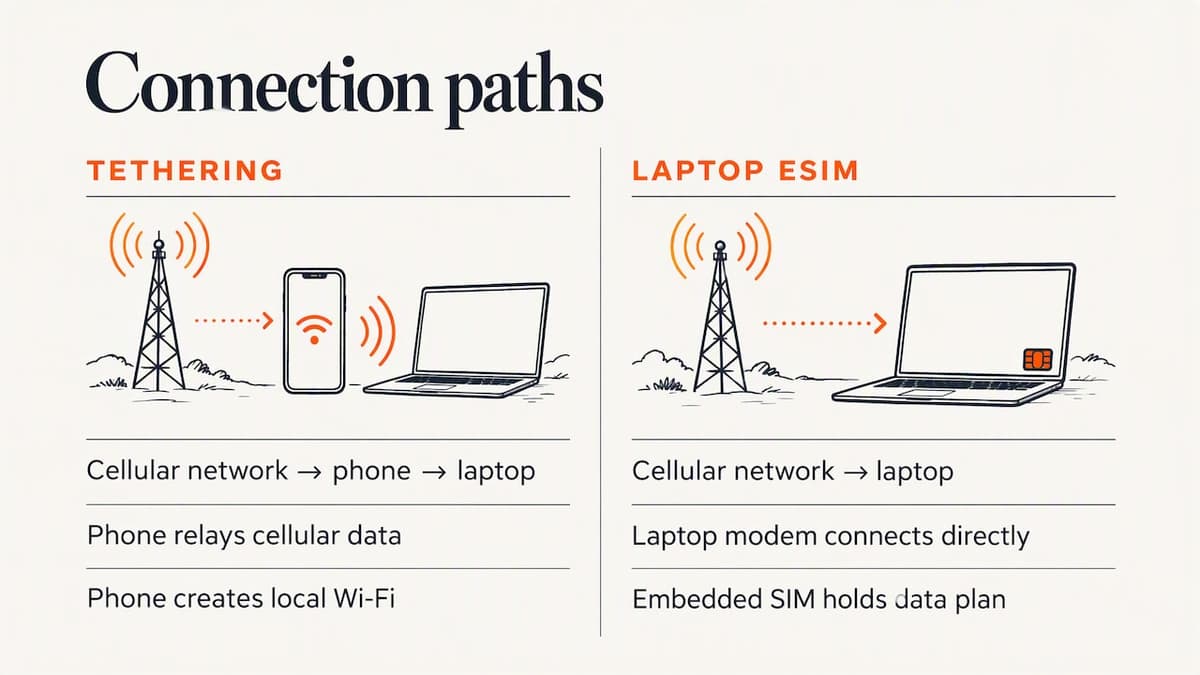
Tethering means your phone acts as the internet connection for another device. A phone used as a hotspot creates a local Wi-Fi network and works like a small router, passing cellular data to nearby devices, as TechTarget explains. “Tethering” is the broad term. “Hotspot” usually means the Wi-Fi version. USB and Bluetooth tethering are the other two ways to do it.
A laptop eSIM is a different setup. The laptop itself has a cellular modem and an embedded SIM chip. You install a data plan on the laptop, the same way you would on a phone, and the laptop connects to a mobile network on its own. No phone is involved.
The key difference is what carries the connection. With tethering, your phone is the middleman. With a laptop eSIM, the laptop talks to the network directly.
Can your laptop take an eSIM?
This is where many readers stop. A cellular eSIM on a laptop requires built-in cellular hardware. Microsoft’s guidance says only PCs with a cellular modem support a cellular eSIM, and the plan has to come from a compatible mobile operator.
There is a quick test on Windows. Open Settings, then Network & internet. If a Cellular page is listed, your PC has cellular capability. If there is no Cellular page, the laptop has no modem, and no eSIM will change that.
A few practical notes:
- Many laptop models are sold in two versions, with and without a cellular modem. Two machines with the same name can differ, so check the exact spec sheet.
- A laptop that says only “Wi-Fi 6” or “Wi-Fi 7” has no cellular radio. Wi-Fi is not cellular.
- Most MacBooks have no cellular modem. If you use one, tethering is your route to mobile data.
- A USB cellular dongle or a travel router is a third path for a laptop without a modem, but it is extra hardware to buy and carry.
If you’re not sure, test before you buy a plan. If you can’t find a Cellular page or an option to add an eSIM profile, assume the laptop can’t use one.
Tethering vs. laptop eSIM, side by side
| Factor | Tethering from your phone | eSIM in the laptop |
|---|---|---|
| Hardware needed | Any phone with a data plan, any laptop | Laptop with a built-in cellular modem |
| Setup | Switch on hotspot, join the network (or plug in USB) | Install the eSIM profile on the laptop, switch on cellular |
| Extra cost | None, if the plan allows sharing | A separate data plan for the laptop |
| Battery | Drains the phone, especially over Wi-Fi | Uses the laptop battery, phone untouched |
| Speed | Usually good; depends on phone, signal and method | Good; depends on the laptop’s modem and signal |
| Reliability | Breaks when the phone sleeps, overheats or gets a call | Independent of the phone |
| Security | Your own password-protected network | No local network to expose |
| Data allowance | Often shares one pool with the phone, sometimes capped | Its own pool, nothing else uses it |
| Multiple devices | Several devices can join | Usually that one laptop |
Neither wins on every row. Tethering wins on cost and flexibility. The laptop eSIM wins on independence.
Setup: minutes either way, but different work
Tethering
On an iPhone, go to Settings, then Personal Hotspot, and switch on Allow Others to Join. On Android, the toggle sits under Network & internet, then Hotspot & tethering, though menu names vary by maker. Then pick the phone’s network on your laptop and enter the password.
If you are traveling on a travel eSIM, the line that carries your data may be a secondary line. On an iPhone, make sure the travel eSIM is the one selected for cellular data first. Our guide to iPhone eSIM settings walks through default line and data choices so the hotspot runs on the line you intend.
For a wired link, plug the phone into the laptop with a cable and turn on USB tethering (Android) or trust the computer (iPhone). It’s more stable and charges the phone while it works.
Laptop eSIM
On a Windows PC with cellular capability, you add an eSIM profile from the Cellular settings page, usually by scanning a QR code or entering the activation details from your provider. A laptop has no camera pointed at a QR code the way a phone does, so many people display the code on the phone screen and scan it with the laptop webcam, or type the code in manually.
The laptop usually needs an internet connection at the moment of download. If you’re stuck without Wi-Fi, see our walkthrough on activating an eSIM without Wi-Fi.
Speed and reliability
Both methods can deliver fast 4G or 5G. What differs is the weak point.
With tethering, speed is limited by your phone: its signal, its modem and how hot it gets. Phones in a hotspot role run warm, and some slow the connection or shut it down when overheated. Incoming calls, battery saver modes and sleep settings can also interrupt a Wi-Fi hotspot. A cable removes much of this trouble.
With a laptop eSIM, the laptop’s modem and antennas do the work. Laptop antennas are generally bigger and better placed than a phone’s, though results depend on the machine. There is no hotspot to drop, and no phone to keep awake.
On a video call in a car, train or café with unreliable Wi-Fi, the direct connection tends to feel steadier. For email, chat and docs, you’ll rarely notice a difference.
Battery: the cost people forget
Tethering has a battery bill. Turning a phone into a hotspot means it runs its cellular radio and a Wi-Fi broadcast at once. TechTarget notes that using a phone as a hotspot is limited by the phone’s battery and the operator’s data allowance.
Ways to ease it:
- Use USB tethering when you can. The phone charges as it shares.
- Use Bluetooth tethering for light tasks like messaging. It is slower but gentler on power.
- Keep the phone out of direct sun and out of a hot bag.
- Carry a small power bank. A phone that dies takes your laptop’s connection with it, and your boarding pass too.
A laptop eSIM moves the power draw onto the laptop, which has a far bigger battery. Your phone stays free for maps, photos and calls. Some power is used by the cellular radio, but you don’t lose your phone to a work session.
Security
Tethering creates a small local network. Treat it like your home router:
- Set a strong, unique hotspot password.
- Don’t leave the hotspot open or use a simple name-and-number password.
- Turn it off when you finish.
- Only allow devices you recognize to join.
Still, a password-protected personal hotspot is generally a safer bet than open hotel, airport or café Wi-Fi, because you control who is on it. A laptop eSIM sidesteps the issue altogether: there’s no local network to join or to guess a password for. Both beat public Wi-Fi for banking, client files and logins.
Does tethering use more data?
The tethering itself doesn’t add much beyond a small overhead. What changes is what you do. A phone mostly sips data from apps, while a laptop tends to pull large downloads: operating system updates, cloud syncs, video calls at high resolution and backups. A laptop can burn through a small plan in an afternoon if it’s set to update over the connection.
It makes no real difference whether the laptop gets its data via your phone or its own eSIM. The same sync and update behavior eats the same gigabytes. The difference is the account being charged. Tethering takes from your phone’s plan, so your maps and messages share it with the laptop. A laptop eSIM keeps laptop usage separate and visible.
To keep laptop use in check:
- On Windows, mark the connection as metered so updates wait for Wi-Fi.
- Pause cloud sync and photo backup while on mobile data.
- Lower video call quality for meetings away from Wi-Fi.
- Check how much data a normal day of navigation takes. Our look at Google Maps data usage abroad gives a sense of the phone’s side of the budget.
- On the phone, Low Data Mode on iPhone helps stop background use from competing with the laptop.
Cost: the part most readers get wrong
Tethering costs nothing extra only if your plan allows it. That is a plan rule, not a phone feature.
In the US, carriers often include a hotspot allowance with a postpaid plan, and the amount varies by plan and tier. Some plans limit hotspot data to a fixed amount, or slow it after that. Prepaid and travel plans have their own terms. Check your carrier’s current plan page rather than relying on a general rule.
On the cost side, PCWorld’s view is that most people should simply use a phone hotspot because it is significantly cheaper. It adds that a 5G laptop suits people who spend a lot of time on the road and want a connection without extra setup. That matches what we see: the laptop eSIM is a convenience you pay for in hardware and a second plan.
A simple way to decide:
- You travel a few times a year and work an hour or two on the way: tether.
- You work from trains, cars or cafés several days a week: a cellular laptop and its own plan can pay off.
- You own a laptop with no modem: tether, or buy a dedicated travel hotspot. Don’t buy a laptop eSIM plan.
Choosing by situation
The weekend or one-week trip
Tether. Buy a data plan for your phone, share it to the laptop when you need it, and skip the extra expense. Our Europe eSIM plans start from $1, and Asia eSIM plans start from $2, both one-off with no contract. Check the plan page for sharing terms before you buy.
The remote worker moving every few weeks
This is the gray zone. If your laptop has a modem, a separate eSIM keeps work traffic off the phone you rely on for maps, rides and two-factor codes. If it doesn’t, tether by USB and keep a power bank in the bag.
The family or group sharing one line
Tethering can work for a few devices at once, but all of them draw from one pool and one battery. For several people, give each phone its own plan, or choose a plan sized for the whole group.
The camper van or long-stay trip
For long stays with steady work, a bigger data plan and a dedicated hotspot device or a cellular laptop is more reliable than a phone that doubles as a router every day. Evaluate the data you actually use in week one, then size up.
Perspective: why we lean toward tethering first
We build prepaid eSIM plans for people who move, so we see how travelers actually connect their laptops. Our view is simple: start with the phone. It’s the device you already carry, and it’s the easiest to replace if it breaks or gets lost. A phone with a good travel eSIM covers navigation, messaging, tickets and, when needed, the laptop.
We’d move to a laptop eSIM only for a specific reason: the laptop has a cellular modem, you work on it daily away from Wi-Fi, and you want that work to survive a dead phone battery. For everyone else, the money is better spent on a larger phone data plan.
The one thing we’d tell every traveler: read the plan’s terms on hotspot sharing before paying. It takes a minute and saves you finding out in a taxi on the way to a client meeting. If you’re also weighing a physical SIM against an eSIM on the phone itself, this comparison of eSIM versus physical SIM lays out the trade-offs.
— Theo Wheeler
A plan for the phone, ready in minutes
If tethering is your route, the plan on your phone is the whole connection, so choose it with that in mind. Lumo sells prepaid eSIM plans with QR code activation, no contract and guest checkout, covering 160+ destinations. Prices published on our site start at $7 for Global eSIM plans and $2 for United States eSIM plans, one-off. Pick the region you are heading to, choose the days and data that suit a laptop-heavy week, and confirm the sharing terms on the plan page before checkout.
Troubleshooting a tethered laptop
If the laptop joins the hotspot but there is no internet, work through these in order:
- Confirm the phone’s cellular data is on and that the travel eSIM is the line selected for data.
- Turn data roaming on for the travel line if the plan requires it.
- Switch the hotspot off and on, and forget and rejoin the network on the laptop.
- Try USB tethering instead of Wi-Fi.
- Restart the phone, then the laptop.
- Check the plan’s terms. If hotspot sharing is blocked or capped, the connection may be refused or throttled.
If you plan to change phones later, remember to remove the profile first. Our steps for erasing an eSIM before trading in your iPhone cover that.
FAQ
Does an eSIM let you use a hotspot?
Usually yes, if your device and the plan both support it. The phone needs hotspot capability, and the plan’s terms must not block sharing. Some prepaid and travel plans restrict or cap hotspot data, so check the plan page before you buy.
Can I put any eSIM on my laptop?
No. Only laptops with a built-in cellular modem can use a cellular eSIM, and the plan must be compatible. On Windows, a Cellular page under Network & internet is the quick sign that your PC has the hardware.
Is USB tethering better than a Wi-Fi hotspot?
For a single laptop, often yes. A cable is generally steadier, avoids a wireless network anyone could try to join, and charges the phone while it shares. Wi-Fi is handier when several devices need to connect or when the phone must stay in a bag.
Do you get charged for tethering?
It depends on the plan. Many US plans include a hotspot allowance, while others limit or slow it, and prepaid or travel plans differ again. The data the laptop uses counts against the phone’s plan, so a laptop can use up a small plan quickly.
Sources
- What is mobile hotspot? | TechTarget
- Use an eSIM to get a cellular data connection on your Windows PC | Microsoft Support
- Are 5G laptops worth it? 7 key facts you need to know | PCWorld
Recommended
- How to Activate an eSIM Without Wi-Fi: What Works
- Morocco eSIM: How to Pick, Install and Use One
- Google Maps Data Usage: What It Costs You Abroad
Related Topics
Stay Connected Anywhere
Prepaid eSIM data plans for 180+ countries and territories. No physical SIM required.