eSIM Tethering Fails? 4 Checks for Travelers in Under Five Minutes

eSIM tethering usually fails for one of four reasons: a carrier or plan restriction on hotspot use, a missing or incorrect Personal Hotspot APN, the wrong data line set as default, or a corrupted eSIM profile. Start by confirming your plan actually allows tethering, then restart both devices and toggle the hotspot off and on. Most failures clear up within a short period after initial troubleshooting.
TL;DR:
- If browsing works but no device can join, check whether your plan permits tethering and ask your carrier to refresh provisioning if tethering is included.
- When mobile data works but hotspot access does not, verify the separate Personal Hotspot APN with your carrier; one incorrect character can block tethering.
- On iPhone 12 or later, turn on Maximize Compatibility when other devices cannot find the hotspot; it switches to the more widely supported 2.4GHz band.
- Before deleting a suspect eSIM, save its activation QR code and APN details; reinstall the profile, select it for data, then test tethering by USB.
Table of Contents
- Quick checks you should run first
- Carrier and plan restrictions that block tethering
- APN settings that quietly break hotspot access
- Fixing Personal Hotspot problems on iPhone
- Fixing hotspot and tethering issues on Android
- When to remove and reinstall your eSIM
- Advanced troubleshooting and workarounds
- What to expect from eSIM tethering in practice
- How Lumo helps when your plan doesn’t support tethering
- FAQ
- Sources
Quick checks you should run first
Before digging into settings menus, rule out the simple stuff. These checks take less than five minutes and isolate whether the problem sits with your carrier or your device.
- Confirm mobile data is turned on and that your eSIM profile, not a physical SIM or second eSIM, is selected as the active data line.
- Toggle Personal Hotspot (iPhone) or “Allow Others to Join” (Android) off, then on, and restart both the host phone and the connecting device.
- Try USB or Bluetooth tethering instead of Wi-Fi to see whether the problem is the hotspot itself or just the wireless connection.
- Install any pending OS updates and keep both devices within about 30 feet of each other during testing.
If none of these restore the connection, the issue is likely upstream, either in your plan’s provisioning or in your APN configuration.
Carrier and plan restrictions that block tethering
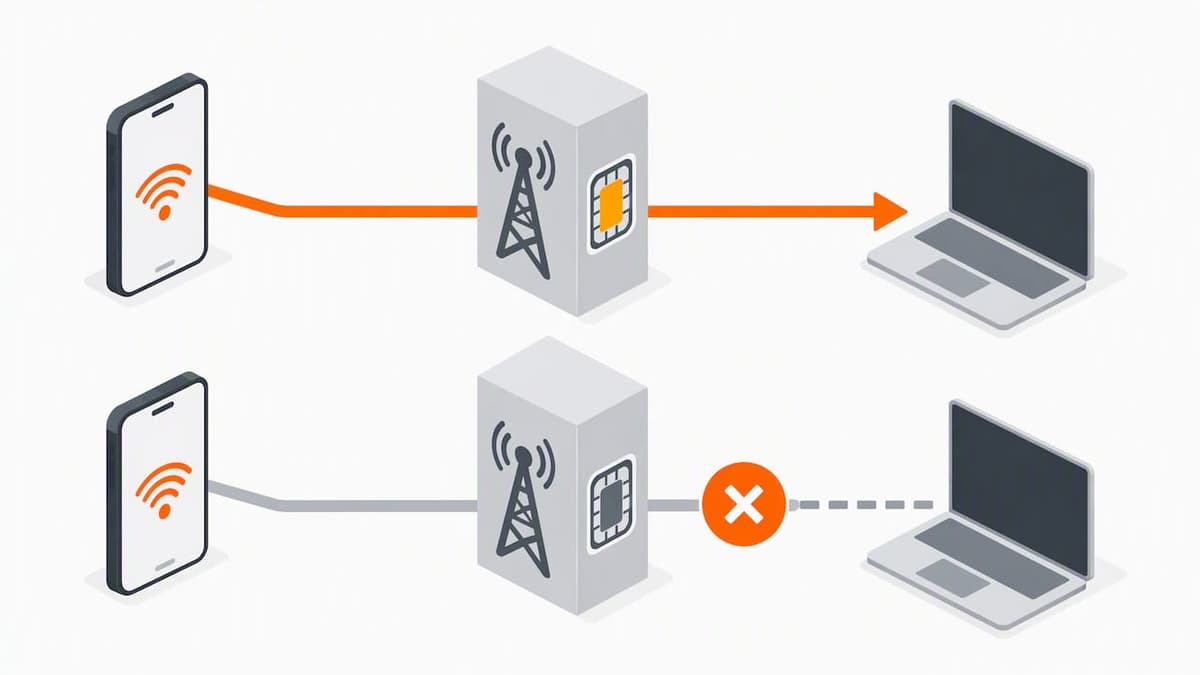
Tethering is primarily a carrier-side policy, not just a device feature. Carriers have historically restricted or charged extra for hotspot use for bandwidth and revenue reasons, and regulatory filings document complaints tied to these restrictions, as shown in FCC enforcement records on tethering policy. Even a perfectly configured phone can be blocked entirely on the network side.
Watch for these signs of a carrier-side block:
- The Personal Hotspot or mobile hotspot option is missing or grayed out entirely.
- A “Set Up Personal Hotspot” prompt appears but fails or loops without completing.
- Mobile data works fine for browsing, but no device can join your hotspot.
- Tethering worked previously, then stopped without any settings changes on your end.
Check your carrier account or plan documentation to confirm tethering is included. If it’s unclear or restricted, contact support and ask for a provisioning change, or switch to a plan that explicitly allows tethering.
APN settings that quietly break hotspot access
Many tethering failures trace back to a single overlooked field: the Personal Hotspot APN. Several devices require this value separately from the main Cellular Data APN, and leaving it blank or entering it incorrectly can block hotspot access even while regular mobile data works fine, according to Apple’s APN guidance.
- Get the exact APN string from your carrier or plan details, since guessing or reusing an old value rarely works.
- Enter it exactly as given: lowercase, no spaces, no typos.
- Open your cellular or mobile network settings, find the Personal Hotspot APN field specifically, enter the value, then save and restart the device.
- If your device doesn’t allow manual APN editing, contact your carrier for a provisioning profile that sets it automatically.
A single incorrect character in an APN field can silently disable tethering while leaving regular data untouched, which is why this step gets skipped so often, per Apple’s Personal Hotspot troubleshooting guide. It’s worth checking even when everything else looks right.
Fixing Personal Hotspot problems on iPhone
iOS keeps hotspot controls in a predictable place, but a few settings commonly get missed.
- Go to Settings > Personal Hotspot and confirm “Allow Others to Join” is toggled on.
- On iPhone 12 and later, enable Maximize Compatibility if other devices can’t detect your hotspot. This switches the hotspot to the 2.4GHz band, which older and non-Apple devices see more reliably.
- Check Settings > Cellular > Cellular Data and confirm your eSIM line, not a secondary SIM, is selected as the active data source.
- If the hotspot still won’t connect, run Settings > General > Transfer or Reset > Reset > Reset Network Settings. This clears saved Wi-Fi passwords, VPN configurations, and cellular settings, so only use it once simpler fixes have failed.
Pro Tip: Test tethering with a USB cable first after any reset. It confirms the cellular connection works before you troubleshoot Wi-Fi band issues separately.
Fixing hotspot and tethering issues on Android
Android spreads tethering controls across a few menus, and the exact labels vary slightly by manufacturer.
- Open Settings > Network & Internet > Hotspot & Tethering and check Wi-Fi hotspot, USB tethering, and Bluetooth tethering individually, since each has its own toggle.
- If you rely on Instant Hotspot or similar cross-device tethering, confirm both devices are signed into the same Google Account, since Google’s hotspot documentation notes these features require matching accounts and separate setup steps.
- Confirm which eSIM profile is set as the active data line, since only one profile can serve as the default at a time, and edit the APN for that specific profile if tethering fails.
- Expect some differences between manufacturers. Pixel devices tend to expose APN and hotspot settings more directly, while Samsung and other OEM skins sometimes bury them under carrier-specific menus, and behavior can shift between Android versions.
When to remove and reinstall your eSIM
Because eSIM profiles are provisioned entirely in software, a corrupted or incomplete profile can disable tethering without any obvious error message. Reinstalling the profile or requesting a remote refresh from your carrier resolves these cases more consistently than a full device reset.
- Note your plan details and APN values before deleting anything, since you’ll need to re-enter them.
- Delete the eSIM profile from your cellular settings, then reinstall it using the original QR code or carrier activation link.
- Reselect the eSIM as your active data line and re-enter the Personal Hotspot APN.
- Test in sequence: enable mobile data, confirm the APN, turn on Personal Hotspot, then connect a laptop by USB to verify the fix before trusting Wi-Fi tethering again.
Pro Tip: Keep your original activation QR code or confirmation email saved before you delete a profile. Some carriers won’t resend it on request.
If reinstalling doesn’t help, our guide on troubleshooting eSIM connectivity walks through additional recovery steps, and our activation problem guide covers reactivation specifics for both iPhone and Android.
Advanced troubleshooting and workarounds
When standard fixes don’t stick, a few less obvious steps often isolate the cause:
- Use USB tethering as a diagnostic baseline. It bypasses Wi-Fi and Bluetooth variables entirely and confirms whether the cellular connection itself is working.
- Switch your hotspot band or enable a compatibility mode if other devices can’t detect it, since band mismatches are a common and invisible cause of “no hotspot found” errors.
- Ask your carrier for a profile refresh or provisioning push if tethering appears blocked on their end rather than yours.
- Disable automatic backups and large cloud syncs while tethering, since unexpected background data use can look like a connection failure when it’s really just a slow one.
If the connecting device itself seems to be the problem, rather than your phone, a quick set of laptop Wi-Fi diagnostic checks can help confirm whether the fault sits on that end.
What to expect from eSIM tethering in practice
Plans vary more than most people assume, and the gap between “mobile data works” and “tethering works” is usually a provisioning detail, not a device flaw. Travelers should check tethering allowance before a trip instead of discovering a block during an important call.
Run the quick checks in this guide before anything time-sensitive, like a remote meeting or a border crossing where you need navigation data. Plans support multiple profiles and quick switching, which makes moving to a tethering-capable plan straightforward if your current one falls short.
— Theo Wheeler
How Lumo helps when your plan doesn’t support tethering
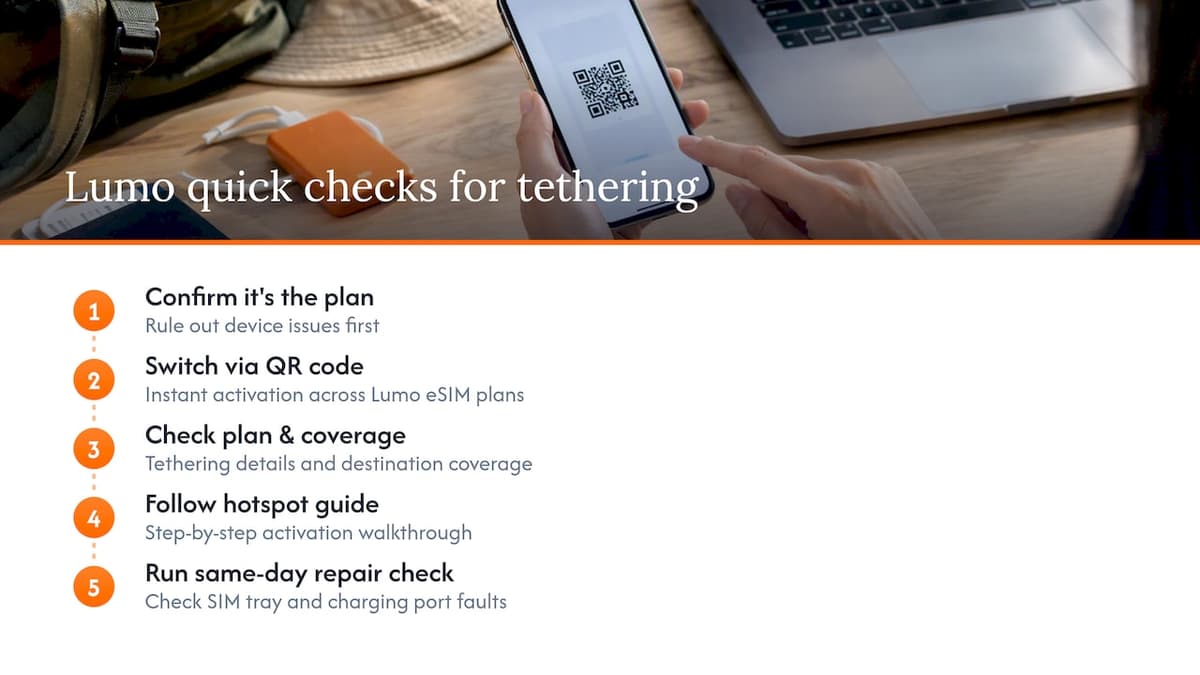
If you’ve confirmed the problem is your plan, not your device, switching is faster than waiting on carrier support. We offer instant QR code activation across Global eSIM Plans, United States eSIM Plans, and regional options, so you can get a tethering-capable connection running in minutes rather than days.
Before buying, check the plan page for tethering details and confirm network coverage in your destination. Our hotspot setup guide walks through activation step by step if you’re setting up for the first time.
If a connected device has a hardware fault unrelated to your plan, like a damaged SIM tray or charging port, a quick same-day device repair check can rule that out before you troubleshoot further.
FAQ
Why does my eSIM hotspot not work?
The most common causes are a carrier plan that restricts tethering, a missing Personal Hotspot APN, or the eSIM not set as the active data line. Running through quick checks like restarting devices and toggling the hotspot resolves many cases within minutes, per Apple’s Personal Hotspot guidance.
Why won’t my mobile tethering work?
Tethering failures usually stem from carrier-side provisioning rather than the device itself, since carriers control tethering access separately from regular data, according to FCC records on carrier tethering policy. Confirm your plan explicitly includes tethering before troubleshooting further.
Why is my iPhone tethering not working?
Check that Allow Others to Join is enabled under Settings > Personal Hotspot and that your eSIM is set as the active Cellular Data line. If other devices can’t see the hotspot, enabling Maximize Compatibility switches to the more widely supported 2.4GHz band.
Why isn’t my hotspot working on a prepaid eSIM plan?
Some prepaid plans don’t include tethering by default, so the first step is confirming your specific plan allows it. If it doesn’t, our Global eSIM Plans and regional options list tethering support directly on each plan page.
How do I fix a corrupted eSIM profile affecting tethering?
Delete and reinstall the eSIM profile using your original QR code or carrier link, then reselect it as your data line and re-enter the Personal Hotspot APN. Test with USB tethering first to confirm the fix before relying on Wi-Fi.
Sources
- View and edit your APN on your iPhone and iPad - Apple Support
- Use your phone as a hotspot - Google Support
- FCC docket describing tethering-related enforcement and carrier policies
Recommended
- How to Troubleshoot eSIM Connectivity Issues Fast
- eSIM Activation Issues: Quick Fixes for iPhone Users
- Travelers: 3 Quick Checks to Verify eSIM 5G Support
- eSIM Benefits for Travelers: Seamless Global Connectivity
Related Topics
Stay Connected Anywhere
Prepaid eSIM data plans for 180+ countries and territories. No physical SIM required.