Yes, You Can Hotspot With an eSIM: A Traveler’s Setup Guide
Yes, you can use an eSIM as a personal hotspot. Every modern iPhone and Android phone treats an eSIM exactly like a physical SIM once it’s active, so if your device already supports tethering, it will keep working after you switch to eSIM data. The catch: some carrier and eSIM plans restrict or throttle tethering, and a misconfigured dual-SIM setup can leave your hotspot pulling data from the wrong profile entirely.
Before you rely on eSIM data sharing hotspot features on a trip, confirm two things:
- Your specific eSIM plan explicitly allows tethering (check the fine print, not just the marketing page).
- The correct eSIM profile is set as your active data line, especially if you’re juggling a home SIM and a travel eSIM side by side.
Get those two right and setting up a hotspot with eSIM takes less than a minute on either platform.
Key Takeaways
An eSIM supports hotspotting exactly like a physical SIM does, but plan terms and active-profile settings determine whether it actually works when you need it.
| Point | Details |
|---|---|
| eSIM hotspotting works by default | Modern iPhones and Android phones tether normally on eSIM data if the device and plan allow it. |
| Check plan terms first | Search the provider’s FAQ for tethering or fair-use language before counting on it abroad. |
| Confirm the active profile | On dual-SIM phones, switch to the correct eSIM for data before turning on the hotspot. |
| Band support beats top speed | Broader LTE/5G band compatibility matters more for travel reliability than peak speed claims. |
| Lumo states tethering terms upfront | Lumo’s plan pages list data and tethering allowances clearly, with multi-profile switching built in. |
Table of Contents
- How to Set Up an eSIM Personal Hotspot on iPhone
- How to Set Up an eSIM Personal Hotspot on Android
- How to Check if Your eSIM Plan Actually Allows Hotspotting
- Fixing Common eSIM Hotspot Problems
- Battery Life, Speed, and Keeping Your Hotspot Secure
- How Lumo Makes eSIM Hotspotting Simpler for Travelers
- What Actually Matters When You’re Relying on an eSIM Hotspot
- Get an eSIM Built for Hotspotting Before Your Next Trip
- Sources
- FAQ
How to Set Up an eSIM Personal Hotspot on iPhone
iPhone makes eSIM hotspot tethering almost identical to using a physical SIM. The steps below get a Wi-Fi hotspot running and confirm the right eSIM profile is doing the work.
- Open Settings and tap Personal Hotspot.
- Toggle Allow Others to Join. If you want a memorable network name and password, tap Wi-Fi Password to set your own.
- Before you turn it on, check Settings > Cellular and confirm your travel eSIM is set as the line providing cellular data, not your home SIM. On dual-eSIM or eSIM-plus-physical-SIM phones, this is where mismatched data plans quietly rack up charges.
- If you’re running two active profiles, tap the eSIM you intend to use for data and switch Cellular Data to that line before enabling the hotspot.
- Turn Personal Hotspot on, then connect a laptop or second phone using the SSID and password shown on screen.
Once connected, watch for the blue Personal Hotspot bar at the top of your iPhone screen, that’s your confirmation it’s actively sharing. Open a browser on the connected device to make sure pages load, then check Settings > Cellular > [your eSIM] for the data usage counter to confirm traffic is hitting the right plan.
Pro Tip: Rename your hotspot SSID before you land at the airport or hotel. “iPhone” broadcasts to everyone nearby that there’s a device worth targeting, while a generic name draws far less attention.
How to Set Up an eSIM Personal Hotspot on Android
Android’s hotspot menu lives in roughly the same place across brands, but the exact wording shifts depending on who made your phone.
- On stock Android, go to Settings > Network & Internet > Hotspot & Tethering and toggle Wi-Fi Hotspot on.
- On Samsung devices, the same menu appears under Settings > Connections > Mobile Hotspot and Tethering.
- On Pixel phones, it’s Settings > Network & Internet > Hotspot & Tethering > Wi-Fi Hotspot, with an option to auto-enable hotspot when a known device connects.
- If you’re running dual SIM (physical plus eSIM, or two eSIMs), open Settings > Network & Internet > SIMs and confirm the correct line is toggled on for mobile data before you activate the hotspot.
Watch for background data restrictions. Some Android phones cap hotspot speeds or pause tethering after extended idle periods to save battery, and carrier-locked devices sometimes block tethering outright regardless of what your eSIM plan allows.
Bluetooth and USB Tethering With an eSIM
Wi-Fi hotspotting isn’t the only option, and it’s not always the best one. Bluetooth tethering pairs your phone with a laptop through Settings > Bluetooth, then selecting your phone as a tethered network on the connecting device. It sips far less battery than Wi-Fi hotspotting but caps out at slower speeds, fine for email and documents, rough for video calls.
USB tethering solves the battery problem entirely: plug in a cable, enable USB Tethering in your hotspot settings, and your laptop gets a wired connection while your phone charges simultaneously.
- Choose Bluetooth when battery life matters more than speed.
- Choose USB tethering when you need the most stable connection and can stay near your device.
- Choose USB or a dedicated router over Wi-Fi hotspotting in weak-signal areas, since a wired connection avoids the extra signal loss Wi-Fi introduces.
How to Check if Your eSIM Plan Actually Allows Hotspotting
Not every eSIM plan treats tethering the same way, and this is where travelers get caught off guard mid-trip. Before you count on hotspotting at your destination, dig into the plan terms.
- Search the provider’s FAQ or terms page for “tethering,” “personal hotspot,” or “fair use” rather than assuming it’s included by default.
- Look for data caps that specifically throttle after a tethering threshold, some plans allow tethering but slow speeds dramatically past a certain gigabyte mark.
- Confirm your device’s supported bands match the destination country’s networks. Industry guidance on hotspot features consistently emphasizes that broad LTE and 5G band support matters more for real-world travel reliability than any advertised peak speed number.
- On dual-SIM phones, double-check which profile is set as your data line. Some handsets quietly disable 5G on the secondary SIM whenever the primary line is active, which can throttle your hotspot without any error message.
Switch your active profile to the travel eSIM before you enable hotspot mode, not after. Doing it in the wrong order is one of the most common reasons a hotspot connects but delivers no usable speed.
Fixing Common eSIM Hotspot Problems
Most eSIM hotspot failures trace back to one of a handful of fixable causes. Work through this list before assuming your plan itself is broken.
- No tethering option appears. Restart your phone, then toggle Airplane Mode on and off to force a fresh network handshake. If it still won’t show, your carrier profile may block tethering at the network level.
- Devices connect but there’s no internet. Toggle mobile data off and back on, then confirm the correct eSIM profile is active for data (not just for calls or texts).
- APN errors or “not registered on network.” Check your APN settings against your carrier’s published values, or reset network settings entirely as a last resort.
- Speeds crawl even with good signal. Your plan may throttle tethered data separately from regular use. Check the fair-use terms again.
- Connection drops in and out. Move closer to a window or higher ground, switch to USB tethering for a more stable link, or, in genuinely weak-signal areas, dedicated hotspot hardware with stronger antennas will often hold a connection longer than phone tethering can.
Pro Tip: Keep a screenshot of your APN settings before you leave home. If you ever need to reset network settings abroad, you’ll have the correct values on hand instead of hunting for carrier support on a hotel Wi-Fi connection.
Battery Life, Speed, and Keeping Your Hotspot Secure
Hotspotting drains battery fast, mainly because your phone’s radio stays active broadcasting a Wi-Fi signal continuously. A few habits stretch that runtime considerably.
- Limit connected devices to what you actually need; each additional device adds real load.
- Switch to USB tethering when you’re at a desk, it charges your phone while it works.
- Dim your screen and disable background app sync on the connected devices to cut overall data churn.
- Set app-level data caps and turn on usage alerts so a surprise software update doesn’t blow through your travel data plan overnight.
Security matters just as much as speed once you’re sharing a hotspot in public. Use a WPA2 or WPA3 password rather than an open network, change the default SSID so it doesn’t broadcast your phone model, and run a VPN on each connected device or, better yet, route everything through a travel router with VPN support if multiple people are sharing one connection.
Pro Tip: A travel router paired with your phone’s eSIM often beats buying a dedicated hotspot outright. Comparative guides on travel networking find this combo delivers the best mix of cost, VPN support, and flexibility for most digital nomads, reserving dedicated hotspot hardware for travelers whose cellular connection is their only daily internet source.
How Lumo Makes eSIM Hotspotting Simpler for Travelers
Lumo builds its plans around exactly the questions this guide just walked through: does the profile support tethering, and will the bands work where you’re headed? Every plan page states data allowances and tethering terms plainly, so you’re not hunting through fine print at the gate.
- Instant QR code activation means you can add a new profile minutes before boarding, no waiting on a physical card.
- Multi-profile support lets you hold plans for several countries and switch the active data line before you enable your hotspot, the exact step that trips up most dual-SIM travelers.
- Device compatibility guides flag band support ahead of time, so you’re not discovering a mismatch after landing.
- Around-the-clock support means a stuck APN setting or a profile that won’t activate gets resolved without losing a travel day.
Written with input from Lumo connectivity writer Theo Wheeler, whose device compatibility and security guidance backs the setup steps throughout this piece.
What Actually Matters When You’re Relying on an eSIM Hotspot
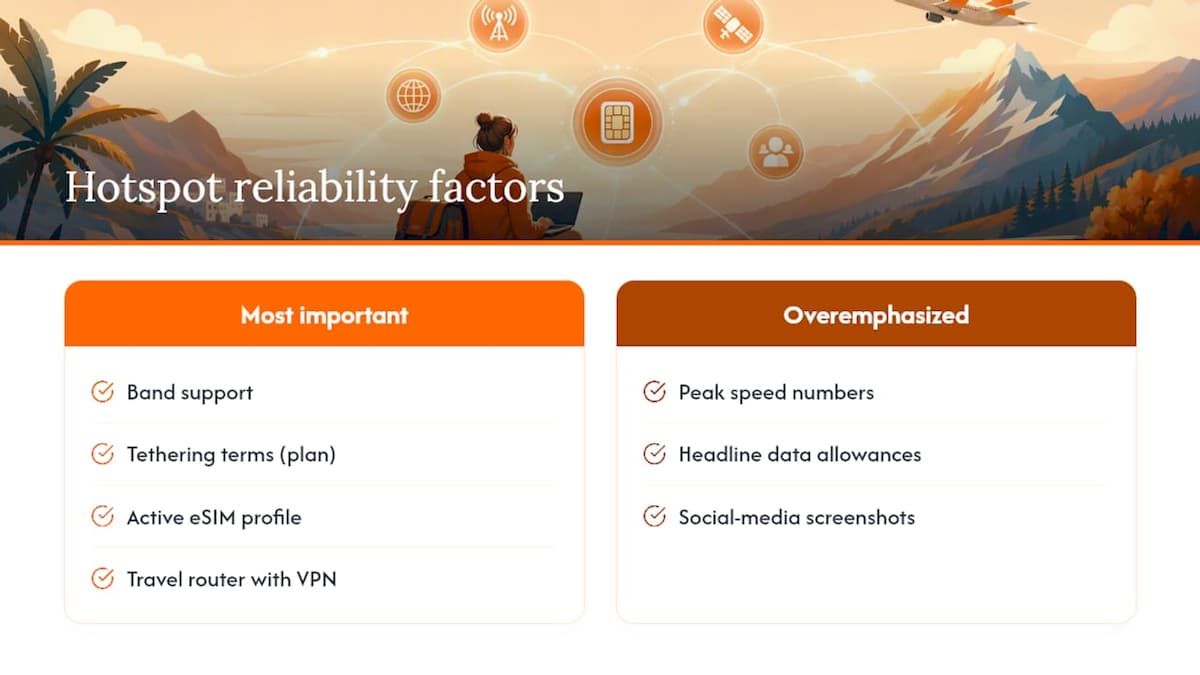
Most advice on this topic focuses on the wrong variable. Guides obsess over peak speed numbers and headline data allowances, but the thing that actually determines whether your hotspot works at 11 p.m. in a foreign hotel room is band support and plan terms, the boring stuff nobody screenshots for social media.
I’d also push back on the instinct to treat hotspotting as a phone-only problem. The travel router conversation gets treated as a niche upgrade for road warriors, but for anyone sharing a connection across two or three devices, a $30-40 router with its own VPN does more for security and stability than any phone setting ever will. Phone tethering is the right default. It’s not always the right ceiling.
If there’s one thing worth prioritizing above all else before a trip, it’s verifying your plan’s actual tethering terms and confirming which profile is set active, not chasing the fastest advertised speed. That single check prevents most of the hotspot failures travelers run into abroad.
Get an eSIM Built for Hotspotting Before Your Next Trip
Lumo gives travelers a plan built around exactly what this guide covers: clear tethering terms stated upfront, multiple stored profiles you can switch between mid-trip, and device guides that flag band compatibility before you land. Instead of guessing whether your carrier blocks hotspotting somewhere in the fine print, you check Lumo’s plan page once and know.

That matters most for remote workers juggling calls across time zones or travelers hopping between countries who need one connection point that just keeps working. Coverage spans over 160 countries, activation happens by QR code in minutes, and support runs 24/7 if a profile needs troubleshooting mid-journey, making it essential to consider how global travel solutions simplify sustainable event planning when managing connectivity for worldwide travelers.
Browse Lumo’s eSIM plans and pick one with tethering terms you can verify before you ever leave home.
Sources
- 12 Mobile Hotspot Features to Check in 2026
- Selecting mobile hotspots
- Travel Router vs Mobile Hotspots
FAQ
Can eSIM data be shared via hotspot?
Yes. An eSIM behaves like a physical SIM for tethering purposes, so Wi-Fi hotspot, Bluetooth, and USB tethering all work as long as your device supports it and your plan doesn’t restrict it.
Can I personally hotspot with an eSIM?
Yes, on any modern smartphone with eSIM support. Enable Personal Hotspot on iPhone or Hotspot & Tethering on Android, and confirm your eSIM is the active data profile first.
Why can’t I share my hotspot with my eSIM?
The most common causes are a plan that blocks tethering under its fair-use terms, an inactive or wrong eSIM profile set for data, or a carrier-level restriction on the device itself. Check plan terms and active profile settings before assuming the device is broken.
Which eSIM is best for using as a hotspot?
Look for a plan that states its tethering policy clearly and offers multi-profile support so you can switch data lines while traveling. Lumo lists tethering allowances directly on its plan pages, which removes the guesswork most travelers run into with unclear carrier fine print.
Recommended
Related Topics
Stay Connected Anywhere
Prepaid eSIM data plans for 180+ countries and territories. No physical SIM required.