Google Maps Data Usage: What It Costs You Abroad

Google Maps is light on data. Active turn-by-turn navigation typically uses about 5 MB per hour, so a 1 GB allowance covers roughly 200 hours of driving directions. The surprises come from satellite view, constant searching, location sharing and background activity, and they come fastest when you’re abroad, where every megabyte can be billed at roaming rates.
This guide shows what Google Maps really consumes, what pushes the number up, what offline maps do and don’t save, and how to plan data for a trip so the map never leaves you stranded.
TL;DR
- Basic navigation uses about 5 MB per hour. Satellite view, live searching and heavy browsing use noticeably more.
- Google doesn’t charge for Maps, but your carrier may charge for the data it uses, which matters most on roaming.
- Offline maps cut data use, but they don’t switch it off. Traffic, transit, walking and cycling directions still need a connection.
- Check real usage in your phone’s cellular settings, then size your travel plan around the apps that eat the most, such as video calls and streaming.
- A prepaid travel eSIM keeps Maps, messaging and ride apps working abroad without roaming charges.
Table of Contents
- How much data does Google Maps use?
- What makes Google Maps use more data
- Do offline maps use zero data?
- Check what Maps really uses on your phone
- Before you leave: a simple offline routine
- Maps is small. Your other apps are not
- Our perspective: plan for the whole trip, not the map
- Why roaming makes Maps expensive
- Staying connected with a travel eSIM
- Ten ways to trim Maps data without losing the map
- FAQ
- Sources
How much data does Google Maps use?
The commonly quoted figure is about 5 MB for each hour of active navigation on a typical iPhone or Android phone, according to Monito’s data-usage breakdown. Other guides publish figures from 5 to 20 MB per hour. The spread is real: the number depends on how you use the app, not on the app alone.
Here is a practical way to read those numbers:
| What you’re doing | Rough data picture |
|---|---|
| Turn-by-turn driving navigation, standard map view | About 5 MB per hour |
| A full week of 2 hours of navigation per day | Roughly 70 MB at that rate |
| One month of daily commuting at 1 hour per day | Roughly 150 MB at that rate |
| Satellite view, frequent searches, lots of panning | Significantly more than the standard view |
The weekly and monthly rows are simple multiplication of the 5 MB figure, not measured values. Treat them as a budgeting guide.
The key point: navigation itself is cheap. Maps becomes expensive when you use it as a browsing tool, searching restaurants, flicking through photos and reviews, and switching layers all day.
What makes Google Maps use more data
Satellite view and layers
Satellite imagery consumes significantly more mobile data than the standard map view. Photos are heavier than vector lines and labels. If you only need to find your way, stay in the default view.
Searching, photos and reviews
Turn-by-turn directions are a trickle of small updates. Looking at a restaurant’s page, with photos and reviews, is a bigger download. On a trip you do a lot more of this than at home: you’re in unfamiliar streets looking for food, transit stops and landmarks.
Live traffic and rerouting
While you navigate, the app keeps checking conditions so it can update your arrival time and suggest faster routes. That’s the whole point of online navigation, and it’s why the data keeps flowing even when you’re just sitting in a car.
Sharing your location
Trip sharing needs a live connection. Real-time trip progress transmits your coordinates, battery status and arrival or departure updates to the people you choose. That’s small per update, but it runs for the whole trip.
Data going out, not just coming in
Navigation data helps everyone else too. Google explains that navigation data collected while you drive is aggregated to improve traffic and route suggestions for all users. That means the app is sending as well as receiving while you navigate, and closing navigation or the app stops that collection.
Maps built into your car
If your car has Google Maps built in, the system may auto-download offline maps based on your location and travel patterns when this is enabled. If the car runs on a limited data plan, check that setting in the Privacy Center instead of assuming it’s off.
Do offline maps use zero data?
No, and this is the most common misunderstanding. Offline maps reduce data use by loading map tiles to your phone in advance. They don’t make the app data-free.
Google’s own help page says what you give up. Offline maps don’t support transit, bicycling or walking directions, and they don’t provide real-time traffic or alternate routes. If you stay online, the app keeps pulling cellular data for those features.
Two more limits to know before you rely on them:
- Some regions aren’t available. Google notes you can’t download offline maps in some countries or regions because of contractual limitations, language support, address formats or other reasons. Check your destination before you leave.
- Storage is the trade-off. A downloaded area takes space on your phone. Google shows an estimated size before you confirm, so look at it, and leave headroom on the device.
How to get truly zero data from Maps
If you want Maps to use no cellular data at all, download the area first, then restrict the app’s cellular access in system settings. Apple’s iPhone guide covers cellular data controls per app. The trade-off is obvious: no live traffic and no transit times until you reconnect.
Check what Maps really uses on your phone
Estimates are only a starting point. Your phone counts the real figure.
- iPhone: open Settings, then Cellular, and scroll to Google Maps in the app list.
- Android: open Settings, then Apps, then Google Maps, and look at its mobile data use.
- Reset or note the counters at the start of a trip so you can read a clean number for your own habits.
Google confirms both paths on its system requirements page, and notes that the app itself is free while your carrier may bill for the data.
One extra tip for Android: the system can automatically revoke permissions and stop background activity for apps you rarely use. If you use Maps only on trips, check its App info before you leave so it behaves the way you expect.
Before you leave: a simple offline routine
A five-minute routine beats any amount of data-saving tricks on the road.
- On home Wi-Fi, download your destination area. Cover the whole stretch you’ll be moving around, including the airport and any day-trip routes.
- Save your key places. Hotel, meeting address and meeting-point pins are easier to find when you’ve starred them in advance.
- Stay on standard map view for navigation.
- Know what offline won’t do. Plan transit and walking routes while you still have Wi-Fi, because those aren’t available offline.
- Keep a data connection for the live layer. Traffic, rerouting, transit and search all need it.
That last step is where most travelers hit trouble. The downloaded map is a safety net, not a replacement for mobile data.
Maps is small. Your other apps are not
On a trip, Maps rarely runs your plan out of data. The things that do are video calls, streaming and cloud backups. A good way to think about it is a ranking of apps by hunger:
- Maps and messaging: light.
- Social feeds, photo uploads, ride-hailing screens: moderate, and they grow with use.
- Video calls on Zoom or Teams, and streaming: heavy, and a single long session can use more than a week of navigation.
If you work remotely, your calls decide your plan size, not your map. Our guide to estimating travel data usage walks through adding up your own mix, and the mobile data management guide covers the controls that stop apps from using data in the background.
Our perspective: plan for the whole trip, not the map
We build eSIM plans for travelers, and the most common data mistake we see is planning around one app. People hear that Google Maps uses about 5 MB an hour, conclude a tiny plan is plenty, and then spend the trip on hotel Wi-Fi hunting, tethering a laptop and video calling home.
Our view is simple. Maps is the app you can least afford to lose when you land, so get connected before you need it. Install the eSIM on the flight or at home, turn it on when you arrive and open Maps with the data already working. That beats searching for a kiosk at the airport at midnight, with a dying phone and a taxi queue.
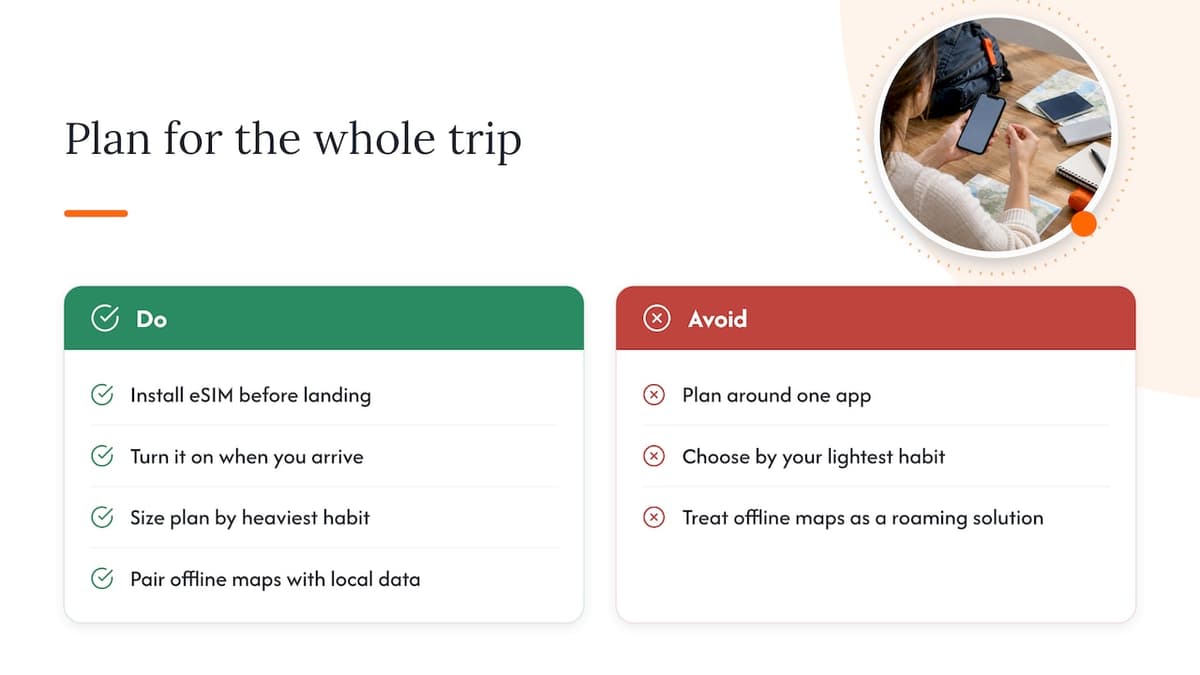
Then size the plan by your heaviest habit, not your lightest. If you only navigate and message, a small plan works. If you take calls, upload photos or tether a laptop, pick a bigger one. A top-up is easier than being stuck without data, but it’s cheaper to get it right the first time.
We’d also push back on the idea that offline maps solve roaming. They help, and we recommend downloading them. But the features travelers use most, such as live transit, walking routes and traffic-aware rerouting, are exactly the ones offline mode drops. Offline maps plus a local data plan is the combination that works.
— Theo Wheeler
Why roaming makes Maps expensive
Google doesn’t bill you for Maps. Your mobile provider does bill for the data it uses, and abroad that can mean daily roaming passes or per-megabyte rates, depending on your carrier and plan. The details vary by carrier, so check your own plan before you rely on it. Our explainer on roaming costs and risks lays out the common traps, and dual SIM travel setup shows how to keep your home number for texts and verification codes while a travel eSIM handles data.
The practical rule: if your phone is set to roam on your home plan, turn off background data for non-essential apps, and don’t leave live location sharing running all day.
Staying connected with a travel eSIM
A prepaid travel eSIM is a digital SIM you buy online and install by scanning a QR code, with no physical card and no store visit. At Lumo, you get coverage in 160+ countries, no contract and no registration required, and plans in different durations and data sizes so you can match your actual habits.
Choose the plan by where you’re going:
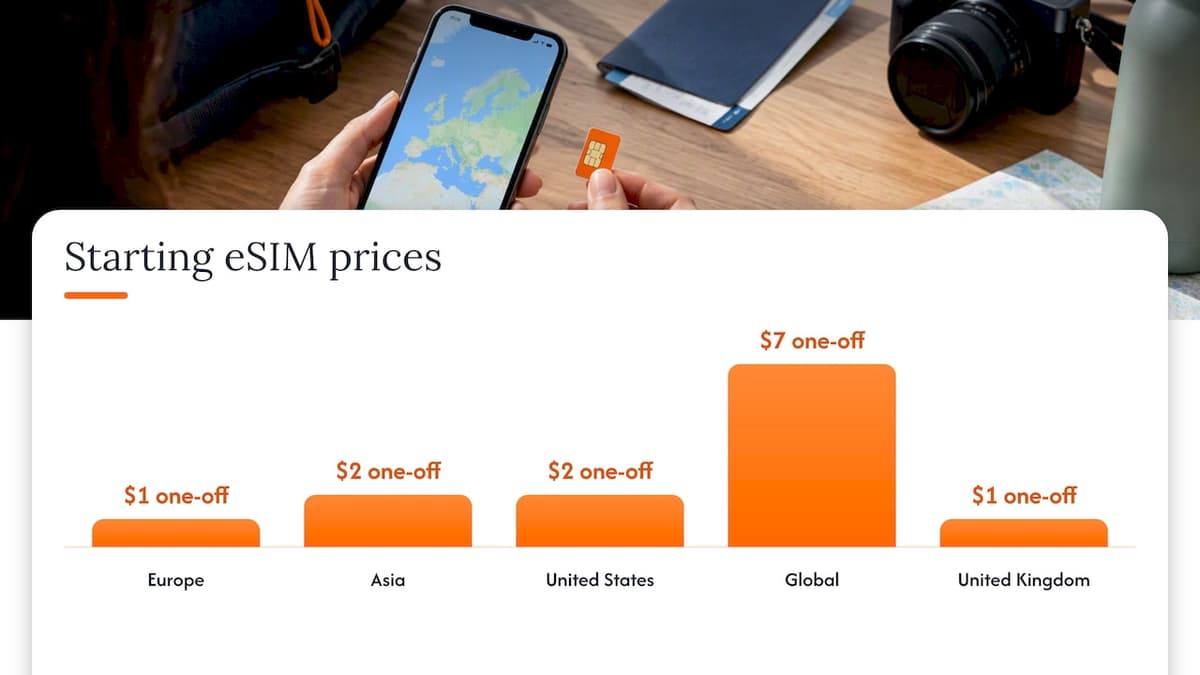
- Heading to the continent? Europe eSIM plans start from $1 one-off.
- Visiting several countries in Asia? Asia eSIM plans start from $2 one-off.
- Coming to the States from abroad, or planning a road trip? United States eSIM plans start from $2 one-off.
- Crossing several regions? Global eSIM plans start from $7 one-off.
- Going to the UK? United Kingdom eSIM plans start from $1 one-off.
Check which networks serve your destination on our coverage by country page, and confirm your phone supports eSIM before you buy. Our guide to global mobile data access walks through setup step by step, and our support team is available 24/7 if the install doesn’t go as planned.
Ten ways to trim Maps data without losing the map
- Download offline areas on Wi-Fi before every trip.
- Stay in the default map view unless you really need imagery.
- Search for places on Wi-Fi at the hotel, then save them.
- Plan transit and walking routes in advance, since offline mode can’t.
- Stop navigation when you arrive, so the app stops collecting and sending navigation data.
- Turn off live location sharing when the people following your trip no longer need it.
- Check Maps’ cellular use weekly in your phone settings.
- Disable cellular data for apps that don’t need it while roaming.
- If your car has built-in Maps, review its offline download settings in the Privacy Center.
- Keep a travel eSIM active as the backup for live features.
For broader habits, our data-saving connectivity tips and global data usage tips go further than Maps alone.
FAQ
Does Google Maps use a lot of data?
No. Basic navigation uses about 5 MB per hour, which is small next to video or music streaming. Usage rises with satellite view, heavy searching and photo browsing, so your own habits matter more than the app.
Can I use Google Maps without any data or Wi-Fi?
Yes, in an area you downloaded in advance, you can navigate offline by car. You won’t get live traffic, alternate routes, or transit, walking and cycling directions. Offline downloads also aren’t available in every country or region, so check your destination first.
Does location sharing use data?
Yes. Sharing real-time trip progress requires an active internet connection to send your location, battery status and arrival updates to the people you chose. Each update is small, but it continues as long as sharing is on, so switch it off when it’s no longer needed.
How do I see how much data Google Maps used?
On iPhone, go to Settings, then Cellular, and find Google Maps in the app list. On Android, go to Settings, then Apps, then Google Maps. Both show the app’s mobile data use, which is a better guide than any general estimate.
Does using Google Maps abroad cost extra?
Google doesn’t charge for Maps, but your carrier may bill for the mobile data it uses, and roaming rates can be higher than at home. Check your plan’s international terms before you travel, or use a local or travel eSIM so Maps runs on a plan you know the price of.
Sources
- Monito: How much data does Google Maps use?
- Google Maps Help: System requirements and data charges
- Google Maps Help: System requirements (iPhone and iPad)
- Google Maps Help: Share your trip progress
- Google Maps Help: How navigation data makes Maps better
- Google Maps Help: Download areas and navigate offline
- Google Maps Help: Download areas offline, contractual limits
- Google Maps Help: Maps built into your car, offline
- Apple Support: Cellular data settings on iPhone
- Android Help: Automatic permission removal for unused apps
Recommended
Related Topics
Stay Connected Anywhere
Prepaid eSIM data plans for 180+ countries and territories. No physical SIM required.