Can a Windows Laptop Use an eSIM? Setup and Compatibility
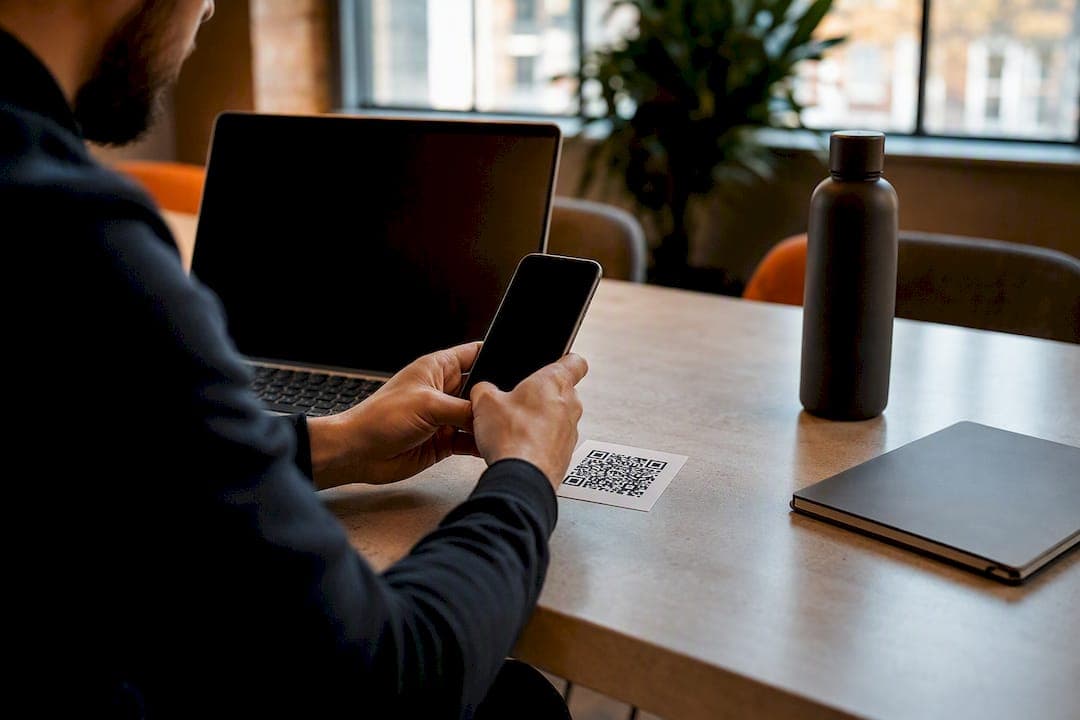
Yes, a Windows laptop can use an eSIM, but only if it shipped with a WWAN modem built for cellular data and runs a supported version of Windows 10 or Windows 11. Before you do anything else, open Settings > Network & internet > Cellular and check whether an “eSIM profiles” option appears. If it does, you’re set to activate a plan. If it doesn’t, the hardware likely isn’t there, and no software update will fix that.
TL;DR:
- Only laptops with a built-in WWAN modem and supported Windows version can activate and use an eSIM; a physical SIM tray does not guarantee hardware capability.
- Confirm hardware support by checking Device Manager for a WWAN adapter and verifying cellular settings are available in Windows, as many models lack the necessary components.
- Adding an eSIM profile involves downloading from a carrier, using Windows settings, or scanning a QR code, with Wi-Fi kept active during download for successful activation.
- Only one eSIM profile can be active for data at a time, and deleting a profile requires caution since it is usually permanent and may be restricted on managed devices.
- For enterprise deployment, IT admins should use Microsoft’s Intune tools and ensure device hardware supports eSIM to avoid common setup failures and profile management issues.
Table of Contents
- What You Need: Hardware, Windows Support, and Identifiers
- How to Add an eSIM Profile on Windows
- Connecting, Switching, and Deleting eSIM Profiles
- How to Check if Your Laptop Actually Supports eSIM
- Enterprise Deployment and MDM Notes for IT Admins
- Troubleshooting eSIM Errors on Windows Laptops
- Why I Keep Coming Back to eSIM for Laptop Travel
- Get Your Laptop Online in Minutes With Lumo
- Sources
- FAQ
What You Need: Hardware, Windows Support, and Identifiers
Not every laptop with a SIM slot can actually use one. A physical SIM tray is sometimes installed on models that were never fitted with the WWAN (wireless wide area network) modem needed to make cellular data work, since manufacturers frequently sell the same chassis with WWAN as an optional, purchase-time configuration. If your laptop has a tray but no signal ever shows up, that’s usually why.
Windows itself requires the eSIM component and an LTE or 5G WWAN modem to expose cellular settings at all. Upgrading from Windows 10 to Windows 11, or installing the latest patch, will not add a modem that was never soldered onto the motherboard. If your device lacks the hardware, no setting or driver reinstall changes that.
Before contacting a carrier or Lumo about activation, gather these details:
- EID (eSIM identifier): found under Settings > Network & internet > Cellular > SIM, or sometimes in Device Manager under the modem’s properties.
- IMEI: visible via
Settings > System > About, by dialing your device’s diagnostic shortcut where supported, or on the bottom of the laptop chassis. - ICCID: appears once a profile is installed, useful for support calls if something goes wrong later.
If none of this information exists anywhere on your device, contact the manufacturer directly. Some OEMs offer field upgrades or WWAN card add ons for specific chassis, though availability depends entirely on the model.
How to Add an eSIM Profile on Windows
Once you’ve confirmed your laptop has the right hardware, adding a profile takes just a few minutes. Microsoft outlines three primary methods: downloading directly from a carrier’s website, searching for available profiles through Windows, or scanning a QR code or entering an activation code.
- Download from the carrier’s website. Log into your carrier or Lumo account on the laptop itself, then follow the prompt to install the eSIM directly. Windows will typically ask you to confirm the download and may request your EID or IMEI. Only enter these identifiers on a site you trust, since they uniquely tie to your hardware.
- Search through Windows Settings. Go to Settings > Network & internet > Cellular, select “Add eSIM,” then choose “Use a different method” and let Windows search for available carrier profiles. This discovery workflow works best when your carrier has registered the account with Windows’ discovery server.
- Scan a QR code or enter an activation code. This is the fastest route for most prepaid and travel eSIM providers, Lumo included. Select “Add eSIM,” choose “Scan a QR code,” and either point your laptop’s camera at the code or manually enter the activation string if scanning isn’t available. Windows confirms the carrier name before finalizing installation, so double check that it matches your plan.
A few practical notes make this smoother. Keep Wi-Fi active during the entire download, since the eSIM profile itself downloads over an internet connection, not cellular data. If your QR code arrived by email, either print it or display it on a second screen, since scanning a code from the same laptop you’re activating obviously won’t work. Save any confirmation or activation codes somewhere outside your inbox too, in case you need to reinstall the profile later.
Pro Tip: If your laptop’s camera struggles to focus on a QR code shown on a phone screen, increase the phone’s brightness and hold it roughly eight inches from the lens. Most failed scans come down to glare, not a software problem.
Connecting, Switching, and Deleting eSIM Profiles
Installing a profile is only half the job. After it’s added, select it under Settings > Network & internet > Cellular and toggle “Use this SIM for cellular data” to make it active. Windows treats this as an explicit choice, not an automatic default, so a newly installed profile won’t carry any data until you flip that switch.
Switching between profiles works cleanly, but only one eSIM profile can be active for data at a time on most consumer Windows laptops. You can store multiple profiles and swap between them in seconds, which matters if you split time between a personal carrier plan and a travel data plan from Lumo, but you won’t run both simultaneously.
Deleting a profile is straightforward through the same Cellular settings page, with one exception: on managed enterprise devices, IT policy can block users from deleting or modifying profiles entirely. If you don’t see a delete option, that’s likely why.
A few behaviors worth knowing before you dive in:
- Windows shows a charge-warning dialog before downloading a new profile, since some carriers bill for eSIM downloads or transfers; learn more details on Windows power mode to understand device power behavior during cellular connections.
- Deleting a profile is permanent. Most carriers require a fresh QR code or activation link to reinstall it, so don’t delete a working plan just to “refresh” it.
- Some laptops preserve installed eSIM profiles through certain reset flows that keep personal files intact, but a full factory reset typically wipes them regardless.
How to Check if Your Laptop Actually Supports eSIM
The fastest diagnostic starts in Device Manager. Open it, expand “Network adapters,” and look for an entry referencing a WWAN or mobile broadband modem, something like a Qualcomm Snapdragon or Intel modem listing. If nothing resembling a cellular modem shows up there, your laptop almost certainly lacks the hardware, regardless of what the SIM tray suggests.

The second check is simpler: open Settings > Network & internet and see whether “Cellular” appears as a category at all. If it’s missing entirely, or shows but has no “eSIM profiles” option, the device wasn’t built with cellular capability, or that capability was never enabled at the factory.
This is where a lot of buyers get tripped up. A visible SIM tray does not guarantee an active WWAN card sits behind it. Many manufacturers sell identical laptop chassis with WWAN as a configurable option at purchase, meaning two units of the same model number can have completely different cellular capability.
- Check Device Manager first for a WWAN or mobile broadband adapter entry.
- Confirm Cellular and eSIM profiles both appear under Network & internet settings.
- If hardware is confirmed absent, ask the OEM about field-upgrade kits, though module compatibility, antenna routing, and driver support vary by chassis.
- If an upgrade isn’t possible, phone tethering or a USB modem remains the practical workaround.
Pro Tip: Search your exact model number plus “WWAN” before buying a field-upgrade part. Generic WWAN cards rarely work; OEMs pair antennas and drivers to specific SKUs, and an unsupported card can leave the modem invisible to Windows entirely.
Enterprise Deployment and MDM Notes for IT Admins
Rolling out eSIM across a fleet of laptops is a different problem than activating one personal device, and Microsoft Intune handles it through two distinct methods. The first imports activation codes via a formatted CSV file, one code per device, which works well for smaller batches but becomes unwieldy at scale. The second uses an eSIM download server, or SM-DP+, letting Intune request profiles dynamically instead of tracking thousands of one-time codes manually.
Before attempting a bulk rollout, confirm the basics:
- Every target device is enrolled in Intune and confirmed to have eSIM-capable WWAN hardware, not just a SIM tray.
- Your CSV file matches Intune’s exact required formatting if you’re using the activation-code method.
- Your carrier has provided the correct SM-DP+ FQDN if you’re using the download-server method instead.
- Corporate firewalls allow outbound traffic to the discovery and download servers; blocked traffic here is the most common deployment failure IT teams report.
- No activation codes are duplicated across devices, since collisions cause silent provisioning failures.
Admins generally favor the SM-DP+ approach for anything beyond a pilot group, mainly because managing a spreadsheet of one-time codes for hundreds of devices invites human error. Whichever path you choose, test on a handful of devices representing each laptop model in your fleet before pushing company-wide. Hardware variance between models is the single biggest source of “it worked in testing but not for everyone” tickets.
Troubleshooting eSIM Errors on Windows Laptops
Most eSIM problems on Windows fall into three buckets, and working through them in order saves time.
- Cellular option missing entirely. Confirm WWAN hardware in Device Manager first, then update the modem driver through Windows Update or the OEM’s support site. Corporate VPNs and restrictive networks sometimes block eSIM discovery traffic, so test on open Wi-Fi if you’re on a managed network.
- Download or activation fails. Retry the QR code or activation string, confirm your Wi-Fi connection is stable, and verify the carrier has actually activated the plan on their end, not just generated the code.
- Connected but no data passes. Check that the plan shows as active with your carrier, and confirm APN settings match what the carrier specifies, since a wrong or blank APN silently blocks data even when the connection icon looks fine.
If none of this resolves it, contact your carrier first for activation issues, the OEM for hardware or driver problems, and your IT admin for anything on a managed device. Have your IMEI, EID, and the exact error message ready before you call.
Why I Keep Coming Back to eSIM for Laptop Travel
The case for eSIM on a laptop isn’t theoretical to me. It’s the difference between hunting for a SIM kiosk in an unfamiliar airport and installing a data plan before you’ve even left the gate. Business travelers juggling a personal line and a work line benefit the same way: two profiles, one device, no fumbling with a paperclip and a tray.
What actually sells people once they try it isn’t the technology itself, it’s the speed. Scanning a QR code and having data active in under two minutes changes how you plan a trip. You stop overpaying for a week of roaming you’ll use for three days, and you stop guessing whether the airport SIM vendor takes cards. Lumo built its multi-device profile system around exactly that friction point.
— Theo Wheeler
Get Your Laptop Online in Minutes With Lumo
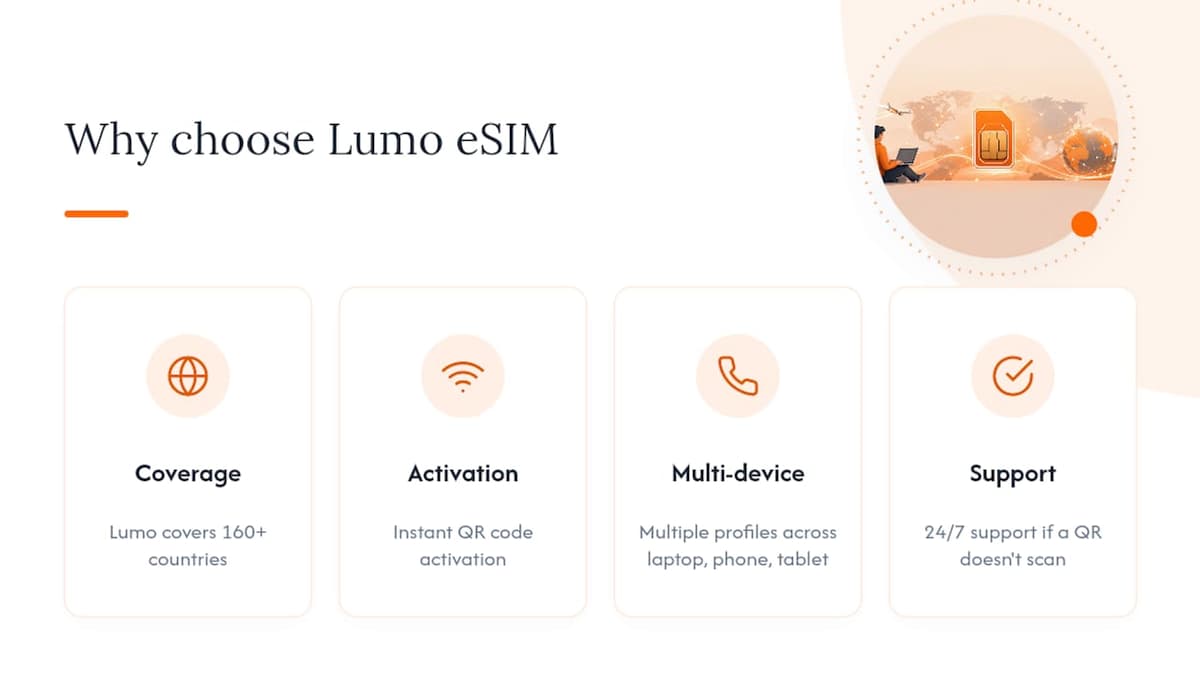
Everything above assumes your laptop has the hardware. Once you know it does, the fastest path to actual data is a prepaid eSIM you can install before you land. Lumo covers 160+ countries with instant QR code activation, supports multiple profiles across your laptop, phone, and tablet without juggling physical SIM cards, and backs it all with 24/7 support if something doesn’t scan right the first time. There’s no contract and no registration hoops, just a plan you activate and use.
If you want the exact scanning steps laid out visually, our QR code activation walkthrough covers it start to finish. Ready to put a plan on your laptop before your next trip? Browse Lumo’s eSIM data plans and pick a country or regional bundle that matches your itinerary.
Sources
For deeper technical reference beyond this guide, Microsoft’s support article on Windows eSIM connections covers every Settings flow in full. IT admins should review Microsoft’s Intune eSIM provisioning documentation, and Dell’s SIM and eSIM setup guide offers a useful OEM-level example. For managing multiple installed profiles, see Lumo’s multi-profile management guide.
- Use an eSIM to get a cellular data connection on your Windows PC | Microsoft Support
- Configure eSIM cellular profiles using imported activation codes in Intune (public preview)
- SIM/eSIM Setup Guide for Windows | Dell US
FAQ
Can a laptop have an eSIM?
Yes, but only laptops built with a WWAN modem and eSIM component support it. A SIM tray alone doesn’t confirm cellular capability since some models ship without the modem installed.
Can you set up an eSIM on a laptop running Windows?
Yes, through Settings > Network & internet > Cellular, where you can download a profile from a carrier, search for available profiles, or scan a QR code or enter an activation code.
Which laptops are eSIM-enabled?
Availability varies by manufacturer and configuration, since many OEMs sell the same chassis with or without WWAN hardware. Check Device Manager for a WWAN or mobile broadband adapter, or confirm with the OEM’s spec sheet for your exact model before buying a plan.
Does eSIM work on PC?
Yes, on Windows PCs that include the right cellular hardware and run a supported Windows 10 or Windows 11 build. If Cellular settings don’t appear at all, the hardware isn’t present and no update will add it.
Can I use a Lumo eSIM plan on my Windows laptop?
Yes, as long as your laptop has a compatible WWAN modem, you can activate a Lumo plan the same way as any carrier eSIM, by scanning the QR code through Windows’ cellular settings.
Recommended
Related Topics
Stay Connected Anywhere
Prepaid eSIM data plans for 180+ countries and territories. No physical SIM required.