Apple Watch eSIM Abroad: Why US Travelers Can’t Rely on Phone eSIMs

Yes, a cellular Apple Watch can work abroad, but only when your carrier supports Watch roaming in your destination and you add the Watch to that plan before you leave. A typical travel eSIM for your phone usually can’t be installed on the Watch, because Watch service is provisioned by your carrier through your iPhone. Sort this out at home, not at baggage claim.
TL;DR:
- International roaming requires a cellular model that matches the destination’s regional networks, watchOS 9.1 or later, and carrier support for VoLTE and Watch roaming.
- With an iPhone travel eSIM, a paired Watch receives notifications over Bluetooth or Wi Fi, but loses independent service when the phone is away.
- Family Setup Watches cannot roam internationally, so plan on Wi Fi or the parent’s iPhone for a child’s Watch during travel.
- Set up service in the Watch app before departure; some carriers require activation on their own network, while local plans must support your model.
- Roaming can trigger voice, voicemail, text, and data charges; confirm coverage and rates in writing, keep Data Roaming off until verified, and ask about alerts.
Table of Contents
- How Apple Watch cellular actually works
- Why a phone travel eSIM usually won’t cover your Watch
- Four realistic ways to stay connected with your Watch
- Your pre-travel checklist
- How to add your Watch to a plan and enable roaming
- What roaming costs and how to avoid bill shock
- Installing and activating an eSIM on your Apple Watch abroad
- Managing multiple eSIM profiles during international travel
- Troubleshooting Apple Watch connectivity abroad
- How eSIM support differs by region and carrier
- Using Lumo’s eSIM with your Apple Watch abroad
- Our take: a one-tripper’s rules
- Keep your phone connected and your Watch in the loop
- FAQ
- Sources
How Apple Watch cellular actually works
An Apple Watch doesn’t behave like a phone when it comes to cellular. Its eSIM is provisioned through a relationship between your carrier and Apple, and you activate it from the Watch app on your iPhone (My Watch > Cellular). There’s no QR code to scan and no profile to download from a third party. Apple’s setup guide describes the Watch service as activated through a supported carrier, which is why generic eSIM advice often falls flat here.
A few facts shape everything else you’ll do:
- Regional hardware: Apple Watch cellular models are built for regions (Americas, China mainland, Europe and Asia Pacific). There is no single worldwide model, so check yours before you travel.
- Software and model limits: international roaming needs watchOS 9.1 or later on Series 5 and newer, Apple Watch SE and later, or Apple Watch Ultra.
- Carrier support: the carrier must support VoLTE and roaming for the Watch, or the feature simply won’t work.
- Carrier chart: Apple’s carrier directory lists supported operators by country and region. Treat it as a starting point. It doesn’t promise roaming in every city or tell you what roaming costs.
Why a phone travel eSIM usually won’t cover your Watch
Travel eSIMs for phones are downloadable profiles. They register an unlocked phone with a foreign operator, and that works well for iPhones. The FCC’s eSIM FAQ explains how an unlocked, compatible device can pick a foreign provider without a physical SIM swap. That guidance is about eSIM-capable phones. It doesn’t override Apple’s carrier-specific Watch activation, so a regular prepaid travel eSIM is best treated as an iPhone option, not a guaranteed Watch plan.
Here are the mistakes we see most often:
- Scanning a phone eSIM QR code on the Watch and expecting it to work.
- Trying to activate Watch cellular for the first time after landing abroad. Apple expects setup to happen with your carrier, and recommends arranging service before you leave.
- Assuming a Family Setup Watch can roam. Apple states that international roaming isn’t supported on cellular Watches configured through Apple Watch For Your Kids.
Pro Tip: If your Watch was set up for a child through Family Setup, plan on offline use and Wi-Fi abroad, and put the travel eSIM on the parent’s iPhone instead.
Four realistic ways to stay connected with your Watch
Pick based on trip length and how much you actually need the Watch to work without your phone.
- Use a travel eSIM on your iPhone and keep the Watch paired. This is the cheapest and simplest route for most trips. The Watch gets notifications over Bluetooth or Wi-Fi through the phone. It won’t have independent cellular, so leave the phone behind and the Watch goes quiet.
- Ask your home carrier to add international roaming to the Watch. This gives you standalone Watch cellular. It depends on carrier support in your destination, and roaming rates can run high, so get the rates in writing.
- Arrange a local carrier Apple Watch plan for a long stay. This works only when the destination carrier explicitly supports Apple Watch and the setup can happen on its network. It suits longer stays, not a short holiday.
- Go offline on purpose. Download maps, music and podcasts before you leave, keep Wi-Fi handy, and use Bluetooth when your phone is nearby. For many travelers this is the least stressful choice.
For a one-trip traveler, option 1 handles the vast majority of needs. Reserve option 2 for cases where independent Watch connectivity matters, such as running or hiking without a phone.
Your pre-travel checklist
Work through these in order, well before departure.
- Verify your Watch model. Confirm it’s GPS + Cellular, and note the regional model identifier. Apple Watch models are region-optimized, so a Watch bought in one region may not match a destination carrier’s network.
- Call your iPhone carrier. Ask whether they support Apple Watch roaming in your destination, whether VoLTE is supported there, and what voice, text and data cost. Have them add the Watch to the roaming plan before departure.
- Check that your iPhone is unlocked if you plan to use a travel eSIM on it. The FCC’s unlocking guidance notes that many devices are locked to a provider, and our guide on whether a locked phone can use an eSIM walks through how to tell.
- Update watchOS and your iPhone’s carrier settings. Back up anything critical.
- Decide when Data Roaming goes on. Only switch it on after you’ve confirmed coverage and pricing.
- Note emergency-calling behavior with your carrier, and enable usage alerts if they’re offered.
Our four checks before you fly is a good companion for the phone side of the trip. Pair connectivity prep with the rest of your trip paperwork using this travel document checklist.
Pro Tip: Test the features you’ll rely on while you’re still home: notifications, a test call, and the cellular indicator. Fixing a problem on your home network is far easier than fixing it abroad.
How to add your Watch to a plan and enable roaming
The sequence is short, but the order matters.
- Add the Watch to your carrier plan. On your iPhone, open the Watch app, tap My Watch > Cellular, and follow your carrier’s prompts. Do this while connected to your carrier’s network, and before you travel whenever possible.
- Confirm roaming is on the plan. Per Apple’s guidance, contact your carrier before you go to add the Watch to the iPhone’s international roaming plan.
- Turn on Data Roaming after you arrive. On the Watch, open Settings > Cellular > Data Roaming.
- Check your signal. Look for the cellular indicator in Control Center, the Cellular complication, or the Wayfinder face on Ultra, as Apple’s watchOS guide describes.
- If setup fails, look for carrier messages requiring in-network activation, confirm the Watch isn’t a Family Setup device, and call carrier support while you’re still on a domestic network.
What roaming costs and how to avoid bill shock
The main financial risk is quiet. A Watch can register on a foreign network without you deliberately buying anything, and the charges show up later. The FCC’s international roaming guide advises that domestic plans generally don’t cover international use for most U.S. customers, that roaming rates vary by carrier, and that voice, voicemail, text and data can all carry higher charges.
The FCC recommends checking rates and arrangements before departure, because foreign networks and device compatibility differ.
Practical controls that work:
- Leave Data Roaming off until you’ve confirmed coverage and pricing.
- Use Wi-Fi, and use airplane mode with Wi-Fi turned back on when you don’t need cellular.
- Watch cellular usage on both Watch and iPhone during the trip.
- Ask your carrier about usage alerts. The FCC says participating carriers provide free alerts when devices register abroad without a roaming package, but confirm your plan includes them.
Our write-ups on roaming costs and risks and a roaming charge checklist go deeper on the phone side.
Installing and activating an eSIM on your Apple Watch abroad
Here’s the honest answer: the reliable way to have a Watch eSIM working abroad is to have it installed before you go. The Watch’s cellular plan is a carrier-provisioned eSIM, normally completed in the iPhone’s Watch app with an eligible plan.
If you’re already abroad and want to try, the workflow looks like this:
- Keep the Watch paired with your iPhone and on the latest watchOS.
- Open the Watch app, go to My Watch > Cellular, and see whether your home carrier offers activation or roaming.
- If you’re setting up with a local carrier, confirm in advance that it supports Apple Watch and your Watch’s regional model. Apple’s carrier chart is the place to start.
- Follow the carrier’s onscreen prompts. Some require you to complete activation on their own network, which can mean visiting a store.
Apple requires the iPhone and Watch to use the same carrier for ordinary setup. A local carrier that doesn’t support the pairing won’t be able to finish it, no matter which app you try.
Managing multiple eSIM profiles during international travel
Your iPhone can hold several eSIMs, such as a home line and a travel data plan, and you choose which one carries data. The Watch works differently. Its cellular service follows the carrier plan it was activated on, so you manage the phone’s profiles and the Watch’s plan as two separate jobs.
A workable setup for most trips looks like this:
- iPhone: keep your home eSIM for calls and texts if you want them, and add a travel data eSIM for local data. Switch the cellular data line in iPhone settings.
- Watch: leave it paired and let it ride on Bluetooth or Wi-Fi, or keep it on a carrier roaming plan you’ve arranged.
- When you change plans: check the Watch’s cellular status in the Watch app after any change, and confirm Data Roaming is set the way you intend.
If you add a new carrier plan to the Watch, expect to go through that carrier’s own activation steps, and check whether the old plan needs to be removed or paused first. When in doubt, ask the carrier before deleting anything, because re-adding a Watch plan can require another round of in-network activation.
Troubleshooting Apple Watch connectivity abroad
Most trouble traces back to a handful of causes.
- No cellular indicator. Check Control Center on the Watch. If the Watch is far from your iPhone and shows no signal, confirm Data Roaming is on under Settings > Cellular and that your carrier included the Watch in the roaming plan.
- Activation won’t complete. Look for a carrier message asking you to finish activation on its network. Confirm the Watch isn’t a Family Setup device, since roaming isn’t supported there.
- Roaming is on but nothing works. The carrier may not support VoLTE roaming in that country, or your Watch’s regional model may not match the network. Apple notes that carriers must support VoLTE and roaming for international service to work.
- Notifications stop. If you’re relying on the iPhone, confirm the phone has data and the Watch is still paired over Bluetooth.
- Surprise charges. Turn Data Roaming off and contact your carrier. Some countries need special arrangements, and the FCC’s Cuba travel FAQ shows how much roaming agreements can vary by destination.
Call support while you still have a working connection, ideally from your iPhone on Wi-Fi.
How eSIM support differs by region and carrier
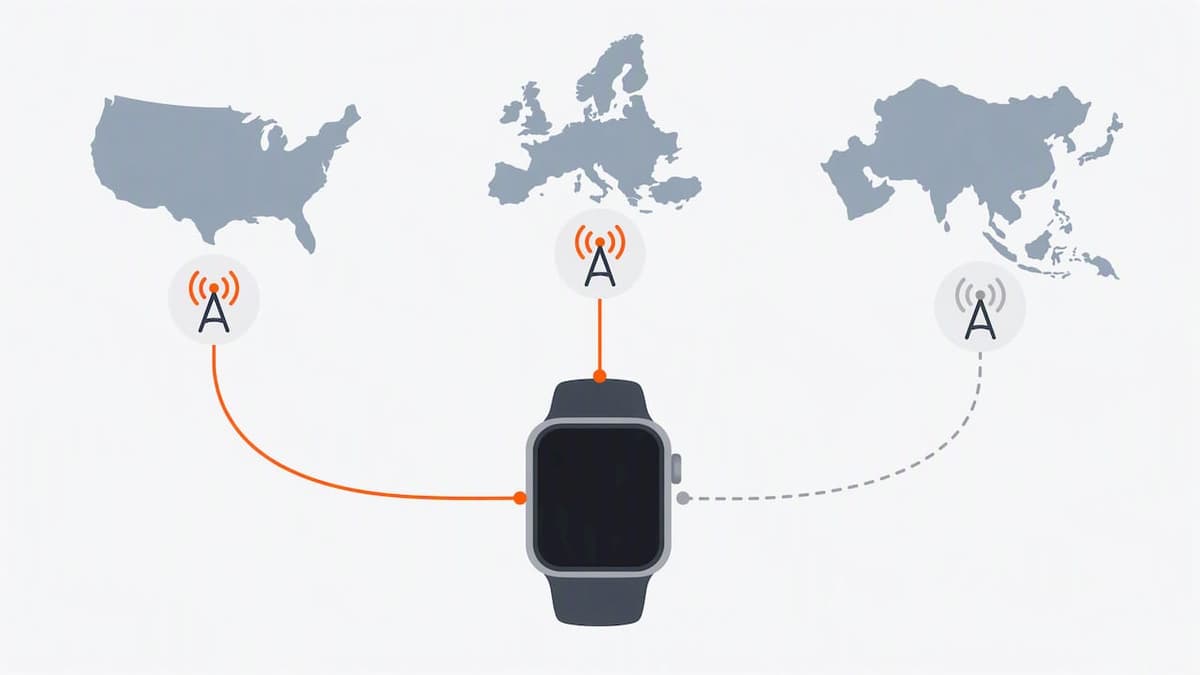
Apple Watch support isn’t uniform. Apple builds region-optimized cellular models, and there’s no worldwide Apple Watch. Carrier support is listed by country and region on Apple’s carrier chart, and it includes U.S. carriers. Even so, a listing isn’t a guarantee of roaming in every destination, and Apple tells customers to contact the carrier for service and city-level details.
What this means in practice:
- Your home carrier decides your roaming options. U.S. carriers can offer very different Watch roaming coverage and rates.
- Destination carriers vary. A carrier listed for your destination may support Watch service for its own customers but not for visitors.
- Your Watch’s regional model matters. Check the model against where you’re going before you buy a local plan.
- Special cases exist. Some countries require extra arrangements for roaming at all.
The rule of thumb: start with your home carrier, confirm in writing, and only then consider a local option.
Using Lumo’s eSIM with your Apple Watch abroad
Here’s where we fit, and we’ll be direct about it. Our eSIMs are prepaid data plans for phones, tablets and laptops. They aren’t installed on the Watch, because Watch service is carrier-provisioned. What we do is keep your iPhone online abroad, which keeps your paired Watch’s notifications flowing.
How it works:
- Confirm your iPhone is unlocked.
- Pick a plan for your destination, or a global plan if you’re crossing borders.
- Scan the QR code we deliver to install the eSIM.
- Set the new eSIM as your cellular data line and leave your Watch paired.
We offer regional and global plans, and our team and AI support are available. There are no contracts or registration, and checkout works as a guest. Our regional pages, such as Europe and Asia, help if your trip focuses on one of these regions. For a refresher on why this approach suits most trips, see our practical guide to using an eSIM when traveling.
Our take: a one-tripper’s rules
Most travelers don’t need independent Watch cellular, and chasing it can cost more than it’s worth. If you run alone in unfamiliar cities, hike without your phone, or need the Watch for safety or remote work, arrange carrier roaming ahead of time and get the rates in writing. Otherwise, put a data eSIM on your iPhone and keep the Watch paired.
Test your critical features at home, including emergency calling and notifications, and keep watchOS updated. And treat family Watches differently: Family Setup disables international roaming, so a child’s Watch will rely on Wi-Fi and the parent’s phone abroad. The best Watch trip is the one where the setup was finished before the plane door closed.
— Theo Wheeler
Keep your phone connected and your Watch in the loop
If you’d rather not fight with carrier roaming, we can keep your iPhone connected while your Watch stays paired.
- Prepaid and contract-free: instant phone data without long commitments, delivered by QR code.
- Global and regional options: our Global eSIM Plans start from $7 one-off, with regional plans covering Europe, Asia and more.
- Always-on support: 24/7 help if setup hits a snag.
Finish the checklist above first, then compare plans and choose the one that fits your route.
FAQ
Will Apple Watch cellular work internationally?
Yes, on supported models with watchOS 9.1 or later, when your carrier supports Watch roaming and VoLTE in your destination. Your carrier controls eligibility and pricing, so confirm both before you leave.
Can I use an eSIM on my Apple Watch?
The Watch uses a carrier-provisioned eSIM that you activate through your iPhone’s Watch app. A regular phone travel eSIM isn’t a guaranteed Watch plan, as the FCC’s eSIM FAQ and Apple’s setup requirements make clear.
What should I do with my Apple Watch when traveling internationally?
Check your Watch model, call your carrier about roaming, and activate service before departure. If you don’t need standalone cellular, keep the Watch paired to an iPhone with a travel eSIM and leave Data Roaming off.
Can I use my Apple Watch abroad with a family member’s setup?
A Watch set up through Family Setup can’t international roam, per Apple. Plan on Wi-Fi and the parent’s iPhone for that Watch.
Sources
- Set up cellular on Apple Watch - Apple Support
- Apple Watch - Carriers - Apple
- eSIM Cards FAQ | Federal Communications Commission
Recommended
- Trips Under a Few Weeks: eSIM vs Local SIM for U.S. Travelers
- Why Use an eSIM When Traveling: A Practical Guide
- Store 8+ eSIMs, Run 2 on iPhone: Limits by Model for Travelers
- eSIM Benefits for Travelers: Seamless Global Connectivity
Related Topics
Stay Connected Anywhere
Prepaid eSIM data plans for 180+ countries and territories. No physical SIM required.