No contract eSIMs for Chromebooks: Scan QR and activate on ChromeOS 92+
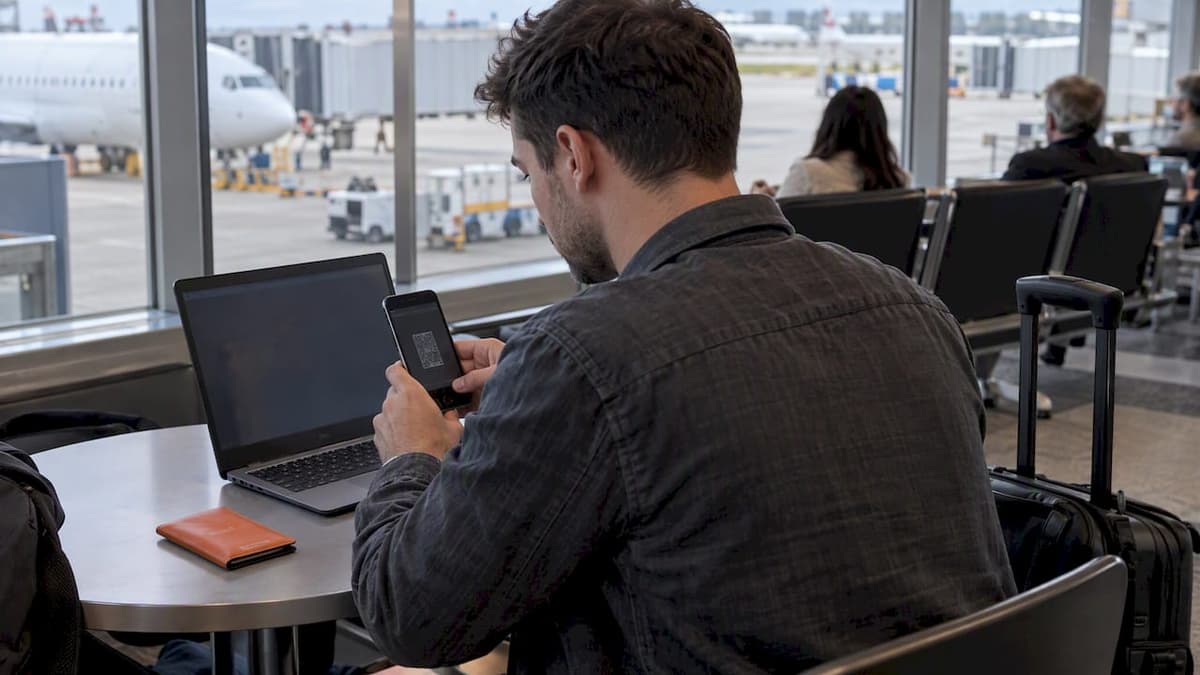
Yes, many Chromebooks can use eSIM or a physical SIM if they include factory WWAN hardware, so check Settings > Network > Mobile data and confirm your ChromeOS version is 92 or later. If mobile data options are missing, your device likely lacks cellular hardware and a hotspot is your alternative. If you see a carrier lock message or setup errors, the troubleshooting steps below cover the most common fixes.
TL;DR:
- Only Chromebooks with factory-built WWAN hardware support eSIM or physical SIM; absence of Mobile data in settings indicates no cellular capability.
- eSIM activation requires ChromeOS version 92 or later and an active Wi-Fi or Ethernet connection for profile download.
- Physical SIM setup involves inserting the card into the tray, followed by carrier-specific activation, and entering IMEI and ICCID if required.
- Common issues like profile install failures or carrier locks can often be resolved through device reboots, carrier support, or verifying APN settings.
- Prepaid plans like Lumo’s offer quick, contract-free eSIM activation with broad international coverage, ideal for short-term travel and remote work.
Table of Contents
- Check if your Chromebook supports eSIM or a physical SIM
- Set up an eSIM on your Chromebook (step-by-step)
- Install and activate a physical SIM card on Chromebook
- Troubleshooting common problems: APN, carrier locks, install failures, roaming
- Best practices and security tips for eSIM use on Chromebooks
- Practical buying and usage advice for mobile-first Chromebook users
- How Lumo’s eSIM plans can help Chromebook users
- Sources
- FAQ
Check if your Chromebook supports eSIM or a physical SIM
Open Settings, then Network. If your Chromebook has cellular hardware, you will see a Mobile data entry alongside Wi-Fi and Ethernet. No entry means no built-in modem, full stop.
eSIM specifically needs ChromeOS version 92 or later, so if Mobile data shows only a generic SIM option or nothing at all, update your OS first from Settings > About ChromeOS before assuming your hardware is the problem.
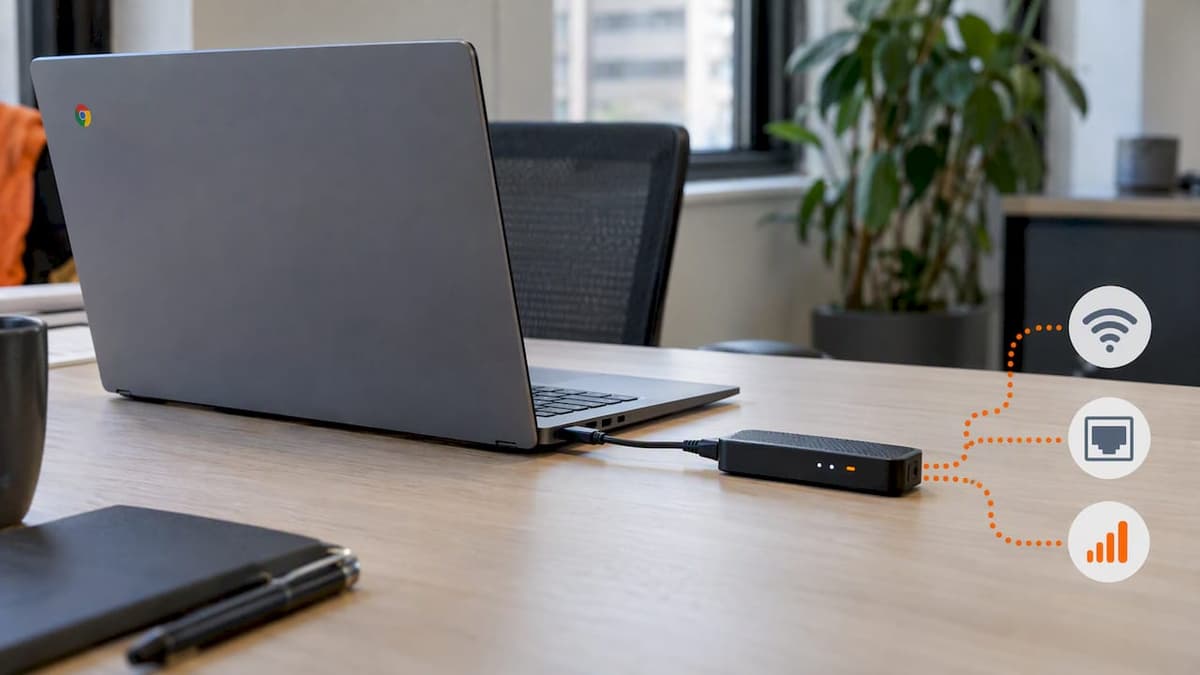
Cellular radios are a factory decision. Vendor guidance for integrated LTE and 5G Chromebooks confirms that WWAN hardware must be built in at manufacture, and there is no after market kit to add a modem to a Wi-Fi-only unit. A USB or mobile hotspot is the practical workaround.
A few quick checks before you buy or start setup:
- Look for “Mobile data” under Settings > Network; its absence means no cellular radio.
- Confirm ChromeOS 92 or newer under Settings > About ChromeOS for eSIM support.
- Check the device spec sheet or box for “LTE,” “5G,” or “WWAN” before purchase.
- Watch for a carrier-lock notice in Mobile data settings, since locked units restrict which SIM or eSIM profiles will connect.
Set up an eSIM on your Chromebook (step-by-step)
Once you have confirmed WWAN hardware and ChromeOS 92 or later, activation is quick. You need an active Wi-Fi or Ethernet connection first, because the Chromebook downloads the eSIM profile data over that connection before the cellular radio takes over.
- Go to Settings > Network > Mobile data and select “Add cellular.”
- Choose “Scan QR code” and point your camera at the carrier’s activation code, or select manual entry if you don’t have a working camera or the code is text-based.
- Wait for “Activation code detected,” then confirm the carrier and plan details shown on screen.
- Let the profile download finish. You should see “Profile has been added successfully” once it completes, according to Chromebook Help’s eSIM setup steps.
- Toggle the new profile on under Mobile data if it doesn’t connect automatically.
Pro Tip: If QR scanning fails, clean your camera lens first and try manual entry: most carriers print the activation code as text right below the QR square.
Switching profiles later is just a matter of selecting a different one from the Mobile data list and toggling it active. To remove a profile, open its details page and choose “Remove.” If you hit “Couldn’t install eSIM profile,” a reboot often clears a stuck download; if that fails, the profile may already be tied to another device under your carrier account, which requires contacting support to reissue it.
For a closer look at scanning mechanics, Lumo’s guide on QR code activation walks through what a valid carrier QR code looks like and common scanning mistakes. A broader walkthrough covering manual code entry in more detail is in this step-by-step activation guide.
Install and activate a physical SIM card on Chromebook
Physical SIM setup starts with the hardware, not the software. Power down the Chromebook, locate the SIM tray (usually on the side edge near the charging port), and insert the card with the gold contacts facing down, matching the tray’s notch.
- Power the Chromebook back on and sign in to your account.
- Open Settings > Network > Mobile data; the SIM should appear automatically if inserted correctly.
- Follow your carrier’s activation process, which typically asks for the IMEI and ICCID tied to the plan.
- Find both numbers under Settings > Network > Mobile data > SIM details > Advanced if the carrier’s activation portal requests them.
- Enter a SIM PIN if prompted; if you don’t know it, check the card packaging or contact the carrier rather than guessing repeatedly, since too many wrong attempts can lock the card.
Manufacturer documentation, such as Dell’s SIM/eSIM setup guide, covers exactly where these identifiers sit on specific models, which is worth checking if the generic ChromeOS menu labels don’t match what you see.
Troubleshooting common problems: APN, carrier locks, install failures, roaming
Most Chromebook cellular problems trace back to one of four causes: a missing APN, a locked device, a stalled profile download, or roaming settings fighting your intent.
If data doesn’t pass even though the SIM or eSIM shows connected, the APN is the first thing to check. Go to Settings > Network > Mobile data > Access point name and create a new APN using the exact values your carrier provides, including username, password, and authentication type where required, per Chromebook Help’s APN instructions.
- “Error detecting code” usually means a dirty camera lens or a damaged QR image; switch to manual entry.
- “Couldn’t install eSIM profile” after a reboot often means the profile needs reissuing by the carrier.
- A message saying the device can only connect to a specific network points to a carrier lock, not a software bug.
- Unwanted roaming charges usually trace back to a roaming toggle left on in Mobile data settings, not the SIM itself.
Some Chromebooks ship carrier-locked, and ChromeOS surfaces this directly in Mobile data settings with a message that the device can only connect to a specific mobile network. Unlocking generally means contacting the original carrier with the IMEI and proof the contract term is complete, not a setting you can flip yourself.
For a deeper checklist on failed installs, Lumo’s eSIM troubleshooting guide covers APN verification and profile reinstall steps in more detail, and the carrier-lock explainer breaks down how locks affect eSIM compatibility even though it’s written with phones in mind, since the mechanics are the same.
Best practices and security tips for eSIM use on Chromebooks
Treat your activation QR code the way you’d treat a password. Scanning it publicly or leaving a screenshot in your photos means anyone with access could potentially activate or hijack the profile before you do.
- Keep ChromeOS updated, since eSIM reliability depends on staying past version 92.
- Store QR codes in a private note or password manager rather than your camera roll.
- Prefer eSIM when you need to switch carriers or plans often; a hotspot still wins for devices with no WWAN at all.
- Factor in that enterprise LTE-enabled Chromebook models often carry a premium for bundled management licenses, so weigh that against a standalone plan.
Pro Tip: If you manage multiple Chromebooks for a team, evaluate whether the enterprise WWAN premium is worth it against issuing separate eSIM plans per device, since enterprise device management guides generally frame this as a cost-per-device decision, not a technical one.
Practical buying and usage advice for mobile-first Chromebook users
A WWAN Chromebook earns its premium if you’re doing fieldwork, reporting, or travel where Wi-Fi is unreliable and you need data the moment you open the lid. For anyone else, a Wi-Fi-only Chromebook paired with an eSIM plan on a phone, or a dedicated hotspot, covers the same need for less money and more flexibility. Buy the hardware for the job you actually do, not the one you imagine.
— Theo Wheeler
How Lumo’s eSIM plans can help Chromebook users
If your Chromebook supports eSIM, the setup you just read about works the same way regardless of which carrier’s code you scan, and that’s where a prepaid plan built for exactly this moment saves time. Lumo delivers activation codes as a QR you scan straight from Settings > Network > Mobile data, with no contract, no registration, and profiles that stay usable across trips.
This fits best for short trips abroad, remote work stretches where you can’t rely on hotel Wi-Fi, or anyone who wants to skip roaming fees entirely rather than negotiate with a home carrier.
- Scan-and-go activation matches the typical QR flow Chromebook eSIM setup expects.
- Coverage spans numerous countries, so one profile style works whether you’re switching regions or staying put.
- No long-term contract means you’re not stuck paying for data you don’t use after the trip ends.
Check Lumo’s Global eSIM Plans to see current coverage and pick a data size that fits your trip.
Sources
- Set up an eSIM or SIM for mobile data - Chromebook Help
- SIM/eSIM Setup Guide for Chromebook | Dell US
- CTL Chromebook PX112C Series with 5G, 4G LTE and CBRS Band 48 connectivity
FAQ
Can you do an eSIM on a laptop?
Yes, but only on laptops with built-in cellular hardware that supports it, such as certain Chromebooks with WWAN modems. Check Settings > Network > Mobile data and confirm your ChromeOS version is 92 or later before attempting setup.
Can I add a SIM card to my Chromebook?
You can only insert a physical SIM if your Chromebook has a SIM tray built in at the factory; there’s no way to add cellular hardware to a Wi-Fi-only model. Check the device spec sheet or the SIM tray location on the chassis edge to confirm before buying a plan.
Do Chromebooks have SIM cards?
Some do, but most consumer Chromebooks are Wi-Fi only and ship without a SIM tray or eSIM chip. Vendor documentation for LTE and 5G models confirms cellular support is a factory-configured option, not a universal feature.
Which Chromebooks have a SIM card slot?
Models advertised with LTE or 5G, often from vendors targeting education and enterprise buyers, include a SIM slot or eSIM support, while standard consumer lines typically don’t. Always check the exact model’s spec sheet rather than assuming based on brand, since cellular support varies model to model even within the same product line.
How does eSIM activation work on a Chromebook?
You scan a carrier-provided QR code or enter an activation code manually under Settings > Network > Mobile data > Add cellular, which downloads the profile over Wi-Fi or Ethernet. Prepaid options like Lumo’s eSIM plans use this same QR flow, so setup takes about as long as scanning a code and waiting for confirmation.
Recommended
Related Topics
Stay Connected Anywhere
Prepaid eSIM data plans for 180+ countries and territories. No physical SIM required.