iPhone 13 Mini eSIM: Support, Setup and Travel Use

Yes, the iPhone 13 mini has an eSIM. Apple lists it with a nano-SIM plus eSIM, and Dual eSIM support, so you can add a prepaid data plan for a trip without finding a local shop or swapping a tiny plastic card. What decides whether it works for you is not the hardware. It is whether the phone is unlocked and whether you have a good plan to put on it. A prepaid travel eSIM from Lumo installs from a QR code in a few taps, and you can buy it before you leave home.
TL;DR
- Every iPhone 13 mini supports eSIM, and Apple says iPhone 13 models and later can run two eSIMs, or one eSIM plus a physical nano-SIM.
- To use two different carriers, the phone must be unlocked, or both plans must come from the same carrier.
- You need Wi-Fi or a hotspot to add an eSIM. Scan the plan’s QR code with the Camera app and follow the prompts.
- If “Add eSIM” is missing, update iOS, restart, and check the phone is not managed by a work or school profile.
- For a trip, keep your US line on for calls and texts and add a prepaid data eSIM for the destination.
Table of Contents
- Does the iPhone 13 mini support eSIM?
- How many eSIMs and lines can the iPhone 13 mini run?
- Check that your iPhone 13 mini is unlocked
- How to add an eSIM to your iPhone 13 mini
- Using a travel eSIM alongside your US number
- If “Add eSIM” is missing or setup fails
- Our view: why the 13 mini is a good eSIM travel phone
- Get your iPhone 13 mini connected
- FAQ
- Sources
Does the iPhone 13 mini support eSIM?
It does. Apple’s technical specifications for the iPhone 13 mini list the SIM card as Dual SIM (nano-SIM and eSIM) with Dual eSIM support. Apple’s deployment guidance also says all iPhone 13 models support Dual eSIM.
An eSIM is a SIM built into the phone. Instead of a card, you download a plan to it. The plan arrives as a QR code or an in-app install, and the phone stores it as a “cellular plan” you can switch on and off in Settings.
Two details are worth knowing before you buy anything:
- Your phone still has a SIM tray. Apple’s SIM size guide lists the iPhone 13 mini among models with an eSIM plus a nano-SIM card. The eSIM-only design applies to iPhone 14 and later sold in the U.S., not to your phone.
- eSIM use depends on a plan. Apple’s spec footnote notes that eSIM requires a wireless service plan, and that it may be disabled on units bought from some carriers. A phone bought from a US carrier, or one still tied to a payment plan, is the case to check first.
If you bought your 13 mini in the US, the regional-model issue Apple flags for some mainland China, Hong Kong and Macao models is not a concern. If you bought it secondhand or abroad, the unlock check below matters more.
How many eSIMs and lines can the iPhone 13 mini run?
Apple’s Dual SIM guidance says iPhone 13 models and later support Dual SIM in two ways:
| Configuration | What it means | Typical use |
|---|---|---|
| nano-SIM + eSIM | Your physical SIM stays in the tray and one eSIM is added | Keep your US number and add a travel data plan |
| eSIM + eSIM | Two eSIMs active, no physical card needed | Home line plus travel plan on a phone you carry without a SIM tray in mind |
The phone can store several eSIM profiles, but only two lines are active at once. If you travel across regions, you can keep a few plans saved and switch which one is on. Our guide to iPhone eSIM limits by model goes through how many profiles each iPhone can store and how many it can run.
When you set up two lines, label them clearly (for example “Home” and “Travel”) and choose which one is the default for calls and which carries mobile data. Our walkthrough of iPhone eSIM settings covers default line and data selection in detail.
Check that your iPhone 13 mini is unlocked
This is the step most travelers skip, and it is the real gate. Apple says that to use two carriers, the iPhone must be unlocked or both plans must come from the same carrier. Work or school phones may also need administrator approval for added plans.
A quick way to check:
- Open Settings > General > About.
- Scroll to Carrier Lock. If it says “No SIM restrictions,” the phone is unlocked.
- If it shows a lock, contact the carrier that sold you the phone and ask them to unlock it. Carriers set their own eligibility rules, usually tied to paid-off devices and account standing.
While you are in About, note the EID (the eSIM’s identification number). If anything goes wrong later, a carrier or support team may ask for it.
An unlocked phone is the simplest setup for a traveler. You keep your home line, add a destination plan, and nothing ties the phone to one network.
How to add an eSIM to your iPhone 13 mini
Apple’s eSIM setup page says you need an iPhone XS or later, a provider that supports eSIM, and Wi-Fi or a hotspot. You can add one during first-time setup or any time afterward. Here is the routine for a prepaid travel plan.
1. Pick the plan before you leave
Choose the destination or region and a data amount and duration. Install while you still have home Wi-Fi, because the phone needs a connection to download the plan. The plan will not start using data until you switch it on at your destination, depending on the plan’s terms.
Lumo sells prepaid eSIM plans for 160+ countries, with no contract or registration, and guest checkout. That means you can buy, receive the QR code and install in one sitting, with nothing to create or sign.
2. Make sure iOS is current
Update under Settings > General > Software Update. Apple lists an outdated iOS version among the reasons eSIM setup can fail, and automatic carrier installation needs iOS 16 or later.
3. Scan the QR code
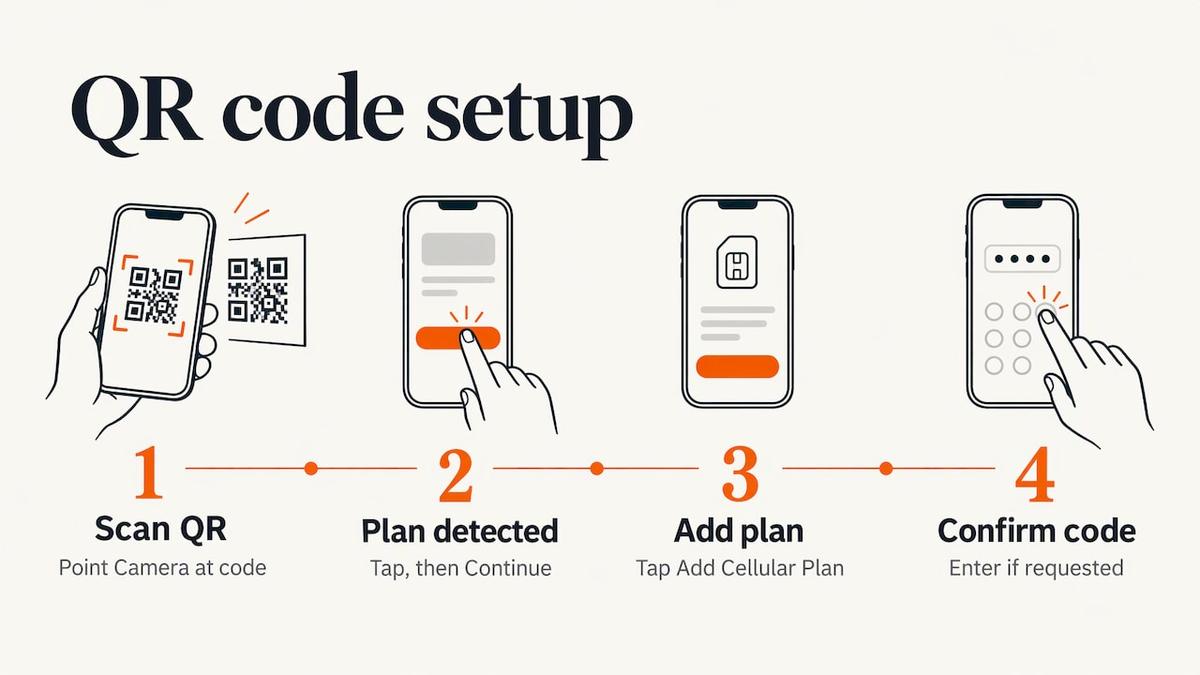
Open the Camera app and point it at the QR code. Tap Cellular Plan Detected, then Continue, then Add Cellular Plan. If a confirmation code is requested, enter it. During first-time setup, the equivalent is tapping Use QR Code.
The most common mistake is scanning a code on the same phone’s screen. If you are buying on your 13 mini, open the code on a laptop or second device, or use the install link or manual entry. We explain the alternatives in activating an eSIM without a QR scan, and the logic of the codes in how QR code activation works. Our setup is designed to take about 45 seconds on average.
4. Label the plan and set the defaults
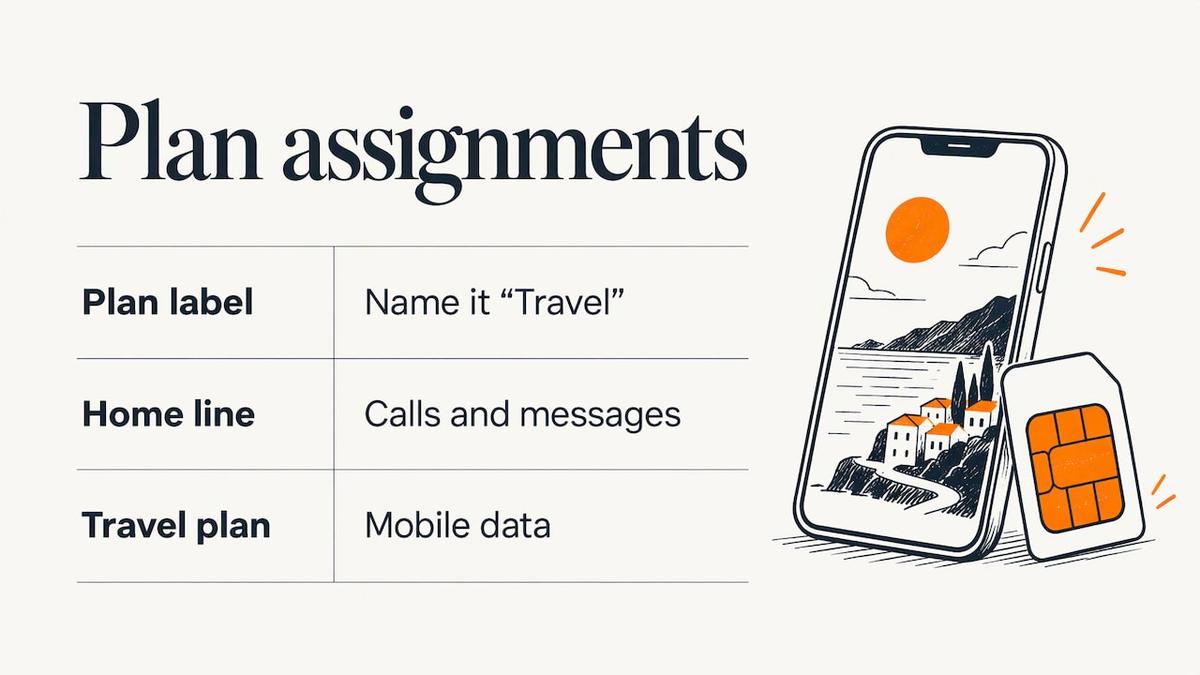
When the phone asks, name the plan something obvious, such as “Travel.” Choose your home line for calls and messages, and set the travel plan for mobile data.
5. Switch on at your destination
On arrival, go to Settings > Cellular, select the travel plan and turn it on. Then turn on Data Roaming for that plan if the plan’s instructions say so. Leave roaming off on your home line to avoid charges from your regular carrier.
Using a travel eSIM alongside your US number
The common setup for travelers and remote workers is simple: your US line stays active for calls, texts and verification codes, while a prepaid eSIM carries data. A few habits keep it clean:
- Set data to the travel plan only. In Settings > Cellular > Cellular Data, pick the travel plan, and turn off “Allow Cellular Data Switching” so the phone does not hop back to your home line.
- Turn off roaming on your home line. This is where unexpected bills come from.
- Keep Wi-Fi calling in mind. Many US carriers support it, which lets your home number work over a hotel or office network.
- Check coverage where you will actually be. Apple’s guidance suggests considering coverage where users live, work and study. For a trip, that means the cities and regions on your itinerary.
- Business travelers: confirm the phone is not managed. If your employer manages the iPhone, an administrator may need to approve added plans.
Choose the plan by the type of trip. A single-country plan suits a one-stop visit. A regional plan fits a multi-country trip, and a global plan suits those who move often. Lumo’s current offers, as published, start at:
| Plan type | Starting price (one-off) |
|---|---|
| Europe | from $1 |
| Asia | from $2 |
| United States | from $2 |
| United Kingdom | from $1 |
| Global | from $7 |
| Africa | from $8 |
| Caribbean | from $8 |
Prices depend on the data amount and duration you pick, so use the plan page to see the exact options.
If “Add eSIM” is missing or setup fails
On an iPhone 13 mini, a missing button or a failed install almost always has a simple cause. Work through this list in order, based on Apple’s troubleshooting steps:
- Connect to Wi-Fi.
- Install the latest iOS version available.
- Toggle Airplane Mode on and off.
- In Settings > Cellular, turn the line off and on.
- Restart the iPhone.
- Check for a carrier settings update under Settings > General > About.
If the “Add Cellular Plan” option has vanished entirely, the usual suspects are a managed work or school profile, an outdated iOS version, no internet connection, or a stuck cellular configuration. Check that your EID shows in About. If a plan still fails, contact the provider with the error message, plus the IMEI or EID.
We keep step-by-step help for this: fixing eSIM activation problems, quick fixes for iPhone users and troubleshooting connectivity once a plan is installed. Lumo also offers 24/7 customer support if you want a person or assistant to look at it with you.
Our view: why the 13 mini is a good eSIM travel phone
The iPhone 13 mini was built for the moment eSIM went from a curiosity to a normal part of travel. It has the hardware to run two lines at once, and it is small enough to be the phone you actually carry on a long trip.
What we have built Lumo around is the idea that connectivity should be settled before you reach the airport. You pick a plan for where you are going, check out as a guest with no registration, scan a code and you are online when you land. Our plans cover 160+ destinations on 4G and 5G networks, so a single phone can follow you from a city break to a regional trip without a new card at every border.
The 13 mini’s Dual eSIM support fits that way of traveling. Keep your home number for the things that need it, and let a prepaid plan handle data. If your itinerary changes, you add another plan rather than start over.
That is the setup we recommend to frequent travelers, digital nomads and business professionals: an unlocked phone, a plan bought ahead, and a clear default line.
Theo Wheeler
Get your iPhone 13 mini connected
If you are heading abroad, start with the destination page that matches your trip: Europe, Asia or Global eSIM plans for several regions. If you are visiting the US from overseas, see the United States eSIM plans. Each plan is prepaid, with no contract, and installs with a QR code on a compatible iPhone.
FAQ
Does the iPhone 13 mini have eSIM?
Yes. Apple lists the iPhone 13 mini with a nano-SIM and eSIM, and with Dual eSIM support. You can use an eSIM alone, or alongside a physical SIM.
Can I use two eSIMs at the same time on an iPhone 13 mini?
Yes. Apple says iPhone 13 models and later support Dual SIM with two eSIMs, or with a physical SIM plus an eSIM. You can store more than two plans, but only two lines are active at once.
Do I need an unlocked iPhone 13 mini to use a travel eSIM?
If your travel plan comes from a different provider than your home carrier, yes: Apple says the phone must be unlocked to use two carriers. Check Settings > General > About for “No SIM restrictions” before you buy. If it shows a lock, ask your carrier to unlock it.
Can I add an eSIM without Wi-Fi?
In most cases you need Wi-Fi or a hotspot to download the plan. Apple notes some eSIM-only models in certain regions can activate without it, but that does not describe the iPhone 13 mini. Install the plan before you leave home.
Why can’t I see the Add eSIM option?
The usual causes are old iOS, no internet connection, a managed work or school device, or a stuck cellular setting. Update iOS, connect to Wi-Fi, restart the phone and check that an EID appears under Settings > General > About.
Sources
- iPhone 13 mini Technical Specifications, Apple Support
- Prepare to use eSIMs with Apple devices, Apple Support
- Learn which size SIM card your iPhone or iPad uses, Apple Support
- Using Dual SIM with an eSIM, Apple Support
- Set up eSIM on iPhone, Apple Support
- If you can’t set up an eSIM on your iPhone, Apple Support
Recommended
- iPhone eSIM Settings: Set Up, Default Line and Data
- iMessage With an eSIM: Setup, Fixes and Roaming Tips
- Store 8+ eSIMs, Run 2 on iPhone: Limits by Model for Travelers
- How to Set Up eSIM for Travel: Step-by-Step Success Guide
Related Topics
Stay Connected Anywhere
Prepaid eSIM data plans for 180+ countries and territories. No physical SIM required.