Set Up Dual iPhone eSIMs in 5 Minutes for US Users
Yes, modern iPhones support Dual SIM with eSIM, and iPhone 13 and later can run two active eSIMs at once. Both numbers ring and text normally, but only one line handles cellular data at a time unless you enable Allow Cellular Data Switching. Before setup, confirm your carrier supports eSIM and that your iPhone is unlocked if you’re mixing carriers.
TL;DR:
- Only iPhone 13 and later can run two active eSIMs simultaneously, with some models supporting two eSIMs and others one physical plus one eSIM.
- Carrier support for eSIM and an unlocked device are essential, and current iOS version compatibility ensures proper dual SIM functionality.
- Setting up involves scanning a QR code or using carrier apps, labeling lines, and enabling cellular data switching for seamless data transfer during calls.
- Dual SIM allows both lines to ring and receive texts at the same time, but only one line uses data unless data switching is enabled, which depends on carrier and roaming settings.
- Using a data-only travel eSIM for abroad coverage enables cost-effective travel without swapping physical SIM cards or incurring high roaming fees.
Table of Contents
- Which iPhones Support Dual SIM and Dual eSIM?
- What You Need Before You Start Dual SIM Setup
- How Do You Set Up Dual SIM With eSIM on iPhone?
- How Do Calls, Texts, and Data Work With Two Lines?
- Smart Ways to Manage Two Lines Without Wasting Money
- Troubleshooting Common Dual SIM Problems
- Why I Recommend eSIM Workflows Over Physical SIM Swapping
- Get a Travel eSIM Ready in Under a Minute
- Sources
- FAQ
Which iPhones Support Dual SIM and Dual eSIM?
Apple split its Dual SIM rollout across two hardware generations, so the exact setup depends on which iPhone you own. The iPhone XS, XS Max, XR, and 11 series use one physical SIM plus one eSIM. Starting with the iPhone 13 lineup, Apple added support for two active eSIMs simultaneously on many models, which means you can drop the physical SIM tray entirely and still run two lines.
Here’s how the common configurations break down:
- iPhone XS, XS Max, XR, 11, 11 Pro, 11 Pro Max: physical SIM plus one eSIM
- iPhone 12 series: physical SIM plus one eSIM (dual eSIM not supported)
- iPhone 13, 14, 15, 16 series: two eSIMs active at once, or one physical SIM plus one eSIM
- iPhone SE (2nd and 3rd generation): physical SIM plus one eSIM
A few models sold in mainland China ship without eSIM support and use two physical SIM slots instead, so availability really does vary by region and carrier. Your iPhone can also store multiple eSIM profiles, often eight or more, even though only two stay active at the same time.
What You Need Before You Start Dual SIM Setup
Getting this right on the first try means checking four things before you touch Settings. Skip one of these and you’ll end up staring at an error message wondering what went wrong.
- Carrier eSIM support: not every carrier or plan offers eSIM, so confirm with your provider first
- An unlocked iPhone: required if your two lines come from different carriers
- Current iOS: older software versions sometimes lack full dual eSIM support on newer models
- An activation method ready: a QR code, your carrier’s app, or automatic carrier activation, which installs an eSIM without scanning anything
You’ll also want to decide upfront whether the second line is a temporary travel or data-only plan versus a permanent second number for work or personal use. That choice affects how you label it later and whether you bother with Wi-Fi Calling on it at all.
Pro Tip: Screenshot or save your QR code before you start. Some carriers only let you scan it once, and losing it mid-setup means calling support to get a new one issued.
How Do You Set Up Dual SIM With eSIM on iPhone?
Setting up a second line takes about five minutes once you have your activation method ready. Apple’s own process runs through Settings, and it’s the same whether you’re adding a permanent second number or a short-term travel eSIM.
- Go to Settings > Cellular and tap Add Cellular Plan.
- Scan the QR code from your carrier, or use the carrier’s app if it supports automatic activation.
- Wait for the new eSIM to install, then turn the line on when prompted.
- Label each line something obvious, like “Personal” or “Travel,” under Cellular Plan Labels.
- Set your Default Voice Line for outgoing calls and texts by default.
- Choose which line handles Cellular Data.
- Turn on Allow Cellular Data Switching so the phone can pull data from the other line automatically during a call, per Apple’s setup guide.
To send a message or place a call from your other number, just tap the contact and choose the line before hitting send. Once labeled, both lines show up clearly across Phone, Messages, and Contacts, and you can even assign a specific line to individual contacts so you never send from the wrong number by accident.
Pro Tip: If you run a business line and a personal line, assign the business line as default only during work hours using a Focus mode. It saves you from accidentally texting a client from your personal number.
How Do Calls, Texts, and Data Work With Two Lines?
Apple’s Dual SIM setup runs on what’s called Dual SIM Dual Standby, or DSDS. Both numbers can receive calls and texts at the same time, but the iPhone only maintains one active cellular data connection at once, unless you’ve turned on data switching.
Here’s what that means in practice:
- Both lines ring and receive texts simultaneously, even when the phone is idle
- Only one line uses cellular data at a time, though Allow Cellular Data Switching lets the phone borrow the other line’s data during calls when roaming isn’t blocking it
- If you’re already on a call on one line, an incoming call on the other line depends on your carrier and Wi-Fi Calling settings
- iMessage and SMS/MMS threads stick to whichever number started the conversation. You can’t switch a thread’s sending number mid-conversation.
One detail that catches people off guard: two eSIMs can sit installed on your phone even though only two stay active simultaneously, and switching between profiles that aren’t currently active takes a few extra taps in Settings rather than a simple toggle. Visual Voicemail and MMS delivery can also behave oddly on the non-primary data line while roaming, since some carriers route those services through the active data connection only.
Smart Ways to Manage Two Lines Without Wasting Money
The most useful application of Dual SIM isn’t running two personal numbers. It’s keeping your home number active for calls and texts while a data-only travel eSIM handles internet access abroad, so you avoid roaming fees entirely.
A few habits make this work smoothly:
- Turn off Data Roaming on your home line before you travel. If it stays on, Allow Cellular Data Switching won’t function correctly, since the feature requires roaming to be off on whichever line is set for switching.
- Set up a Focus mode named “Travel” that changes which line rings and how notifications behave, since Focus modes can be tied to location or time of day.
- Turn on Wi-Fi Calling for both lines before you leave, not after you land somewhere with spotty coverage.
- If you need to redirect calls temporarily, forwarding calls between numbers is a simple workaround when one line is unreachable.
Pro Tip: Test your setup before you fly. Make a call on your home line and confirm the travel eSIM still shows a data connection with Wi-Fi Calling enabled. Fixing settings from an airport lounge is far easier than from a beach with no signal.
Troubleshooting Common Dual SIM Problems
Most Dual SIM issues trace back to one of a handful of causes, and working through them in order usually solves it faster than guessing.
- Confirm your iPhone is unlocked (for cross-carrier setups) and that your carrier actually supports Dual SIM and eSIM.
- Check that both plans are active and paid, not just installed.
- Restart the phone, then try removing and re-adding the problem eSIM.
- Update iOS if the option isn’t appearing in Settings at all.
- If calls go straight to voicemail while you’re on the other line, check Wi-Fi Calling and Allow Cellular Data Switching.
- If nothing works and you’re on a CDMA carrier, contact your carrier directly, since some CDMA and enterprise accounts restrict Dual SIM.
Still stuck? A dedicated troubleshooting walkthrough covers activation errors in more depth.
Why I Recommend eSIM Workflows Over Physical SIM Swapping
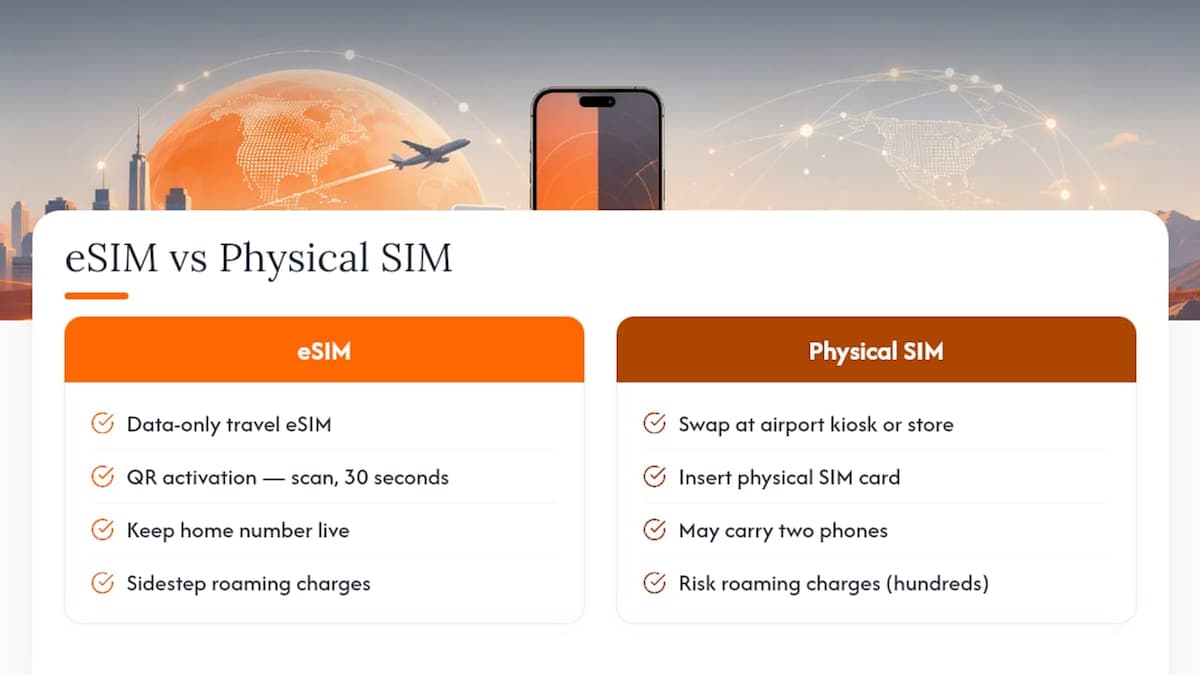
Swapping physical SIM cards at an airport kiosk is a habit that needed to die years ago, and eSIM finally killed it. The real win isn’t just convenience. It’s cost. A data-only travel eSIM lets you keep your home number live for calls and texts while sidestepping roaming charges that can run into hundreds of dollars on a two-week trip.
QR activation removes the friction that used to make multi-country travel a logistical headache. Scan, wait thirty seconds, done. No store visit, no waiting for a card to arrive in the mail. For anyone who crosses borders regularly, or just wants a business line without carrying two phones, this is the setup that finally makes sense on paper and in practice.
— Theo Wheeler
Get a Travel eSIM Ready in Under a Minute
Lumo is the practical second line for exactly the Dual SIM setup this guide walks through. Instead of hunting for a local SIM card or eating roaming fees, you buy a data-only eSIM plan, scan a QR code, and it’s active before you land, with coverage across 160+ countries. Label it “Travel” in your Cellular settings, keep your home number as your default voice line, and you’ve got the cleanest possible eSIM Dual SIM setup without touching a carrier store.
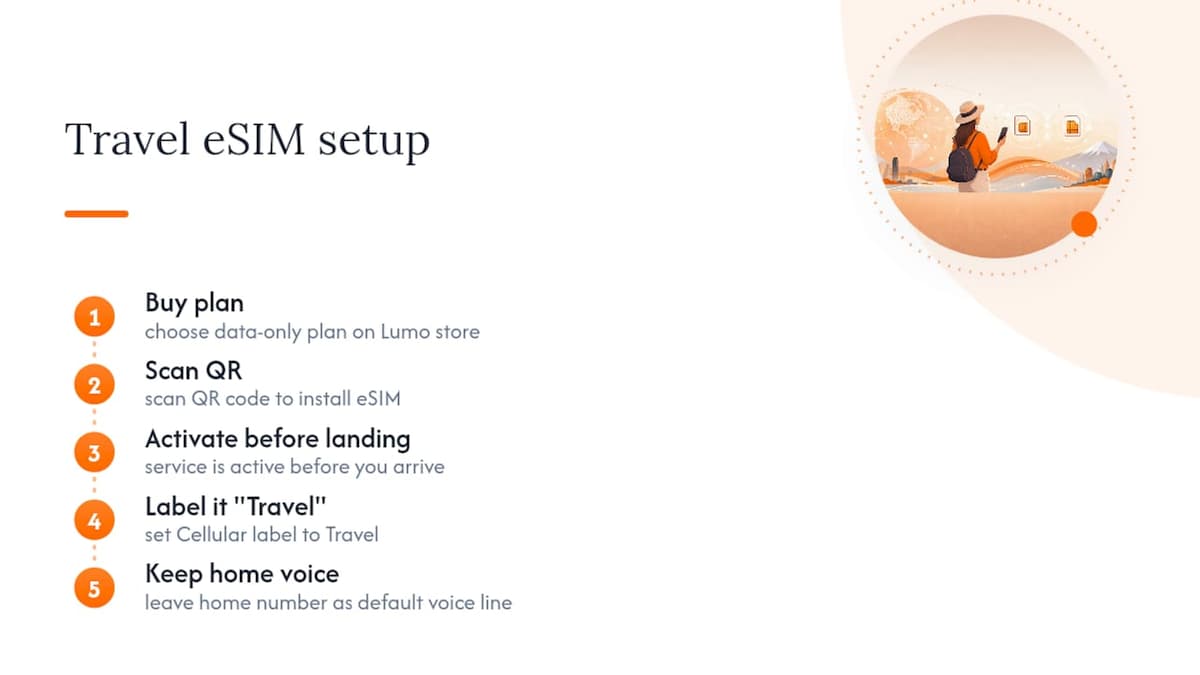
Plans come without contracts or account registration, so you’re not locked into anything once your trip ends. Check available countries and pick a plan on the Lumo eSIM store before your next trip.
Sources
- Using Dual SIM with an eSIM - Apple Support
- Use Dual SIM on iPhone - Apple Support
- Two SIMs on iPhone? Here Are the Settings Worth Changing - MacObserver
FAQ
Can an iPhone Be Dual SIM With eSIM?
Yes. iPhone XS and later support one physical SIM plus one eSIM, while iPhone 13 and later can run two eSIMs active at the same time on most models.
What Are the Disadvantages of Dual eSIM?
The main limitation is that only one cellular data connection stays active at a time unless you enable Allow Cellular Data Switching, and that feature won’t work if Data Roaming is on for the data line. iMessage and SMS threads are also locked to whichever number started them.
Can I Switch Back and Forth Between SIM and eSIM on My iPhone?
Yes. You can toggle lines on or off in Settings > Cellular at any time, switch your default voice and data line, or remove an eSIM profile entirely without affecting your physical SIM.
How Do I Get Two SIM Cards in One iPhone?
Use a physical SIM for one line and add an eSIM for the second through Settings > Cellular > Add Cellular Plan, either by scanning a carrier QR code or using automatic carrier activation. For a second travel line, a data-only eSIM like Lumo’s plans works the same way without needing a physical card at all.
Recommended
Related Topics
Stay Connected Anywhere
Prepaid eSIM data plans for 180+ countries and territories. No physical SIM required.