Activate eSIM on Lenovo Laptops in 5 Minutes with PSREF Checks

Many Lenovo laptops with built-in WWAN do support eSIM, but it depends entirely on which wireless module shipped inside your specific model. The fastest way to find out is to open Settings > Network & internet > Cellular and look for Manage eSIM profiles. If that option appears, your machine can activate an eSIM profile right now, and a plan from Lumo will get you connected in minutes.
TL;DR:
- eSIM support on Lenovo laptops depends on the specific WWAN module soldered or slotted into the device, not just firmware or drivers.
- Confirm eSIM capability by checking for “Manage eSIM profiles” in Windows Settings > Network & internet > Cellular, or by inspecting Device Manager for a recognized WWAN modem.
- Most models with eSIM support come from higher-end ThinkPads like X1 Carbon and X1 Yoga, typically equipped with Fibocom or Snapdragon modules.
- Activation involves scanning a QR code or entering an activation code from the carrier, with manual setup possible if auto-provisioning fails.
- Hardware issues, driver problems, or provisioning mismatches are common troubleshooting points, and keeping activation codes saved can prevent future connection issues.
Table of Contents
- Which Lenovo models and WWAN modules typically include eSIM
- How to check your Lenovo laptop for eSIM support in Windows
- How to add and activate an eSIM on a Lenovo laptop
- Troubleshooting common eSIM and WWAN issues on Lenovo laptops
- Managing multiple eSIM profiles and practical tips for travelers
- Why eSIM matters for Lenovo laptop owners
- Lumo: buy and activate an eSIM plan for your Lenovo laptop
- FAQ
- Sources
- Official docs and support pages used to verify steps
Which Lenovo models and WWAN modules typically include eSIM
Embedded eSIM support on a Lenovo laptop comes down to one thing: the WWAN module soldered or slotted into the motherboard. No driver update or Windows patch can add that hardware after the fact. Higher-end ThinkPad lines, particularly the X1 Carbon and X1 2-in-1 families, are the most likely to ship with the right module, along with select Yoga and IdeaPad configurations built for business or frequent travel.
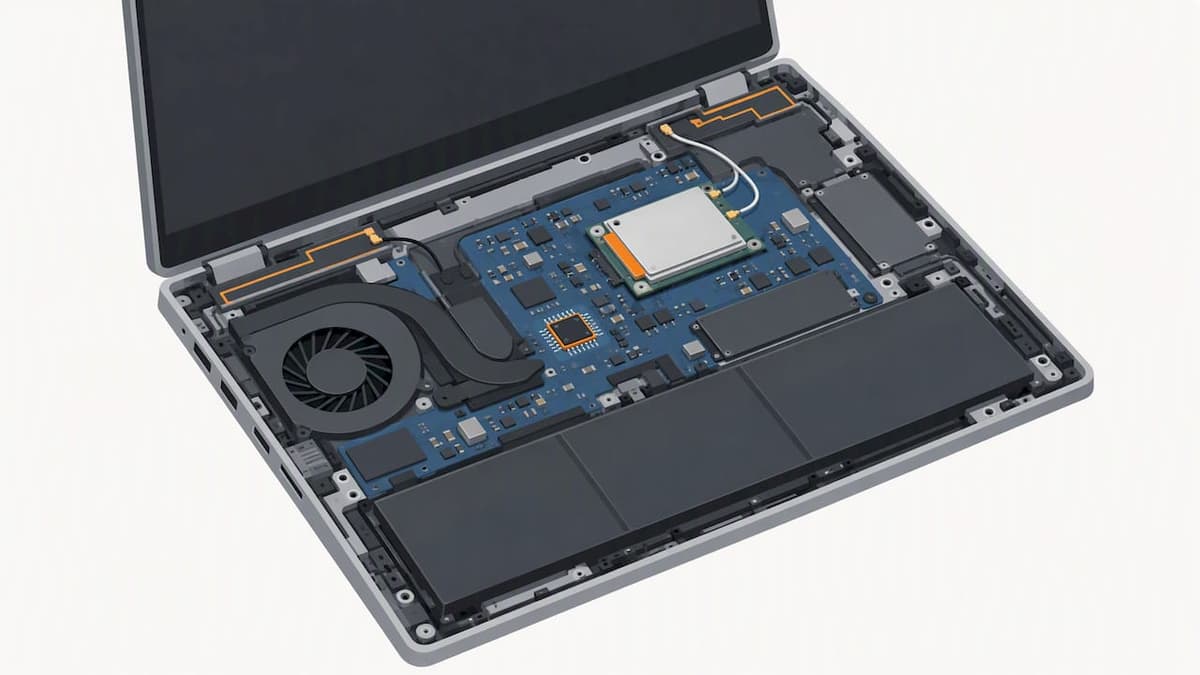
The modules that typically enable eSIM come from a handful of vendors. Fibocom and Qualcomm Snapdragon based WWAN cards are common in recent ThinkPad configurations, and both are known to support embedded eSIM profiles alongside a physical nano-SIM tray.
The clearest way to confirm support before buying or troubleshooting is to pull up your model’s PSREF specification sheet from Lenovo. The wording matters:
- “Embedded eSIM functionality” means the module and eSIM chip are present and ready to use.
- “Antenna ready” means the laptop has antenna wiring for a WWAN card but no modem installed, so it cannot use eSIM until a card is added.
- “WWAN upgradable” means a compatible card can be installed later, but this usually requires authorized service and isn’t something most buyers do themselves.
A laptop listed as antenna ready will never show the Manage eSIM profiles link, no matter how many driver updates you install, because the modem simply isn’t there.
How to check your Lenovo laptop for eSIM support in Windows
Before assuming your laptop lacks eSIM, run through these checks in order:
- Open Settings > Network & internet > Cellular. If a Manage eSIM profiles’ link appears near the bottom of the page, your device has embedded eSIM capability, according to Microsoft’s own guidance. If you only see a physical SIM option, the laptop likely relies on a SIM tray instead.
- Open Device Manager and expand Network adapters or look for a Modems or Mobile broadband devices category. A visible WWAN modem name (often including “Fibocom” or “Snapdragon”) confirms the hardware is installed and recognized.
- If no modem appears in Device Manager at all, even though your model should have one, the module may be disabled, missing a driver, or genuinely absent from your specific configuration.
- When in doubt, cross-check your exact model number against Lenovo’s PSREF documentation to confirm whether your configuration included a WWAN card at the factory.
A laptop that passes step 1 is ready to activate a profile immediately. One that fails step 1 but shows a modem in Device Manager may have a driver or firmware issue worth troubleshooting before you conclude the hardware isn’t supported. For a broader look at how Windows handles this across brands, our guide to checking eSIM support on a Windows laptop walks through the same settings in more detail.
How to add and activate an eSIM on a Lenovo laptop
Once you’ve confirmed the Manage eSIM profiles link exists, activation follows a consistent sequence, though the exact provisioning method varies by carrier.
- Go to Settings > Network & internet > Cellular > Manage eSIM profiles > Add a new profile.
- Choose whether you’re scanning a QR code or entering an activation code manually, depending on what your carrier or eSIM provider gave you.
- Follow the on-screen prompts to let Windows contact the carrier’s provisioning server and download the profile.
- Once installed, return to the Cellular settings page to confirm the new profile is listed and set it as active if you have multiple profiles stored.
Carrier behavior is where most of the friction shows up. Many mobile operators provision Sims differently for phones than for laptops, and a QR code generated for a smartphone activation flow won’t always work cleanly on a PC. Verizon’s own guidance on laptop eSIM provisioning recommends requesting a profile specifically provisioned for a Windows PC or “Connected PC” rather than assuming a phone-oriented QR code will transfer cleanly.
If the standard flow stalls, a few fallbacks usually work:
- Download the activation profile directly from the carrier’s online portal instead of scanning a printed QR code.
- Enter APN settings manually if the carrier provides them, which can resolve data connectivity even when auto-provisioning fails.
- Ask the carrier for the SM-DP+ server address so you can enter it manually in Windows if automatic discovery doesn’t complete.
Pro Tip: Keep your activation QR code or alphanumeric code saved as a screenshot before you leave home. Many carrier portals expire the code or make it harder to retrieve once you’re already traveling.
For a step-by-step walkthrough with screenshots of each prompt, see our eSIM activation guide.
Troubleshooting common eSIM and WWAN issues on Lenovo laptops
Most eSIM problems on Lenovo laptops trace back to one of three causes: a driver regression, a vanished WWAN device, or a carrier provisioning mismatch.
- Driver and firmware updates have, in documented cases, disabled eSIM menus outright. Lenovo’s own support documentation describes a specific software package that disabled the eSIM feature on devices using the Quectel EM120R-GL module. Check Lenovo’s support site for your exact model and modem before installing any WWAN-related update.
- If the Manage eSIM profiles link disappears entirely, open Device Manager first. A missing WWAN modem entry often means the driver needs reinstalling or rolling back to a previous version rather than updating further.
- Never restart or let your laptop sleep while a WWAN firmware update is running. Lenovo warns that interrupting this process is a common cause of the WWAN device vanishing from the system entirely, sometimes requiring a card replacement to fix.
- When the hardware checks out but activation still fails, the issue is usually on the carrier side. Ask for a PC-specific or “Connected PC” profile, or request the SM-DP+ server details so you can enter them manually.
- As a last resort while you sort out a provisioning issue, a USB mobile broadband modem can keep you connected temporarily without touching the laptop’s internal WWAN setup.
Pro Tip: If your WWAN device vanishes after a Windows update, check Device Manager for a yellow warning icon before assuming the hardware failed. A driver rollback resolves this far more often than a hardware replacement does.
Our troubleshooting checklist for eSIM issues covers additional edge cases if these steps don’t resolve your problem. For carrier-side activation quirks in other markets, this overview of activating eSIM with major European operators is a useful reference point on how differently providers can handle the same basic process.
Managing multiple eSIM profiles and practical tips for travelers
Windows lets you store several eSIM profiles at once and switch between them without removing anything physically. Under Manage eSIM profiles, each stored profile shows options to Use or Stop using, so switching between a home carrier and a travel data plan takes seconds once both are installed.
A few habits make this far more reliable in practice:
- Set the profile you’re not actively using to metered, so Windows doesn’t quietly consume data on a plan you’re trying to save.
- Leave “Let Windows keep me connected” enabled only on the profile you intend to use as your primary connection while traveling.
- Install a regional or destination-specific profile before you leave, rather than trying to activate one after landing with unfamiliar Wi-Fi.
- Keep every QR code or activation code you’ve used saved somewhere accessible offline, since some carrier portals make it hard to retrieve a code twice.
For a deeper walkthrough of juggling several profiles across trips, our guide on managing multiple eSIM profiles covers the setup in more detail.
Why eSIM matters for Lenovo laptop owners
The real value of eSIM on a Lenovo laptop isn’t the technology itself, it’s what it removes: no SIM tray to hunt for, no physical card to lose between trips, and the ability to hold several carrier profiles ready to go at once. That convenience is real for anyone who travels with a WWAN-equipped ThinkPad or Yoga.
But the honest caveat is that hardware dependency and carrier provisioning friction are still the two biggest obstacles, and no amount of software troubleshooting fixes either one. If your laptop has the right module, an eSIM service can turn activation into a five-minute task rather than a research project.
— Theo Wheeler
Lumo: buy and activate an eSIM plan for your Lenovo laptop
We designed our service around the one thing laptop eSIM activation usually lacks: a straightforward, no-registration checkout that gets a working profile onto your device in minutes, not after a support ticket. Once your Lenovo laptop shows the Manage eSIM profiles option, you’re one QR scan away from mobile data.
- We deliver every plan as an instant QR code, so there’s no waiting on a carrier portal or a physical SIM shipment.
- We support storing and switching between multiple profiles, which matters if you’re moving between countries or keeping a travel plan separate from your main carrier.
- We offer both global coverage and region-specific options, from Europe eSIM Plans starting at $1 one-off to United States eSIM Plans starting at $2 one-off.
If you’re prepping a Lenovo laptop for an upcoming trip, our Global eSIM Plans start at $7 one-off and cover 160+ destinations with no contract required. Check availability and activate before you fly.
FAQ
Can you get an eSIM on a laptop?
Yes, many Windows laptops with a built-in WWAN modem support eSIM, including select Lenovo models. You can confirm this by checking Settings > Network & internet > Cellular for the Manage eSIM profiles link.
Is there a laptop with eSIM?
Yes, several Lenovo ThinkPads, Yoga, and IdeaPad configurations ship with embedded eSIM support, typically paired with a Fibocom or Snapdragon WWAN module. Checking the model’s PSREF specification sheet confirms whether a specific configuration included the module.
Does my laptop have eSIM capability?
Open Settings > Network & internet > Cellular and look for Manage eSIM profiles near the bottom of the page. If it’s there, your laptop has embedded eSIM hardware; if you only see a physical SIM option, your device relies on a SIM tray instead.
Can a Lenovo laptop take a SIM card?
Many WWAN-equipped Lenovo laptops include a physical nano-SIM tray alongside, or instead of, embedded eSIM support, depending on the configuration. Checking Device Manager for a recognized mobile broadband modem, or consulting the model’s PSREF sheet, confirms which option your specific laptop supports.
Sources
- Use an eSIM to get a cellular data connection on your Windows PC - Microsoft Support
- ThinkPad X1 Yoga Gen 8 specifications - Lenovo PSREF
- Mobile Broadband Device (WWAN) stops working or is no longer visible - ThinkPad - Lenovo Support AG
- Laptops eSIM support and cellular settings - Verizon Business Support
Official docs and support pages used to verify steps
- Microsoft Support guidance on eSIM and cellular settings in Windows
- Lenovo PSREF specification sheets and Lenovo Support knowledgebase articles on WWAN issues
- Verizon Business support documentation on laptop eSIM provisioning
Recommended
Related Topics
Stay Connected Anywhere
Prepaid eSIM data plans for 180+ countries and territories. No physical SIM required.