Low Data Mode on iPhone: How to Turn It On, Off and Use It

To turn on Low Data Mode, open Settings, tap Cellular, tap Cellular Data Options, then switch on Low Data Mode. On a 5G iPhone you tap Data Mode first. For Wi-Fi, tap the info button next to the network in Settings > Wi-Fi. To turn it off, follow the same path and flip the switch back. Apple lists these steps on its page about using Low Data Mode on iPhone and iPad, and it has worked this way since iOS 13.
The catch most people hit: it is not one global switch. You set it separately for each cellular line and each Wi-Fi network. Below is how to do it, what it actually changes, when to turn it off, and how to set it up when you travel with a travel eSIM.
TL;DR
- Low Data Mode lives in Settings > Cellular > Cellular Data Options (cellular) and under the info button of each Wi-Fi network (Wi-Fi).
- It pauses background activity: Background App Refresh, automatic downloads and updates, iCloud Photos updates, and it lowers streaming quality.
- It is set per connection. Turning it on for hotel Wi-Fi does not turn it on for your cellular plan or your travel eSIM.
- If your iPhone switched it on by itself or a pop-up appeared, check the connection it applies to: a carrier setting, a limited plan or a slow network can trigger it.
- Abroad, pair it with a local data plan instead of roaming, and use the Cellular screen to see which apps are using data.
Table of Contents
- How to turn on Low Data Mode on iPhone
- How to turn off Low Data Mode
- What Low Data Mode actually changes
- When Low Data Mode is worth using
- See which apps are using your data
- Low Data Mode and roaming are different problems
- Setting up Low Data Mode with a travel eSIM
- Our perspective: Low Data Mode is the first step, not the plan
- Get a data plan that fits the trip
- Troubleshooting common Low Data Mode problems
- FAQ
- Sources
How to turn on Low Data Mode on iPhone
Apple’s instructions differ slightly by connection type. Your options can also vary by carrier, as Apple notes.
On LTE/4G cellular
- Open Settings and tap Cellular.
- Tap Cellular Data Options.
- Turn on Low Data Mode.
On 5G cellular
- Open Settings and tap Cellular.
- Tap Cellular Data Options.
- Tap Data Mode, then choose Low Data Mode.
If you have a recent iPhone, this is the path you will see. The Data Mode menu is also where you pick how freely your iPhone uses 5G. Apple’s page on using 5G with your iPhone explains that the default settings balance battery life and data usage based on your plan.
On a dual SIM or eSIM setup
- Open Settings and tap Cellular (some regions say Mobile Data).
- Tap one of your numbers.
- Turn on Low Data Mode for that line.
This matters if you carry your home line and a second line for travel. Low Data Mode for the home line does nothing for the second one. Each line has its own toggle.
On Wi-Fi
- Open Settings and tap Wi-Fi.
- Tap the info button next to the network you are connected to.
- Turn on Low Data Mode.
Apple says iCloud keeps your Low Data Mode preference for each Wi-Fi network up to date across your devices, so you set a network once. Apple’s Wi-Fi settings guide shows the same toggle among the options for the connected network.
How to turn off Low Data Mode
Retrace the path you used to turn it on:
- Cellular: Settings > Cellular > Cellular Data Options, then switch Low Data Mode off (on 5G, choose a different option under Data Mode).
- Dual SIM or eSIM: Settings > Cellular, tap the number, switch Low Data Mode off.
- Wi-Fi: Settings > Wi-Fi, tap the info button beside the network, switch it off.
If the switch seems to turn itself back on, look at which connection you are on. A common surprise is that you turned it off for cellular but the Wi-Fi network you joined still has it on, or the reverse. Because the setting belongs to the network, check the one you are actually connected to. If you see a pop-up about Low Data Mode on your Lock Screen, it is the phone telling you an app wants to do something Low Data Mode is holding back, such as an update.
What Low Data Mode actually changes
Apple describes the general effects: the phone stops using network data for apps you are not actively using, turns off Background App Refresh, reduces the quality of streaming content, turns off automatic downloads and backups, and pauses updates for services like iCloud Photos. Built-in apps adjust in their own ways:
| App or service | What changes in Low Data Mode |
|---|---|
| App Store | Video autoplay, automatic updates and automatic downloads are turned off |
| Music | Automatic downloads and high-quality streaming are turned off |
| News | Article prefetching is turned off |
| iCloud | Updates and automatic backups pause |
| Background App Refresh | Turned off |
These details come from Apple’s Low Data Mode page, which also notes that third-party apps respond in their own ways. A video app might lower resolution, a social app might stop autoplaying clips. Do not expect identical behavior everywhere.
It also affects Connectivity Assist
Connectivity Assist uses cellular data to help when Wi-Fi is slow or unusable. Apple explains the feature on its Connectivity Assist page. Low Data Mode and Connectivity Assist pull in opposite directions, so with Low Data Mode on, your iPhone will not quietly lean on cellular to rescue weak Wi-Fi. That is useful on a capped plan, and a little annoying if you expected your phone to keep a call or page alive.
What it does not do
It does not stop the apps you are actively using. If you stream video in the foreground, it will still use data, just usually at lower quality. It also does not replace a data cap. And closing apps from the App Switcher is not a data-saving trick: Apple’s guidance on switching apps explains that apps in the background get suspended and are not actively using system resources. Spend your effort on Low Data Mode and the per-app cellular toggles instead.
When Low Data Mode is worth using
Turn it on when:
- Your plan has a small data allowance, or you are on a prepaid plan with a fixed amount of gigabytes.
- You are in a place with slow or unreliable network speeds. Apple designed the feature for limited plans and slow connections.
- You are tethering a laptop to your phone and want to stop the iPhone’s own background chatter from eating into the allowance.
- You are on a metered Wi-Fi network, such as an airline, a hotel or a train.
Leave it off when:
- You rely on background sync, such as waiting on a work email or a ride-share app updating in the background.
- You want automatic photo uploads to finish right now.
- You are on fast, unlimited Wi-Fi at home.
A reasonable pattern: leave it on for cellular on trips and on public Wi-Fi, and off on your home network.
See which apps are using your data
Low Data Mode is a blunt tool. To find where the data goes, open Settings > Cellular and scroll to the list of apps. Apple’s guide to viewing or changing cellular data settings says you can control which apps and services use cellular data from this screen. You can also see System Services usage there, though you cannot switch those off one by one.
Before a trip, scroll to the bottom and tap Reset Statistics. The counters then start at zero, so at the end of day one you can see what really used data.
A quick audit:
- Reset Statistics before you leave.
- After a day, open Settings > Cellular and look at the top three apps.
- Switch off cellular access for any that do not need it on the road (cloud photo apps, games, big video apps).
- Keep messaging, maps and your banking app on.
If an app is off, it will only work on Wi-Fi. That is the intended effect.
Low Data Mode and roaming are different problems
Low Data Mode reduces how much data your phone uses. It does not change what each megabyte costs. If your carrier charges for international roaming, the mode helps, but it does not make roaming cheap. Apple’s page on cellular data roaming options points out that carriers might include international roaming on some plans without extra fees, and that you should check with your carrier. If you do not know your carrier’s terms, assume nothing before you land.
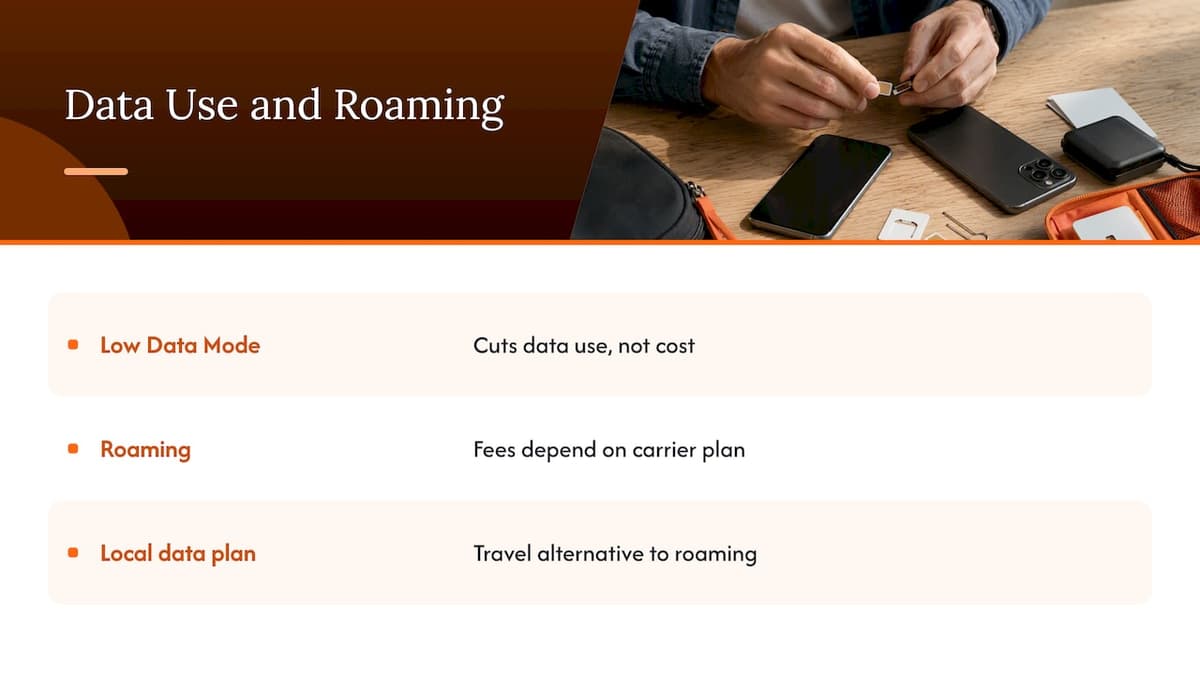
We have written about the cost side separately: what data roaming is and how bills get out of hand, the costs and risks of mobile data roaming, and a seven-step checklist to avoid roaming charges. If you only want the short version: turn off Data Roaming on your home line, and use a local data plan for the trip.
Setting up Low Data Mode with a travel eSIM
This is where the per-connection rule bites. With a travel eSIM installed, your iPhone has two cellular lines: your primary number and the travel data line. Here is a setup that works.
- Install the eSIM before you fly. Do it on Wi-Fi so you are not relying on roaming at the airport.
- Set the travel line for cellular data. In Settings > Cellular, choose the travel plan under Cellular Data.
- Turn off Data Roaming on your home line so nothing slips back to it.
- Open the travel line’s settings and switch on Low Data Mode if the allowance is small. Do this for that line only.
- Reset Statistics so you can see usage for the trip alone.
- Handle Wi-Fi separately. Hotel Wi-Fi has its own toggle. Turning Low Data Mode on there does not protect your eSIM allowance.
When you are on a limited plan, the biggest hidden drains tend to be automatic updates, iCloud Photos and background refresh. These are exactly what Low Data Mode quiets down. Apple’s 5G page also mentions that you can customize how much data some apps use, which is worth a look if your iPhone supports it.
For more habit-based tips, see our guides on data-saving tips for travelers abroad, smart global data usage tips for travelers and remote workers and keeping your number with a dual SIM travel setup.
Our perspective: Low Data Mode is the first step, not the plan
We build eSIM plans for travelers, so we see the same pattern constantly. People land, switch on a data plan, and then wonder why the gigabytes drain in two days. In most cases the culprit is not a single app. It is a pile of small background tasks that wake up the moment the phone sees a new network: updates, photo syncs, app refreshes.
Low Data Mode is the cheapest fix for that, and it costs nothing. We tell people to treat it as the first step. Switch it on for the travel line, check the app list in Cellular after day one, and only then decide whether you need a bigger plan. Buying more data to feed background syncing is the wrong order.
We also think plan choice should come before the trip, not at the airport. A smaller plan with Low Data Mode on suits maps, messaging and email. If you are going to video call, tether a laptop or work from a cafe, size up, and read how speed caps work before you buy: our piece on eSIM data throttling covers what to look for.
One last point: do not let Low Data Mode become a reason to avoid your phone. It is a setting, not a rule. If something time-sensitive is pending, like a boarding pass or a ride, turn it off for a minute, then turn it back on.
— Theo Wheeler
Get a data plan that fits the trip
If you are heading abroad and want to skip roaming, Lumo sells prepaid eSIM plans you activate with a QR code, with no contract and no registration needed. Plans cover 160+ countries. Current starting prices are published on each page:
- Europe eSIM plans, from $1 one-off
- Asia eSIM plans, from $2 one-off
- United States eSIM plans, from $2 one-off
- United Kingdom eSIM plans, from $1 one-off
- Global eSIM plans, from $7 one-off
You can also check which networks we use in each country before you buy. Install the eSIM, switch on Low Data Mode for that line, and your allowance goes further.
Troubleshooting common Low Data Mode problems
The option is missing or looks different. On 5G iPhones the switch sits under Data Mode. Apple also says your settings might vary by carrier, so the wording can change.
Low Data Mode is on and I did not turn it on. Check each line and each network. It could be on for one Wi-Fi network you joined before, since the preference is remembered per network and synced via iCloud.
Apps are not updating. That is expected. Automatic updates and downloads pause. Turn it off for the connection, or connect to a network where it is off.
Photos are not backing up. iCloud Photos updates pause in this mode. Turn it off on Wi-Fi at home and let it catch up.
My data is still draining. Open Settings > Cellular and look at the app list. Foreground use, hotspot sharing and a heavy app can all use data even with the mode on. Disable cellular for any app that does not need it.
I want my phone to use cellular when Wi-Fi is bad. Turn off Low Data Mode for that Wi-Fi network, and check Connectivity Assist in Settings > Cellular.
FAQ
Does Low Data Mode work on both Wi-Fi and cellular?
Yes, but you turn it on separately for each. Cellular has its own toggle under Cellular Data Options (or under each number on dual SIM), and every Wi-Fi network has its own toggle behind the info button. Enabling one does not enable the other.
Will Low Data Mode slow down my iPhone?
It does not slow the phone itself. It limits background network activity and lowers streaming quality, so some apps may load less content ahead of time. Anything you actively use should keep working, with some features paused.
Is Low Data Mode the same as turning off cellular data?
No. Turning off cellular data cuts off all mobile internet, so apps only work on Wi-Fi. Low Data Mode keeps the connection but restricts background use. Apple describes cellular on/off as a separate switch at Settings > Cellular, on its cellular data page.
Which iPhones have Low Data Mode?
It is available on iPhones running iOS 13 or later, according to Apple. If your iPhone can run a current version of iOS, you will have it. The steps differ slightly for 5G models.
Does Low Data Mode stop me from getting charged roaming fees?
No. It reduces the data you use but does not change the price per megabyte or stop roaming. To avoid roaming charges, turn off Data Roaming on your home line and use a local or travel data plan, or check with your carrier about international options.
Sources
- Use Low Data Mode on your iPhone and iPad, Apple Support
- Use 5G with your iPhone, Apple Support
- Manage Wi-Fi settings on iPhone, Apple Support
- About Connectivity Assist, Apple Support
- Switch apps on your iPhone, iPad, or iPod touch, Apple Support
- View or change cellular data settings on iPhone, Apple Support
- About cellular data roaming options for your iPhone and iPad, Apple Support
- Use cellular data on your iPhone or iPad, Apple Support
Recommended
Related Topics
Stay Connected Anywhere
Prepaid eSIM data plans for 180+ countries and territories. No physical SIM required.