Check Your Laptop’s Modem First: eSIM or Hotspot for Travel

Yes, you can use eSIM on a laptop while traveling, but only if your machine has built-in cellular hardware and eSIM support. Windows laptops with a WWAN modem have a dedicated “Manage eSIM profiles” option in Settings. Most MacBooks lack that hardware entirely, so Mac travelers typically rely on an iPhone hotspot. Either way, a prepaid travel eSIM works whether you install it directly or share it via a hotspot.
TL;DR:
- On Windows, open Settings, then Network & internet, then Cellular; Manage eSIM profiles confirms a modem, while its absence means the laptop lacks one.
- Native eSIM usually appears as an optional WWAN configuration on business Windows lines such as Surface, ThinkPad, Latitude, and EliteBook, not across every model.
- For demanding work such as long video calls or large file transfers, use native cellular and keep a phone hotspot as backup for dropped connections.
- Set the connection to metered and pause cloud sync and operating system updates, because background activity can consume prepaid data without warning.
- Before departure, verify the device is unlocked and supports local frequency bands; if installation succeeds without data, check the provider’s APN settings.
Table of Contents
- What Makes a Laptop eSIM-Capable
- Which Laptops Actually Support Native eSIM
- How to Check if Your Laptop Supports eSIM
- Setting Up an eSIM on a Compatible Windows Laptop
- Options When Your Laptop Has No Built-In eSIM
- Planning Your Data Use and Controlling Costs
- Security and Regulatory Guidance for Traveling With eSIM
- Fixing Common eSIM Problems on Laptops
- What I’d Actually Recommend for Different Travelers
- Get Your Laptop Travel-Ready With Lumo
- FAQ
- Sources
What Makes a Laptop eSIM-Capable
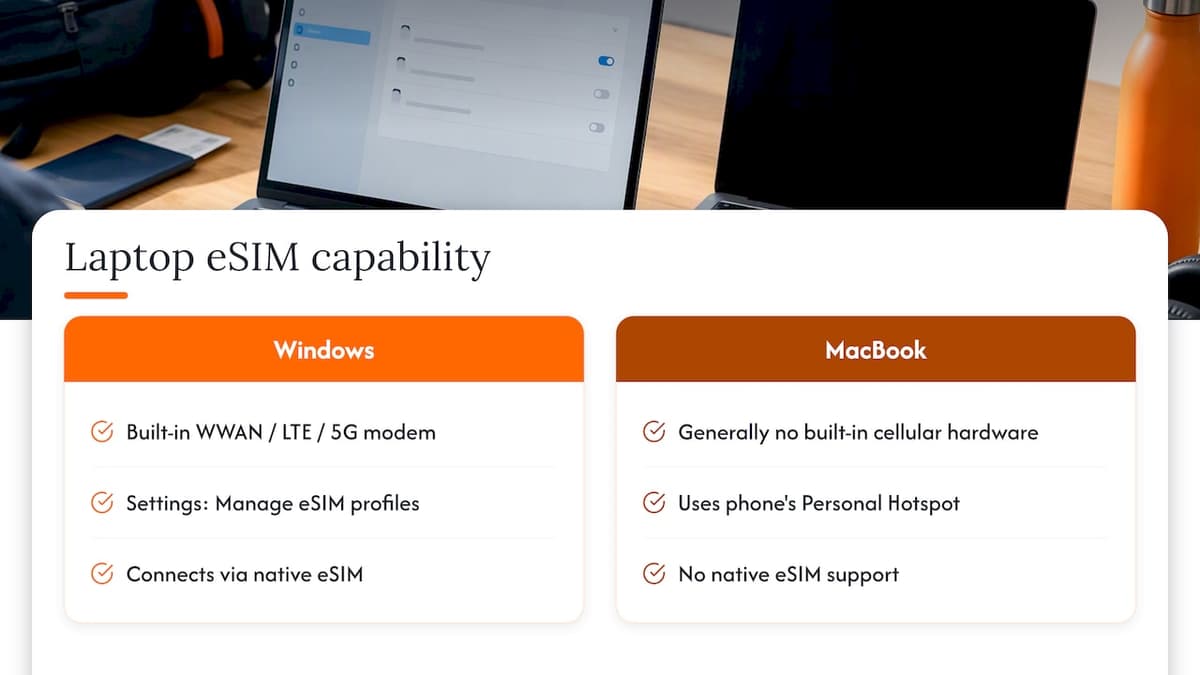
An eSIM is a digital profile stored on a chip inside your device rather than a physical card you swap out. Using one for cellular data requires two things: a built-in cellular modem, often called WWAN, LTE, or 5G hardware, and operating system support for managing that profile. No software update can add a modem that was never installed, so this is a hardware question first and a settings question second.
Windows handles this well. Machines with the right modem expose Manage eSIM profiles directly in Settings, letting you add, switch, and remove profiles without touching a physical tray. Apple’s current MacBook lineup takes a different path: these laptops generally skip built-in cellular hardware altogether, so Mac users connect through Personal Hotspot instead of installing an eSIM natively.
Which Laptops Actually Support Native eSIM
Cellular hardware shows up almost exclusively on business-oriented Windows machines, usually as a factory configuration option rather than a standard feature. If you’re shopping for a travel laptop or checking one you already own, these are the lines most likely to include it:
- Microsoft Surface Pro and Surface Laptop LTE or 5G configurations, sold as a distinct SKU from the Wi-Fi-only models.
- Lenovo ThinkPad WWAN-equipped configurations, common on business-class X1 and T-series models.
- Dell Latitude and HP EliteBook lines, which offer WWAN as a build-to-order option on select models.
Consumer laptops, gaming laptops, and nearly every current MacBook skip this hardware. Even within a single product family, only certain configurations include the modem, so the exact model number and spec sheet matter more than the brand name. A Surface Laptop bought off the shelf at a big-box store, for instance, may be Wi-Fi only even though an LTE version of that same model exists elsewhere.
How to Check if Your Laptop Supports eSIM
A few minutes of checking now saves a frustrating scramble at the airport. Work through these in order:
- On Windows, open Settings, then Network & internet, then Cellular. If your laptop has the right hardware, you’ll see a Manage eSIM profiles button; if Cellular doesn’t appear as an option at all, your device lacks a modem. Note that Microsoft’s Mobile Plans app was phased out, so newer setups go through operator websites, QR codes, or activation codes rather than that app.
- On a MacBook, check your exact model year against Apple’s spec pages. Current models rely on Personal Hotspot from an iPhone or cellular iPad rather than a built-in eSIM.
- For any laptop, search the manufacturer’s spec page using your exact model number, since WWAN is usually a separate configuration rather than a universal feature across a product line.
Setting Up an eSIM on a Compatible Windows Laptop
Once you’ve confirmed your laptop has the hardware, activation is straightforward. You’ll typically get a QR code, an activation code, or a direct download link from whichever travel eSIM you purchase.
- Open Settings, go to Network & internet, then Cellular, and select Manage eSIM profiles.
- Choose Add a profile, then pick your activation method: scanning the QR code, entering the code manually, or downloading from the operator’s site.
- Once the profile installs, select it and choose Use to connect to that network.
A few details make this smoother. Save your activation code somewhere off the device, like a password manager or email, in case you need to reinstall the profile later. If you want to limit background data use, set the connection to metered right after activation. If data doesn’t flow despite a successful install, check the APN settings against what your provider specifies.
Pro Tip: Install and test your eSIM profile at home before departure, so any activation issue gets solved with reliable Wi-Fi backup instead of airport stress.
Options When Your Laptop Has No Built-In eSIM
Most laptops fall into this category, and the fix is usually simpler than people expect.
- Phone hotspot is the easiest option for most trips: enable Personal Hotspot or mobile hotspot on your phone and connect your laptop over Wi-Fi, Bluetooth, or USB.
- MiFi devices and USB cellular modems suit longer trips or situations where multiple devices need a connection without draining your phone’s battery.
- Sharing one eSIM plan via hotspot is common and often the most economical approach, though tethering adds some battery drain and can reduce throughput slightly compared to a direct cellular connection on the laptop itself.
For a full walkthrough of sharing a single plan across devices, see our guide to hotspotting with an eSIM.
Planning Your Data Use and Controlling Costs
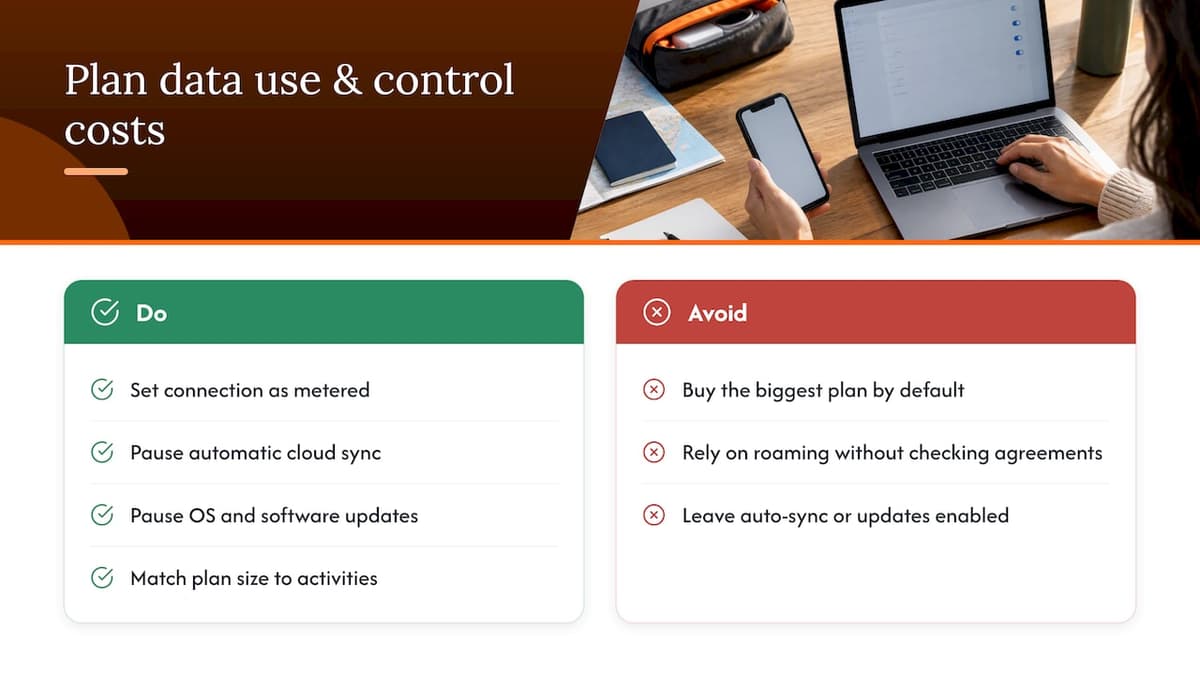
Laptops chew through data faster than phones because of background syncing, software updates, and video calls. Email and document work use relatively little, while video calls and streaming can consume data quickly, so matching your plan size to your actual activities matters more than buying the biggest plan available.
One of the most effective ways to protect a prepaid balance is to set your connection to metered and pause automatic cloud sync and OS updates, since both can silently consume a large share of a travel data plan in the background.
Before relying on your home carrier’s roaming instead of a travel eSIM, the FCC recommends confirming your device’s unlock status and checking that roaming agreements actually cover your destination, since coverage and pricing vary widely by carrier and country. For more on weighing roaming against a prepaid alternative, our guide to avoiding roaming fees walks through the comparison in detail.
Security and Regulatory Guidance for Traveling With eSIM
Mobile data abroad comes with a few risks worth managing deliberately, and the guidance here comes from the FCC’s own consumer resources.
- The FCC advises confirming your device is unlocked and checking frequency band compatibility before you depart, since an unlocked phone or laptop doesn’t guarantee it works on every network.
- Prefer cellular data over public Wi-Fi for anything sensitive, and disable auto-join for open networks.
- Use a VPN for work-related tasks and keep your operating system and security software current.
- Keep eSIM activation codes stored securely off the device, since a saved code lets you reprovision a plan quickly onto a replacement device if yours is lost or stolen.
Pro Tip: Screenshot or save your QR code in a separate cloud note before travel, not just on the device that might lose signal or get lost.
For a deeper look at this topic, we’ve written a full eSIM security guide for travelers. Readers who want to lock down their accounts further can also look at practical guidance on securing public Wi-Fi or steps for securing a business Wi-Fi network while on the road.
Fixing Common eSIM Problems on Laptops
Most eSIM issues trace back to a handful of causes, and working through them in order usually finds the fix.
- Installation fails outright: double-check that the QR code or activation code hasn’t expired and that it’s valid for your current region, since many travel eSIMs are region-locked.
- No data after a successful install: verify the APN settings match what your provider specifies, and confirm your laptop’s modem actually supports the local carrier’s frequency bands, since a successful activation doesn’t guarantee band compatibility.
- Connectivity drops in and out: try switching to a different profile if you have one, recheck your Cellular settings in Windows, or fall back to a phone hotspot while you troubleshoot.
Device lock status can also block activation entirely. If your laptop was sold through a carrier, confirm it’s unlocked before assuming the problem is with the eSIM itself. For a broader rundown on frequency bands and compatibility, see our guide to mobile network compatibility.
What I’d Actually Recommend for Different Travelers
If your laptop has native eSIM and you need constant, high-bandwidth access, like long video calls or large file transfers, use it, but keep a phone hotspot as backup since carrier handoffs can interrupt a connection mid-task. For shorter trips or unsupported laptops, a hotspot alone is simpler and cheaper. Either way, run through this before departure: confirm your model’s cellular bands, check unlock status, buy your plan, set your connection to metered, and save your activation codes somewhere off-device. We built Lumo around exactly this kind of practical, traveler-first setup.
— Theo Wheeler
Get Your Laptop Travel-Ready With Lumo
We support multiple eSIM profiles so you can keep separate plans for separate trips or devices, and back plans with customer support in case something doesn’t activate cleanly.
Match your plan to your trip the same way you sized your data budget earlier in this guide: a single destination calls for one of our regional plans, like Europe eSIM Plans from $1 or Asia eSIM Plans from $2, while a multi-country itinerary fits better with our Global eSIM Plans from $7. Heading to the UK specifically, our United Kingdom eSIM Plans start from $1. Check exact carrier coverage for your route on our coverage lookup page before you buy, then activate from Lumo once you’ve picked your plan.
FAQ
Can you do an eSIM on a laptop?
Yes, but only if the laptop has built-in cellular hardware and operating system support for managing eSIM profiles. Windows laptops with WWAN hardware show a Manage eSIM profiles option in Settings, while most laptops without that hardware need a phone hotspot instead.
Are there any laptops with eSIM?
Yes, mainly business-class Windows machines sold with a cellular configuration, including Microsoft Surface LTE and 5G models, Lenovo ThinkPad WWAN configurations, and select Dell Latitude or HP EliteBook models. Current MacBooks generally lack this hardware, so Mac users connect through Personal Hotspot from an iPhone instead.
Can I buy eSIM for laptop?
Yes, prepaid travel eSIMs work on any compatible laptop and can also be shared to a laptop over a phone hotspot when the laptop itself lacks cellular hardware. Our Global eSIM Plans start from $7 and activate instantly by QR code.
How do I know if my laptop is eSIM compatible?
On Windows, check Settings, then Network & internet, then Cellular, and look for a Manage eSIM profiles option; if Cellular isn’t listed at all, your laptop lacks a modem. On a Mac, check your exact model against Apple’s spec pages, since current models rely on hotspot sharing rather than native eSIM.
Sources
- Use an eSIM to get a cellular data connection on your Windows PC
- Use Personal Hotspot on Mac
- International roaming | FCC
Recommended
Related Topics
Stay Connected Anywhere
Prepaid eSIM data plans for 180+ countries and territories. No physical SIM required.