Troubleshooting Travel Connectivity: Your 2026 Fix-It Guide

Quick fixes for travel connectivity problems
Most travel connectivity failures come down to three things: data roaming is off, the wrong SIM line is set for data, or APN settings are missing. Checking these three factors resolves 44.2% of roaming issues within 10 minutes. Before you restart your phone for the fifth time, run through this checklist first.
- Check your eSIM line is active. Go to Settings → Cellular → [Travel eSIM] and confirm “Turn On This Line” is enabled.
- Enable Data Roaming. Travel eSIMs technically roam even on flat-rate plans. Settings → Cellular → [Travel eSIM] → Data Roaming ON.
- Verify the correct data line. On iPhone: Settings → Cellular → Cellular Data → select your travel eSIM. On Android: Settings → Network → SIMs → set travel eSIM for Mobile Data.
- Toggle airplane mode. Turn it on, wait 15 seconds, turn it off. This forces a fresh network scan.
- Restart the device. A full restart clears network caches and often resolves stubborn activation issues.
- Disable your VPN. Active VPNs block captive portal authentication, which is the most common reason hotel and airport Wi-Fi appears connected but won’t load anything.
- Confirm coverage. Check that your destination and specific carrier are covered by your travel eSIM plan. Some rural areas may fall outside a plan’s supported network even within a covered country.
Pro Tip: Run through the settings checks before any physical reset. Restarting treats symptoms; fixing the data line or roaming toggle fixes the actual problem.
Table of Contents
- How to stay connected when your signal disappears
- How to connect to alternative networks and use public Wi-Fi safely
- Step-by-step troubleshooting for eSIM data and roaming settings
- Restart, network selection, and software update tips for travelers
- When to contact your carrier and what to try instead
- Expert insights on eSIM connectivity challenges
- How to check if your SIM or eSIM is healthy
- How to conserve data when connectivity is limited
- Hardware issues that can affect your connectivity
- Key Takeaways
- Lumo keeps you connected without the roaming guesswork
- FAQ
How to stay connected when your signal disappears
Offline preparation is the most underrated part of travel network troubleshooting. When connectivity drops, travelers who prepared in advance keep moving. Those who didn’t are stuck.
- Download Google Maps Offline for every destination before you leave. Offline maps give you full navigation without any live data, including turn-by-turn directions.
- Save travel documents locally. Boarding passes, hotel confirmations, and visa copies should live on your device, not just in email.
- Preload entertainment and guides. Download Spotify playlists, Netflix episodes, and travel guides over Wi-Fi before you board.
- Use offline-capable communication tools. Apps like WhatsApp and iMessage can queue messages and send them the moment connectivity returns.
- Carry multiple data sources. A travel eSIM plus a downloaded offline map plus a hotel Wi-Fi backup means a single failure point never leaves you completely stranded.
How to connect to alternative networks and use public Wi-Fi safely
When your primary connection fails, switching networks manually often restores service faster than any settings tweak. Manually selecting a different carrier frequently improves speeds and connectivity in crowded or rural areas where auto-selection latches onto a weak tower.
- Enable manual network selection. Settings → Cellular → [Travel eSIM] → Network Selection → turn off Automatic. Your phone lists available carriers. Try each one until you connect, then switch back to Automatic as a best practice.
- Use public Wi-Fi cautiously. Airport and café networks often use captive portals that block all traffic until you complete a browser login step. Open a browser first before assuming the connection is broken.
- Turn off your VPN before authenticating. VPNs intercept the redirect that captive portals rely on, so the login page never loads. Disable it, complete the portal login, then re-enable.
- Avoid sensitive transactions on open Wi-Fi. Banking, password entry, and account logins should wait for a VPN or your cellular connection.
- Consider a portable Wi-Fi device or MiFi. These battery-powered hotspots connect to local networks and share the signal with all your devices. They’re especially useful for RV travelers or anyone working from multiple devices on the road.
Pro Tip: If a network shows “Forbidden” during manual selection, try connecting anyway. That label sometimes clears once the network authenticates your device.

Step-by-step troubleshooting for eSIM data and roaming settings
When the quick checklist doesn’t resolve the issue, a deeper configuration review usually will. Work through these steps in order rather than jumping to a factory reset.
- Confirm the eSIM line is toggled on. Settings → Cellular → [Travel eSIM] → “Turn On This Line.” A grayed-out toggle here explains everything.
- Enable Data Roaming on the travel eSIM specifically. This is the single most common fix for “no service” abroad. Each SIM line has its own roaming toggle; enabling it on your home SIM does nothing for the travel eSIM.
- Set the travel eSIM as the default data line. Your phone may be routing all data through your home SIM while the travel eSIM sits idle.
- Check APN settings. Incorrect or missing APN is a frequent cause of “connected but no internet” symptoms. Your eSIM provider should supply the correct APN value. On iPhone: Settings → Cellular → [Travel eSIM] → Cellular Data Network.
- Try manual network selection if automatic fails. Test each available carrier and note which one connects.
- Disable any active VPN during troubleshooting. VPN conflicts with eSIM data routing are especially common on first connection in a new country.
Restart, network selection, and software update tips for travelers
Physical resets are useful, but they treat symptoms rather than root causes like disabled roaming or a misconfigured data line. Use them after you’ve verified the logical settings.
- Restart your device after any settings change. A full power cycle clears network caches and forces the phone to re-register with the local carrier.
- Toggle airplane mode when you want a faster reset. On, wait 15 seconds, off. This triggers a fresh network scan without a full reboot.
- Test multiple carriers during manual selection. In Germany, Deutsche Telekom typically outperforms alternatives. In India, Airtel tends to offer stronger coverage. Picking the right local carrier can dramatically change your experience.
- Hold off on OS updates while traveling. Resetting network settings deletes all eSIM profiles. Delay iOS and Android updates until you’re home and can reinstall profiles safely.
- Know your hardware limits. On phones that don’t support DSDS (Dual SIM Dual Standby) properly, receiving a call on your home SIM can temporarily pause data on the travel eSIM. That’s a hardware limitation, not an eSIM fault.
For a deeper walkthrough on eSIM setup for travel, including how to configure profiles before departure, Lumo’s setup guide covers the full process.
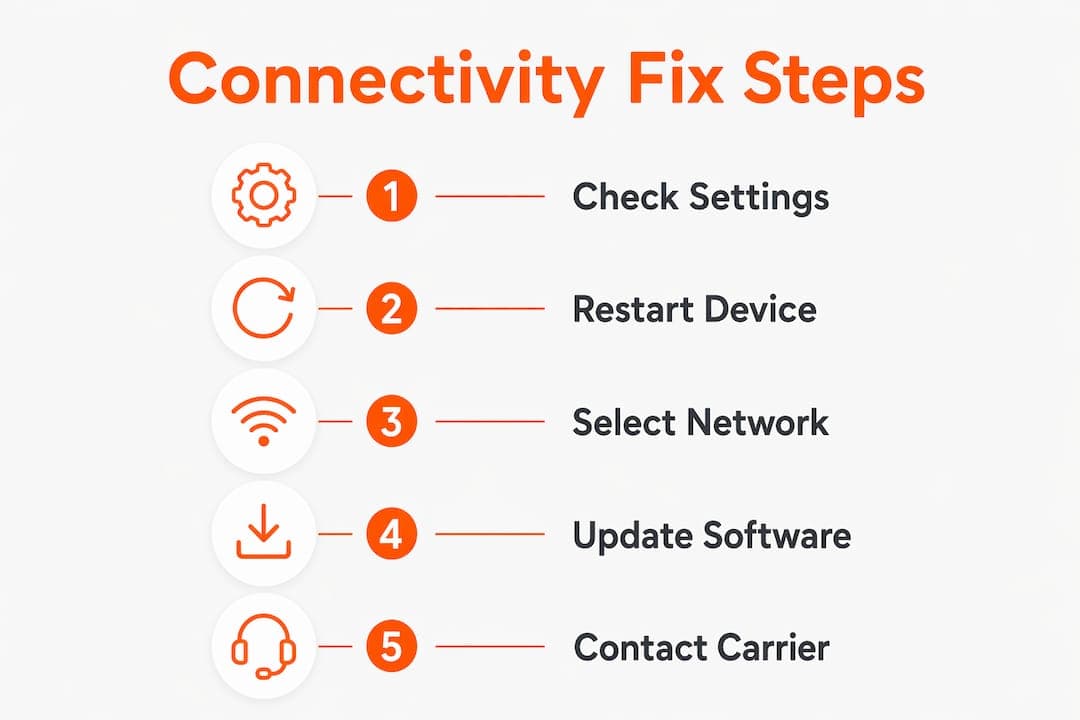
When to contact your carrier and what to try instead
Some issues go beyond what device settings can fix. Knowing when to escalate saves hours of frustration.
- Gather information before you call. Support teams resolve issues faster when you provide screenshots of your settings, the exact error message, your device model, and your order or plan ID.
- Recognize throttling. “Unlimited” plans often cap full speeds at 1–3 GB per day or 30–70 GB per month. After that threshold, speeds drop to 128–256 Kbps. If your connection is slow but present, check your fair-use limit before calling support.
- Consider a local SIM or portable hotspot if your travel eSIM fails in a specific country. Local SIMs are available at most airports and convenience stores, and they bypass roaming entirely.
- Understand remote area limitations. Coverage maps show country-level availability, but rural zones and mountain regions often rely on a single carrier with limited capacity. If you’re RV camping or hiking off the beaten path, a satellite communicator like a Garmin inReach is worth considering as a backup.
- Plan for extended offline periods. If you know connectivity will be unreliable for days, download everything you need in advance, set up email auto-replies, and let contacts know your schedule.
Expert insights on eSIM connectivity challenges
The most common mistake travelers make is assuming a strong signal means working internet. Signal bars only confirm a radio connection, not whether data services are actually flowing. You can have five bars of 5G and still load nothing.
Modern mobile connectivity runs in three distinct layers. First, your phone connects to a tower at the radio level. Second, the network authenticates your device and account, which involves roaming agreements between carriers when you’re abroad. Third, traffic routes through DNS and related services so apps can reach external servers. Most travel failures happen at the second or third layer, not the first.
The key insight for travelers: Verify logical settings first. Check that Data Roaming is on and the correct eSIM line is selected before reaching for the power button. A restart resets hardware; it does not fix a misconfigured data line or a stalled roaming authentication. Work through the connection chain systematically: radio connection, then authentication, then routing.
VPNs add a fourth complication. They alter routing behavior in ways that can block captive portal logins and interfere with roaming authentication. Disabling your VPN during the initial network connection is not a security risk; it’s a diagnostic step. Re-enable it once the connection is established.
For travelers who want a deeper technical reference, Lumo’s guide on eSIM connectivity troubleshooting covers the full diagnostic sequence.
How to check if your SIM or eSIM is healthy
A damaged or corrupted eSIM profile causes symptoms that look identical to network or settings problems. Ruling out profile health early saves time.

Go to Settings → Cellular and look for your travel eSIM in the list. If it doesn’t appear, the profile may have been deleted, possibly by a network reset or an OS update. Most eSIM QR codes are single-use, so you can’t reinstall from the original code. Contact your provider directly; reputable services will issue a replacement profile.
If the eSIM appears but shows “No Service” even after enabling the line and data roaming, try phone configuration checks to rule out a hardware issue before assuming the profile is corrupted. A profile that activates correctly on a second device confirms the problem is with the original phone, not the eSIM itself.
How to conserve data when connectivity is limited
When you’re working with a slow or throttled connection, reducing background data consumption often makes the difference between a usable connection and a frustrating one.
Turn off Background App Refresh on iPhone (Settings → General → Background App Refresh) and disable automatic app updates on both iOS and Android. These two settings alone can cut background data consumption significantly. Check per-app data usage on iPhone under Settings → Cellular; scroll down to see which apps are consuming the most and disable cellular access for any you don’t need on the road. On Android, go to Settings → Network → Data Usage for the same breakdown. Streaming apps, cloud backup services, and social media feeds are the usual culprits. Switching to low-data or offline modes in apps like Spotify and YouTube before your connection degrades keeps them usable even at reduced speeds.
Hardware issues that can affect your connectivity
Physical damage and antenna problems are easy to overlook when you’re focused on settings. A cracked phone that took a drop on cobblestones may have a compromised antenna, which shows up as weak signal in areas where other phones connect fine.
Test by comparing your signal to another device on the same network in the same location. If your phone consistently shows weaker signal or drops connection more frequently, the antenna or SIM tray may be the issue. A bent SIM tray prevents proper contact with a physical SIM card, causing intermittent connectivity that mimics a network problem. Remove the SIM, inspect the tray for damage, and reseat the card firmly. For eSIM users, antenna damage is the more likely culprit since there’s no physical card to check. Water damage is another common cause: even phones rated for water resistance can suffer antenna degradation after submersion. If you suspect hardware damage, a local repair shop can run a diagnostic before you spend hours on settings that won’t fix a physical fault.
Key Takeaways
Troubleshooting travel connectivity starts with three settings checks: data roaming, the active data line, and APN configuration. These resolve the majority of connection failures before any hardware reset is needed.
| Point | Details |
|---|---|
| Check settings before restarting | Data roaming off, wrong data line, or missing APN causes 44.2% of travel eSIM failures, which are fixed within 10 minutes by checking these settings. |
| Signal bars don’t mean internet | Full signal can coexist with no data if roaming authentication or DNS routing fails. |
| Disable VPN for portal logins | VPNs block captive portal authentication on hotel and airport Wi-Fi networks. |
| Hold OS updates while traveling | Resetting network settings deletes eSIM profiles; delay updates until you return home. |
| Lumo for global coverage | Lumo’s travel eSIM covers 160+ countries with instant activation and 24/7 support. |
Lumo keeps you connected without the roaming guesswork
Fixing mobile connectivity problems mid-trip is stressful. Lumo is built to reduce how often you face that situation in the first place. With instant QR code activation, coverage across more than 160 countries, and flexible data plans that let you switch between local carriers without swapping a physical SIM, Lumo gives travelers a reliable data connection from the moment they land. There are no surprise roaming fees and no long-term contracts. If something does go wrong, Lumo’s 24/7 support team is reachable before you’ve exhausted your troubleshooting checklist. For solo adventurers, RV travelers, and remote workers who need dependable internet on the road, Lumo’s global eSIM plans are worth checking before your next departure.
FAQ
What should I check first when my travel data stops working?
Check that Data Roaming is enabled on your travel eSIM line and that the travel eSIM is set as your default data line. Checking these, along with APN settings, resolves 44.2% of “no service” cases abroad within 10 minutes.
Why do I have full signal bars but no internet connection?
Signal bars confirm a radio connection to a tower, not working internet. Data can fail at the roaming authentication or DNS routing stage even when signal looks perfect.
How do I fix connectivity issues on hotel or airport Wi-Fi?
Disable your VPN first, then open a browser to trigger the captive portal login page. VPNs block the redirect that captive portals rely on, which prevents the login page from loading.
When is it time to contact my eSIM provider?
Contact support when settings checks, airplane mode toggling, and manual network selection have all failed. Have screenshots of your settings, your error message, your device model, and your order ID ready before you reach out.
How do I use Google Maps Offline when I lose connectivity?
Download your destination’s map in the Google Maps app while connected to Wi-Fi before you travel. The offline map works without any live data and supports full turn-by-turn navigation.
Recommended
Related Topics
Stay Connected Anywhere
Prepaid eSIM data plans for 180+ countries and territories. No physical SIM required.