eSIM Keeps Disconnecting? Causes and Fixes for Travelers

An eSIM that keeps dropping almost always comes down to one of four things: weak coverage where you are standing, a data or roaming setting that switched itself off, a network the phone keeps hopping away from, or a profile that was never fully provisioned. You can tell which one in about five minutes by reading what the phone shows and changing one thing at a time. If you travel often, the cleanest long-term fix is a prepaid travel eSIM set up for your destination before you leave. Our regional and global plans are built for that, and the steps below work whichever eSIM you use.
TL;DR
- Read the symptom first. “No Service” or “Searching” means the phone is not registering on a network. Calls or texts working while data fails points to a data line, roaming or plan setting.
- Fix the cheap things in order: Airplane mode on and off, restart, confirm the eSIM line is on, confirm Data Roaming is on for the travel line, then check the carrier settings update.
- Reset Network Settings is a late step. It erases saved Wi-Fi networks and Bluetooth pairings, so do it after the quick fixes.
- If the profile itself is the problem (a used or invalid QR code, a line missing from Settings), a fresh eSIM is faster than more troubleshooting.
- Constant hopping between networks is often a coverage edge problem, so choose the network manually or move before you change anything deeper.
Table of Contents
- Start with what the phone is telling you
- The fast fixes, in the right order
- Weak signal: coverage problem or phone problem?
- When the profile is the problem
- Reset Network Settings: when it is worth it
- A five-minute routine you can run anywhere
- Prevent the problem before you travel
- Our perspective
- Pick a plan that fits where you are going
- FAQ
- Sources
Start with what the phone is telling you
Before you toggle anything, note exactly how the failure looks. The pattern points to the cause, and that saves you from random tapping.
| What you see | What it usually means | Start here |
|---|---|---|
| “No Service”, “SOS only” or “Searching” | The phone is not registering on any network | Airplane mode, restart, coverage, line switched on |
| Bars are fine, calls and texts work, data does not | Wrong data line, cellular data off, roaming off, plan allowance used up | Cellular Data line, Data Roaming, data balance |
| Signal flickers between 5G and LTE | Weak or edge-of-cell coverage, or the phone chasing a faster band | Move, set the network mode manually |
| Connected for minutes, then drops | Wi-Fi Calling, a VPN or a second line interfering | Turn those off one at a time |
| The eSIM line is gone from Settings | The profile was deleted, never finished installing, or the QR code was already used | Reinstall or get a new profile |
This mapping follows the symptom-to-cause pattern in TechBloat’s iPhone troubleshooting guide, which separates “not registering on a network” from “working but no data”. Those are different problems with different fixes, and treating them the same is why people loop through restarts for an hour.
The fast fixes, in the right order
These take seconds each. Work down the list and test after every step, so you know what actually fixed it.
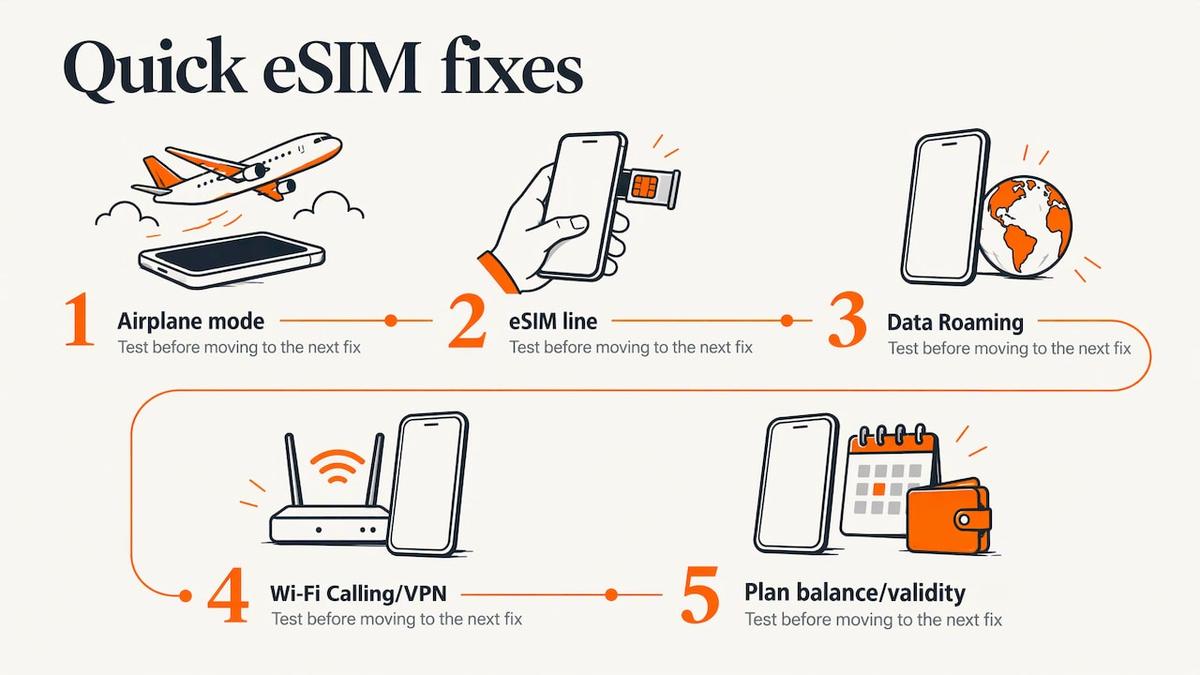
1. Toggle Airplane mode, then restart
Turn Airplane mode on for ten seconds, then off. If the phone still shows nothing, power it off fully and back on. This forces the phone to re-register on the local network, which clears a surprising number of stuck states after landing in a new country.
2. Confirm the eSIM line is actually on
An eSIM cannot be pulled out like a card, so “off” is the equivalent. On an iPhone, open Settings, then Cellular, and check that the travel line is switched on. Apple’s roaming guidance says that when you use an eSIM abroad you should make sure it is turned on, and that you may see a prompt to switch back to your home line once you are no longer traveling.
If you carry two lines, check which one is set for Cellular Data. A phone that quietly falls back to your home line for data will look like a disconnecting eSIM when the travel line is fine.
3. Turn on Data Roaming for the travel line
This is the setting most travelers miss. A travel eSIM connects to a local partner network, and the phone treats that as roaming. On iPhone with a single line, Apple says to turn on Cellular Data, open Cellular Data Options and make sure Data Roaming is on. With two lines, open the travel line’s own settings and enable it there. Data can drop for no obvious reason when this switch has flipped off after an update or a reset.
Our own walkthrough on iPhone eSIM settings and default line covers where each toggle sits.
4. Turn off Wi-Fi Calling and any VPN while you test
Both can make a healthy connection look unstable. Wi-Fi Calling can pull the phone toward a hotel network that is itself dropping, and a VPN can reset every time the underlying network shifts. Switch them off, test mobile data on its own, and turn them back on once it is steady.
5. Check the data balance and validity window
A plan with a data cap or a day limit simply stops when it runs out, and it can look like a disconnect. Open your plan details and compare what you used against the allowance and the end date. Prepaid plans are fixed in size and duration, so a heavy day of maps, video calls and tethering can consume a small plan faster than you expect.
Weak signal: coverage problem or phone problem?
If the bars are low or the connection pulses on and off, the first question is whether anyone nearby has signal. Ask a travel companion to check their phone, or look at another device on the same plan. If other phones struggle in the same spot, it is coverage, and no setting will fix it.
Practical moves that help:
- Change position. Move to a window, a higher floor or open air. Concrete, basements, trains and elevators cut cellular signal hard.
- Take off a thick or metal case. T-Mobile’s signal troubleshooting guide lists removing the case among its signal steps, alongside restarting the device, setting the network mode to automatic and updating the software.
- Pick the network by hand. With a multi-network plan, your phone may cling to a weak tower. In the cellular settings, turn off automatic network selection and choose another listed network. Switch back to automatic when you move on.
- Drop from 5G to LTE. On a marginal signal, 5G can flap on and off while LTE holds steady. Setting the phone to LTE for that stretch often stops the cycling.
The same T-Mobile guide notes that a “registered but no signal” result points to low or no coverage in the area, which is a place problem rather than a phone problem.
Why it drops while you are moving
On a train or in a car, the phone hands over from tower to tower. A gap between towers, or a border crossing where your plan switches to a different partner network, shows up as a short disconnect. This is normal behavior at a boundary, not a fault in the eSIM. If a plan covers several countries, the phone may need a minute to pick up the new network, and a quick Airplane mode toggle after crossing speeds that up.
When the profile is the problem
If the line is missing, shows an invalid message, or never connected at all, you are dealing with provisioning rather than signal. Back Market’s eSIM guide points out that most eSIM problems are carrier-side rather than device-side, that provisioning can take a little while, that most QR codes are single-use, and that the phone has to be unlocked for the network.
Three checks follow from that:
- Is the phone carrier-unlocked? A phone locked to your home carrier will refuse a foreign eSIM or install it and then fail to connect. Check this before you travel, not at the airport.
- Was the QR code scanned twice? A second scan of a single-use code usually fails or leaves a dead profile. If an install was interrupted halfway, do not keep retrying the same code.
- Does the phone support the number of eSIMs you are adding? Phones limit how many eSIM profiles they store. Delete old, expired travel profiles you no longer need.
If you have a fresh install problem rather than a dropping one, our guides to fixing eSIM activation problems and quick fixes for iPhone users walk through each message.
APN settings
If the phone shows a signal but loads nothing, or data works for a few minutes then stops, the Access Point Name (APN) may be wrong. The APN is the setting that tells the phone how to reach the carrier’s data network. It is usually applied automatically with the profile, but on some Android phones you enter it by hand. We list the values and where they go in our eSIM APN settings guide.
Carrier settings and software updates
On iPhone, carrier settings are a small configuration file separate from iOS. After you install a new eSIM, check Settings, General, About. If an update prompt appears, accept it. Then install any pending iOS update. Old software is a common reason a new profile behaves oddly.
Reset Network Settings: when it is worth it
This is the heavy option, so keep it for after the quick fixes fail. It restores Wi-Fi, cellular, Bluetooth and VPN settings to their defaults. Verizon’s network settings guidance says to consider it when signal is strong but Wi-Fi or Bluetooth also misbehave, calls drop often or you cannot identify what you changed. It also warns that saved Wi-Fi networks and paired Bluetooth devices are removed.
On iPhone the path is Settings, General, Transfer or Reset iPhone, Reset, Reset Network Settings. Afterward:
- Rejoin your Wi-Fi networks. Make sure you have the hotel or home passwords on hand.
- Turn the travel eSIM line back on and check that Data Roaming is still enabled, since Apple notes roaming can be switched off in the process.
- Wait a minute or two for the phone to register before judging the result.
A reset will not repair an empty data allowance, an expired plan, a locked phone or a place with no coverage.
A five-minute routine you can run anywhere
When the connection drops and you are short on time, run this sequence:
- Look at the status. No Service, or bars with no data?
- Airplane mode on for ten seconds, then off.
- Check that the travel line is on and selected for cellular data.
- Turn on Data Roaming for that line.
- Turn off Wi-Fi Calling and any VPN.
- Check your remaining data and end date.
- Move to a spot with open sky or near a window, and take the case off.
- Choose a different network manually, or set LTE.
- Restart the phone.
- Update carrier settings and iOS, then reset network settings if nothing else worked.
If you tether a laptop and the connection drops only on the laptop, the phone’s hotspot settings are usually responsible, and our tethering checklist covers four quick checks.
Prevent the problem before you travel
Most mid-trip disconnects are cheaper to avoid than to fix.
- Install early, activate on arrival. Install the profile on Wi-Fi at home so a bad download is not your problem at the airport. Check when to activate an eSIM so the validity clock starts when you want it to.
- Check phone compatibility and lock status before you buy.
- Match the plan to the trip. A multi-country trip on a single-country plan will drop at the border. A regional plan avoids that.
- Size the data honestly. Remote work, video calls and tethering use far more than maps and messaging.
- Keep your home line for calls and codes, and set the travel line as the default for data only.
If you need your home number reachable while abroad, see our guide to switching eSIM providers without losing your number.
Our perspective
Most of the disconnect complaints we hear about from travelers trace back to setup, not to the technology. A roaming toggle left off, a data line pointed at the wrong SIM, a QR code scanned twice. None of these are hard to fix, but they are miserable at 11 p.m. in a new country with a dead map.
That is why we build Lumo around a short, predictable setup. Our average activation takes about 45 seconds, there is no registration, and guest checkout delivers a QR code straight away. Fewer steps means fewer places to go wrong.
We also think the plan should match the trip. Regional and global plans across 160+ destinations mean you are not hopping between profiles at every border, and premium carrier networks give your phone a better chance of a steady connection. If something still goes wrong, our support is available 24/7, with human and AI help, so you are not troubleshooting alone.
Theo Wheeler
Pick a plan that fits where you are going
If your current eSIM keeps letting you down, start fresh with a plan for the right region. Lumo sells prepaid eSIM data plans with no contract: Europe plans start at $1, Asia plans at $2, United States plans at $2, United Kingdom plans at $1, and Global plans at $7, all one-off prices. Africa and Caribbean plans start at $8. Plans work on smartphones, tablets and laptops, and each page has a device compatibility guide.
If you want to go deeper first, our eSIM connectivity troubleshooting guide and seamless troubleshooting walkthrough cover more cases.
FAQ
Can an eSIM go bad?
The chip in your phone rarely fails. What goes wrong is the profile: a QR code that was already used, an install that stopped halfway, or a line that was deleted. When that happens, a fresh profile solves it. Keep the old one in place until the new one is confirmed working.
Why does my eSIM drop even when I have full bars?
Full bars show radio signal, not whether data is flowing. A data line set to the wrong SIM, Data Roaming switched off, an empty allowance or a wrong APN can all leave you with bars and no internet. Check those four before blaming coverage.
Should I reset network settings right away?
No. Try Airplane mode, a restart, the line and roaming toggles and the data balance first. Resetting network settings wipes saved Wi-Fi networks and Bluetooth pairings, so it is best kept for when the quick fixes have not worked.
How do I improve a weak eSIM signal while traveling?
Move near a window or outside, remove a bulky case, and switch from 5G to LTE if the signal flaps. You can also select another available network manually instead of letting the phone stay on a weak tower. In a place with no coverage, only moving helps.
Does a dropping eSIM mean my phone is broken?
Usually not. Most causes are settings, coverage or the profile. If the problem follows you across different eSIMs, different places and a freshly reset phone, then a hardware check is the sensible next step.
Sources
- About cellular data roaming options for your iPhone and iPad, Apple Support
- What do I need to know about eSIM? Back Market Help
- Signal issues and no service troubleshooting, T-Mobile Support
- Connection issues, iPhone and Android network settings, Verizon Support
- eSIM Not Working on iPhone 17, 16, or 15? 18 Fixes, TechBloat
Recommended
Related Topics
Stay Connected Anywhere
Prepaid eSIM data plans for 180+ countries and territories. No physical SIM required.