iPhone 12 Pro eSIM: Support, Setup and Travel Use

Yes, the iPhone 12 Pro has an eSIM. Apple lists the iPhone 12 Pro among the models with an eSIM and a nano-SIM card, so you can add a travel data plan without buying a local SIM or paying roaming fees. Two things decide whether it works smoothly: the version of the phone you own (a few regional models have no eSIM) and whether it is carrier-locked. This guide covers both checks, the setup steps, and the one limit that trips up travelers: this phone can run one eSIM plus one physical SIM, not two eSIMs at once.
TL;DR
- The iPhone 12 Pro supports one active eSIM alongside a physical nano-SIM. Models sold for China mainland, Hong Kong and Macao are the exception, with two physical SIM slots.
- Your phone must be unlocked to use a travel eSIM from a different provider than your carrier. Check under Settings > General > About.
- Setup takes a Wi-Fi connection and a QR code. Our own setup averages 45 seconds, with no registration and guest checkout.
- The iPhone 12 Pro cannot run two eSIMs at the same time. Apple supports that from the iPhone 13 onward, but you can store several eSIMs and switch between them.
- Keep your home number on the physical SIM, put the travel eSIM on data, and turn off data roaming on the home line.
Table of Contents
- Does the iPhone 12 Pro have eSIM?
- Is your iPhone 12 Pro unlocked?
- One eSIM plus one physical SIM: what Dual SIM means on this phone
- How to set up a travel eSIM on the iPhone 12 Pro
- Calls, texts and iMessage while abroad
- What to check before you buy a plan
- Fixing the common problems
- Our view: the iPhone 12 Pro is a good travel eSIM phone
- Find a plan for your trip
- FAQ
- Sources
Does the iPhone 12 Pro have eSIM?
It does. The iPhone 12 family launched as Dual SIM phones: one physical nano-SIM and one eSIM. Coverage from 9to5Mac’s list of iPhone eSIM models confirms that the 12, 12 mini, 12 Pro and 12 Pro Max all fall in that group.
An eSIM is a digital SIM built into the phone. Instead of sliding a plastic card into a tray, you download a cellular plan to the phone. For travelers that matters in three ways:
- You can buy and install a plan before you leave, so you land with data already working.
- You keep your home SIM in the phone, so calls and texts to your usual number still arrive.
- Nothing can be pulled out of the tray. Apple notes that an eSIM can’t be removed if the iPhone is lost or stolen, which makes it harder for a thief to simply swap the card.
The regional exception
Not every iPhone 12 Pro sold worldwide has an eSIM. Apple states that in China mainland, Hong Kong and Macao, certain iPhone models feature Dual SIM with two nano-SIM cards instead. If you bought your phone in the United States, it has an eSIM. If you bought it secondhand from abroad, or in one of those three markets, check before you buy a plan.
The fastest check is on the phone itself:
- Open Settings > General > About.
- Scroll to the SIM section. If you see an entry such as Available SIM or an EID number, the phone has an eSIM.
- Alternatively, go to Settings > Cellular and look for Add eSIM. If the option is missing on a phone with two physical SIM trays, you have the dual nano-SIM version.
The EID (a long identifier for the eSIM chip) is the clearest sign. Phones without eSIM hardware do not show one. Our eSIM compatible phones checklist for North America lists more models if you are comparing devices.
Is your iPhone 12 Pro unlocked?
This is the check that matters most, and the one people skip. A carrier-locked phone only works with that carrier’s plans. If yours is locked, a travel eSIM from another provider will not activate.
Apple’s rule is clear: to use two different carriers, your carrier must unlock the iPhone, or both plans must come from the same carrier. Work phones can add a further layer, so if your company issued the device, ask your administrator.
To check:
- Go to Settings > General > About.
- Find Carrier Lock. “No SIM restrictions” means the phone is unlocked.
- If it says the phone is locked, contact your carrier.
Apple explains that only your current carrier can unlock an iPhone, and that the process can take a few days. That is why you should check weeks before a trip, not the night before your flight. Phones bought outright and fully paid off are often already unlocked, but the Carrier Lock line settles it.
One eSIM plus one physical SIM: what Dual SIM means on this phone
The iPhone 12 Pro can run one nano-SIM and one eSIM at the same time. It cannot run two active eSIMs. Apple states that Dual SIM with two eSIMs is supported on iPhone 13 models and later.
In practice, you can still store more than one eSIM on the phone. Apple says the device can keep eight or more eSIMs stored, but only one is active at a time on your model. Our guide on eSIM limits by iPhone model goes through the numbers in more detail.
Here is what that means for three common travel setups:
| Setup | Works on iPhone 12 Pro? | Notes |
|---|---|---|
| Home SIM (physical) + travel eSIM | Yes | The standard travel setup. Calls to your home number still ring. |
| Home eSIM + travel eSIM | No | Two active eSIMs are not supported. You would need to switch between them. |
| Travel eSIM only, home SIM removed | Yes | Simple, but you lose the home line unless you keep it active on the physical SIM. |
If your home carrier already moved your line to an eSIM, you have one practical choice: use the travel eSIM as your only active line while abroad, or ask your carrier to move the home number back to a physical SIM before you travel. Plan this before departure. Switching lines abroad depends on your carrier’s app, which needs a connection.
How to set up a travel eSIM on the iPhone 12 Pro
Apple’s guidance is that you connect the iPhone to Wi-Fi or a hotspot, then activate the eSIM with a QR code, a carrier app or link, or manual entry. The steps below follow the QR route, the most common one for prepaid travel plans.
1. Pick the plan and the coverage
Match the plan to where you are going, not to a single country on the itinerary. A trip through several countries is cheaper and simpler on a regional plan than on one plan per border. We sell Europe, Asia, Africa and Caribbean regional plans, plus a global plan, and you can see the networks behind each destination on our coverage page.
What goes wrong here: buying by price alone. Choose the data allowance and duration against how you really use your phone. Maps, ride apps and messaging are light. Video calls and tethering a laptop use far more. Plan lengths and data amounts on our site are flexible, so you can size the plan to the trip.
2. Buy before you leave
Buy and install the plan while you still have home Wi-Fi. The eSIM needs a connection to download, and airport Wi-Fi is the worst place to troubleshoot. On Lumo there is no contract and no registration, and guest checkout works, so you can buy in a few minutes. The QR code is delivered after purchase.
3. Add the eSIM
- Connect to Wi-Fi.
- Open Settings > Cellular and tap Add eSIM.
- Choose Use QR Code and scan the code from the screen of another device or from a printout. You can also tap Enter Details Manually with the data from the order email.
- Follow the prompts and label the line, for example “Travel”.
If you only have the phone itself and cannot scan a code displayed on its own screen, a carrier app or a link is the way around it. Our guides on QR code activation and activating an eSIM without a QR code cover both paths.
4. Set your default lines
The iPhone asks which number to use for what. A good travel default:
- Default line for calls and messages: your home SIM, so people reach your usual number.
- Cellular data: the travel eSIM.
- Allow Cellular Data Switching: off, unless you want the phone to move data to the other line when coverage is weak. Leaving it off stops the phone from using your home line’s data, which could trigger roaming charges.
Apple documents the controls in its Dual SIM guide: label each plan, choose a default for calls and messages, and pick the data line under Cellular Data. You can also set a default line for a specific contact. Our iPhone eSIM settings guide walks through each screen.
5. Turn on the travel line when you land
If you installed the eSIM at home, leave it installed but keep it off until you arrive, depending on the plan’s start rules. Then switch it on under Settings > Cellular, select it for data, and turn on Data Roaming for that line only. Keep Data Roaming off on your home SIM. That one setting is the difference between a cheap trip and a surprise bill.
Calls, texts and iMessage while abroad
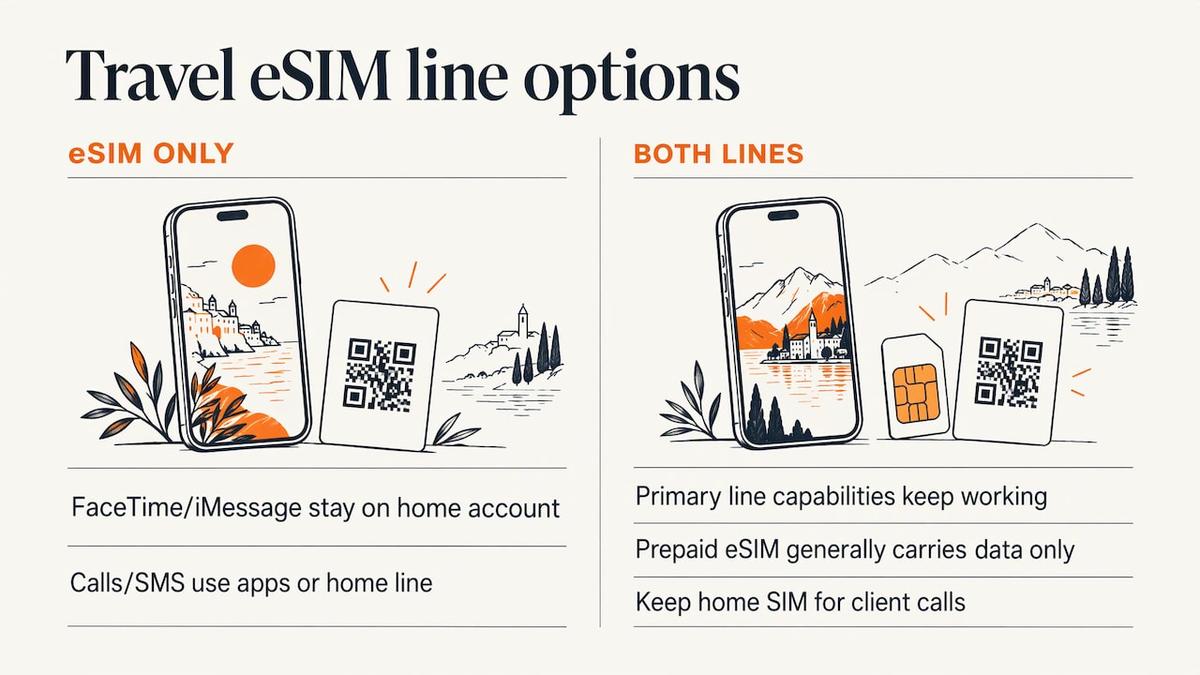
Apple’s travel guidance says you can use a travel eSIM by itself or as a secondary line. If you keep both lines on, your primary line’s capabilities keep working. If you use only the travel eSIM, FaceTime and iMessage continue to work on the home line’s Apple account.
A prepaid data eSIM generally carries data only, so regular calls and SMS go over your home line, or over apps like iMessage, FaceTime, WhatsApp or a business calling app. For business travelers, this is the setup that keeps the number clients know. Keep the home SIM in the phone and let the travel eSIM carry the data.
One detail from Apple’s Dual SIM guide: if you are on a call using a line that is not your designated data line, you need Allow Cellular Data Switching on to receive calls from the other line. If you ignore the call and have voicemail, you get a missed-call notification and the call goes to voicemail. If you take client calls while traveling, decide in advance which trade-off you prefer.
What to check before you buy a plan
Run through this list before checkout:
- Unlocked phone: confirmed under Carrier Lock, as above.
- eSIM present: an EID in the About screen or an Add eSIM option.
- Right model: not the China mainland, Hong Kong or Macao dual nano-SIM version.
- Band support: Apple advises checking cellular band support for the country you are visiting when using an unlocked phone abroad. Premium carrier networks across our destinations support 4G and 5G, and the iPhone 12 Pro supports 5G, though 5G speed depends on the local network. Check the destination page for the networks we use.
- Wi-Fi access: you need a connection to install the plan.
- Plan fit: the destination, the number of days and the data amount.
- Home line settings: data roaming off, default lines set.
Local rules can differ. Apple notes that some countries require ID such as a passport for local prepaid plans, and postpaid accounts may need proof of residency, a bank account or a credit card. A single prepaid travel eSIM you buy before departure avoids that counter queue.
One more restriction: Apple says an eSIM from a China mainland carrier cannot be used on a device purchased outside China mainland. If you are heading there, a regional or China eSIM plan is the cleaner route for an unlocked phone.
Fixing the common problems
Most failed activations come from the same few causes:
- The phone is locked. Nothing in the eSIM will fix this. Your carrier has to unlock the phone.
- No Wi-Fi during setup. Connect to Wi-Fi or a hotspot first.
- The QR code was already used. Most eSIM QR codes install once. If you deleted the plan, you may need a new code. Our eSIM activation issues guide lists quick fixes for iPhones.
- Data not working after landing. Confirm that the travel line is selected for cellular data and Data Roaming is on for it.
- Two eSIMs competing. On an iPhone 12 Pro, only one eSIM can be active. Turn the other line off first.
If you get stuck, our support team is available 24/7, human and AI. That matters most when the problem happens at 2 a.m. in a new time zone.
When you sell or trade in the phone, remove your eSIMs first. Our guide to erasing an eSIM before a trade-in covers the steps. For background on how the technology protects your data, see our explainer on eSIM security for travelers.
Our view: the iPhone 12 Pro is a good travel eSIM phone
The iPhone 12 Pro was one of the first iPhones to make eSIM mainstream, and it still does the job that matters for travel: your home number stays on the physical SIM, and a data plan sits next to it on the eSIM.
The single rule to remember is one eSIM active at a time. That is not a barrier for most trips. If you cross regions, a regional or global plan covers the route with one install, and you do not need to swap plans at every border. Our plans are prepaid, one-off purchases with no contract, so you pay for the trip and nothing after it.
We built Lumo around that experience. You can check out as a guest, get the QR code right away, and our setup averages 45 seconds. Coverage spans 160+ destinations, and support is around the clock. For a phone you already own and trust, that is the shortest path from the airport gate to working data.
Theo Wheeler
Find a plan for your trip
Our plans for the iPhone 12 Pro are prepaid and one-off. Prices as listed on our site: Europe plans from $1, United Kingdom from $1, Asia from $2, United States from $2, global from $7, and Africa and Caribbean from $8. Browse every country on the destinations page, pick your days and data, and check out as a guest.
FAQ
Does the iPhone 12 Pro have eSIM?
Yes. Apple lists the iPhone 12 Pro among models with an eSIM and a nano-SIM card. The exception is the version sold for China mainland, Hong Kong and Macao, which has two physical SIM slots.
Can the iPhone 12 Pro use two eSIMs at once?
No. It can run one eSIM and one physical nano-SIM at the same time. Apple supports two active eSIMs from the iPhone 13 models onward. You can store multiple eSIMs on the 12 Pro and switch which one is active.
Do I need an unlocked iPhone 12 Pro for a travel eSIM?
Yes, if the eSIM comes from a provider other than your carrier. Check Settings > General > About for Carrier Lock. If the phone is locked, your carrier is the one that can unlock it, and the process can take a few days.
Do I need Wi-Fi to install an eSIM?
Yes. Apple says to connect the iPhone to Wi-Fi or a hotspot to activate the eSIM. Install the plan at home or at your hotel before you rely on it for navigation.
Will I keep my home number while using a travel eSIM?
Yes, if you keep your home SIM active as the default line for calls and messages. Set the travel eSIM as the cellular data line and turn off data roaming on the home line.
Sources
- Learn which size SIM card your iPhone or iPad uses, Apple Support
- Set up eSIM on iPhone, Apple Support
- Using Dual SIM with an eSIM, Apple Support
- How to unlock your iPhone for use with a different carrier, Apple Support
- Use eSIM while traveling internationally with your iPhone, Apple Support
- iPhone eSIM list: Which models have it?, 9to5Mac
Recommended
- iPhone eSIM Settings: Set Up, Default Line and Data
- Store 8+ eSIMs, Run 2 on iPhone: Limits by Model for Travelers
- iMessage With an eSIM: Setup, Fixes and Roaming Tips
- How to Set Up eSIM for Travel: Step-by-Step Success Guide
Related Topics
Stay Connected Anywhere
Prepaid eSIM data plans for 180+ countries and territories. No physical SIM required.