Manual Network Selection When Traveling: When to Use It

Manual network selection lets you pick which carrier your phone connects to instead of letting it choose. Abroad, it helps in a few specific cases: your phone is stuck on a weak partner network, it has no service at all, or it latched onto a carrier you don’t want. For everyday travel, leaving the setting on automatic is usually safer, because a phone locked to one network loses service the moment that network is out of reach.
This guide explains what the setting does, how to find it on iPhone and Android, why phones keep flipping back to automatic, what to try when nothing connects, and why many travelers skip the whole problem with an eSIM.
TL;DR
- Manual selection pins your phone to one carrier. If that carrier’s signal drops, you get no service rather than a switch to a better network.
- Use it to escape a weak or wrong network, or to force a fresh registration. Switch back to automatic afterward.
- On iPhone, look under Settings > Cellular. On Pixel, look under Settings > Network & internet > SIMs. Menu names differ by brand and software version.
- Manual selection does not make roaming free. Your home plan’s roaming terms still decide what you pay.
- An eSIM with local or regional data gives you a local connection without roaming and without hunting through menus.
Table of Contents
- What manual network selection actually does
- When manual selection is worth using
- How to select a network manually on iPhone
- How to select a network manually on Android
- Why your phone switches back or loses service
- Troubleshooting a network that won’t connect
- What it costs: roaming, bill shock and your options
- Perspective: why we think most travelers should skip the menu
- Setting up before you fly
- Skip the roaming hunt with a Lumo eSIM
- FAQ
- Sources
What manual network selection actually does
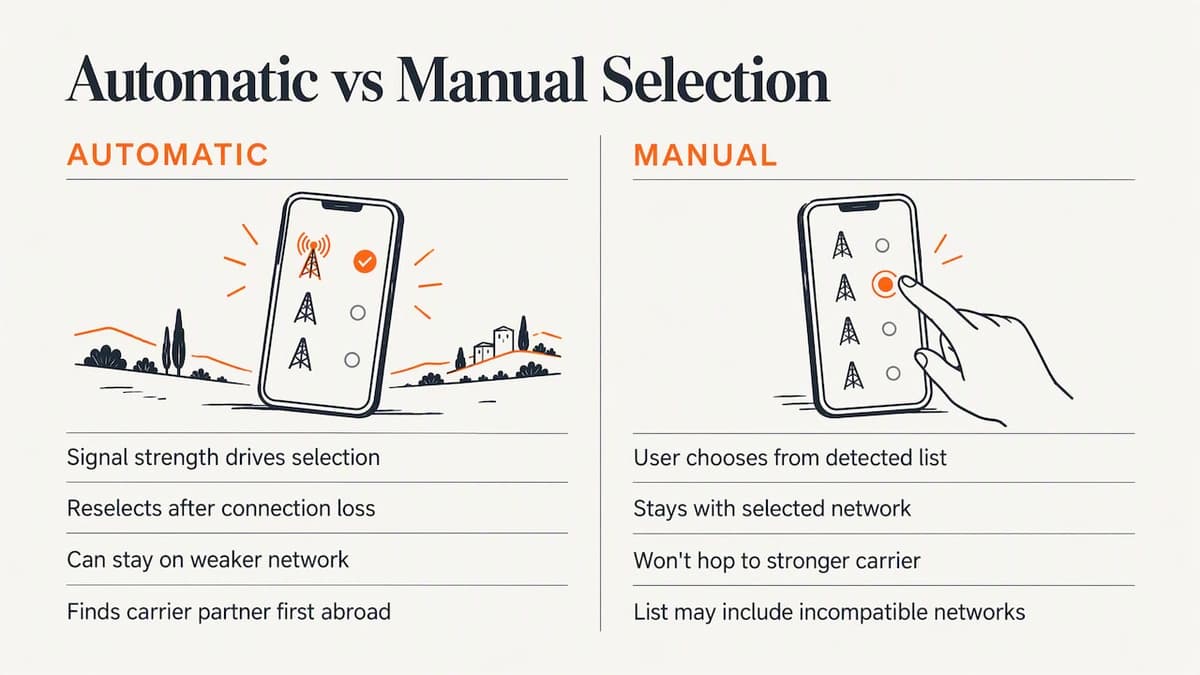
Your phone normally runs in automatic mode. When automatic selection is on, the device picks a network based on signal strength and starts a new selection procedure if the connection is lost, as emnify’s documentation on cellular network selection describes. At home, that means your own carrier. Abroad, it means whichever partner network your carrier has an agreement with and your phone finds first.
Manual selection replaces that logic. Your phone scans for every network it can detect, shows you a list, and connects to the one you tap. From then on it stays with that choice. It will not hop to a stronger tower on a different carrier, which is exactly the point and exactly the risk.
The list you see is not a menu of everything that exists. It shows networks physically present where you stand, and some may be listed but refuse your SIM because your carrier has no roaming agreement with them. Picking one of those gives you “No Service” or “Emergency calls only.”
What it does not do
Manual selection is not a money-saving trick. Roaming happens when a device uses a different provider’s network than your own, and whether that costs extra depends on your plan, as the FCC’s guide to wireless coverage explains. Choosing a network by hand only changes which partner you use. It doesn’t change your rate.
It also doesn’t add coverage. If your carrier has no partner in a country, no menu setting will create one.
When manual selection is worth using
Most travelers never need it. These are the situations where it earns its place.
- You land and have no service. Sometimes the phone fails to register on any partner network after a flight. Turning manual selection on, letting the phone scan, and picking a listed partner can force a clean registration.
- You’re stuck on a weak network. Near borders, ports and ferry routes, phones often attach to a faraway or foreign tower with poor speeds. Picking the local partner with the strongest signal can fix it.
- The wrong network keeps winning. Some partners are cheaper or better for your plan than others. Your carrier’s international page usually says which to prefer.
- A data-only line needs a specific operator. If you run a travel data line that supports multiple partners, you may choose between them.
Outside those cases, leave it alone. A phone on automatic can move between networks as you travel by train or drive across a region. A phone pinned to one carrier cannot.
How to select a network manually on iPhone
Apple keeps cellular and roaming controls under Settings > Cellular (labeled Mobile Data in some regions), as Apple’s cellular settings guide outlines. This is where you toggle Data Roaming and adjust network options. If you have more than one line, tap the one you want to configure first.
The typical sequence:
- Open Settings and tap Cellular or Mobile Data.
- Select the line (physical SIM or eSIM) you want to configure.
- Look for Network Selection and turn off Automatic.
- Wait while the iPhone scans. This can take a minute or more.
- Tap the carrier you want from the list.
Options vary by iOS version, carrier and line type, and some carriers don’t expose network selection at all. If you don’t see it, that’s a carrier setting rather than a fault in your phone.
To go back, return to the same screen and switch Automatic on again.
Data Roaming is a separate switch
Picking a network doesn’t turn roaming on or off. On a home-carrier line abroad, Data Roaming must be on for mobile data to work on a partner network. If you’re using a travel eSIM, you’ll often need Data Roaming on for that eSIM line only. Keep it off on your home line so background apps don’t generate charges.
How to select a network manually on Android
Android menus differ more by manufacturer than iPhone menus do. On Pixel phones, you open Settings > Network & internet > SIMs, choose the SIM, and can pick a network operator from the available networks, as Google’s Pixel help page documents.
On Samsung, OnePlus and other brands, look for a similar path: connections or network settings, then mobile networks, then a “Network operators” or “Carriers” entry. Turn off the automatic option, let the phone scan, and tap a carrier. If you can’t find it, use the search bar in Settings and type “network operator.”
Two Android-specific tips:
- On dual-SIM phones, check you’re editing the right SIM. Network operator settings are per line.
- Scans can take several minutes. Don’t back out early, or the list may come up empty.
Why your phone switches back or loses service
The most common complaint is that the setting “doesn’t stick.” Several things can cause it.
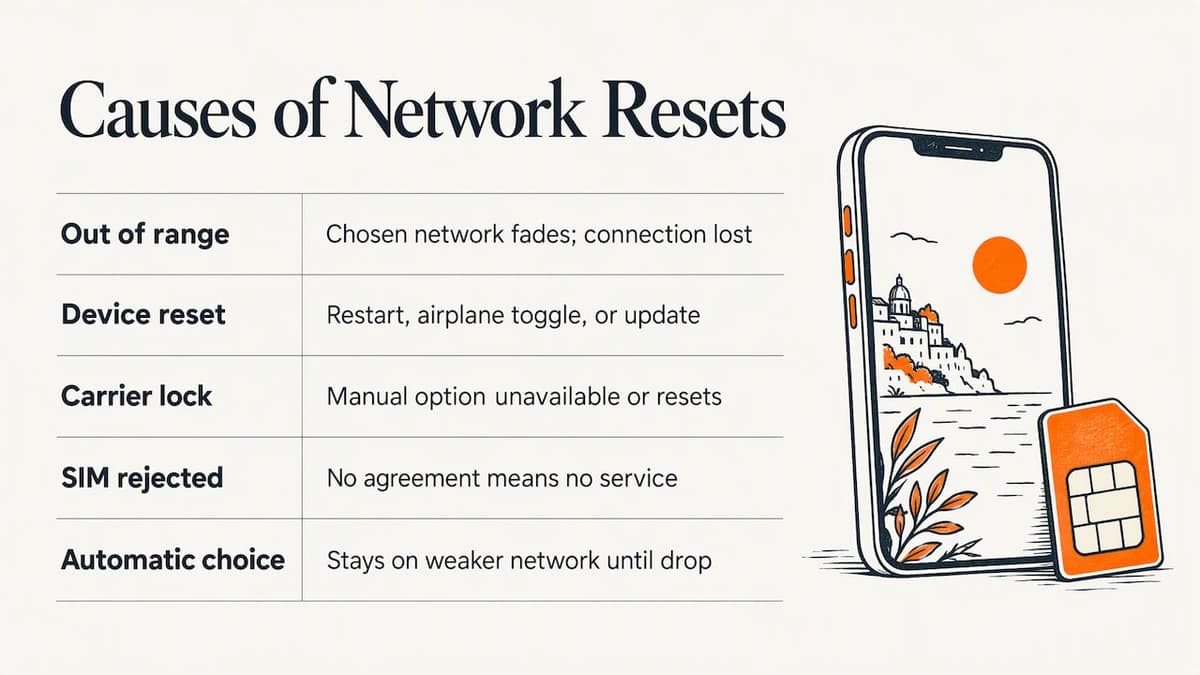
The selected network went out of reach. With manual selection, a phone has nowhere to go when its chosen network fades. Apple’s own support pages for iPhone say a phone on a manual choice loses its connection when that network is out of range. Walk, drive or ride out of coverage and you’re offline until you flip back to automatic.
The phone fell back after a restart or airplane mode. Some devices and carrier profiles reset network selection to automatic after a reboot, an airplane mode toggle, or a carrier settings update. Check the setting again after any of those.
Your carrier doesn’t allow it. Some carriers lock the option to automatic, or expose it only on certain plans. In that case the toggle snaps back on, or it never appears.
The network rejected you. If the chosen network has no agreement with your SIM, it will refuse registration and the phone may revert or show no service. That isn’t a bug in your phone. Pick a different partner.
Your phone thinks automatic is smarter. In automatic mode, devices choose on signal strength at the time of selection and then stay put until the connection drops. So a phone can sit on a weaker network even when a better one is nearby, which is why people reach for manual selection in the first place.
Troubleshooting a network that won’t connect
When a manual choice gives you no service, work through this order. It moves from least to most disruptive.
- Switch back to automatic. If you were on a manual pick, undo it first. Many “no service” problems end here.
- Toggle airplane mode on for 15 seconds, then off. This forces the phone to re-register.
- Restart the phone. It clears stuck registration states.
- Confirm roaming is allowed. On a home line, Data Roaming must be on, and your carrier must have international roaming activated. The FCC recommends checking roaming arrangements, device compatibility and whether international roaming is activated before you travel.
- Try each listed network in turn. Give each a minute. Some partners work for voice and not data, or the reverse.
- Update carrier settings (iPhone: Settings > General > About, then follow any prompt) or install pending system updates.
- Reseat the SIM or re-add the eSIM if you’ve been through the steps above.
- Reset network settings as a last resort. This erases saved Wi-Fi networks and VPN settings, so note passwords first.
- Contact your carrier. Ask them to confirm international roaming is on for your line and which partners they support in that country.
If the problem is a travel eSIM rather than your home line, also check that the eSIM is the line selected for mobile data, that its data roaming switch is on, and that the plan is active in the country you’ve landed in.
What it costs: roaming, bill shock and your options
The real travel question behind manual selection is usually “how do I stay connected without a surprise bill?” Network selection alone doesn’t answer that.
The FCC advises that domestic plans generally don’t cover use abroad, so you should check rates before leaving. It also warns that, because of processing delays, international roaming charges may show up on a bill a cycle after you return. For infrequent users, the FCC’s Consumer Task Force suggests considering pre-paid plans to avoid exceeding set limits.
That leaves three practical routes:
| Option | How it works | Watch out for |
|---|---|---|
| Home carrier roaming | Your own SIM uses partner networks | Daily fees or per-MB rates, late billing, manual selection quirks |
| Local physical SIM | Swap in a SIM from a local provider | Needs an unlocked phone, store visit, your home SIM is out of the phone |
| Travel eSIM | Install a data plan digitally, keep your home SIM | Needs an eSIM-capable, unlocked phone |
The FCC notes that unlocking your phone lets you use a local SIM or eSIM with a local number, effectively turning your handset into a local phone. It also says eSIM can let travelers pick service providers for the countries they visit from phone settings instead of swapping a physical card.
If you’d like to see how a local provider’s own offer looks, a prepaid plan with eSIM option from an Italian operator shows the kind of local alternative to home-carrier roaming that’s available in some countries, though such plans are usually built for residents rather than short visits.
Does your phone’s lock status matter?
Yes. A carrier-locked phone can’t take a foreign carrier’s profile. If you plan to use a local or travel eSIM, check lock status first. Our guide on whether a locked phone can use an eSIM covers how to check and what to ask your carrier.
Perspective: why we think most travelers should skip the menu
We built Lumo around a simple observation: the people who end up digging through network menus in an airport are almost always trying to fix a problem that a different setup would avoid. They’ve landed, the home carrier’s partner isn’t connecting well, and they’re toggling Automatic on and off hoping something sticks.
Our view is that manual network selection is a good repair tool and a poor travel strategy. It’s worth knowing, because there will be a day when a phone refuses to register and the toggle saves you. But as a plan, it asks you to babysit your connection in a country where you’d rather be looking at a map.
An eSIM changes the starting point. You install a prepaid data plan before you fly, switch it on when you land, and your phone connects to a local network under that plan’s agreements. You keep your home SIM in the phone for calls and texts, and you keep Data Roaming off on that line. There’s no contract, no registration, and checkout works as a guest.
There’s a trade-off, and we’d rather say it plainly. An eSIM is data-only for most travelers, so your home number won’t ring through it unless you set up calling over data or keep your home line available. If you need your number reachable, our piece on keeping your home number with an eSIM lays out the options. And for short trips, eSIM versus a local SIM is worth a read before you decide.
The habit we’d suggest: set up before you leave, test the connection at home or on airport Wi-Fi, and keep manual selection in your back pocket as the fallback.
— Theo Wheeler
Setting up before you fly
A short checklist cuts most in-country surprises:
- Confirm your phone is unlocked and supports eSIM if you plan to use one.
- Ask your home carrier what international roaming costs and whether it’s active on your line.
- Decide on a data source (roaming, local SIM or eSIM) before you land, not at the baggage carousel.
- Install the eSIM before departure if you’re using one. Our walkthrough on activating an eSIM without Wi-Fi covers what to do if you’re already on the move.
- Set a default data line. On iPhone and Android, pick the travel eSIM for mobile data and turn off data roaming on your home line.
- Screenshot your settings screens so you can restore your home setup when you return.
For more pre-flight detail, four checks before you fly with an eSIM and our guide to avoiding roaming fees go through the common mistakes.
Skip the roaming hunt with a Lumo eSIM
Lumo sells prepaid eSIM data plans for phones, tablets and laptops, with QR code delivery, guest checkout and coverage in more than 160 countries. Plans are one-off purchases with no contract.
Prices published on our site start at $1 for Europe and the United Kingdom, $2 for Asia and the United States, and $7 for Global plans covering multiple regions. Africa and Caribbean plans start at $8. The final price depends on the data amount and number of days you choose, so open the destination page to see the current options. Not sure where to start? Browse all destinations.
FAQ
How do I manually select my network on an Android phone?
On a Pixel, go to Settings > Network & internet > SIMs, choose your SIM and pick a network operator from the available list. Other brands hide it under mobile networks or connections, in an entry such as Network operators. Turn off the automatic option first, then wait for the scan to finish.
How do I manually select my network on an iPhone?
Open Settings, tap Cellular or Mobile Data, select your line and look for Network Selection. Turn off Automatic and tap a carrier when the list appears. If the option is missing, your carrier may not allow it on that plan.
Is roaming data free?
Not by default. The FCC says domestic plans typically don’t cover use abroad, so you should check your carrier’s international rates or add-ons before you go. Charges can also appear on your bill a cycle later because of processing delays.
Why does my phone lose service after I choose a network manually?
A phone pinned to one network can’t move to another when the signal fades, so it shows no service. The network may also have no roaming agreement with your carrier. Switch back to automatic or try another listed network.
Do I need manual selection if I use an eSIM?
Usually not. A travel eSIM is provisioned to connect to the networks its plan supports, so you mostly need the right line selected for data and its data roaming switch turned on. Manual selection is only a fallback if the eSIM fails to register.
Sources
- International Roaming: Mobile Phone Use Abroad | FCC
- View or change cellular data settings on iPhone | Apple Support
- Connect to mobile networks on a Pixel phone | Google Pixel Help
- How is the cellular network selection handled? | emnify
- Understanding Wireless Telephone Coverage | FCC
- Bill Shock | FCC
- eSIM Cards FAQ | FCC
Recommended
Related Topics
Stay Connected Anywhere
Prepaid eSIM data plans for 180+ countries and territories. No physical SIM required.