Prepaid Phone eSIM Support: Setup, Transfers and Fixes

Most prepaid eSIM problems come down to four things: the phone is locked, the phone does not support eSIM, the install happened without an internet connection, or the profile was deleted by accident. Check those four in that order and you will solve the large majority of cases. This guide walks through compatibility, plan details, activation, transfers, troubleshooting and what to do if your phone has no eSIM at all.
TL;DR
- Your phone must support eSIM and be unlocked, or be locked to the same carrier that sells the plan.
- Install the eSIM on a stable connection (Wi-Fi is easiest), then switch on the plan’s data line when you are ready to use it.
- Never delete an eSIM profile from your settings unless you are sure: a deleted prepaid profile usually cannot be reinstalled from the same QR code.
- If activation fails, restart the phone, check the date and time are automatic, and confirm the profile is turned on and set for mobile data.
- A phone without built-in eSIM cannot use one, so the alternative is a physical SIM or an eSIM-capable phone.
Table of Contents
- Step 1: Find out whether your phone supports eSIM
- Step 2: Choose the right prepaid eSIM plan
- Step 3: Activate a prepaid eSIM
- Step 4: Move an eSIM to a new phone or restore it
- Step 5: Fix a prepaid eSIM that will not activate or connect
- What if your phone has no eSIM support?
- Our perspective
- Ready to get connected?
- Using a prepaid eSIM on more than one device
- Common mistakes with prepaid eSIMs
- FAQ
- Sources
Step 1: Find out whether your phone supports eSIM
Every prepaid eSIM starts with the same question: can this handset hold a digital SIM profile at all? Support depends on the model and, sometimes, on the version sold in your country. Two phones with the same name can differ.
Three quick ways to check:
- Look in settings. On an iPhone, open Settings, then Cellular (or Mobile Service), and look for an option to add an eSIM or set up a cellular plan. On most Android phones, open Settings, then Network & internet (or Connections), then SIMs, and look for an option to add or download an eSIM.
- Check the manufacturer’s spec sheet. Look for “eSIM” in the SIM section for your exact model number, not just the marketing name.
- Use a device list. Our list of phones that support eSIM covers the models people most often ask about.
If you bought the phone from a carrier, ask whether it is the carrier-specific version. Some carrier variants limit which profiles you can add.
Locked versus unlocked phones
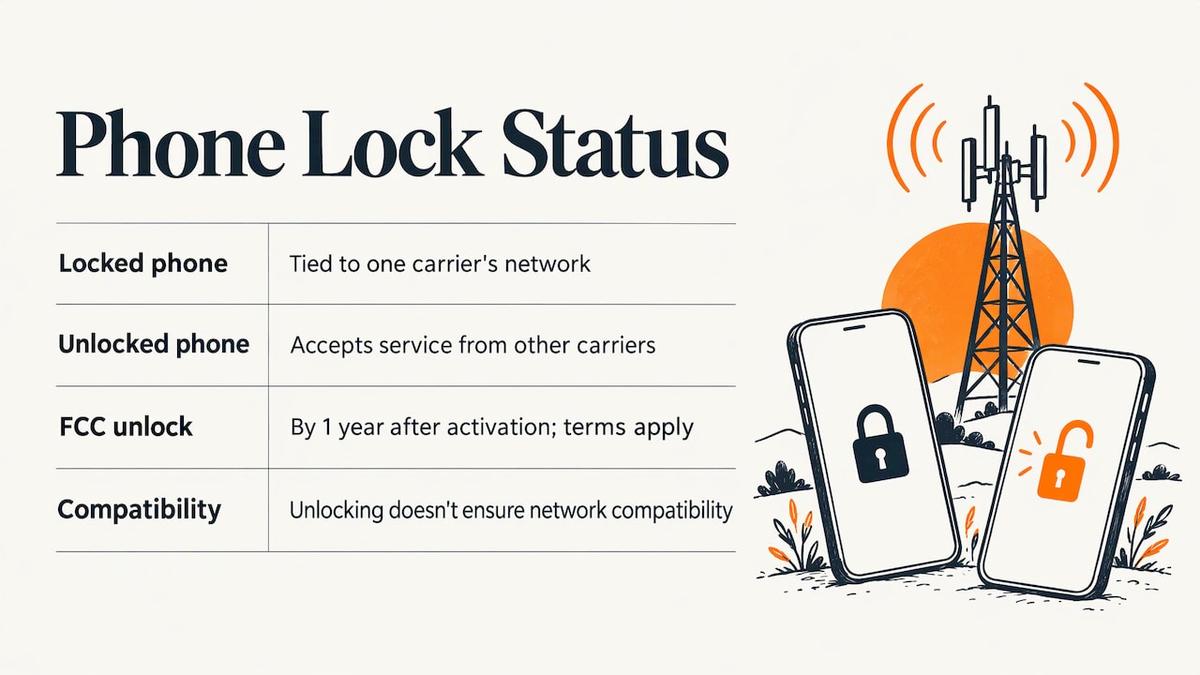
A locked phone is tied to one carrier’s network. An unlocked phone accepts service from other carriers. For a prepaid eSIM from a different provider, you generally need an unlocked phone.
The FCC explains that participating providers have agreed, upon request, to unlock prepaid devices no later than one year after initial activation, consistent with reasonable time, payment or usage requirements. So if your prepaid phone is under a year old, ask your current provider about its unlocking policy.
The FCC also makes a point that catches many people out: unlocking only removes the software block. It does not guarantee technical compatibility, because carriers use different frequencies and technologies, and not every phone works on every network. An unlocked phone from another region may connect but with weaker coverage or missing bands. Our guide on whether a locked phone can use an eSIM goes into the practical side.
Step 2: Choose the right prepaid eSIM plan
Once the phone passes, the plan matters more than the price tag alone. Before you buy, check these details:
| What to check | Why it matters |
|---|---|
| Coverage area | A plan for one country, a region or the whole world. Pick the one that matches where you will actually be. |
| Data allowance | Choose a size that fits your habits. Maps, messaging and email use little; video calls and streaming use a lot. |
| Validity period | Most prepaid plans run for a set number of days from activation or from first connection. Read when the clock starts. |
| Network type | 4G and 5G availability depends on the plan and your phone. |
| Hotspot rules | If you want to tether a laptop, confirm the plan allows it. |
| Voice and SMS | Many travel eSIMs are data-only. Calls then run through apps such as WhatsApp or FaceTime. |
| Registration | Some providers ask for ID or an account. Others offer guest checkout. |
| Support | Look for support that is reachable when you are most likely to need it, including outside business hours. |
Prepaid means you pay once and use what you bought. There is no contract, no credit check and no surprise bill, which also makes prepaid easy to try on a secondary line.
Our U.S. plans
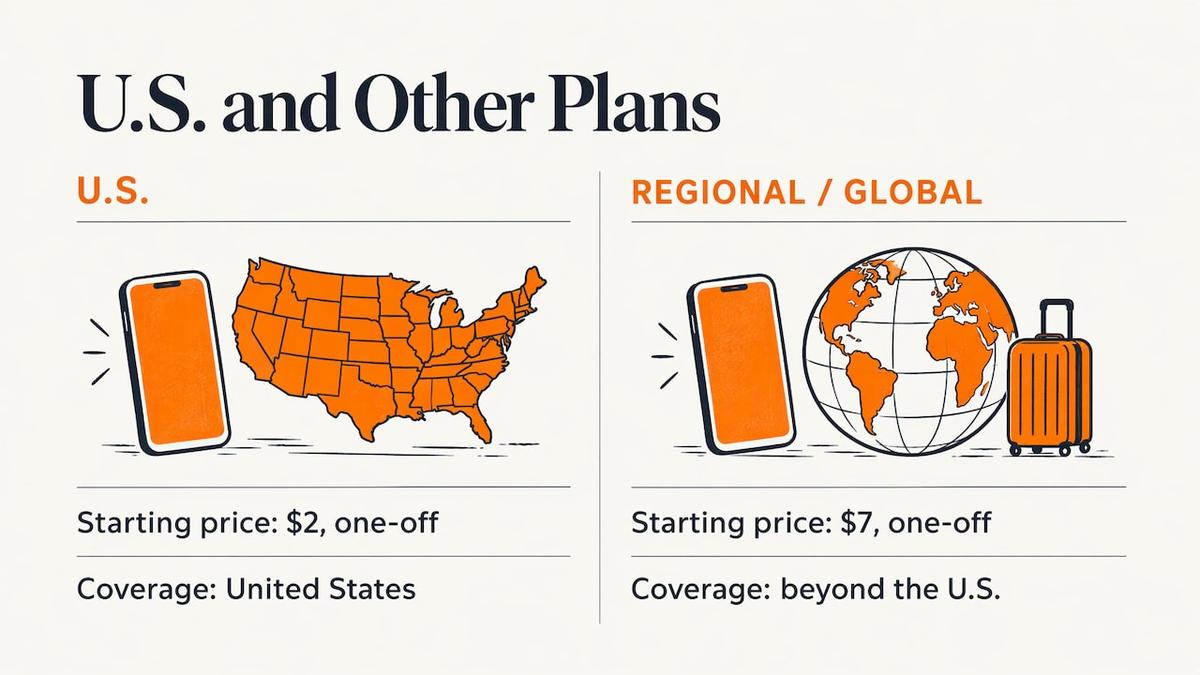
Our United States eSIM plans start from $2, one-off. Plans come in different data sizes and durations, so you can match the plan to the length of your trip. If you travel beyond the U.S., regional and global eSIM plans start from $7, one-off, and you can check network coverage by country before buying.
Step 3: Activate a prepaid eSIM
Activation is quick when you prepare for it. Our own setup averages about 45 seconds. Here is the sequence that works on nearly every compatible phone.
- Connect to Wi-Fi. The profile has to download, so you need a working internet connection. If you have no Wi-Fi, read our guide to activating an eSIM without Wi-Fi.
- Open the QR code. After checkout, the QR code arrives on screen and by email. If you are installing on the same phone that shows the code, take a screenshot or use the manual install details instead of scanning.
- Add the eSIM. On the phone, go to the settings screen from Step 1 and choose to add an eSIM, then scan the code or enter the details by hand.
- Label the line. Give it a name such as “Travel” or “Data” so you can tell it from your main number.
- Set your lines. Choose which line handles calls and texts, and which handles mobile data. Keep your main SIM for calls if you want to stay reachable, and point mobile data at the new eSIM.
- Turn on data for the eSIM and check roaming. Many travel eSIM plans require data roaming to be switched on for that line only. Your main line can keep roaming off.
The full walkthrough, with screenshots, is in our step-by-step eSIM activation guide.
When to install and when to switch on
You can usually install the profile days before you need it and leave the line turned off. Whether the validity clock starts at installation or at first connection depends on the plan, so read the plan description. Our article on when to activate an eSIM explains the timing choices.
Step 4: Move an eSIM to a new phone or restore it
Unlike a plastic SIM, an eSIM cannot be pulled out and slid into another handset. That makes upgrades and resets the second most common reason people contact support.
Before you upgrade or reset:
- Do not delete the eSIM profile in settings unless the provider tells you to. Many prepaid profiles are single-use.
- Look at whether your phone offers a built-in transfer option for eSIMs during setup of the new device. Recent versions of iOS and Android include one, and we cover both in our guide to transferring an eSIM to a new phone.
- Keep the original QR code email. It is useful as a record, even though a used code may not install again.
If you factory reset a phone: a full erase normally removes eSIM profiles. Many phones ask whether you want to keep mobile plans when you erase. Choose that option if you want to keep the plan. If the profile is gone and the plan still has data left, contact the provider’s support with your order details. They can tell you whether a replacement is possible.
If your phone is lost or stolen: contact your main carrier first to suspend your number. Then contact the eSIM provider with your order details so the plan is not used by someone else.
Step 5: Fix a prepaid eSIM that will not activate or connect
Work through these in order. Each one takes a minute.
- Restart the phone. It sounds basic, and it clears a surprising number of stuck installs.
- Check the connection during install. A weak or switching connection can interrupt the download. Move to stable Wi-Fi and try again.
- Confirm the line is on. In the cellular or SIM settings, make sure the eSIM line is switched on and selected for mobile data.
- Turn on data roaming for that line. Travel plans often rely on it.
- Check the access point (APN). Most phones set this automatically. If your plan instructions give APN details, enter them exactly as written.
- Toggle airplane mode. Turn it on for ten seconds, then off, so the phone searches for a network again.
- Check the date and time. Set both to automatic.
- Update the phone’s software. Old software can cause install errors.
- Try the right network manually. In the carrier or network settings, turn off automatic selection and choose a network listed for your plan.
- Do not retry the QR code repeatedly. If a code says it is invalid or already used, stop and contact support. Repeated attempts will not help.
For device-specific steps, see our guides on fixing eSIM activation problems on iPhone and Android and quick fixes for iPhone users.
What to send support
A fast answer needs details. Have these ready:
- Your order number or the email used at checkout
- Your phone model and software version
- The exact message on screen, or a screenshot
- Where you are and what time it is there
- Which of the steps above you already tried
Our support is available around the clock, with both human and AI help, so you can get an answer when you actually run into trouble.
What if your phone has no eSIM support?
A phone without a built-in eSIM chip cannot install an eSIM profile, and software tricks do not change that. You have three realistic options:
- Use a physical SIM. Many prepaid carriers sell SIM cards. This works on any unlocked phone the carrier supports.
- Add a second device. An eSIM-capable tablet or a spare phone can carry your travel data plan and share it as a hotspot, where the plan allows.
- Upgrade the phone. If you plan to travel often, an eSIM-capable handset pays off. An unlocked iPhone 14 512GB is the kind of device that is ready to take a prepaid eSIM from any provider, and refurbished options can keep the cost down.
Before you spend money, check the model against a compatibility list and confirm the handset is unlocked.
Our perspective
Prepaid eSIM support should start before the purchase, not after something breaks. Most of the tickets we see trace back to a handful of avoidable things: a locked phone, an install without a connection, or a profile deleted by mistake.
That is why we build the experience around speed and clarity. Guest checkout means no account to set up. The QR code arrives straight away. Our setup averages about 45 seconds. And because travelers do not keep office hours, support runs 24/7.
Our advice is simple: check your phone, install on Wi-Fi, keep the profile, and keep your main SIM for calls. If you do that, a prepaid eSIM is one of the simplest ways to get online in a new place, with no contract and no roaming surprises.
Theo Wheeler
Ready to get connected?
If your phone passes the checks above, you can be online in minutes. Browse eSIM plans for the United States, starting from $2 one-off, or look through all destinations across 160+ countries. Checkout works as a guest, with no registration, and the QR code is delivered instantly.
Using a prepaid eSIM on more than one device
Phones are not the only devices that take an eSIM. Tablets and some laptops can hold profiles too, and our plans work with smartphones, tablets and laptops. A few practical points apply when you spread a prepaid plan across devices:
- One profile, one device at a time. A profile installs on a single device. If you want a laptop online, buy a separate plan for it or share the phone’s connection as a hotspot where the plan allows.
- Multiple profiles on one phone. Most eSIM phones can store several profiles and use one or two at a time. Keep old profiles you no longer need switched off, and delete them only when the plan has expired and you are sure you will not need it again.
- Name each line. When you carry a home line, a work line and a travel line, clear labels prevent calls or data going through the wrong one.
- Plan the workflow. For remote workers who move between countries, our workflow guide to connecting devices internationally shows how to keep phone, tablet and laptop online without juggling SIM cards.
If you cross borders often, review the four checks before you fly so your plan is installed and your settings are right before you land.
Common mistakes with prepaid eSIMs
These are the slips we see most often, and each has an easy fix.
- Installing with no connection. Download the profile on Wi-Fi first.
- Deleting the profile to “start over”. This can remove the plan for good. Contact support first.
- Leaving mobile data pointed at the home line. The phone then uses your main plan and may charge you roaming fees. Set mobile data to the eSIM line.
- Forgetting to enable roaming on the eSIM line. Without it, travel plans may show no service.
- Assuming unlocked means compatible. As the FCC notes, frequencies differ between networks, so check the model.
- Waiting until the airport. Install earlier, so there is time to fix any issue before you need data.
- Buying the wrong coverage. A single-country plan will not work in the next country. If your trip crosses borders, a regional or global plan is the safer fit.
FAQ
Do I need an unlocked phone for a prepaid eSIM?
In most cases, yes, unless the phone is locked to the same carrier selling the plan. The FCC says participating providers have agreed to unlock prepaid devices on request no later than one year after activation, subject to reasonable requirements. Ask your current provider about its policy.
Can I install a prepaid eSIM without a QR code?
Often you can. Providers usually give manual install details alongside the QR code, which you enter in the phone’s eSIM setup screen. This is handy when the code is on the same phone you are installing on.
Can I keep my regular number while using a prepaid eSIM?
Yes, on a phone that supports two active lines. Keep your main SIM for calls and texts, and set the eSIM as the line for mobile data. Check the plan description, because many travel eSIMs are data-only.
What should I do if the eSIM says it is already used?
Stop retrying the code and contact support with your order number and a screenshot of the message. Support can check the status of the profile and tell you whether it was installed on another device or deleted.
Will a prepaid eSIM work on an old phone?
Only if the phone has built-in eSIM hardware. If it does not, a physical SIM or a newer device is the way forward, and a compatibility list will tell you which models qualify.
Sources
Recommended
- eSIM Activation Issues: Quick Fixes for iPhone Users
- Finish Pixel eSIM Setup in the US During Onboarding
- iPhone eSIM Settings: Set Up, Default Line and Data
- Transfer an eSIM to a New Phone in Minutes with iOS 26 or Android 16
Related Topics
Stay Connected Anywhere
Prepaid eSIM data plans for 180+ countries and territories. No physical SIM required.