Roaming Settings With eSIM: What to Turn On and Off
With a prepaid travel eSIM, turn Data Roaming on for the eSIM line and off for your home line, then set the eSIM as your Cellular Data line. That one pairing is what connects you to local networks without letting your US carrier bill you for anything. The steps below cover iPhone and Android, plus the mistakes that cause most surprise charges.
TL;DR
- Turn on Data Roaming for the travel eSIM line only. The plan is prepaid and data-only, so the roaming switch is how the eSIM reaches local partner networks, not a way to run up a bill.
- Turn off Data Roaming on your home SIM, and set Cellular Data to the travel eSIM, so your US carrier’s line never carries data abroad.
- Install the eSIM before you leave, but switch the line on when you land. Check that your phone is carrier-unlocked first.
- If you have no signal, check the same three things in order: line on, roaming on, correct data line selected.
Table of Contents
- Why an eSIM still asks for data roaming
- Before you leave home
- iPhone: step-by-step roaming settings
- Android and Samsung: step-by-step roaming settings
- The three settings that cause most surprise bills
- What to do when you land
- Troubleshooting: no signal or no internet
- Our perspective: roaming is a per-line decision
- Choosing a plan once your settings are right
- A pre-trip checklist you can screenshot
- A note on eSIM benefits and limits
- FAQ
- Sources
Why an eSIM still asks for data roaming
Most people see the words Data Roaming and assume a fee is coming. That reasoning is right for your home carrier, and it is wrong for a prepaid travel eSIM.
A travel eSIM works through agreements between its provider and local networks abroad. Your phone sees those local networks as roaming partners, so the eSIM line needs the roaming switch enabled to attach to them. The charge is the plan you already paid for. Because the plan is prepaid and data-only, there is no postpaid bill for the roaming to land on.
Apple describes the setting plainly: Data Roaming permits internet access over a cellular network in regions your carrier does not cover. On a home plan, that can mean extra fees. On a prepaid eSIM, the same switch just lets the plan do its job.
The risk sits on the other side: your home line. If its roaming switch is on and it is the active data line, your phone can use your US carrier’s international rates. The FCC notes that for most US customers, domestic plans do not cover usage abroad, so the setup you want is lopsided on purpose.
| Setting | Travel eSIM line | Home SIM line |
|---|---|---|
| Line status | On | On, if you want calls and texts |
| Cellular Data (the data line) | Selected | Not selected |
| Data Roaming | On | Off |
Before you leave home
Most roaming problems start on the driveway, not at the airport. Do these four things first.
1. Check that your phone is unlocked
A travel eSIM is a profile from a company other than your carrier. A carrier-locked phone can refuse it. The FCC explains that phones can stay locked for a period after purchase and that you ask your own carrier to unlock the device. Do this weeks before the trip, not the night before, because some carriers have waiting periods and eligibility rules. Our guide on whether a locked phone can use an eSIM walks through the details.
2. Confirm your phone supports eSIM and the local bands
Not every phone that has an eSIM slot supports every network band in every country. The FCC warns that you should not assume your phone works abroad just because you have a plan, and that network compatibility varies by country. You can see the same logic with other connected gear: a GPS tracker built for US and Canada 4G networks is designed around one region’s networks, which is why checking a device against your destination matters before you pack it. For your phone, look up the model’s supported bands and compare them with the destination’s networks on our coverage page.
3. Install the eSIM while you still have Wi-Fi
Scanning the QR code needs an internet connection. Do it at home or in the hotel on Wi-Fi. Most providers, Lumo included, let you install the profile early and switch it on later. Truecaller’s help center gives the same advice for its own travel plans: enable the line before you land so it can connect on arrival. Whatever provider you use, read its activation note, because some plans start the clock at install and others at first connection.
4. Label your lines
During install, your phone asks you to name the new line. Use something obvious like Travel or Lumo. Once you have two lines, labels are the difference between flipping the right switch and the wrong one.
iPhone: step-by-step roaming settings
These steps follow Apple’s own guidance on data roaming. Menu wording shifts slightly between iOS versions, but the structure stays the same.
- Open Settings and tap Cellular (some regions say Mobile Data).
- Under SIMs, tap your travel eSIM line.
- Turn on Turn On This Line if it is off.
- Tap Cellular Data Options and switch Data Roaming on.
- Go back and tap Cellular Data. Select the travel eSIM as the line for data.
- Tap your primary (home) line, then Cellular Data Options, and switch Data Roaming off.
- Turn off Allow Cellular Data Switching if you see it, so the phone does not quietly flip back to the home line.
Apple says that with Dual SIM or Dual eSIM you tap the number you want to modify before changing the roaming option. That detail matters: roaming is set per line, so a change made on the wrong line does nothing for the right one.
If you still want calls and texts on your US number, leave the home line on but data-less. Our dual SIM travel setup guide covers how to keep your number while the eSIM carries the data.
Android and Samsung: step-by-step roaming settings
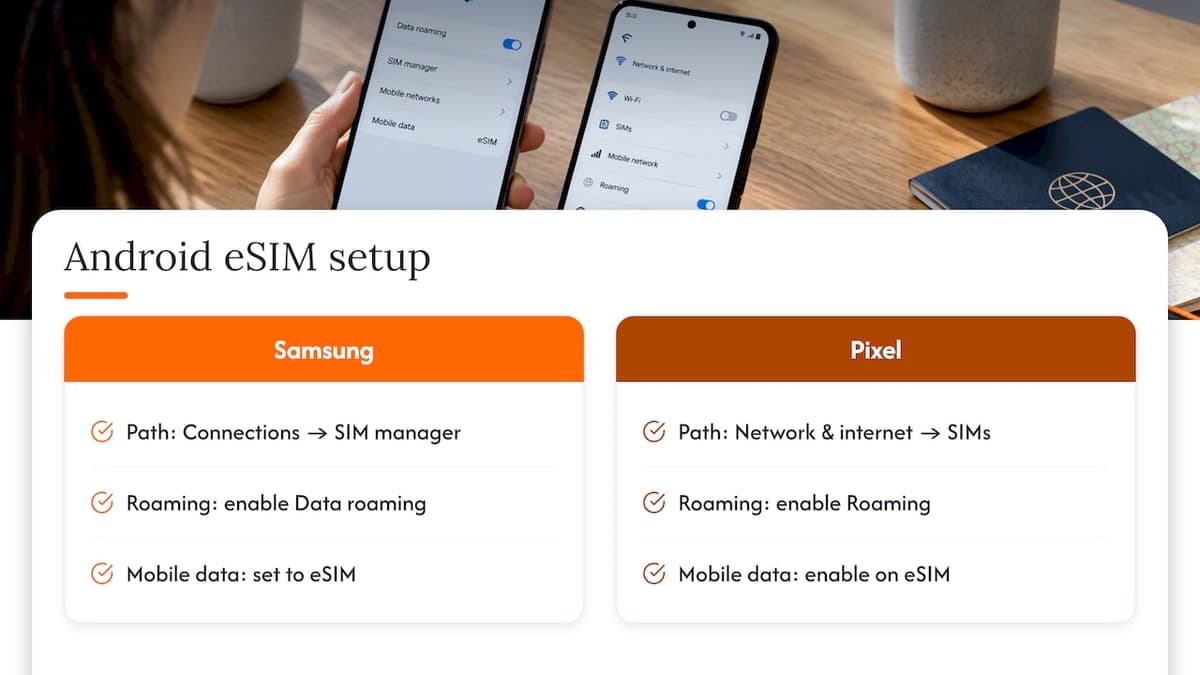
Android menus vary more by manufacturer than iPhone menus do. The reliable pattern is: find the SIM manager, open the eSIM, enable roaming, and choose the eSIM for mobile data.
Samsung Galaxy: Settings, then Connections, then SIM manager. Tap the eSIM and enable Data roaming. Then, in the same SIM manager, set Mobile data to the eSIM.
Google Pixel: open Settings, then Network & internet, then SIMs. Tap the eSIM, turn on Roaming, and make sure Mobile data is on for that line. Google’s help page covers adding an eSIM next to a physical SIM on Pixel 3a and later, which is the usual travel setup.
Then repeat the lesson from the iPhone section on the home SIM: open it in the same menu, switch its roaming off, and do not leave it as the default for mobile data.
One Android quirk to know: some Samsung phones do not let you pick which line handles data by app or by country. If you read forum threads on this, that is the usual complaint. The fix is simple: turn the home line’s mobile data and roaming off entirely for the trip.
The three settings that cause most surprise bills
People who get charged abroad rarely misconfigured the eSIM. They left something on the home line. Check these.
Home line roaming left on
This is the big one. Even with a good eSIM, if your US line has roaming on and is allowed to pass data, background apps can use it when the eSIM line drops. Switching it off is free and reversible.
Data line switching
On iPhone, Allow Cellular Data Switching lets the phone use the other line when it thinks the signal is better. It is convenient at home and risky abroad. Turn it off for the trip.
Wi-Fi Calling and voice roaming
Data roaming and voice roaming are separate. Your home number can still ring over a roaming network if the line is on. If you do not need calls on your US number, switch that line off. If you do, Wi-Fi calling avoids most of the cost, but check your carrier’s terms first. Apple points out that carriers may include international roaming on select plans, so contact your carrier to confirm what yours does.
For a longer rundown of the traps, see our essential guide to avoiding roaming fees with eSIM.
What to do when you land
A short arrival routine saves a lot of airport frustration.
- Turn off Airplane Mode.
- Switch on the travel eSIM line.
- Confirm Data Roaming is on for that line and off for your home line.
- Wait a minute or two. The phone needs to register on a local network.
- Open a web page over cellular (with Wi-Fi off) to confirm it works.
If the status bar shows the local network name and a 4G or 5G indicator, you are connected.
Troubleshooting: no signal or no internet
Work through these in order. Most fixes take under a minute.
| Symptom | Likely cause | Fix |
|---|---|---|
| Shows signal, no data | Data Roaming off on eSIM line | Turn it on for that line only |
| No signal at all | eSIM line off or Airplane Mode | Turn the line on, toggle Airplane Mode |
| Works, then drops | Phone switching to home line | Disable data switching, turn off home mobile data |
| Never activates | Locked phone or wrong install | Ask your carrier about unlocking, reinstall the profile on Wi-Fi |
| Works on Wi-Fi only | Wrong line selected for Cellular Data | Set the eSIM as the data line |
If none of that works, restart the phone, then try selecting the network manually under the line’s network settings. Apple notes that if you see No Service or SOS only, you should recheck Cellular settings and let the phone select the network automatically. We also keep a detailed eSIM connectivity troubleshooting guide and a page for iPhone activation issues.
Our perspective: roaming is a per-line decision
We sell prepaid eSIM data plans, so we hear the same question constantly: should roaming be on or off? The honest answer is that the question is incomplete. Roaming is a setting on each line, and a phone with two lines has two answers.
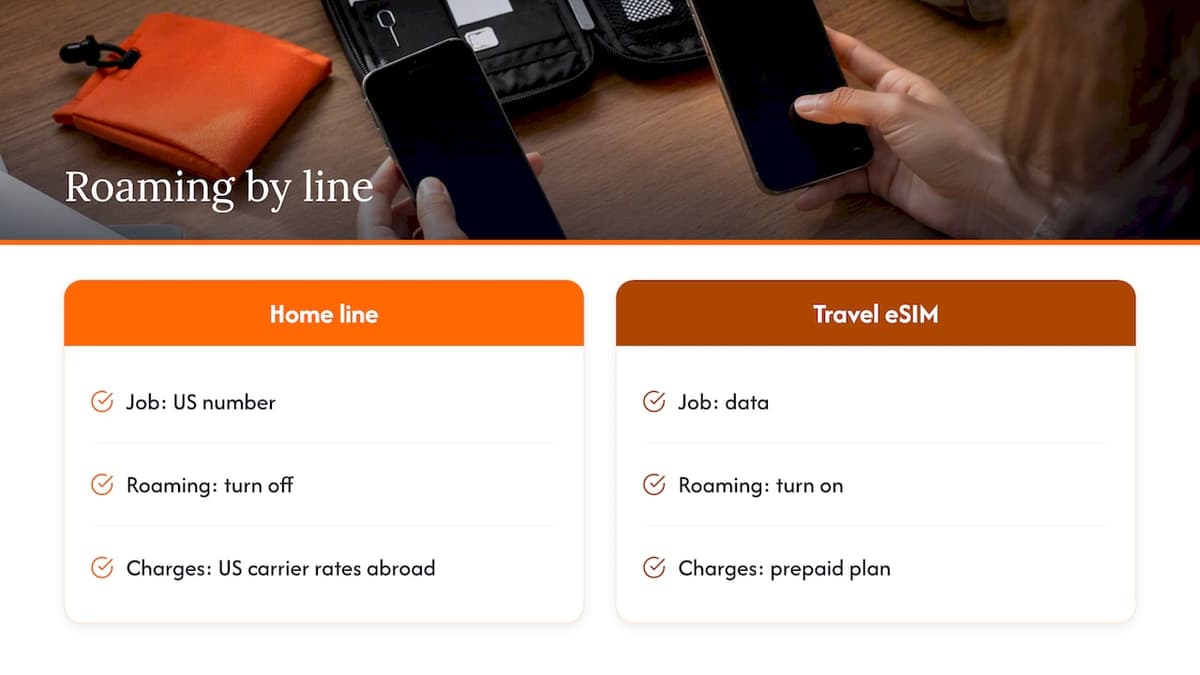
The mental model we give travelers is simple. Your home line is for your US number. Your eSIM line is for data. Give each one a job, and make sure the home line is not allowed to do the eSIM’s job. When we see activation complaints, they almost always trace back to one of three things: a locked phone, the roaming switch off on the eSIM line, or the wrong line chosen for cellular data.
We also think providers should be upfront about this step. A traveler staring at a roaming toggle with no explanation is likely to turn it off out of caution, and then wonder why the plan does not work. That is why our setup instructions name the exact line to change, and why our plans are prepaid with no contract: there is no postpaid bill for a mistaken toggle to inflate on our side of the arrangement. The home-line risk is on your carrier’s side, which is why we keep telling people to turn it off.
— Theo Wheeler
Choosing a plan once your settings are right
Settings only matter if the plan matches the trip. Pick the plan by where you are going and for how long, then check the destination on our coverage page.
Lumo plans are one-off purchases with no contract, and guest checkout means no account is needed. After purchase you get a QR code, and install takes about 45 seconds on average. Current starting prices:
- Europe eSIM plans: from $1
- United Kingdom eSIM plans: from $1
- Asia eSIM plans: from $2
- United States eSIM plans: from $2 (useful for visitors, or for a second phone line)
- Global eSIM plans: from $7
- Africa eSIM plans: from $8
- Caribbean eSIM plans: from $8
Prices are the starting point for the smallest listed plan, and larger data amounts and longer durations cost more. If you are visiting several countries, a regional or global plan saves you from swapping profiles at every border. For the reasoning behind switching away from your home carrier abroad, read why switch carriers abroad.
A pre-trip checklist you can screenshot
- Phone is carrier-unlocked, confirmed with your carrier.
- Phone model supports eSIM and the destination’s bands.
- eSIM installed on Wi-Fi, line labeled Travel.
- Home line: Data Roaming off, not the Cellular Data line.
- eSIM line: switched on at arrival, Data Roaming on, selected as Cellular Data.
- Data switching between lines turned off.
- Calls and texts plan decided: home line off, or on with Wi-Fi calling.
- Backup: a screenshot of the QR code or install details, and our travel connectivity fix-it guide saved offline.
For general habits that stretch a data allowance, see our connectivity tips to save data and avoid roaming fees and the wider roaming charges guide.
A note on eSIM benefits and limits
An eSIM is a built-in digital SIM, so there is nothing physical to swap. The FCC says that for people with unlocked devices, changing providers no longer requires a physical SIM swap. That is the reason you can buy and install a plan from a laptop the night before a flight.
The limits are real, too. Travel eSIMs are generally data-only, so you will not get a local phone number for calls. Apps like messaging and VoIP work normally over data. And if your phone is locked or lacks the right bands, no setting will rescue it, which is why the pre-trip checks come first.
FAQ
Should data roaming be on with a travel eSIM?
Yes, on the eSIM line. The eSIM reaches local partner networks through roaming, and the cost is already covered by the prepaid plan. Keep Data Roaming off on your home SIM so your US carrier cannot bill you for data abroad.
How do I switch off the eSIM when I am roaming?
Open Settings, then Cellular (iPhone) or SIM manager (Samsung), tap the eSIM line, and turn the line off. You can also delete the profile, but that usually cannot be undone, so only do it after the plan has ended.
Will I be charged roaming fees if I leave my home SIM on?
You might be. Your home SIM stays attached to your carrier’s plan, and the FCC says domestic plans usually do not cover use abroad. Turn roaming off on that line, or switch the line off, unless you have confirmed an international plan with your carrier.
Why does my eSIM show a signal but no internet?
The most common cause is Data Roaming being off on the eSIM line, or Cellular Data still pointing at your home line. Fix those two first, then toggle Airplane Mode and wait a minute for the phone to register on a local network.
Do I need a locked phone unlocked to use a travel eSIM?
Yes, in most cases. A carrier-locked phone can reject a profile from another provider. Contact your carrier before you travel, as the FCC advises, because unlocking can take time.
Sources
- About cellular data roaming options for your iPhone and iPad, Apple Support
- International Roaming: Mobile Phone Use Abroad, FCC
- Cell Phone Unlocking, FCC
- eSIM Cards FAQ, FCC
- How do I turn roaming on or off? Starling Help
- How to use dual SIMs on your Google Pixel phone, Pixel Phone Help
- How to use eSIM when traveling abroad, Truecaller Support
Recommended
- Essential Guide to Avoiding Roaming Fees with eSIM
- Dual SIM Travel Setup: Keep Your Number, Skip Roaming Bills
- 7-Step Avoid Roaming Charges Checklist for Global Travelers
- When to Activate an eSIM: The Right Timing for Travel
Related Topics
Stay Connected Anywhere
Prepaid eSIM data plans for 180+ countries and territories. No physical SIM required.