Work Phone eSIM Setup: A Step-by-Step Guide for 2026
Setting up an eSIM on a work phone takes a few minutes: confirm the phone supports eSIM, get an activation method from your carrier or IT team (a QR code, a carrier app or an automatic transfer), connect to Wi-Fi, and add the plan in your phone’s cellular settings. The part that trips people up is not the tapping. It is knowing who controls the line, which method your company uses, and what happens to your personal number alongside it.
This guide walks through the whole process for company-issued and bring-your-own phones, covers the dual SIM setup for keeping work and personal lines apart, and explains what to do when a replacement phone or a stubborn activation gets in the way. We also cover adding a prepaid travel data plan to a work phone for business trips.
TL;DR
- Check three things first: your phone supports eSIM, the line is eligible for eSIM with your carrier, and your IT administrator allows it if the plan is corporate.
- Most work eSIMs activate one of three ways: a QR code, a carrier app or carrier activation, or a transfer from your old phone. Have Wi-Fi ready.
- With Dual SIM, both numbers can make and receive calls and texts, but the phone uses one cellular data network at a time. Set your defaults in Settings > Cellular.
- If activation fails, restart, update carrier settings, confirm the plan is eSIM-enabled, and then contact your carrier or IT team.
- For business trips, a separate prepaid data eSIM can keep your work number on its own line while you use local data.
Table of Contents
- Before you start: what to check
- The main ways to activate a work eSIM
- Step-by-step: set up a work eSIM on an iPhone
- Setting up a work eSIM on Android
- If your IT team manages the phone
- Using a work eSIM next to your personal SIM
- Replacing a work phone or moving your eSIM
- If your work eSIM will not activate
- Our perspective: keep the work line clean and the data flexible
- Adding travel data to a work phone
- Keeping your work number reachable while you travel
- A short checklist before you leave the desk
- FAQ
- Sources
Before you start: what to check
A few minutes of checking prevents most failed activations. Work through this list before you scan anything.
Is your phone eSIM-compatible?
On iPhone, Apple lists the requirements for eSIM setup as an iPhone XS or later, a wireless carrier or worldwide service provider that supports eSIM, and a Wi-Fi connection or hotspot. Some eSIM-only models in certain countries have exceptions to the Wi-Fi requirement, according to Apple’s eSIM setup guide.
On Android, support varies by manufacturer and model. Samsung’s US page explains that its eSIM (Hybrid SIM) devices have a built-in eSIM that cannot be removed plus room for one additional physical SIM, and that this configuration leaves no space for a MicroSD card, per Samsung US. If your work phone relies on expandable storage, that is worth knowing before you plan around a physical SIM and an eSIM together.
Who owns the line?
There are two common situations, and they set your next step:
- Company-managed line. Your employer holds the account. You will usually get a QR code, an activation message or a push from a device management system. Ask your IT administrator before you try to add anything yourself.
- Bring your own device with a work number. You may add the work line yourself, but your employer may still set rules about what can be installed.
Apple points out that if you have an enterprise or corporate cellular plan, you should check with your company administrator to see whether they support Dual SIM on iPhone. See Apple’s Dual SIM guidance. It is a two-minute question that avoids a locked line.
Is the phone unlocked, or are both plans from one carrier?
To use two carriers on an iPhone, Apple says the carrier must have unlocked the phone, or both plans must come from the same carrier (Apple Support). A company phone bought on a financing or fleet agreement may be locked, so confirm with the carrier or your IT team before you plan to add a second provider.
Do you need to pay anything?
ESIM activation is not free in every case. Some carriers add connection or upgrade charges to a new line or device transaction, and corporate accounts often handle those centrally. If you are unsure, ask whoever manages the account before you start. Do not assume a charge is yours to pay.
The main ways to activate a work eSIM
Apple describes several activation methods in its setup guide, including eSIM Quick Transfer, eSIM Carrier Activation and QR-code setup (Apple Support). Here is how they differ in practice.
| Method | How it works | Best for |
|---|---|---|
| QR code | You scan a code from your carrier or IT team with the phone camera, then follow the prompts | New lines, and travel eSIMs bought online |
| Carrier activation or carrier app | You sign in to the carrier’s app or approve a prompt, and the plan installs without a code | Employees who would rather not handle a code |
| Quick Transfer | You move an existing eSIM from your old phone to the new one | Upgrades and replacements |
| Remote push from IT | An administrator triggers installation through device management | Managed fleets |
If you want to understand how codes work, our explainer on QR code activation for eSIMs covers it. If your carrier offers sign-in instead of a code, our guide to activating an eSIM without a QR code shows how it goes on iPhone and Android.
Step-by-step: set up a work eSIM on an iPhone
The exact labels can shift slightly between iOS versions, so follow the on-screen wording if it differs. The sequence is stable.
- Connect to Wi-Fi. Use a network you trust. The eSIM profile downloads over this connection.
- Have your activation details ready. That means the QR code, or the carrier app login, or the confirmation from your IT team.
- Open Settings > Cellular and choose the option to add an eSIM.
- Pick your method. Choose transfer from another iPhone, use carrier activation if it is offered, or scan the QR code.
- Follow the prompts and wait for the plan to finish activating. Do not close the screen while it installs.
- Label the line. Name it “Work” so you can tell it apart from your personal line in menus.
- Set your defaults for calls, messages and data (more on that below).
- Test it. Place a call, send a text and load a web page on cellular data.
For a closer look at the menu options, see our walkthrough of iPhone eSIM settings, default line and data.
Setting up a work eSIM on Android
Android menus differ by maker, but the pattern matches the iPhone flow. Connect to Wi-Fi, open the network or SIM manager in Settings, choose to add an eSIM, scan the code or sign in through your carrier, and then label the line and choose which one handles calls, texts and data.
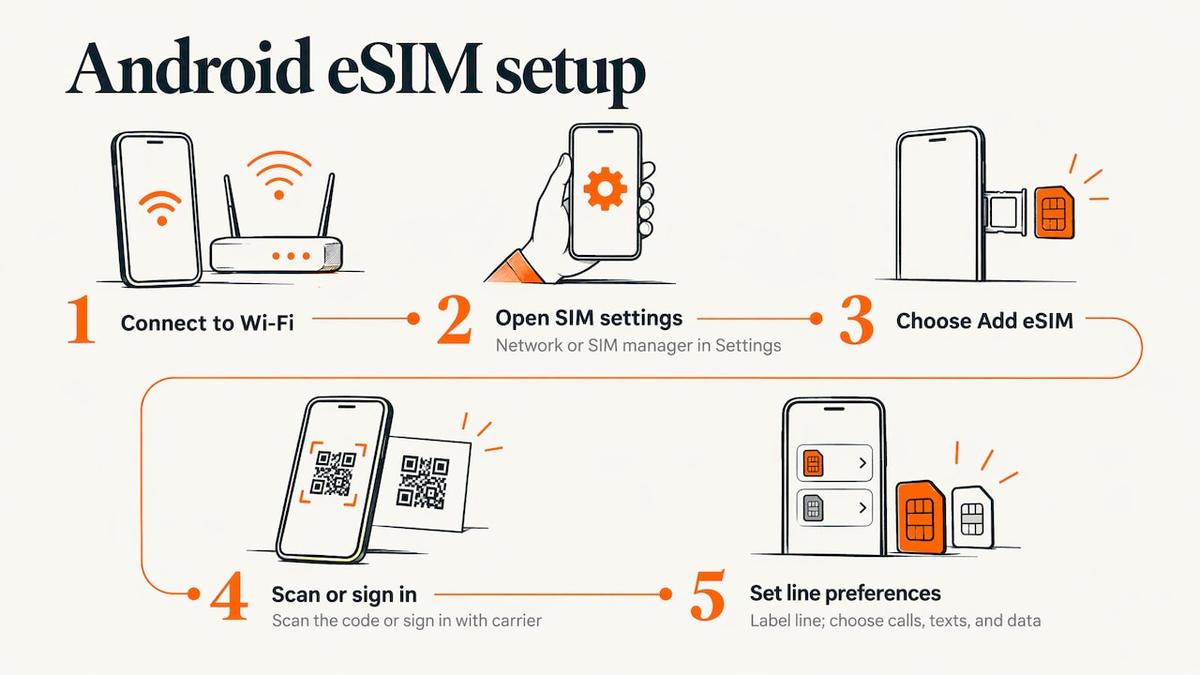
If your phone has a physical SIM slot alongside the eSIM, you can run both at once. Keep an eye on which line is set for mobile data, since a wrong default is the most common reason a phone seems to have no connection after setup.
If your IT team manages the phone
When a company uses device management, you may not do the setup yourself at all. Apple’s deployment guide says eSIMs are software-based, which gives more deployment flexibility and makes them easier to secure, and that administrators can trigger eSIM installation remotely and restrict a user’s ability to remove it (Apple Support deployment guide).
If you are the person doing the rollout, the same guide suggests asking your service provider:
- How long it takes to create and make eSIMs available after an agreement is signed
- Whether the provider supports eSIM Network Activation to automate installation
- Whether users can transfer eSIMs between an iPhone and an iPad
- What the URL of the provider’s eSIM server (SM-DP+) is
On the Microsoft side, Intune documentation states that devices must support eSIM and that you need the activation code or the carrier’s activation server URL before activating. For bulk activation, it recommends Google’s literal $url$ format for the activation server URL (Microsoft Learn).
As an employee, your job is simpler: follow your IT team’s instructions, keep the activation message until the line works, and do not delete a profile you did not add yourself.
Using a work eSIM next to your personal SIM
Many people carry one phone for both lives. Dual SIM makes that workable. Apple explains that it lets you use one number for business and another for personal calls, and that both numbers can make and receive voice and FaceTime calls and send and receive iMessage, SMS and MMS. The catch is that the iPhone uses one cellular data network at a time (Apple Support).
So you do not need to turn off your primary SIM. You decide which line does what.
A sensible default setup
- Default line for calls: whichever number people expect to reach you on. Many people pick the work line during office hours.
- Messages: keep the line where your contacts already know you, and label contacts by line if you can.
- Cellular data: choose the line with the plan that fits your usage.
- Cellular Data Switching: Apple says you can turn on Allow Cellular Data Switching so the phone can switch data lines during a call. Check the setting if calls on the non-data line leave you without data.
We lay out the options more fully in our guide to dual SIM management, and if you hold several profiles, managing multiple eSIM profiles explains how to keep them tidy.
Replacing a work phone or moving your eSIM
A lost, stolen or upgraded work phone is the most common reason people redo this setup. Your first call is to your carrier or IT team, because the old profile has to be moved, reissued or disabled. A lost phone should be reported so the line can be suspended.
For a planned upgrade, a transfer is the quickest path. Keep both phones nearby, on Wi-Fi and charged, and choose the transfer option during setup. Our guide to transferring an eSIM to a new phone covers iOS and Android. If you get two options when you try to add cellular on a replacement, pick the one that matches what your carrier or IT team told you, such as transfer from your old phone or a new activation by QR code.
If your work eSIM will not activate
Apple’s troubleshooting advice for iPhone is a short, ordered list (Apple Support):
- Make sure the iPhone is connected to Wi-Fi.
- Confirm you have an active cellular plan and an eSIM from a carrier that supports eSIM.
- Restart the device.
- Check for a carrier settings update, and look for an eSIM section in your carrier settings.
- If it still will not set up, contact your carrier.
On a managed work phone, add one more step before step 5: tell your IT administrator. They can see whether a policy is blocking the install and can often resend the profile.
Two other quick checks save time. First, a QR code is usually single-use, so if you scanned it once and it failed partway, ask for a fresh one rather than retrying. Second, confirm you are not scanning a code meant for another device.
Our perspective: keep the work line clean and the data flexible
We build Lumo for people who live on their phones across borders, so we see the same pattern with work phones again and again. The setup itself is the easy part. The real friction comes when a business trip begins and the company line is set up for home use only.
Our view is that a work number should stay as stable as possible, and the data you use abroad should be a separate, easy choice. An eSIM is built for that. You can keep the company line active for calls and texts, and add a prepaid data plan that you control, with no contract and no registration. We designed our plans to activate by QR code in an average of about 45 seconds, so the trip does not start with a queue or a store visit.
We also think people should understand what their phone is doing. Know which line carries data, label your profiles, and ask IT early about anything your company manages. That is how a work phone stays predictable while you move between countries.
Theo Wheeler
Adding travel data to a work phone
Once the company line works, many professionals add a second eSIM for trips. Your work number remains reachable for calls and texts on the line your employer provides, while a prepaid data plan handles internet access in the country you visit.
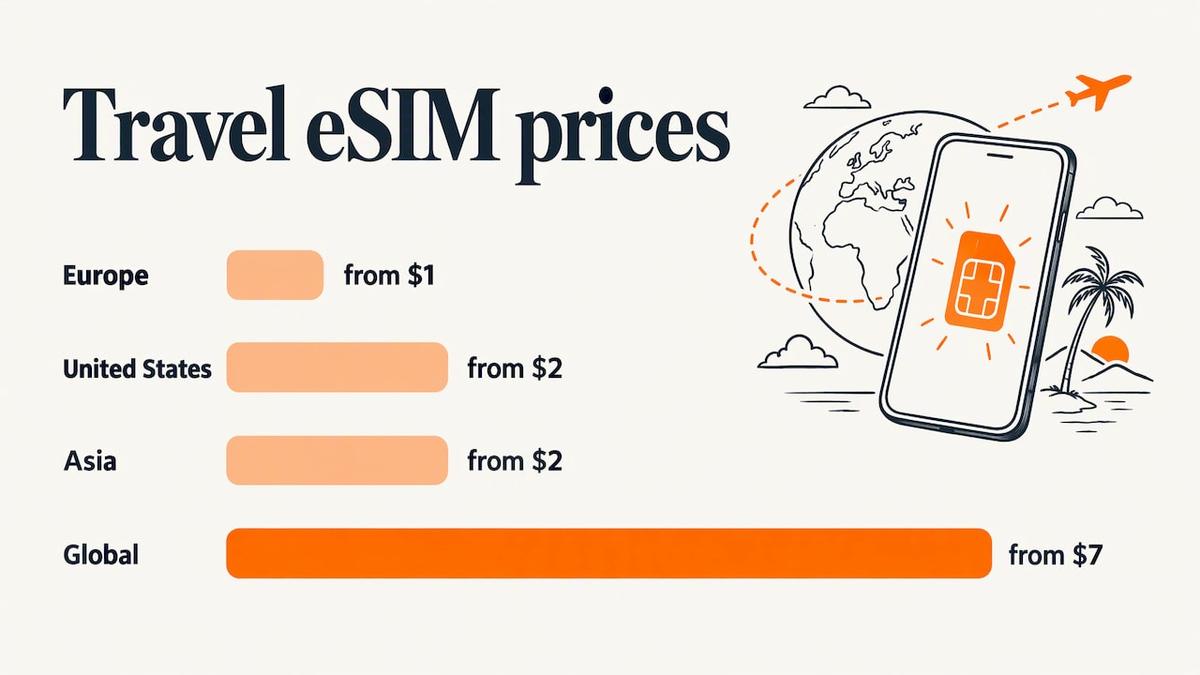
Lumo sells prepaid eSIM data plans for smartphones, tablets and laptops, with coverage in more than 160 countries, no contracts and guest checkout. Published prices are one-off. Here are the entry points:
- Europe eSIM plans: from $1
- United States eSIM plans: from $2 (useful for international colleagues visiting)
- Asia eSIM plans: from $2
- Global eSIM plans: from $7
If you cross several countries on one trip, a regional or global plan avoids swapping profiles at every border. You can browse every option on our destinations page and see which networks we use on the coverage page.
Before you buy for a company-managed phone, ask your IT administrator whether adding a second eSIM is allowed, as Apple recommends for corporate plans. If your company permits it, installing the plan follows the same steps as above. For iPads and tablets used for work, see our iPad eSIM setup guide.
Keeping your work number reachable while you travel
A second data plan does not have to cost you calls. Because both lines on a dual SIM phone can receive calls and texts, your work number keeps ringing while data runs on the travel plan. Two settings do most of the work: keep the work line switched on, and set the travel eSIM as your cellular data line.
Wi-Fi calling helps when signal is weak on the work line. Our checklist of preflight checks for Wi-Fi calling with an eSIM abroad lists what to confirm before you fly, and our dual SIM travel setup guide shows how to keep your number without roaming bills.
The network at your hotel or office matters too, since eSIM profiles download over Wi-Fi and Wi-Fi calling depends on it. For a small business whose staff keep dropping calls at their desks, a business network and Wi-Fi assessment is a practical way to find weak spots in coverage and setup before they affect the way people reach your team.
A short checklist before you leave the desk
- Your work eSIM is active and labeled, and you have made a test call.
- Defaults for calls, messages and data are set on purpose.
- You know who to contact at your carrier or IT team if the line drops.
- Your travel eSIM, if you use one, is installed on Wi-Fi before departure, and is switched on only when you land.
- Your device is updated, so carrier settings are current.
FAQ
Is an eSIM free on a work phone?
Not always. Carriers often issue the eSIM itself without a separate fee, but a new line or device change can carry connection or upgrade charges depending on the carrier and your plan. If your employer holds the account, ask your IT or finance contact how those charges are handled before you start.
Do I turn off my primary SIM when I use a work eSIM?
No. With Dual SIM, both numbers can make and receive calls and messages. The iPhone uses one cellular data network at a time, so choose which line handles data in Settings > Cellular, and consider Allow Cellular Data Switching for calls on the other line.
Can I add a work eSIM to any phone?
Only to an eSIM-compatible phone. On iPhone that means an iPhone XS or later, plus a carrier that supports eSIM. If you want two carriers, the phone must be unlocked, or both plans must come from the same carrier. Corporate plans may also need your administrator’s approval.
What should I do if my work eSIM won’t activate?
Connect to Wi-Fi, check that your plan and eSIM are active with a supporting carrier, restart the phone and look for a carrier settings update. If it still fails, contact your carrier, and tell your IT administrator if the phone is company-managed.
Can I keep my work number and use a travel data plan?
Yes, on a phone that supports two lines. Keep the work line on for calls and texts, and set the travel eSIM as your data line. Confirm with your IT team first if the phone is managed by your company.
Sources
- Set up eSIM on iPhone - Apple Support
- Using Dual SIM with an eSIM - Apple Support
- If you can’t set up an eSIM on your iPhone - Apple Support
- Prepare to use eSIMs with Apple devices - Apple Support deployment guide
- Manage eSIM plans in Microsoft Intune - Microsoft Learn
- Dual SIM phones: how to configure pSIM and eSIM devices - Samsung US
Recommended
Related Topics
Stay Connected Anywhere
Prepaid eSIM data plans for 180+ countries and territories. No physical SIM required.